
26 Archiving & Restoring Users
What does archiving people do?
Archiving puts away people you no longer work with, such as staff who’ve left, without losing their online induction records. They stop getting invites, reminders and other emails from you. You can restore them at any time. Only delete someone when you’re sure you’ll never need their records again.
Rules to know
- Who: every admin role except Supervisors can archive and restore people.
- Deleting: only the Account owner and Administration Users can delete people, and only from the Archived tab. It can’t be undone.
- What deleting removes: the person’s profile, their induction records and certificates with your company, and their documents.
- Can’t be deleted: people who are also one of your admin users. Remove their access first.
- No emails: archived people get no invites, reminders, broadcasts or other emails.
- Data Takeout: archived people are left out of your data export.
- Back on the list: importing a CSV that includes an archived person restores them.
- Auto archive: with Auto Archive Contacts With Expired Inductions switched on, people whose inductions have all expired, and who have no open invites, are archived each night.
- Select all: on Team and above, and in the free trial, you can archive everyone who matches your search at once. Large numbers are archived in the background.
What you’ll need
- An admin login. Supervisors can’t archive people.
- To delete people or switch on auto archive: an Account owner or Administration User login.
Archive one person
- In the left menu, click People.
- Click the person’s name to open their profile.
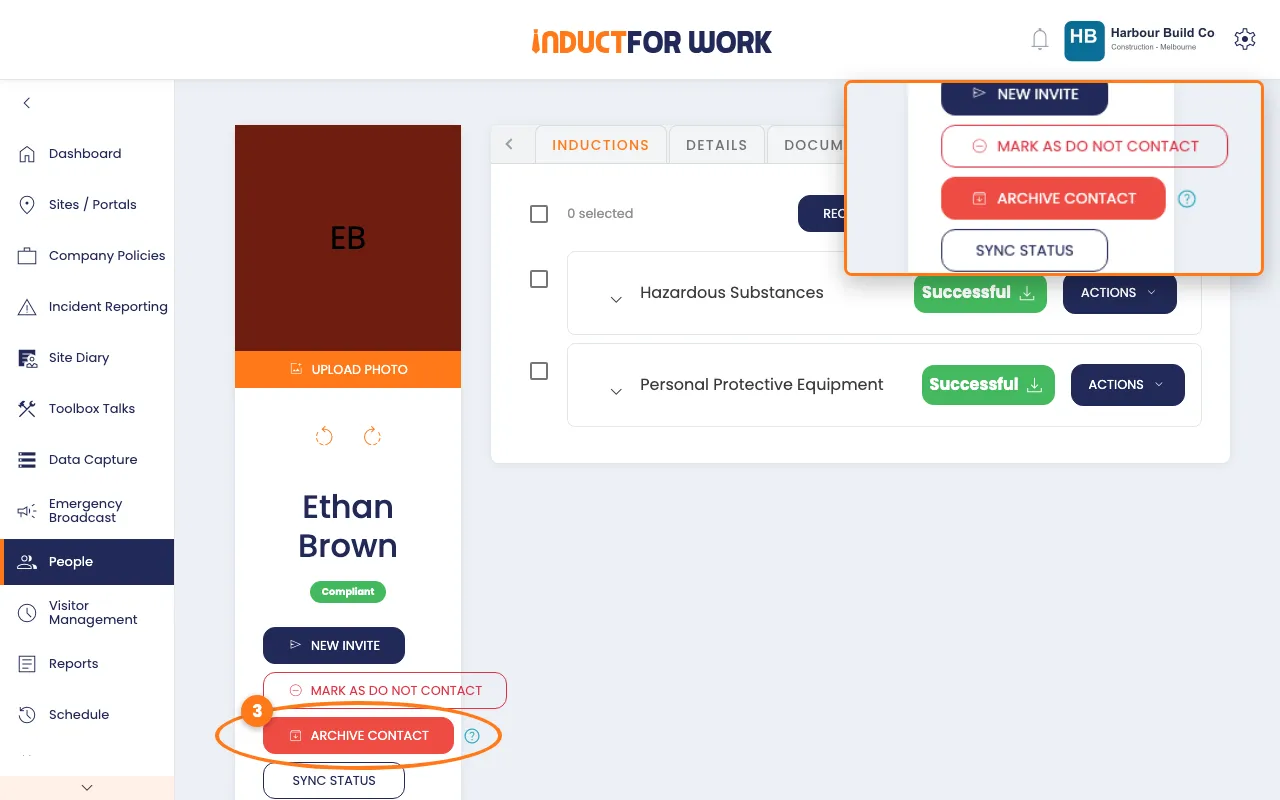
- Click the red Archive Contact button.
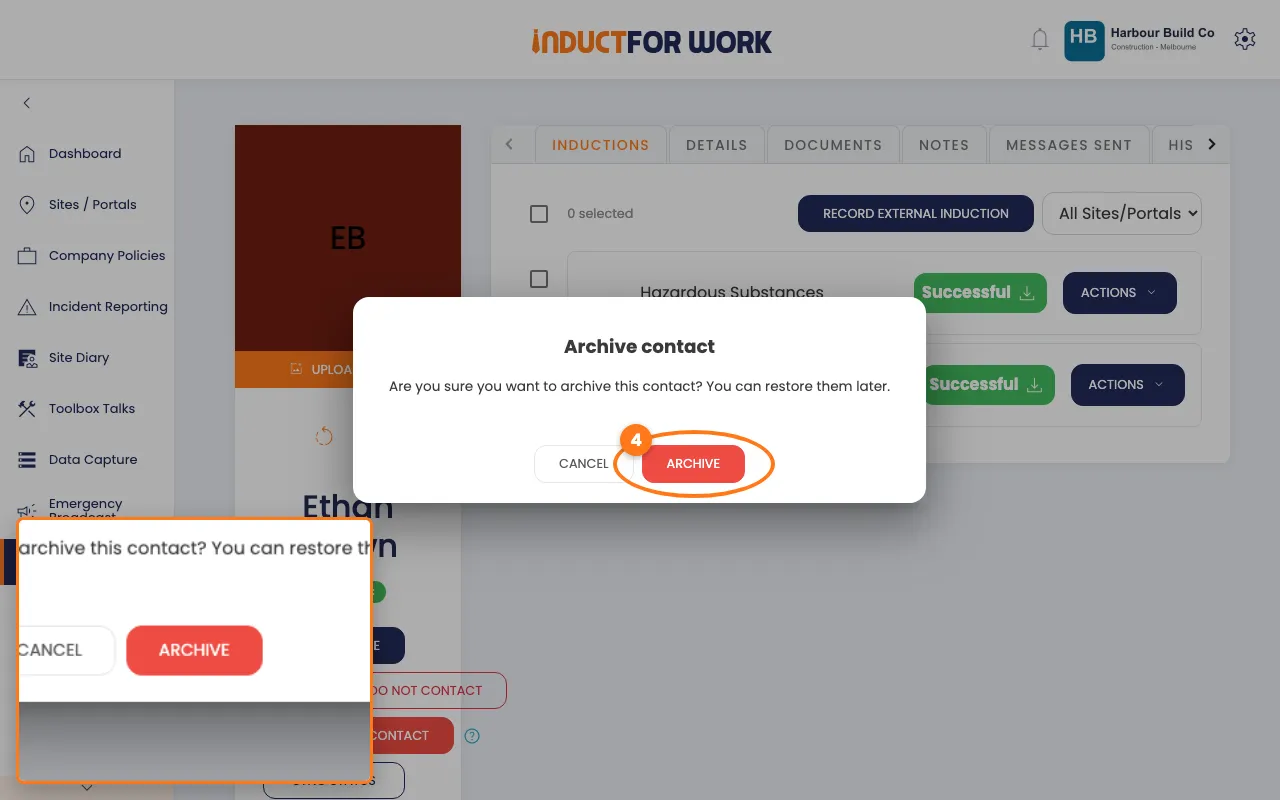
- Click the red Archive button to confirm.
Their profile now shows Contact Archived.
Archive several people
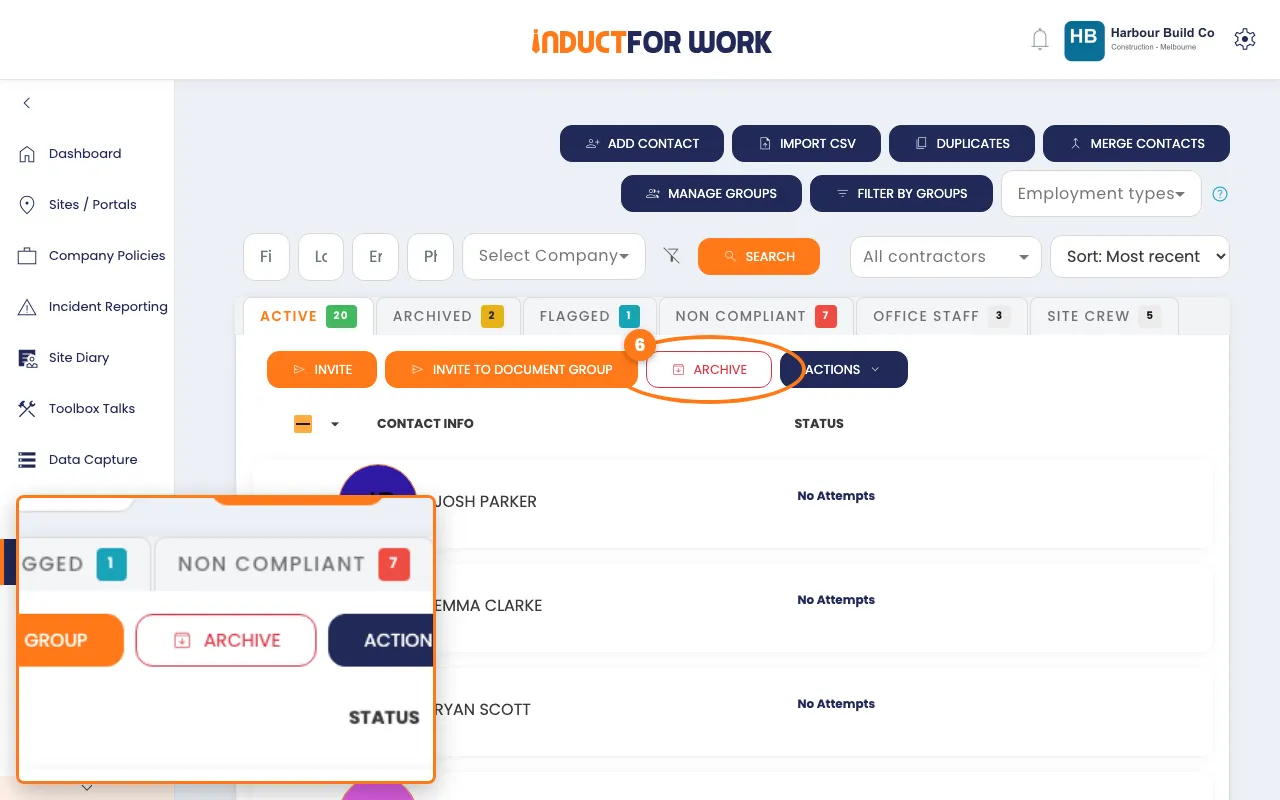
- On the Active tab, tick the box next to each person.
- Click the red Archive button.
- Click the red Archive button to confirm.
They move to the Archived tab. You can also archive from the Flagged and Non Compliant tabs.
Restore people
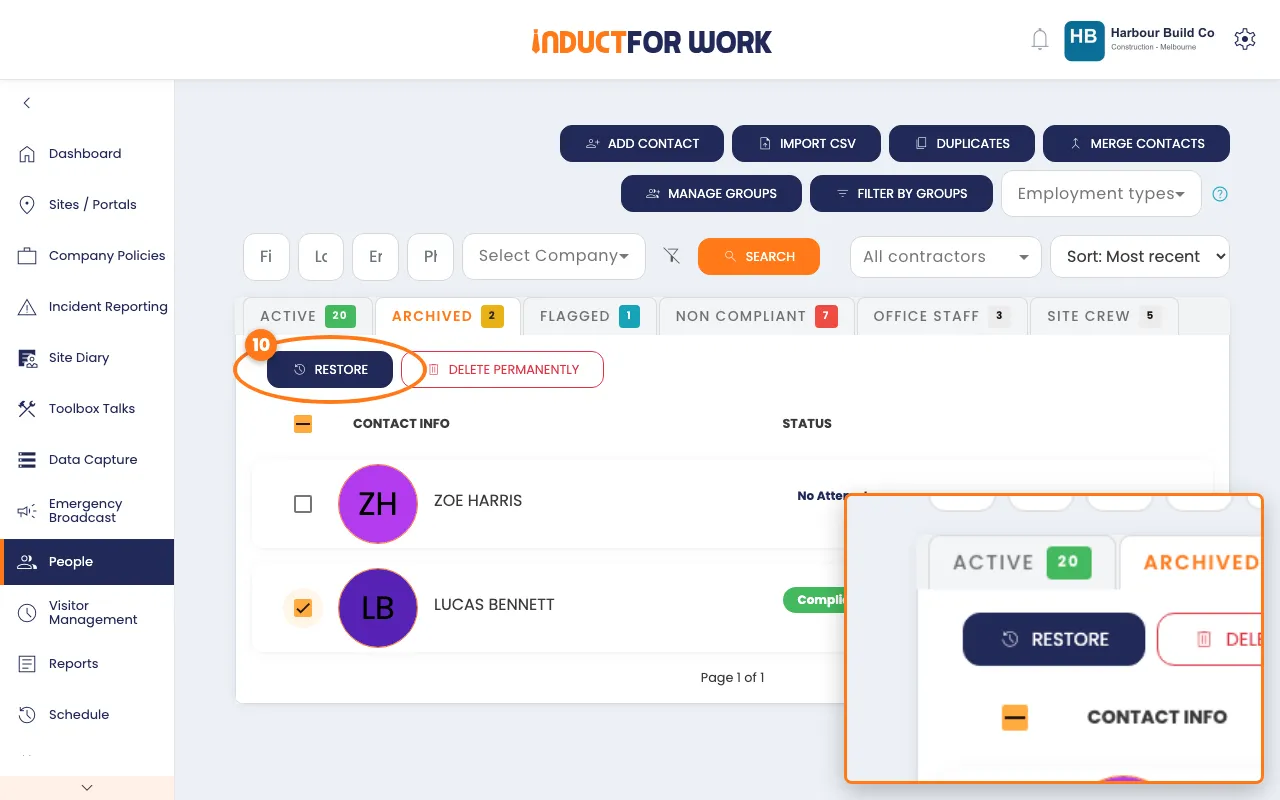
- Click the Archived tab.
- Tick the box next to each person you want back.
- Click the navy Restore button.
They’re back on the Active tab straight away. You can also open someone’s profile and click Restore Contact.
Delete people for good
- On the Archived tab, tick the box next to each person.
- Click the red Delete Permanently button.
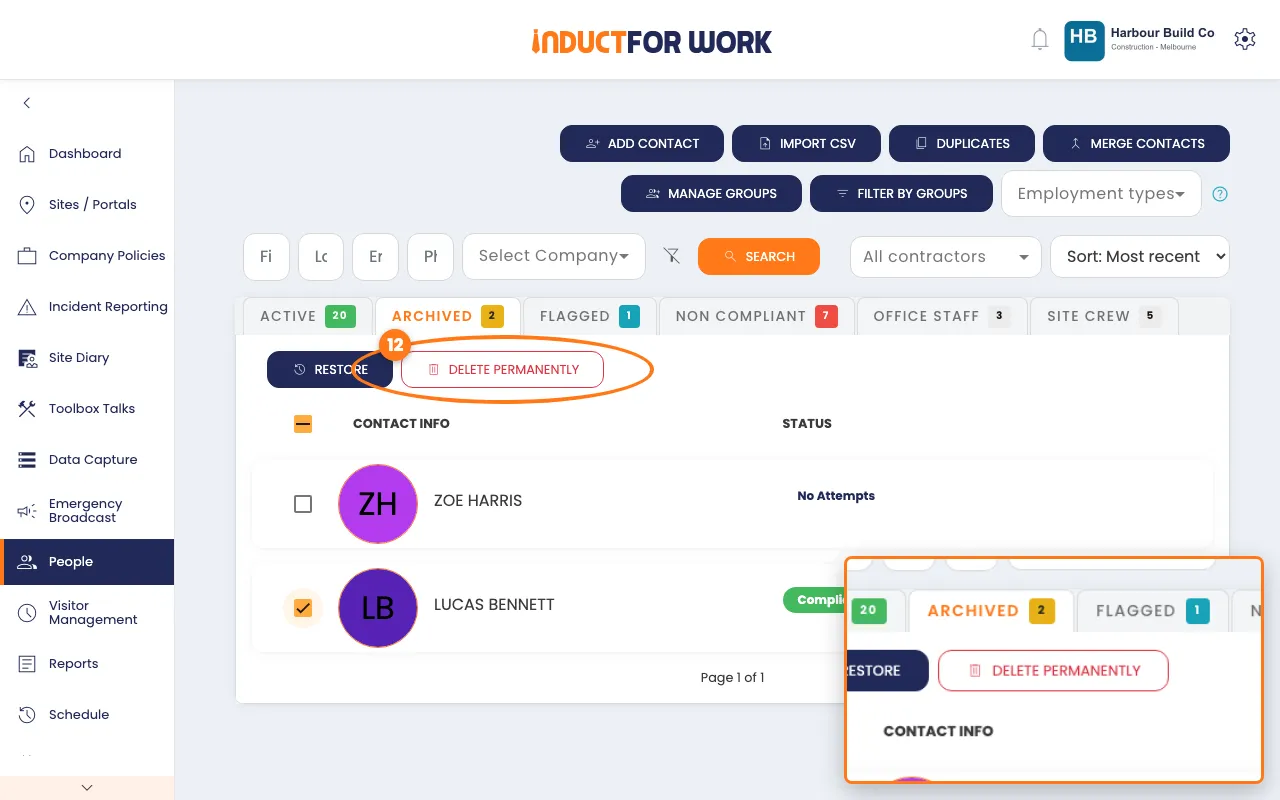
- Click the Delete button to confirm.
Archive people automatically
- Click the gear icon, top right, then click Settings.
- Click the Advanced Settings tab.
- Switch on Auto Archive Contacts With Expired Inductions.
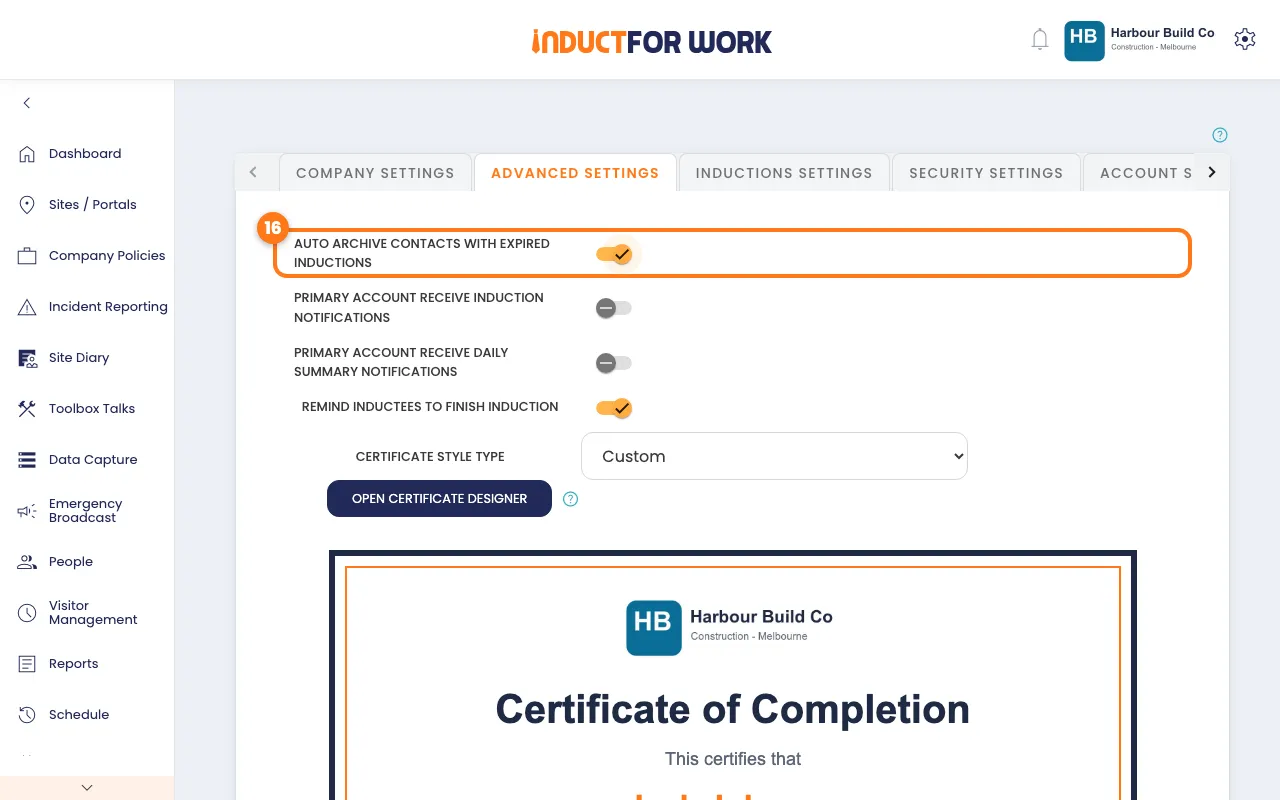
- Click the orange Save button at the bottom.
Done! What happens next
- Archived people stop getting emails from you, and their records stay safe.
- Their profile, inductions and documents stay until you delete them.
- To send them an invite again, restore them first. See Induction Invites.