
29 Do Not Contact
If you come across a user profile that displays a “Do Not Contact” status this means the user has unsubscribed from receiving any emails from the Induct For Work system including:
- Induction invites
- Reminders
- Expiration date notifications
- Auto refresher and admin invites
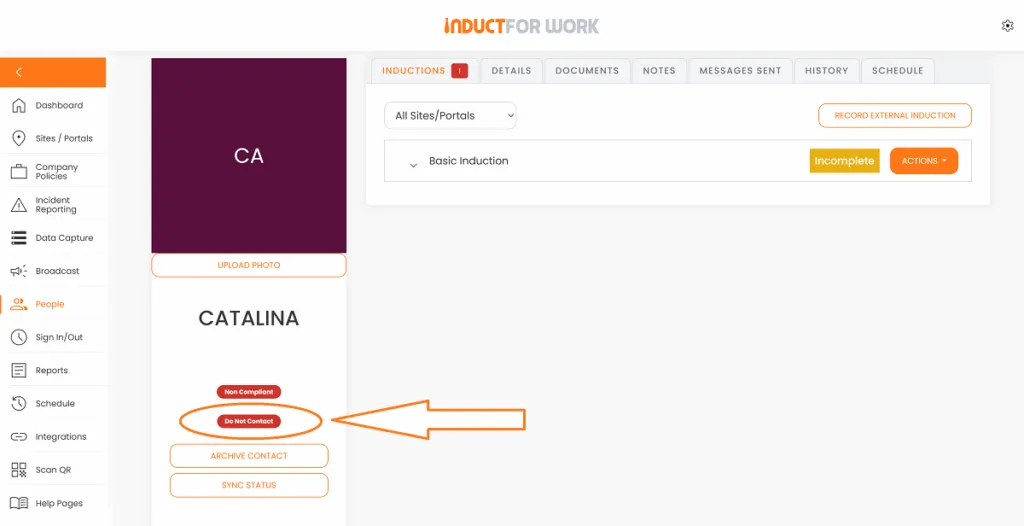
None of the induction invites or messages sent to these users will be received. Here’s how to fix it:
Direct the user to the main Login page and ask them to click Login
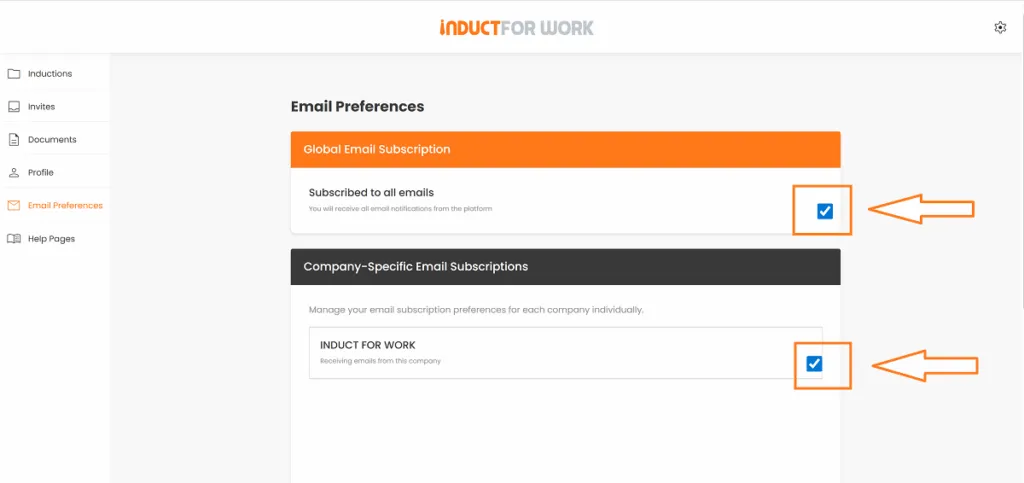
In their personal account ask them to go to Email Preferences
Turn on Global Email and Your Company Subscriptions
Email Template
Here is the text you can use when contacting these users:
Hi ‘Name’,
It looks like your profile is currently set to “Do Not Contact” which means Induct For Work is not able to send you induction invites, reminders, expiration date notifications or auto refresher and admin invites.
To turn emails back on please follow these steps:
Go to the Induct For Work home page
Click Login and sign in to your account
https://www.inductforwork.com.au/log-in/Open your Personal account settings
Navigate to Email Preferences
Turn on Global Email and Our Company Subscriptions
Save your changes
Once this is enabled you will start receiving induction invites and reminders again.
If emails still land in spam after you switch this on tell us which email provider you use and we will send you the steps to whitelist Induct For Work emails.
Thanks
Here is what can be done to avoid the Spam filter depending on what provider they use.
For Gmail
1. Open an email from Induct For Work
Click the three dots menu
Choose Filter messages like these
Click Create filter
Tick Never send it to Spam then Create filter
Optional: add the sender to Contacts.
Outlook desktop
Open an email from Induct For Work
Right click the sender address
Choose Junk then Never Block Sender
Optional: also add the domain to Safe Senders:
File → Options → Mail → Junk Email → Safe Senders → Add.
Outlook on the web
Settings → Mail → Junk email
Add the sender or domain under Safe senders and domains
Save
Apple Mail
Mail → Settings → Junk Mail
Untick “Enable junk mail filtering” or add a rule to move messages from the sender to Inbox
Add the sender to Contacts
If they manage a business mail system
Microsoft 365 Defender
Add Induct For Work sending domains to the Tenant Allow Block List
Add allowed sending IPs if you have them
Create a mail flow rule to bypass spam for the domain
Google Workspace Admin
Apps → Google Workspace → Gmail → Compliance
Add an allow list entry for the sending domain or IP
Optionally bypass spam filtering for that domain
Common best practice
Ask your IT team to allow list the From domain and the Return Path domain
Ensure your spam gateway is not rewriting links in a way that triggers blocks
If you have a gateway such as Mimecast Proofpoint or Barracuda add the sender to the allow list there too
FAQ
A “Do Not Contact” status means the user has unsubscribed from receiving emails from the Induct For Work system. This includes induction invites reminders expiration date notifications and auto refresher and admin invites.
No. Any induction invites or system messages sent to a user with “Do Not Contact” will not be received until they re enable email subscriptions in their account.
Direct the user to the main Login page. After they log in to their personal account they must go to Email Preferences then activate Global Email and Your Company Subscriptions. Once enabled the system will resume sending normal invites and reminders.
They should whitelist Induct For Work emails in their email provider.
Gmail: open an email from Induct For Work then select the three dots menu then choose Filter messages like these then Create filter then tick Never send it to Spam then Create filter. Adding the sender to Contacts also helps.
Outlook desktop: open an email then right click the sender then Junk then Never Block Sender. Optionally add the sender or domain to Safe Senders.
Outlook on the web: Settings then Mail then Junk email then add the sender or domain under Safe senders and domains then Save.
Apple Mail: Mail then Settings then Junk Mail then disable junk filtering or add a rule to move Induct For Work messages to Inbox. Adding the sender to Contacts also helps.
Their IT team should allow list the sender so messages do not get filtered.
Microsoft 365 Defender: add Induct For Work sending domains to the Tenant Allow Block List. Add allowed sending IPs if available. Create a mail flow rule to bypass spam for the domain.
Google Workspace Admin: Apps then Google Workspace then Gmail then Compliance then add an allow list entry for the sending domain or IP. Optionally bypass spam filtering for that domain.
Best practice for any gateway: allow list the From domain and the Return Path domain. Ensure link rewriting is not triggering filters. If a gateway such as Mimecast Proofpoint or Barracuda is used add the sender to the allow list there too.
That brings us to the end of Do Not Contact users.

Can’t find the answers you are looking for? – Contact us