
10 People Inductees
What is People?
People is your list of inductees: everyone who does your online inductions, such as staff, contractors and visitors. Each person has a profile with their inductions, documents, notes and the messages you’ve sent them. You can add people one at a time, import a spreadsheet, sort them into groups and tidy up double entries.
Rules to know
- Who: every admin role except Supervisors can add, import, merge and invite people. Supervisors can only look.
- Site roles: Site Administrators, Site Managers and Supervisors only see people linked to their sites, plus flagged people.
- Each person needs: a first name, a last name, an Employment Type, and an email or a mobile number.
- No double entries: you can’t add someone whose email or mobile is already in People. The app links you to that person instead.
- Added for you: people who register on your induction portal, or sign in at your kiosk for the first time, are added automatically.
- Import CSV: on Team, Team Plus, Team Pro, Enterprise and the free trial. Not on Lite.
- What gets imported: each row needs a first name, a last name, and an email or phone number. People already in your list (same email or phone) are updated, not added twice. Empty cells don’t wipe their details, and archived people are restored.
- Contact groups: on Team Plus, Team Pro, Enterprise and the free trial. Only the Account owner and Administration Users can create groups.
- Duplicates: the Duplicates page lists people with the same first and last name.
- Automatic tidy-up: each night, people with exactly the same email or mobile are merged into one.
- Merging can’t be undone: the first person’s inductions, documents and sign-in history move to the second, then the first is removed. You can’t merge away one of your admin users.
What you’ll need
- An admin login. Supervisors can’t make changes.
- To import: a spreadsheet saved as a .csv file, with columns such as First Name, Last Name, Email, Mobile and Company.
Find your way around People
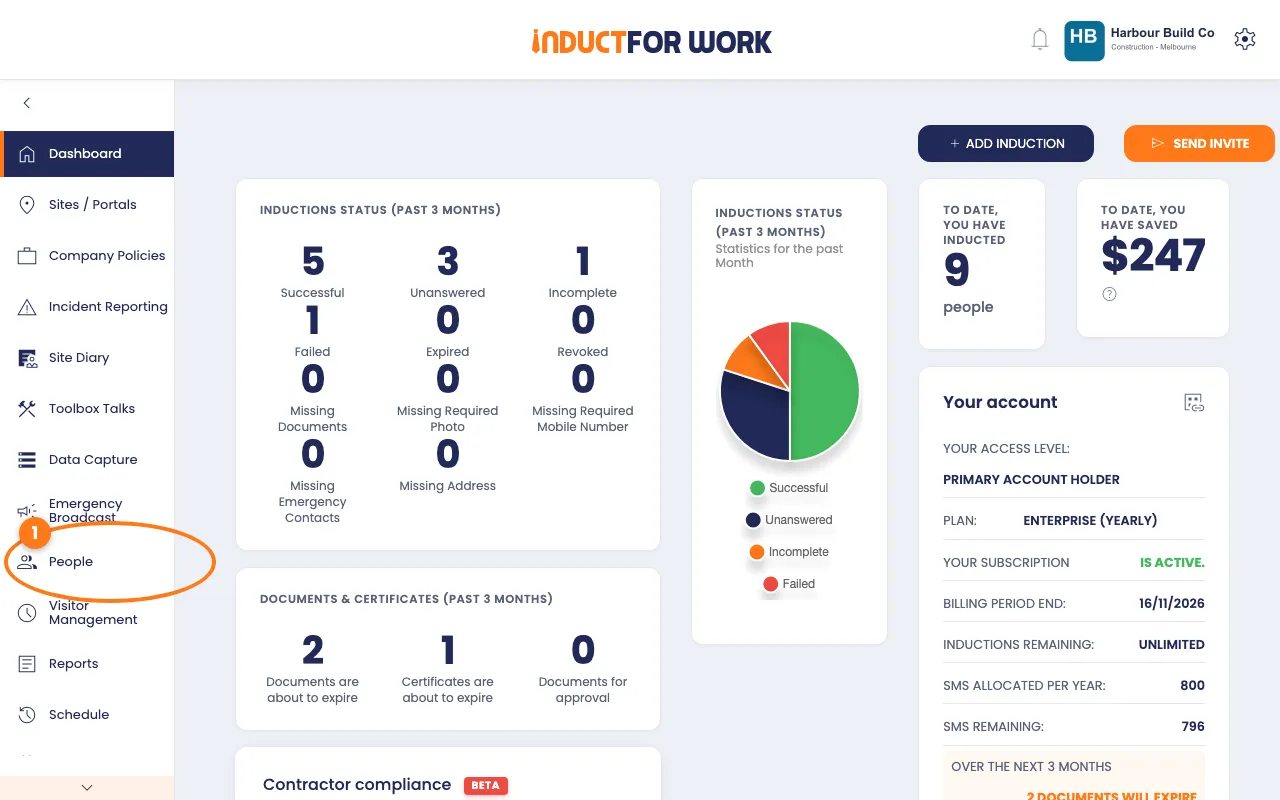
- In the left menu, click People.
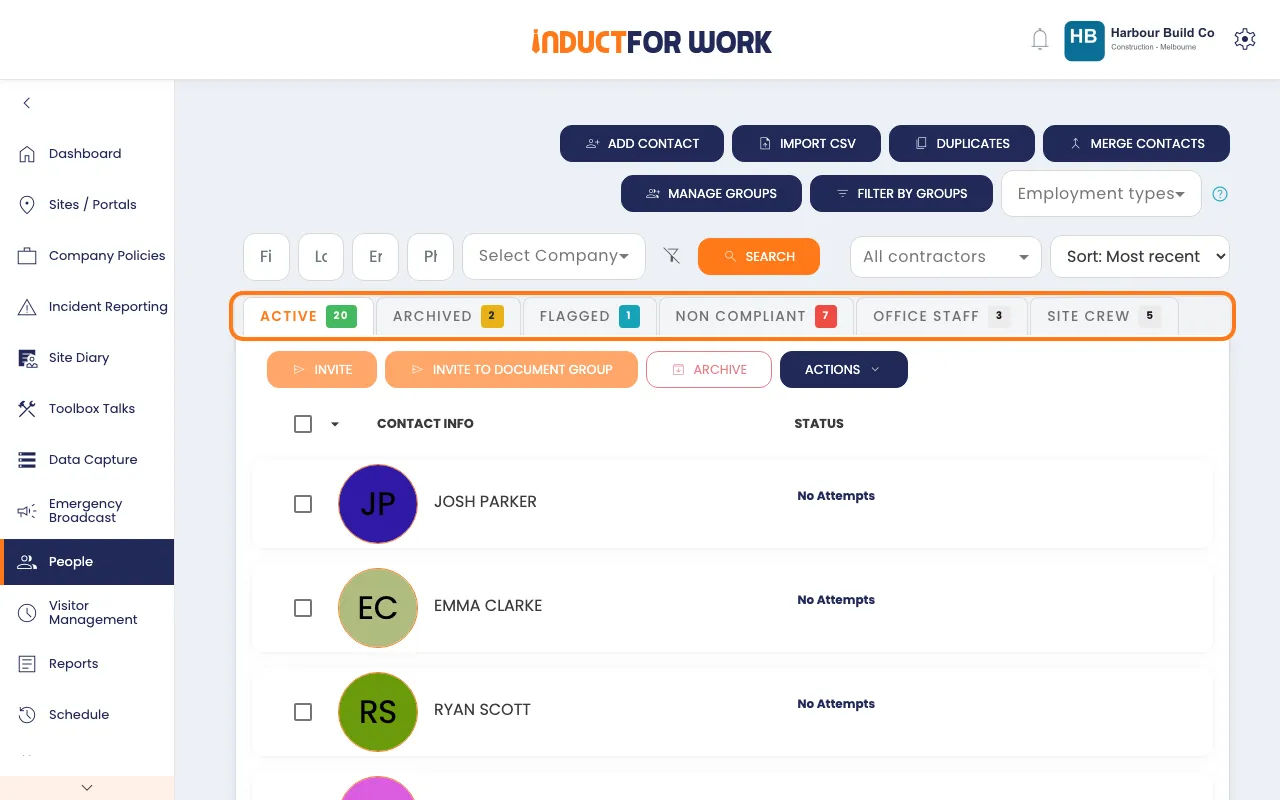
The tabs at the top sort your list:
- Active: everyone you’re working with now.
- Archived: people you’ve put away. See Archiving and Restoring People.
- Flagged: people whose latest note has a flag. Add one on the person’s Notes tab with Add Note.
- Non Compliant: people with an induction they haven’t passed yet, or a document that has expired or still needs approval.
- Your groups: each contact group gets its own tab.
Use the search box, the Employment types list or the contractor list to narrow the list down.
Add one person
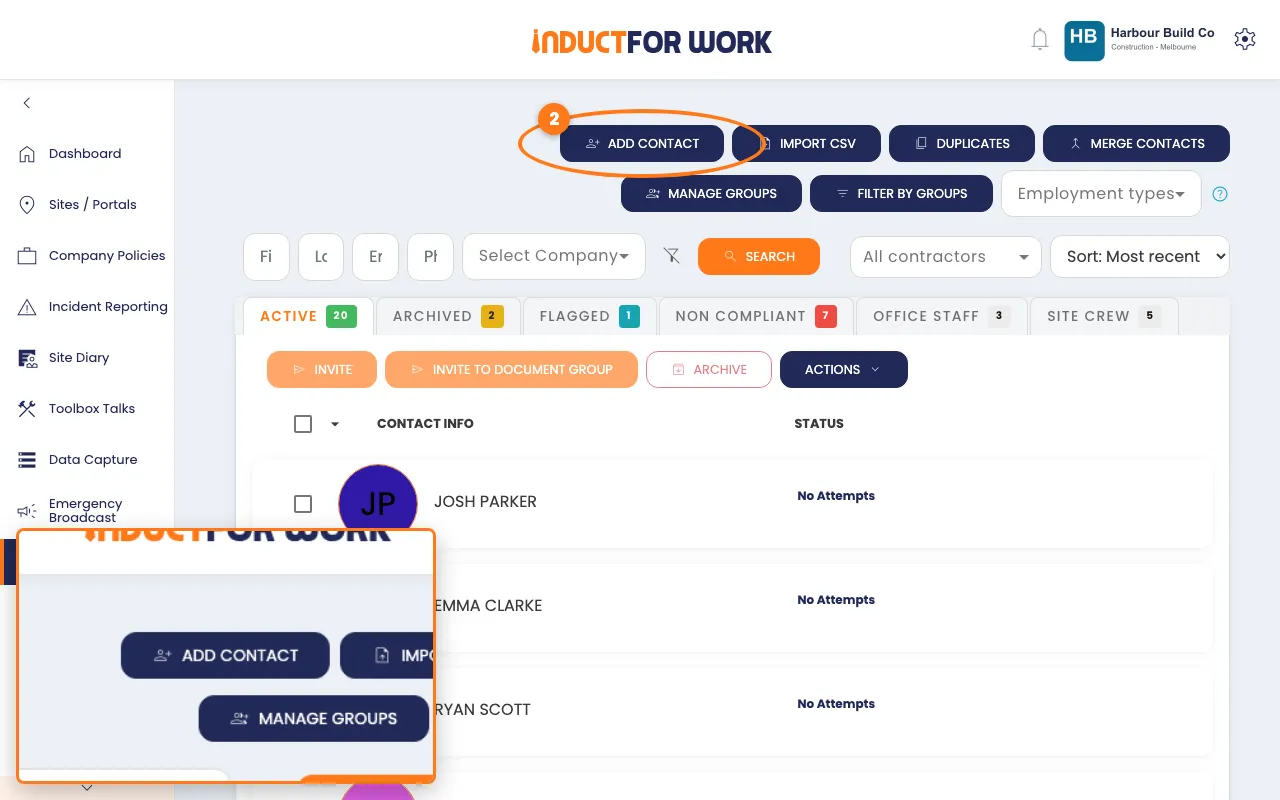
- Click the navy Add Contact button, top right.
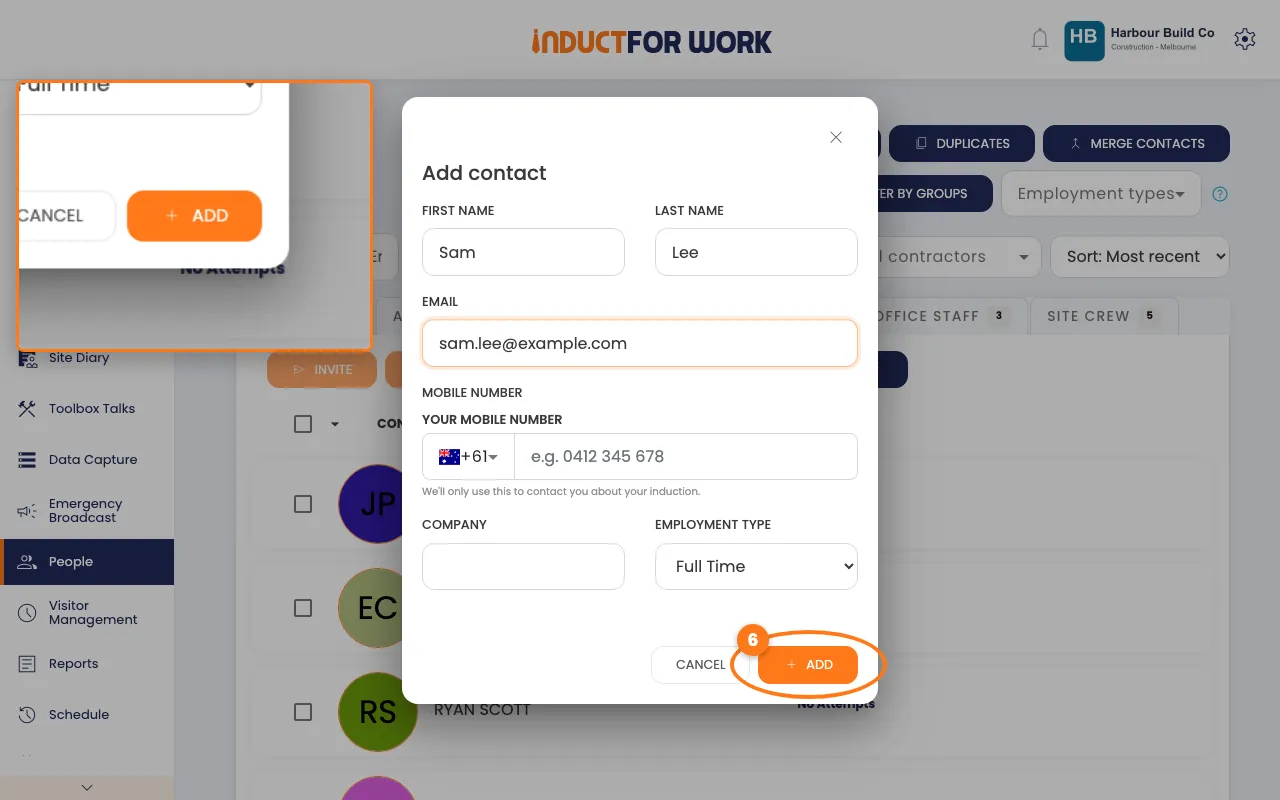
- Type their First Name and Last Name.
- Type their Email, their Mobile Number, or both.
- Pick their Employment Type.
- Click the orange Add button.
Their profile opens. Adding someone doesn’t send them anything: send an invite when you’re ready. A yellow box means that email or mobile is already in People. Click the name in it to open that person.
Import a spreadsheet
- Save your spreadsheet as a .csv file.
- Click the navy Import CSV button, top right.
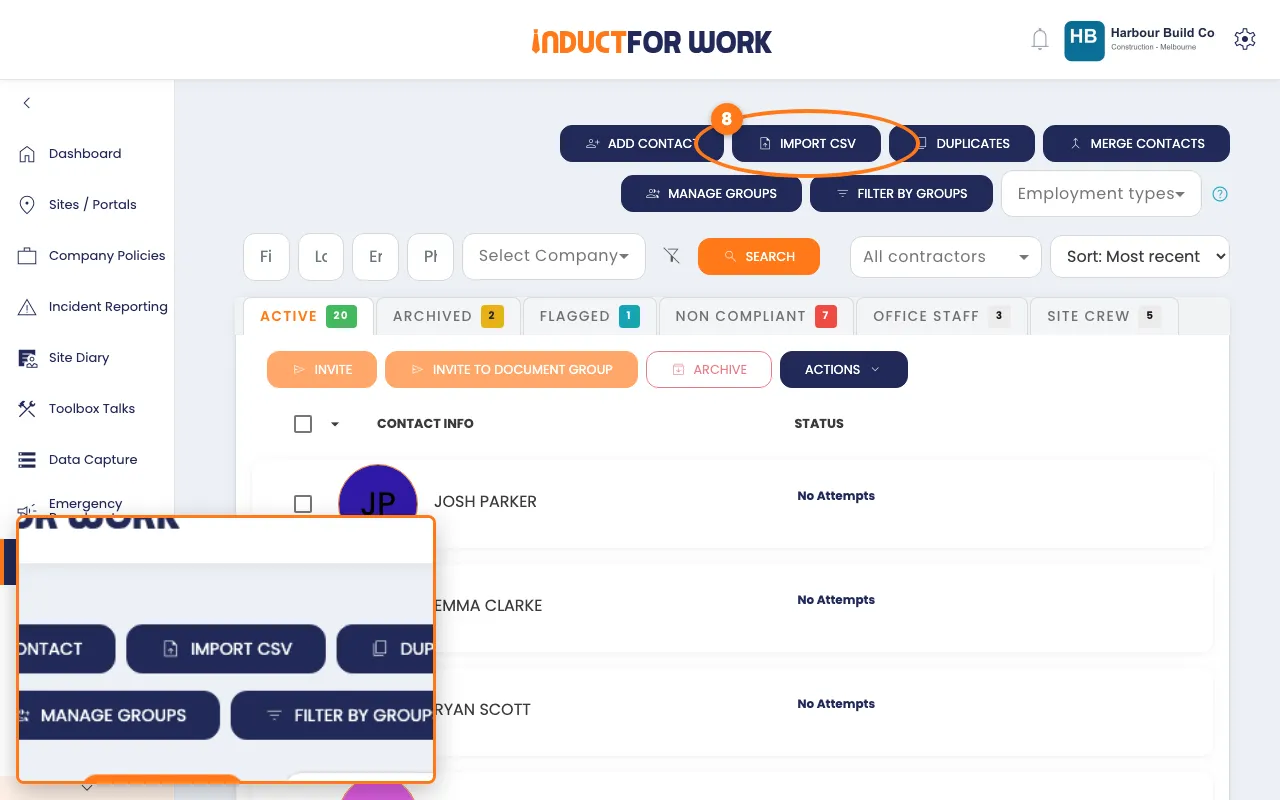
- Under Step 1: Upload File, click the orange upload button and pick your file.
- Under Step 2: Mapping, pick the matching column for each field, such as First Name.
- Optional: pick an Employee Type for everyone in the file.
- Click the orange Import button.
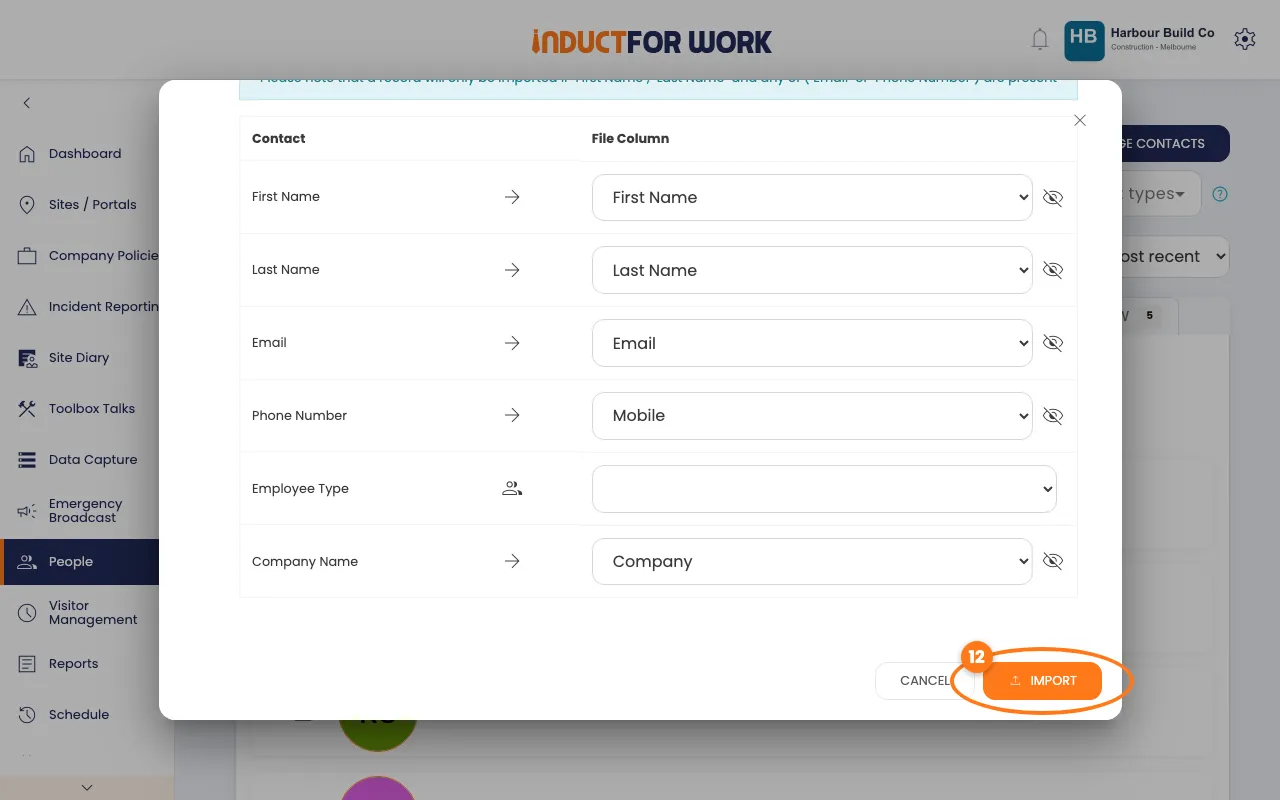
When it’s done, your new people show on the Active tab.
Sort people into groups
Groups help you find and invite the same people again, such as a site crew. You need Team Plus or above.
- Click the navy Manage Groups button, top right.
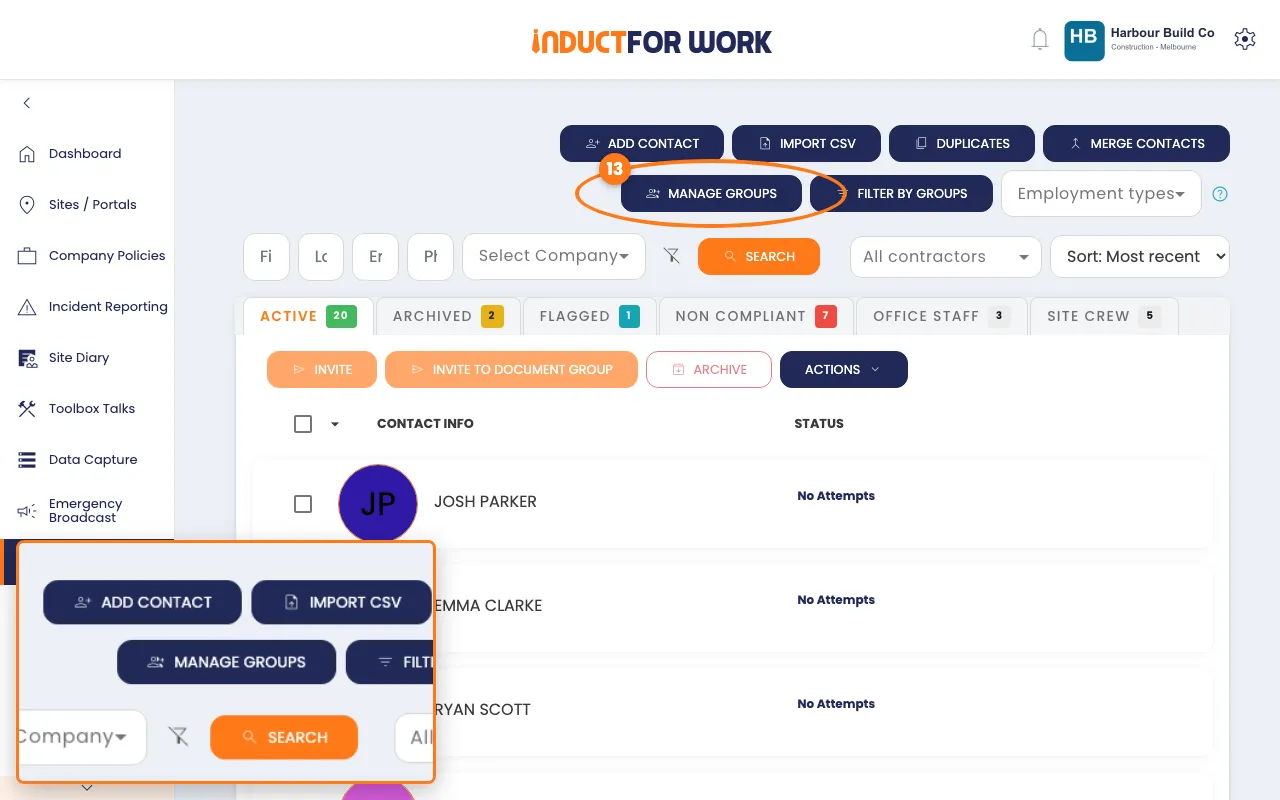
- Under New group, type a Name, then click the orange Create button.
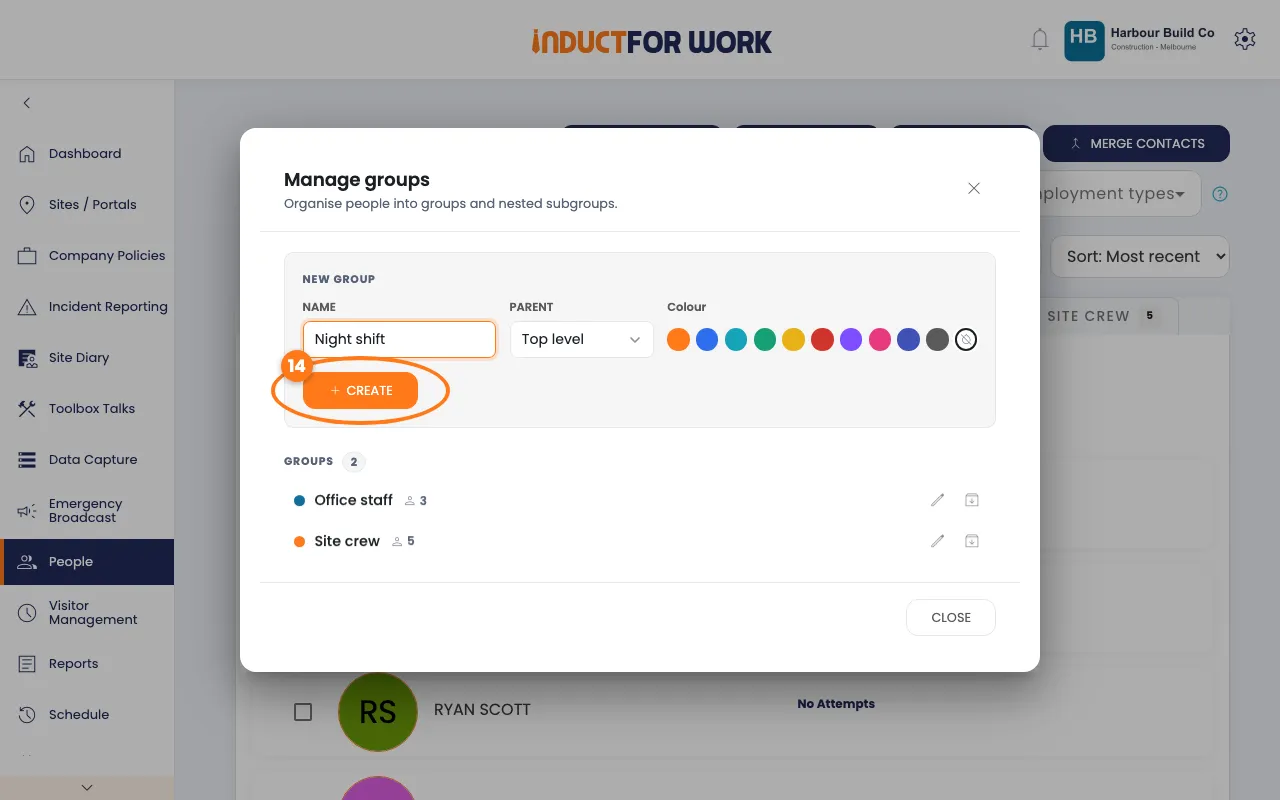
- Click Close.
- On the Active tab, tick the box next to each person for the group.
- Click the navy Actions button, then click Add to Groups.
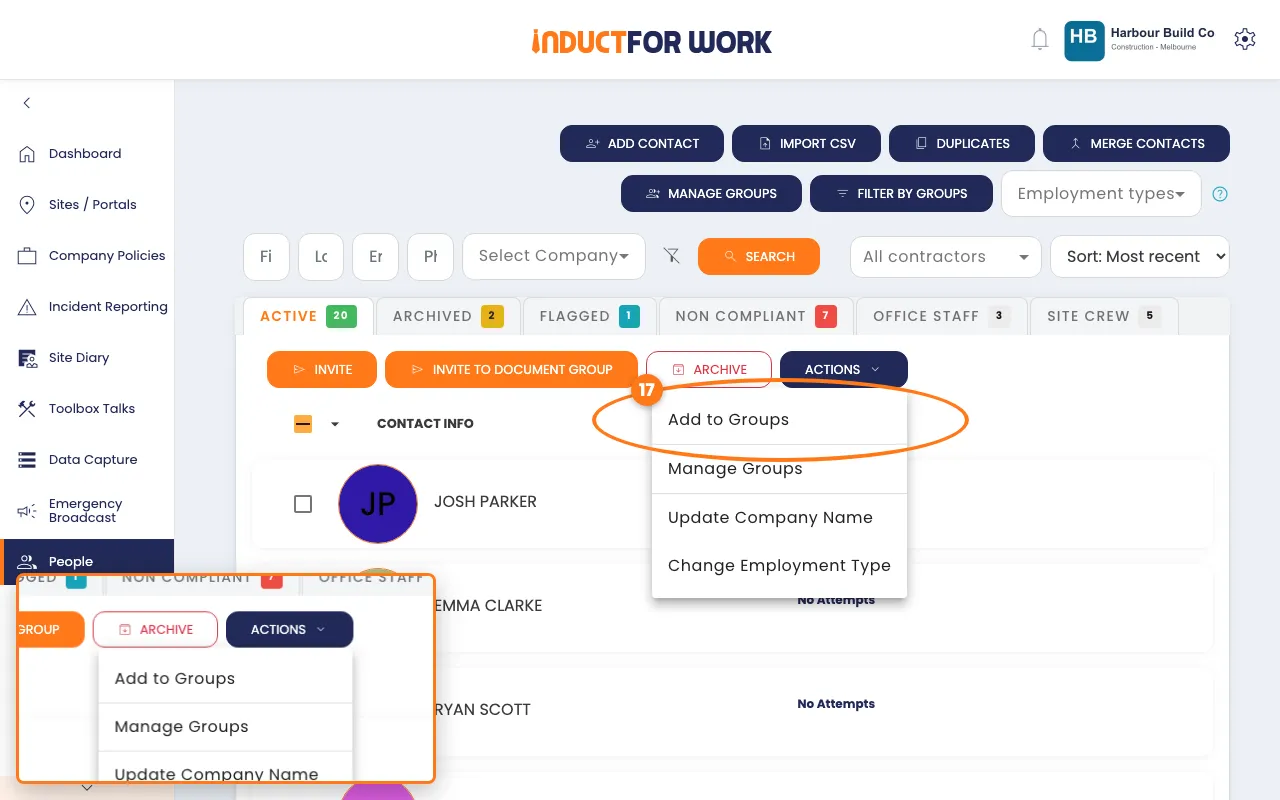
- Under Select Groups, pick the group, then click the orange Assign button.
The group now has its own tab. To see people from several groups, click Filter by Groups.
Merge double entries
- Click the navy Duplicates button, top right.
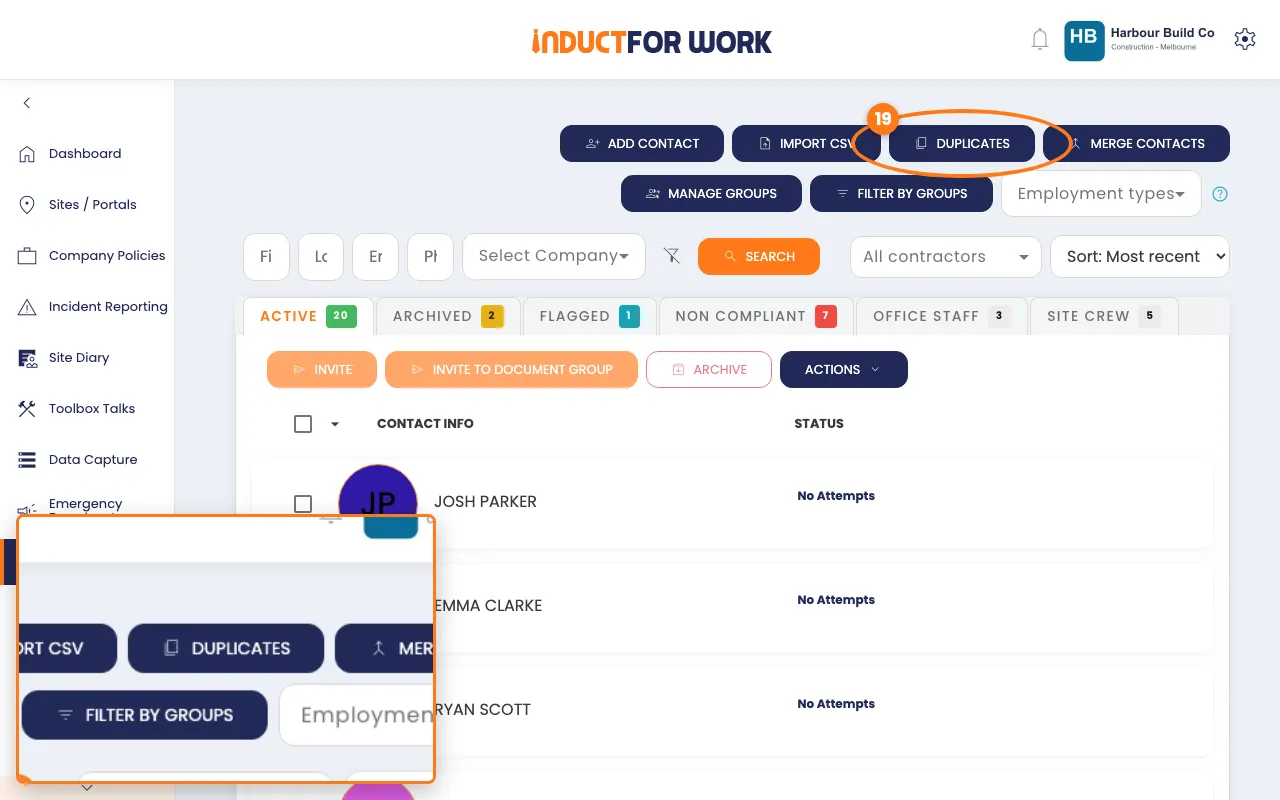
- Tick the two entries for the same person.
- Check who is under Merge from and who is under Merge into.
- Click the orange Merge Contacts button.
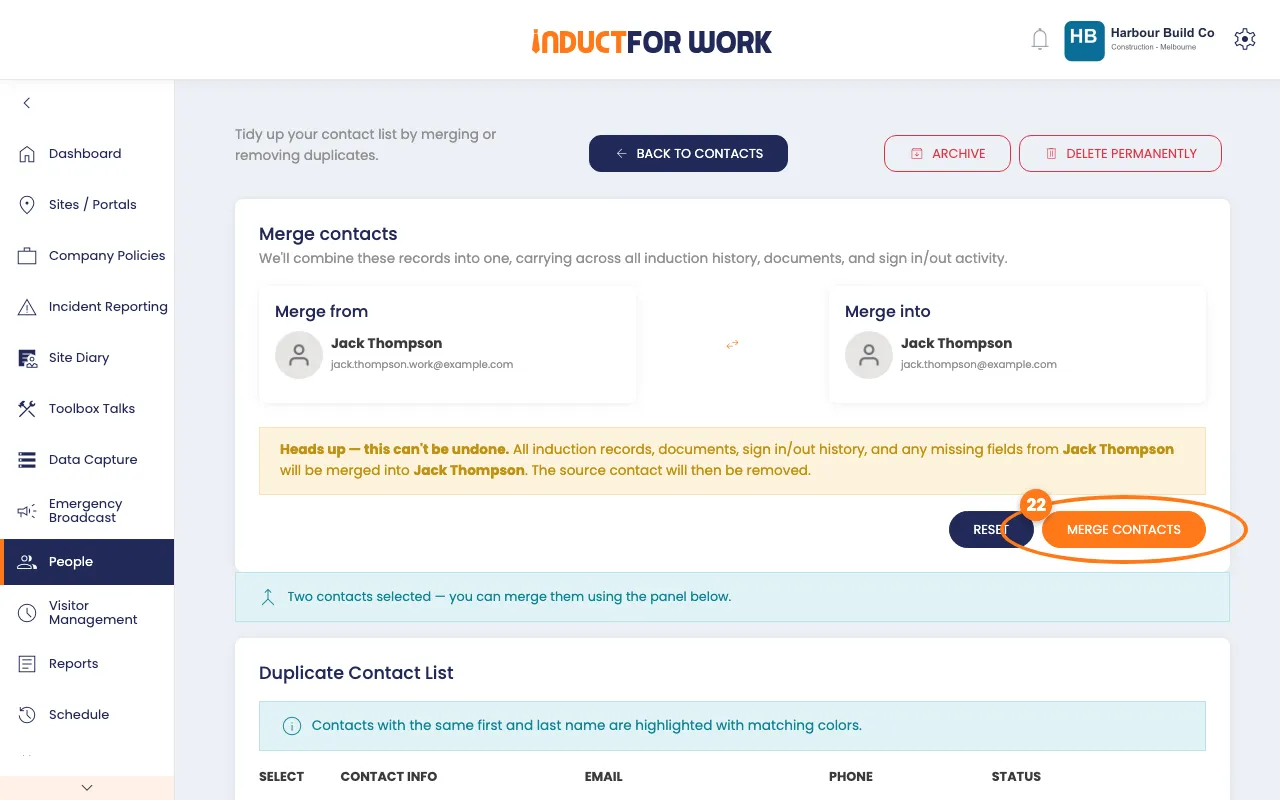
The person under Merge into is kept. To swap them, click the arrows between the two boxes.
Different names for the same person? Click Merge Contacts on the People page instead, then search for both.
A person's profile
- Click a person’s name to open their profile.
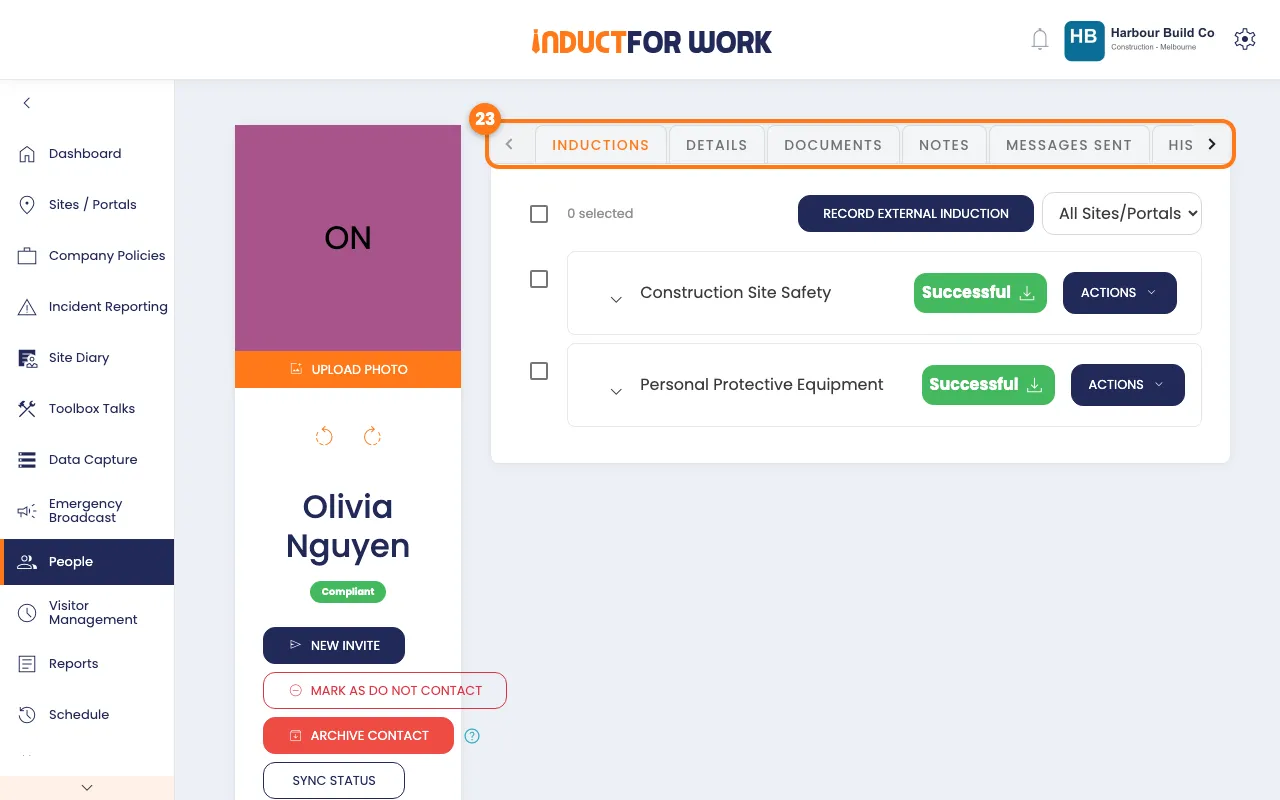
The tabs show their Inductions, Details, Documents, Notes, Messages Sent, History and Schedule. On the left you’ll find New Invite and Archive Contact.
Done! What happens next
- New people show on the Active tab straight away.
- Next, send them an invite. See Induction Invites.
- People who leave can be archived. Their records stay safe and you can restore them later.