
5 Submitting a SWMS
What is a SWMS for contractors?
The company you work for may ask you to send in a Safe Work Method Statement (SWMS) before you start work on their site. You fill it in online and send it for review. When it is approved, you collect your crew’s signatures.
Rules to know
- Approved first: the SWMS page opens once the company has approved you as a contractor.
- Your responsibility: templates are a starting point only. You are responsible for what the document says about your work.
- Sample rows: you can’t send it in until you’ve replaced or deleted the sample rows and filled the required fields.
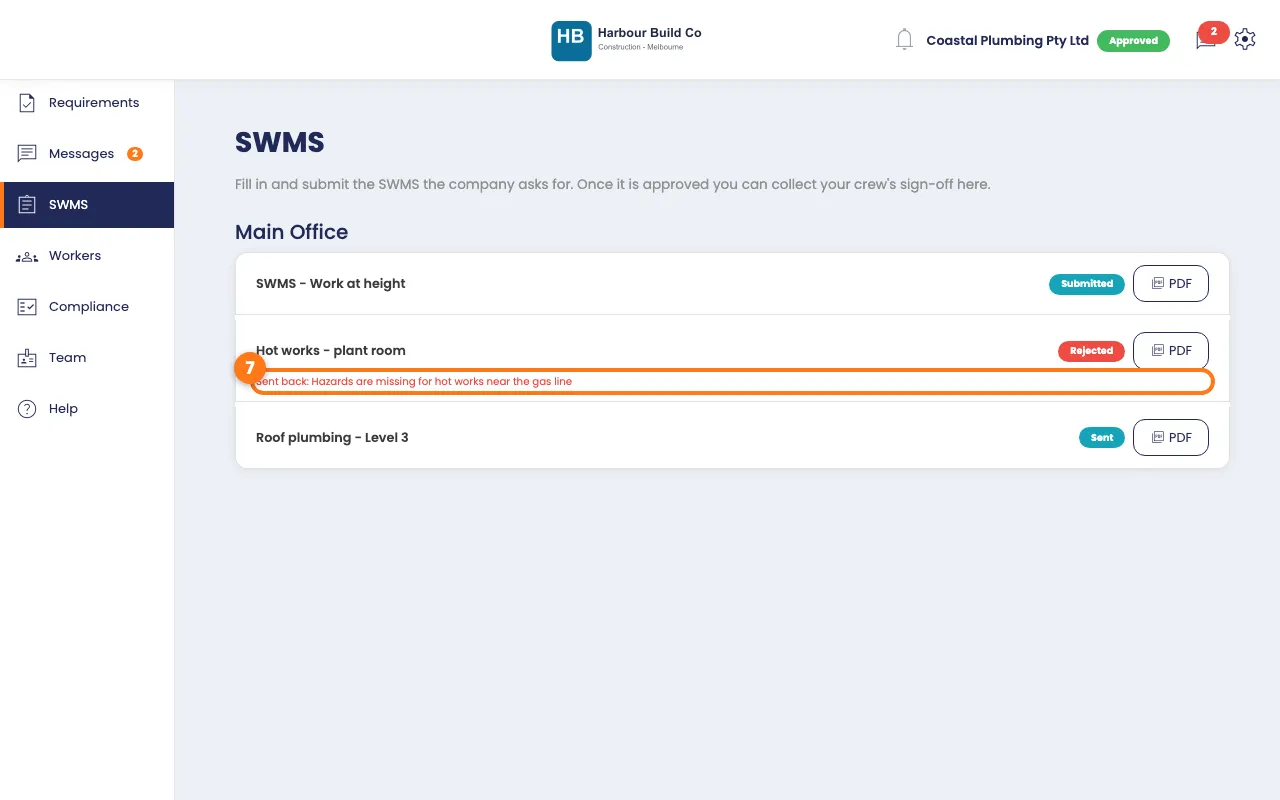
- Sent back: if the company sends it back, you see their reason, fix the same form and send it again.
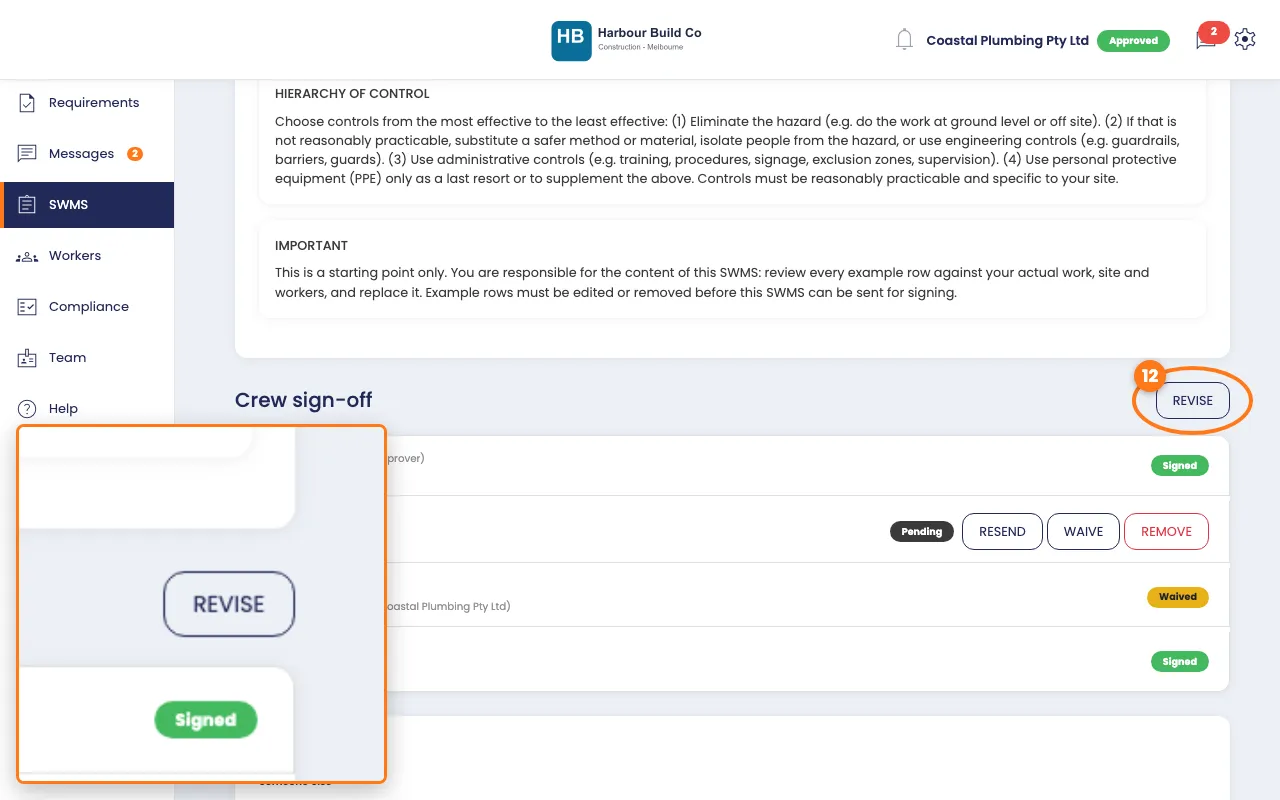
- Approved means locked: to change it later, make a new version. The old one still counts until the new one is approved.
- Crew: you add your crew, resend links and remove people who haven’t signed. Everyone needs an email or mobile number. Mobile-only people use the company’s text credits.
- Resend: once every 5 minutes for each person.
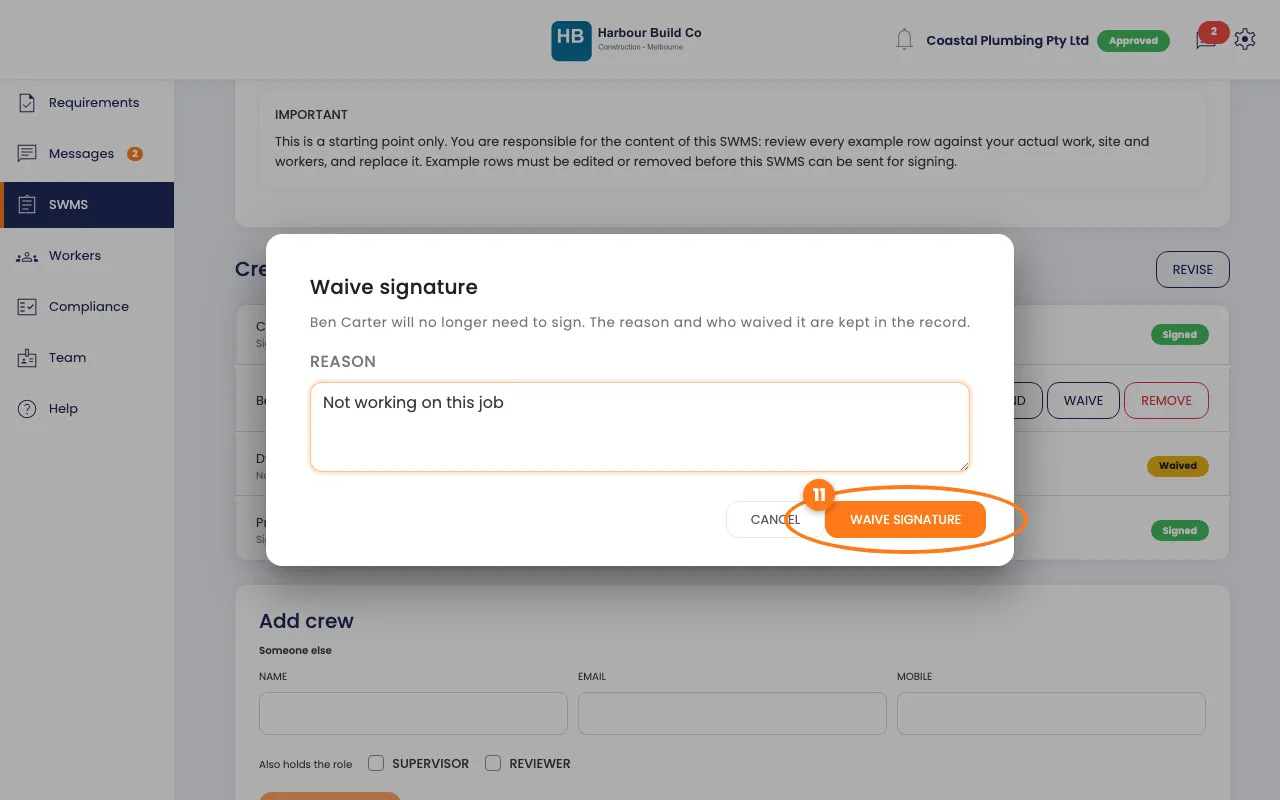
- Waive: you can waive someone with a reason. The company is told.
- Invites per day: up to 100 crew invites a day.
- On site: your workers can’t sign in until they have signed. They can sign on the spot at the kiosk.
What you’ll need
- Your contractor login.
- The names and email addresses or mobile numbers of your crew.
Fill it in and send it
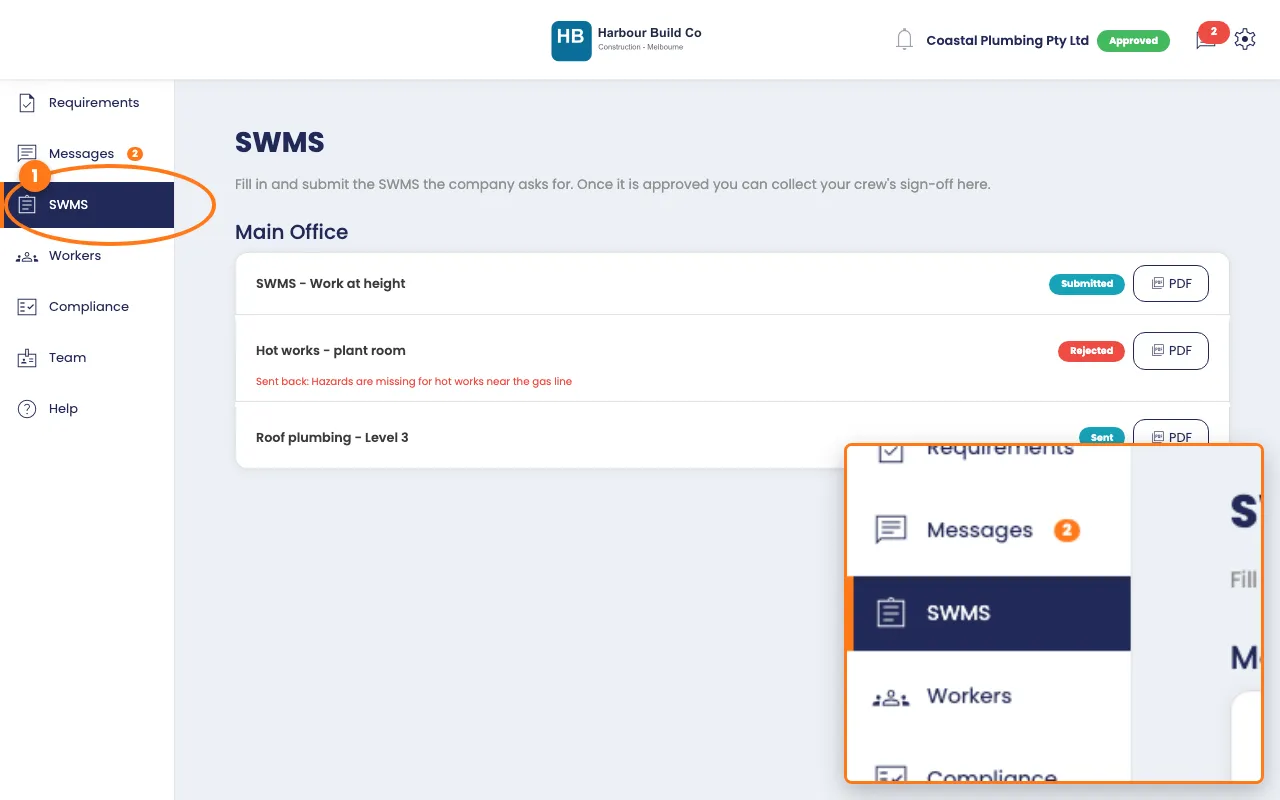
- In the left menu, click SWMS.
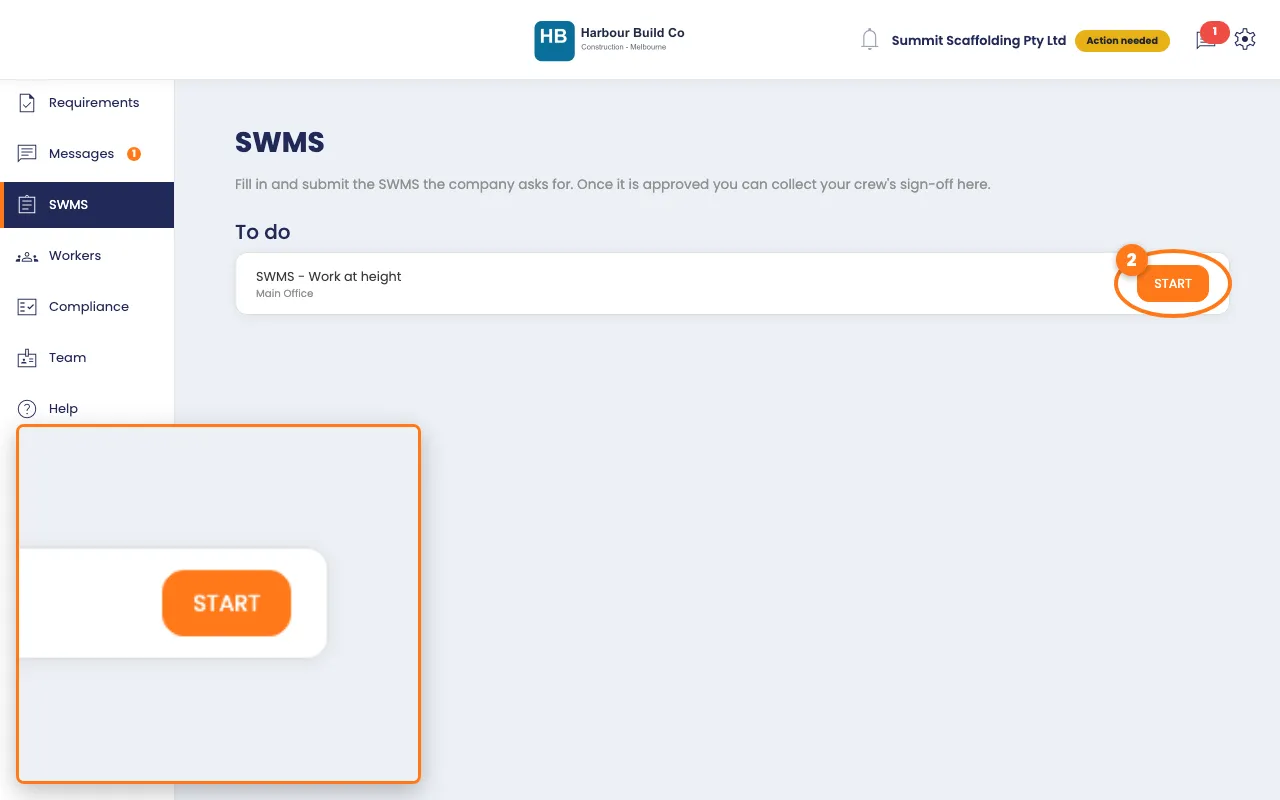
- Under To do, click Start.
- Fill in the fields marked for you.
- Replace or delete every sample row.
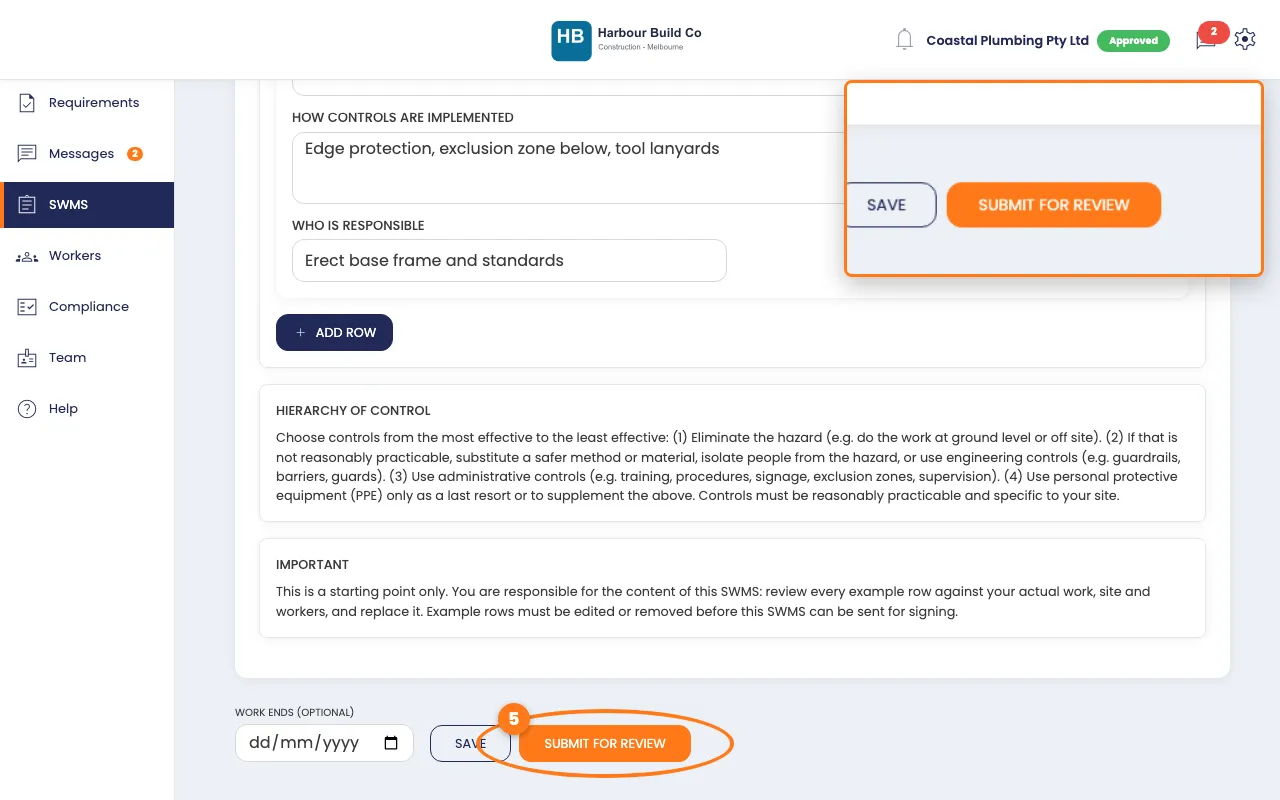
- Click Submit for review.
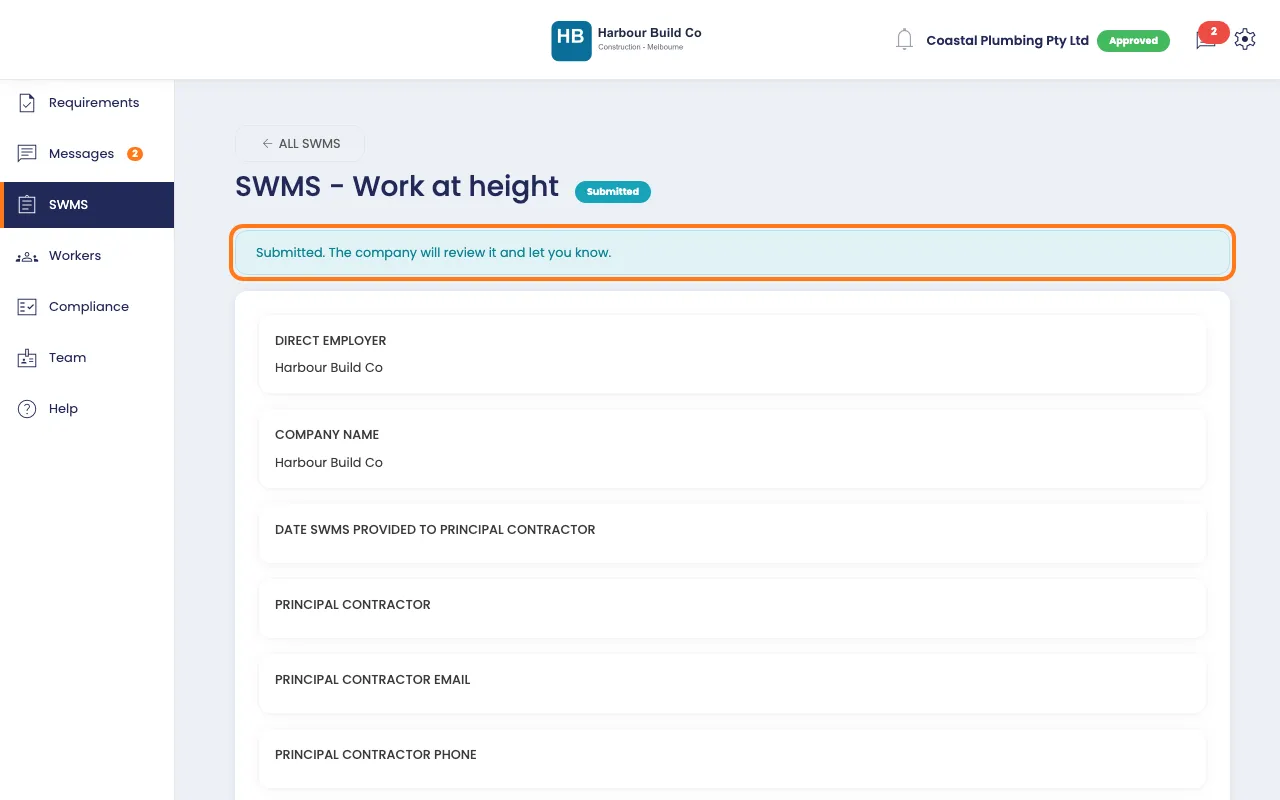
You see Submitted while the company reviews it.
If it is sent back
- Open the one marked Rejected and read the reason.
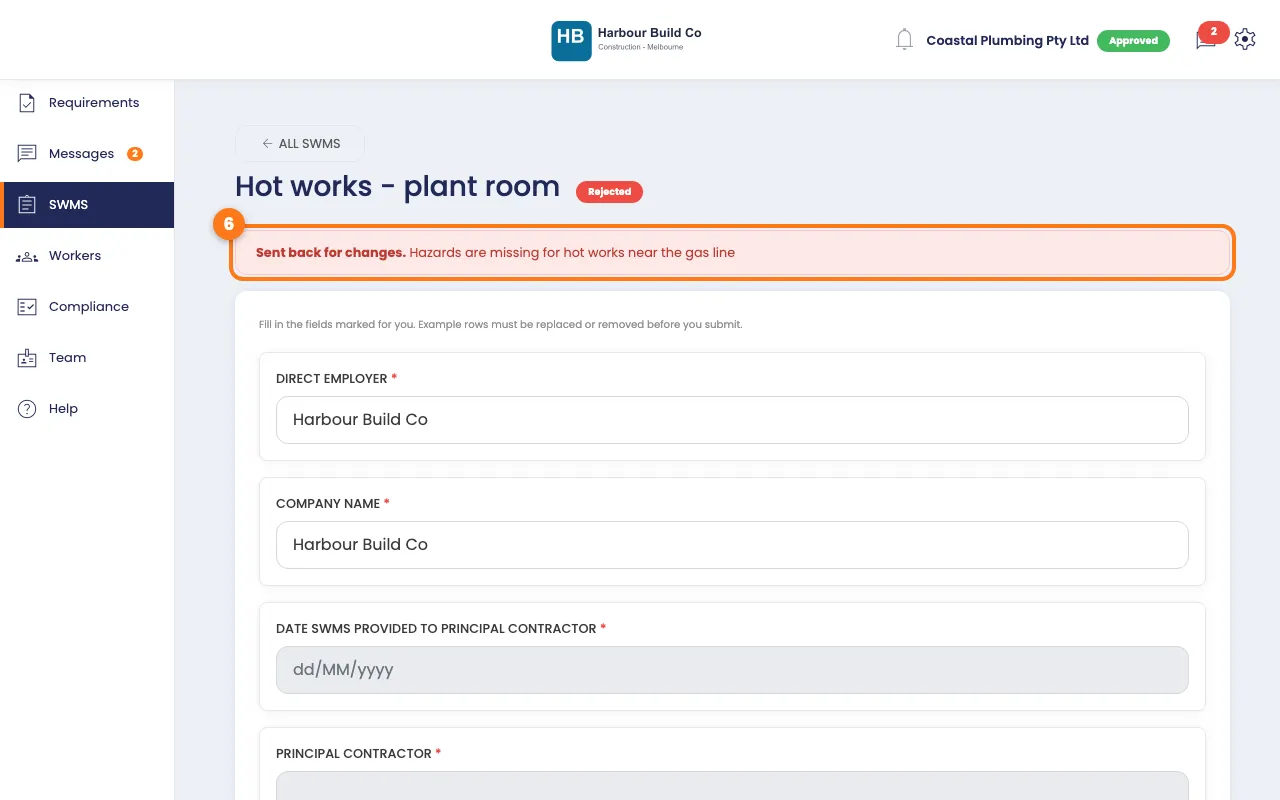
- Fix the form, then click Submit for review again.
Collect your crew's signatures
- Open the approved document and find Crew sign-off.
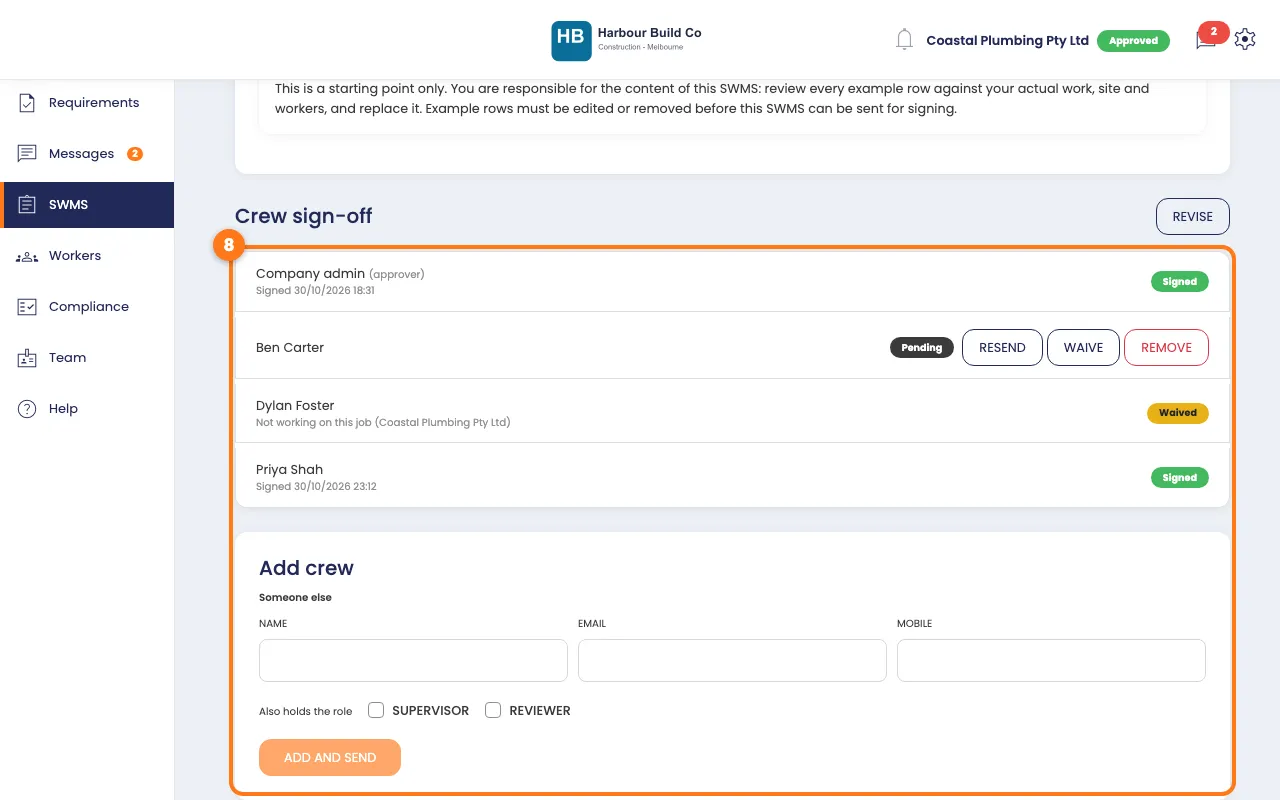
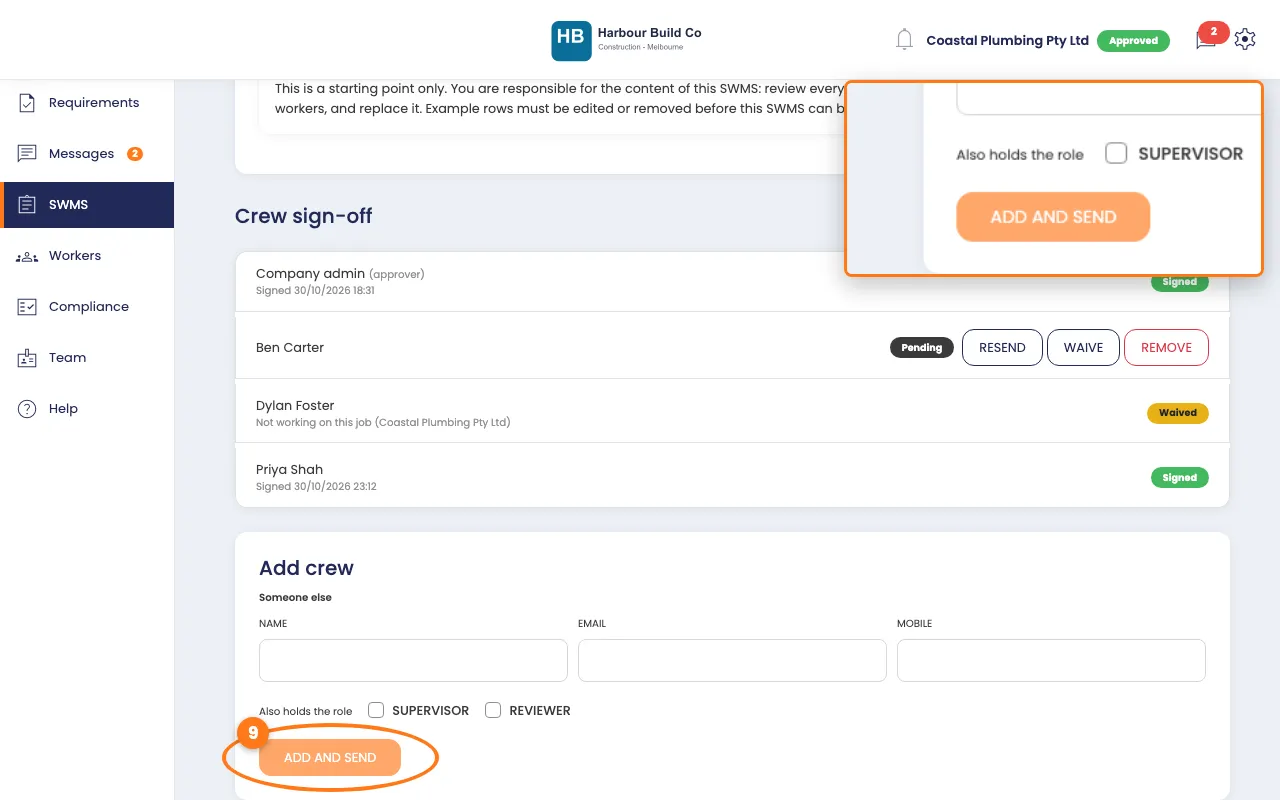
- Tick your workers, or type a name and an email or mobile, then click Add and send.
- Click Resend next to anyone who hasn’t signed.
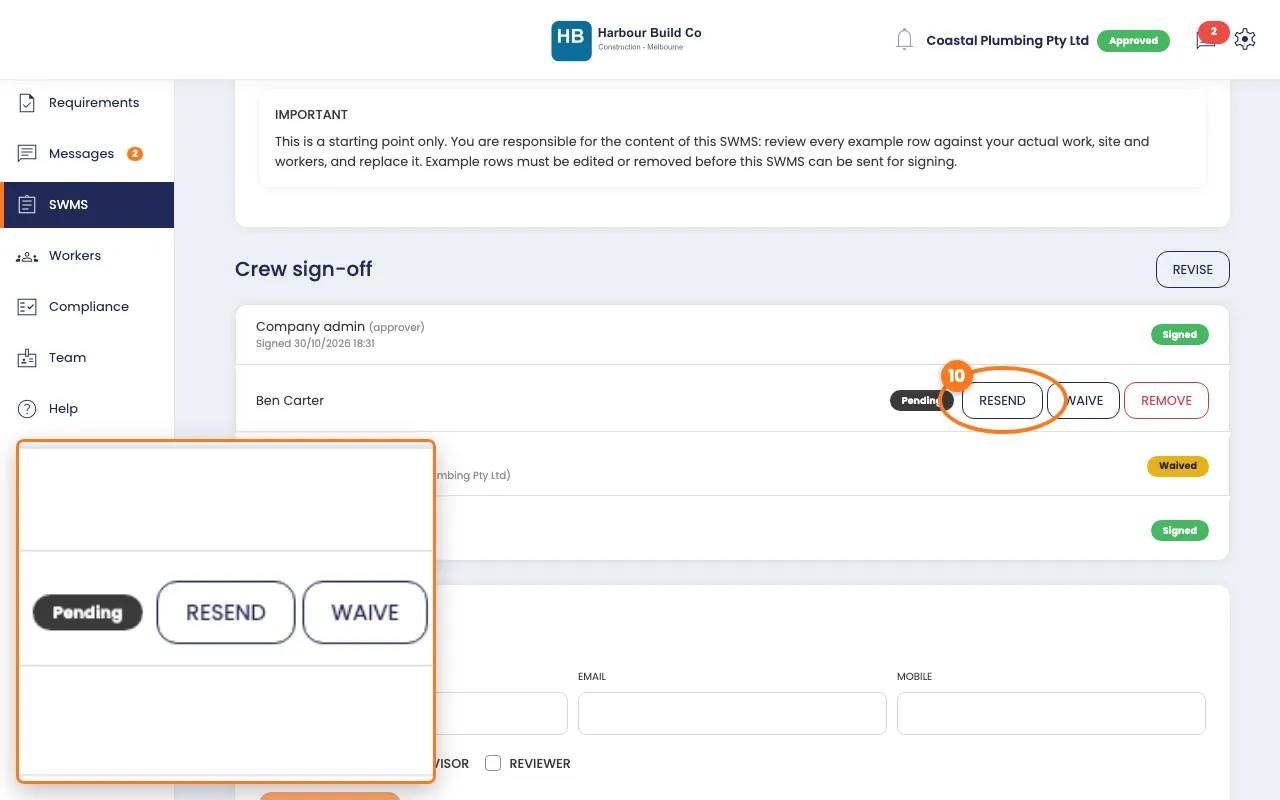
- To skip someone, click Waive, type a reason, then click Waive signature.
- To change the document later, click Revise.
Done! What happens next
When your crew have signed, workers can sign in on site. Anyone who hasn’t signed is asked to read and sign at the kiosk first.