
4 Signing In and Out on Site
What is signing in and out?
Many sites ask everyone to sign in when they arrive and sign out when they leave. It tells the site who is on site, which helps keep everyone safe. You do it on the site’s kiosk or on your own phone, and some sites also ask you to finish their online induction first.
Rules to know
- Same screens: the kiosk, the QR code and the contactless link all open the same sign-in screens.
- Your options: you only see the types this site uses, such as Employee, Contractor, Visitor or Other.
- Employees: your mobile number must already be saved by your company, or we can’t find you.
- Phone code: the 6-digit code lasts at least 10 minutes. Asking again in that time gives the same code.
- Code limits: you can ask for 3 codes in 15 minutes, with a 30 second wait before you resend.
- Already on site: if your number is signed in now, sign out first or use a different number.
- Signature: visitors, contractors and Other tick the safety box and sign. Employees skip this.
- Photo: some sites ask for a quick photo when you sign in or out. It opens the camera, so you can’t pick one from your gallery.
- Signing out: use the same mobile number you signed in with. No code is needed.
- Still there?: after 90 seconds with no taps, the screen asks. If you don’t answer, it resets and forgets you.
What you’ll need
- The site’s kiosk, QR code or link.
- Your mobile number, and the same one each time.
- Your company name, if you are a visitor, contractor or Other.
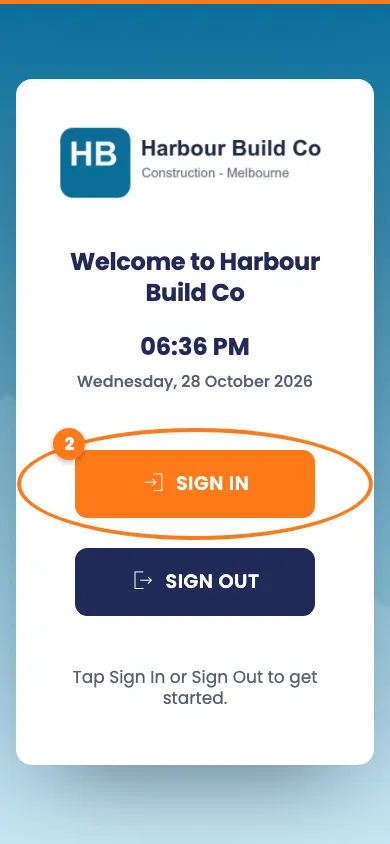
Open the sign-in screen
- Scan the site’s QR code, open the site’s link, or walk up to the kiosk.
- Tap the orange Sign In button.
Choose who you are
- Tap the choice that fits you today, for example Employee.
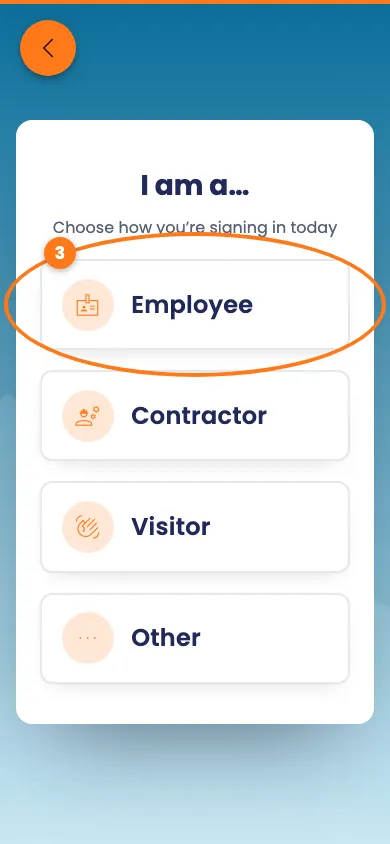
Your site may show fewer choices. The steps after this depend on your choice and your site’s settings.
If you are an employee
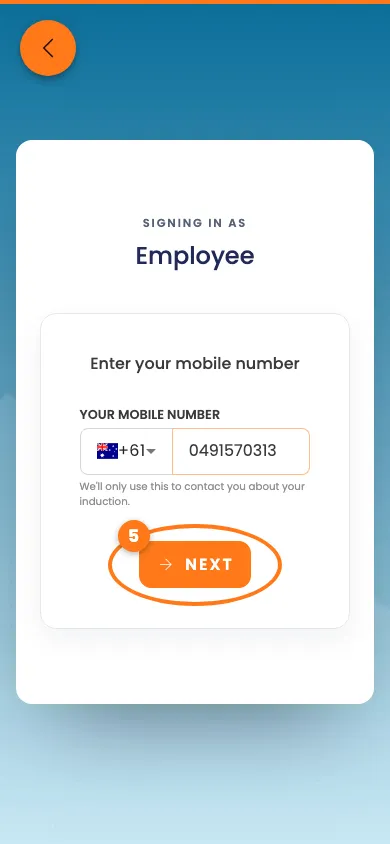
- Type your mobile number.
- Tap Next.
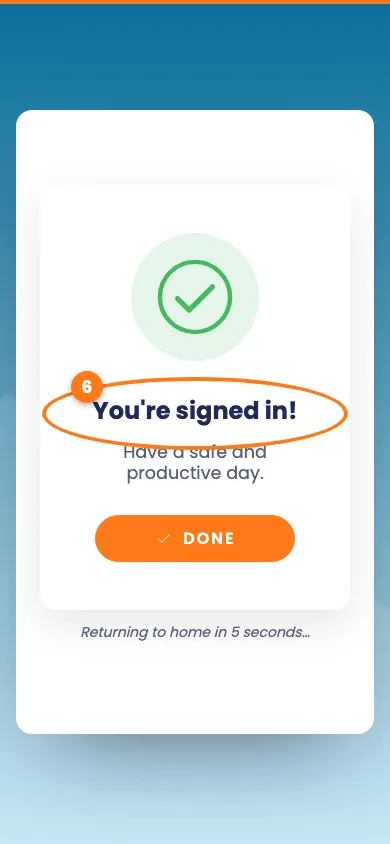
- Look for the green tick and You’re signed in!
If you are a visitor, contractor or Other
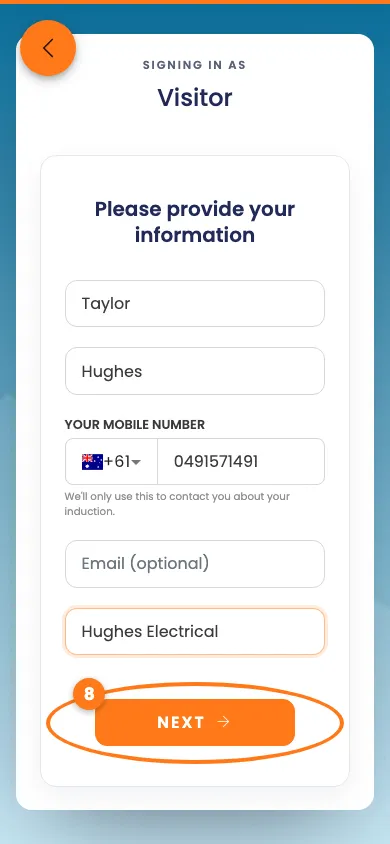
- Type your First name, Last name, mobile number and Your company.
- Tap Next.
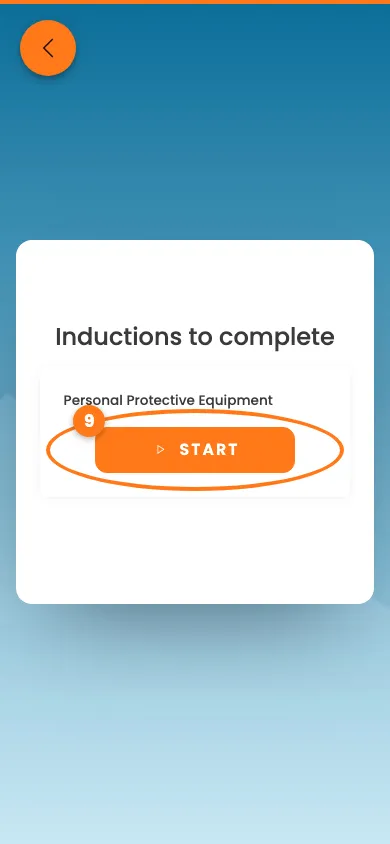
- If you see Inductions to complete, tap Start and finish the induction.
- Tick the safety box, then tap the signature box and sign with your finger.
- Tap Confirm Signature, then Next.
- If the site asks for a photo, tap Take a picture, then Use This Photo.
- Look for You’re signed in! If you chose someone to see, they may get a message.
If your mobile number is already registered
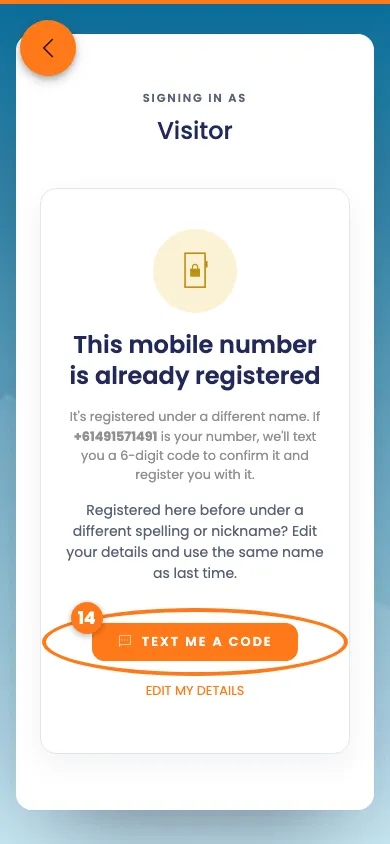
Sometimes your number is already saved under a different name. We then text you a code to check it is yours.
- Tap Text me a code.
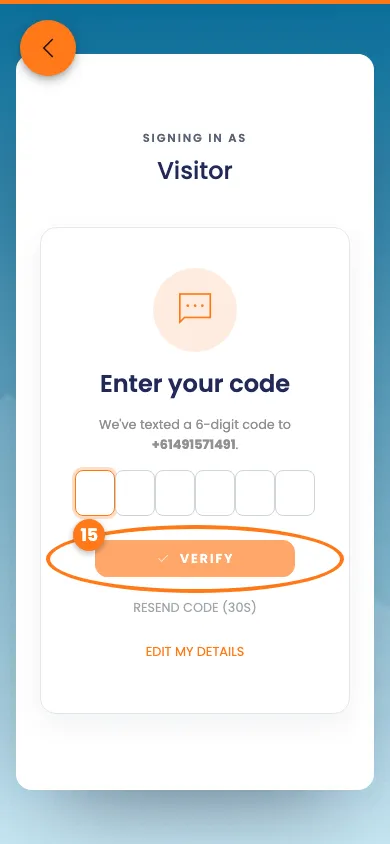
- Type the 6-digit code from your text message, then tap Verify.
Tip
Used a nickname last time? Tap Edit my details and use the same name as before.
Signing out
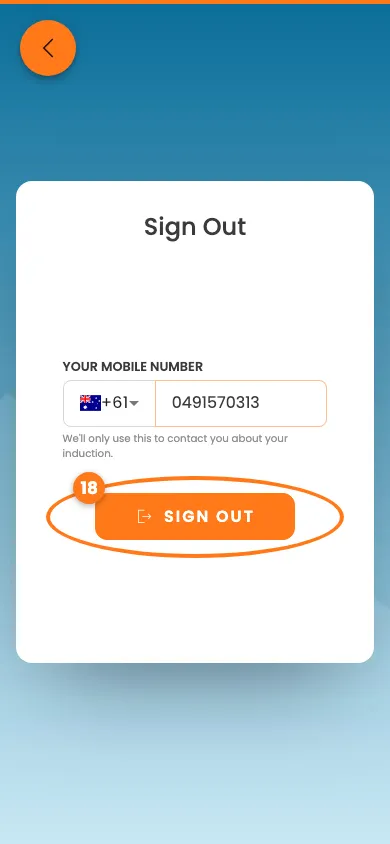
- Tap Sign Out on the start screen.
- Type the mobile number you signed in with.
- Tap Sign Out.
- If the site asks for a photo, tap Take a picture, then Next.
- Look for You’re signed out! The screen goes back to the start by itself.
Done! What happens next
- You’re on the site’s list, and the site team can see you are there.
- Forgot to sign out? Signing in again later closes the old sign-in for you.
- If a screen stops you, it says why and what to do next. Ask the site team if you’re stuck.