
6 Updating Your Details
What can you change in your details?
Your profile holds the details your companies use to contact you. You can change your name, photo, phone number, address and emergency contacts. You can also change the email or mobile number you sign in with, and choose which emails you get. This guide is for anyone with an online induction account. You can do all of it on your phone.
Rules to know
- Name and company: you can’t leave them empty. If you fill in part of an address, fill in all of it.
- Who sees your changes: when you change your name, company, address, photo or phone number, every company you have done an induction with gets the new details. Your certificates are made again with them.
- Your photo: it saves as soon as you add it. You don’t tap Save.
- Phone number or sign-in? The Phone Number on your profile is how companies ring you. Your sign-in email or mobile is what you type to log in. If you sign in with an email, they are separate. If you sign in with your mobile, they are the same number.
- Mobile sign-in, new number: if you change the number on your profile, it doesn’t save straight away. We text a link to the new number, and the change happens when you open it. Until then, keep signing in with your old number.
- Email sign-in: change your email in the Settings tab. The Phone Number on your profile is only a contact number.
- New email or mobile: it must be different from your current one, and it can’t already belong to another account.
- Confirm link: the message we send only works for 10 hours. Your old login keeps working until you open the link.
- After you confirm: you are signed out. Sign in again with the new login. Your old email or mobile gets a message to say it changed.
- Limit: you can change your login number or email 3 times an hour. After that you see how many minutes to wait. If lots of people change theirs from the same network, you may be asked to wait too.
- Company account or Google sign-in: if you also run a company account, change that login in the company settings. If you sign in with Google or a similar service, change your email or mobile there. Only you can change your own login.
- Emergency contacts: each one needs a first name, last name, relationship and phone number. You can remove all of them.
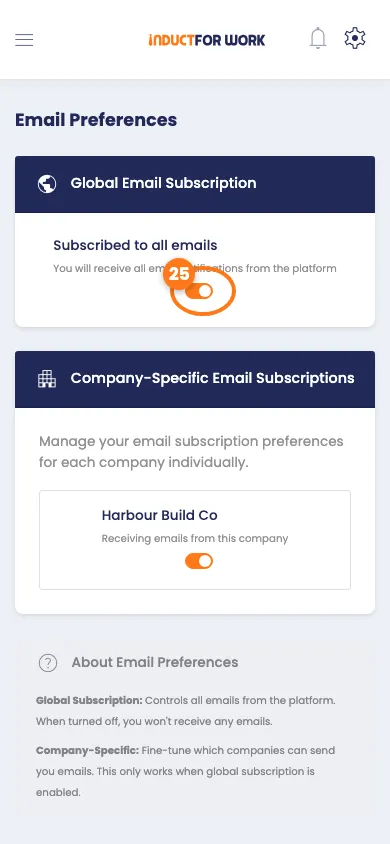
- Email preferences: the top switch turns emails from every company on or off. While it is off, the company switches are locked. It doesn’t stop the confirmation message we send when you change your login.
What you’ll need
- Your phone and a good signal.
- Your email address and password, or your mobile number, to sign in.
- Your phone or email inbox, to get a confirmation message.
Open your profile
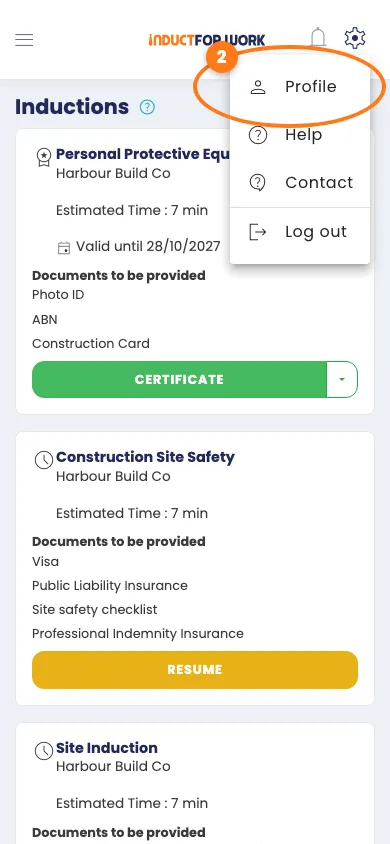
- Tap the gear icon, top right.
- Tap Profile.
Change your name, company or address
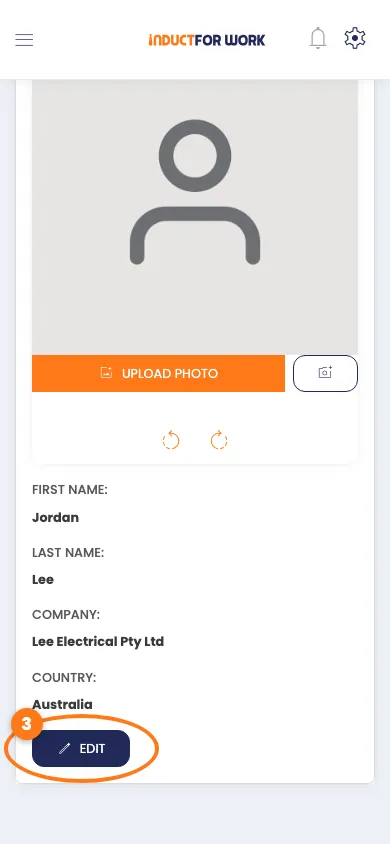
- On the User Details tab, tap the dark blue Edit button.
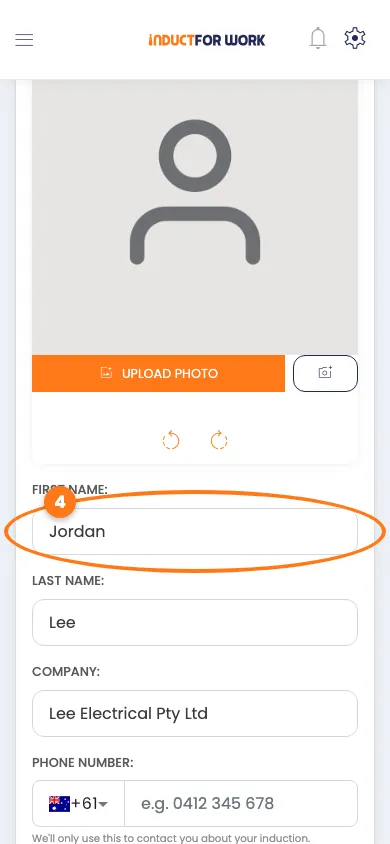
- Type your changes in the boxes, for example First Name or Company.
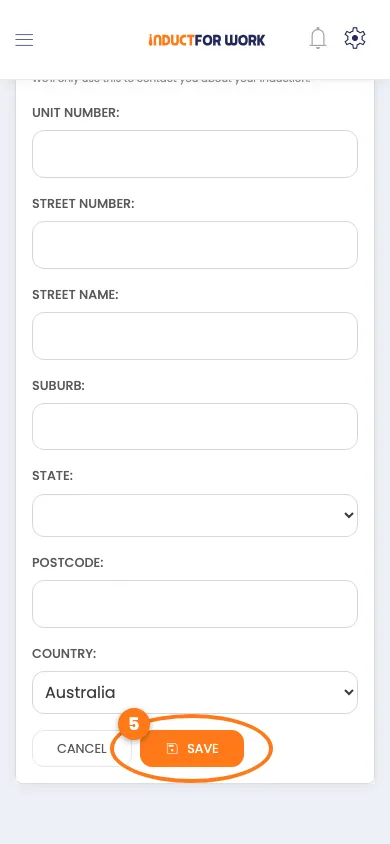
- Tap the orange Save button at the bottom.
Change your photo
- On the User Details tab, tap the orange Upload photo button.
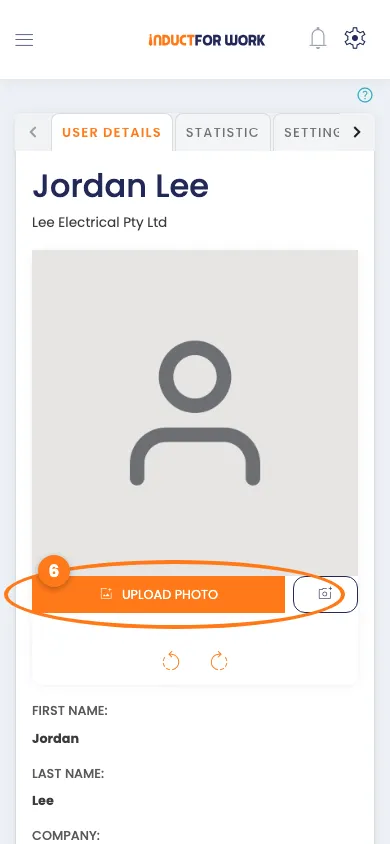
- Pick a photo from your phone. Or tap the camera button next to it to take one.
Your photo saves straight away. If it is sideways, tap one of the round arrows below it to turn it.
Change your phone number
Companies use this number to contact you. It is not the number you sign in with, unless you sign in with your mobile.
- On the User Details tab, tap the dark blue Edit button.
- Type your new number in the Phone Number box.
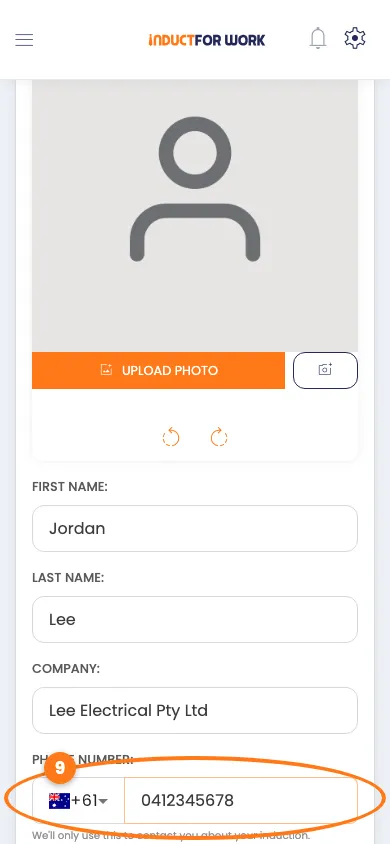
- Tap the orange Save button at the bottom.
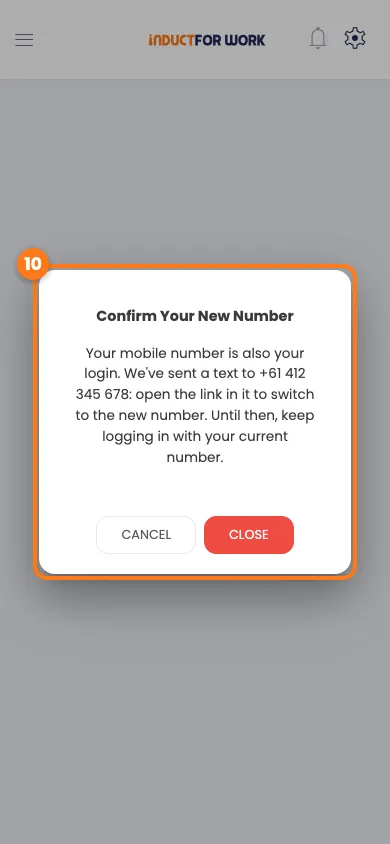
If you sign in with your mobile, you see this pop-up box. Open the text message we send to the new number and tap the link in it. If you sign in with an email, your number saves straight away.
Change the email or mobile number you sign in with
- Tap the Settings tab.
- Under Change Username, type your new email or mobile number.
- Tap the dark blue Change Username button.
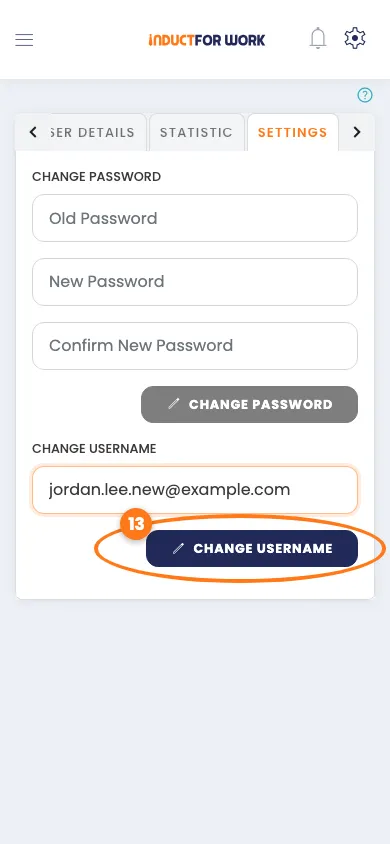
- Read the pop-up box, then tap Close.
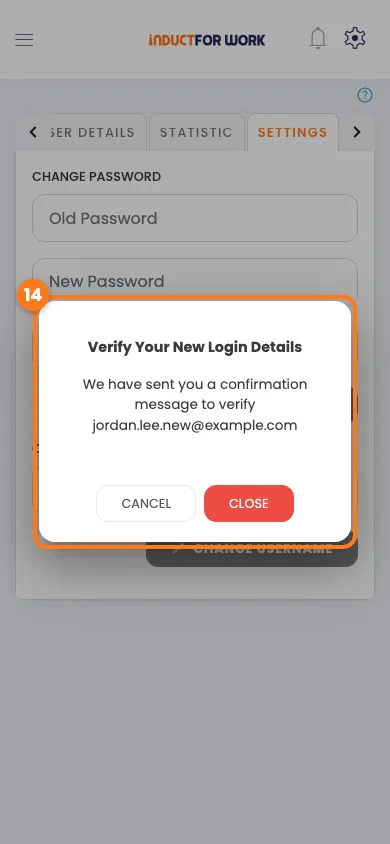
- Open the message we send to your new email or mobile.
- Tap the link in it. You see All done!
- Tap Sign in and use your new email or mobile.
Tip
Didn’t get the message? Check your junk folder and make sure you typed it correctly. The link only works for 10 hours.
Update your emergency contacts
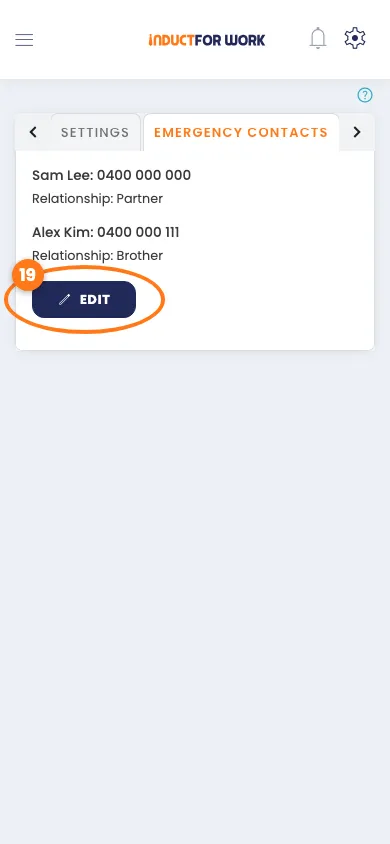
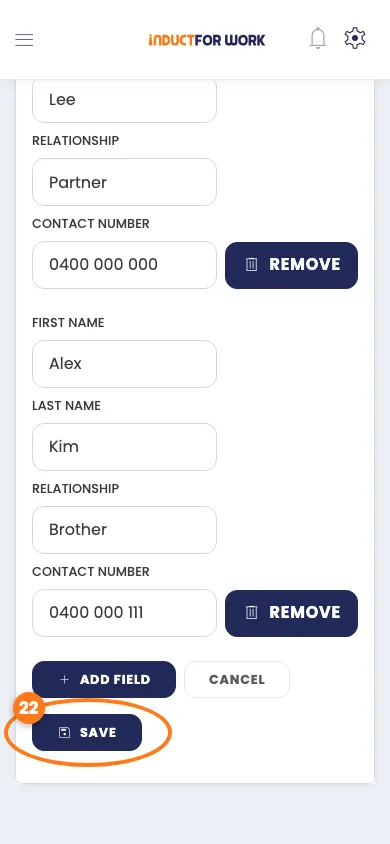
- Tap the Emergency Contacts tab.
- Tap the dark blue Edit button.
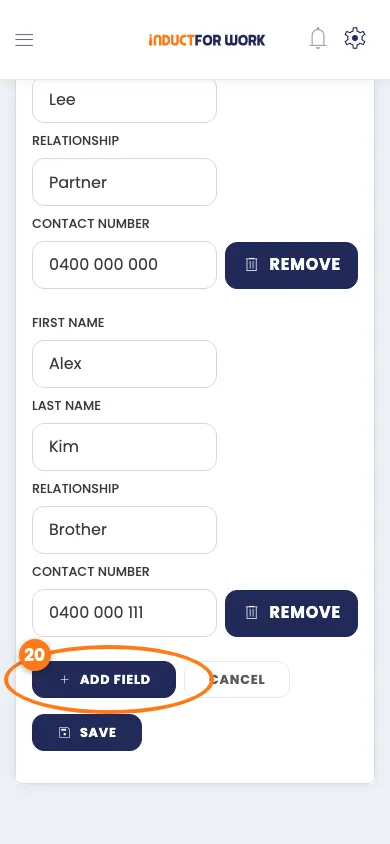
- To add a person, tap Add Field, then fill in all four boxes.
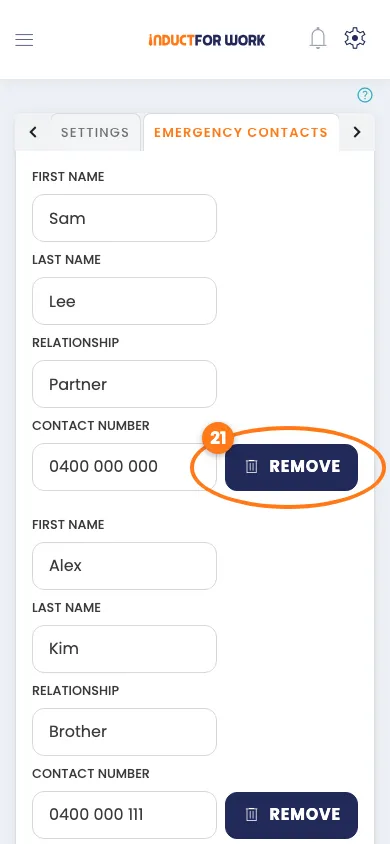
- To take a person off, tap Remove next to their name.
- Tap the dark blue Save button.
Choose which emails you get
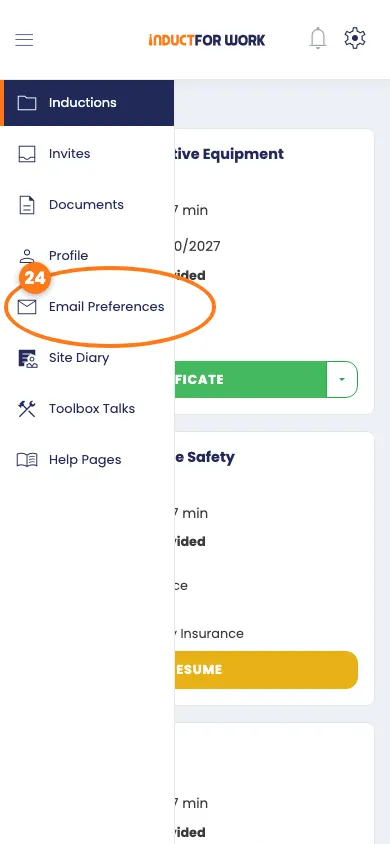
- Tap the menu icon, top left.
- Tap Email Preferences.
- To stop emails from every company, tap the orange switch at the top.
- To stop emails from one company, tap the switch next to its name.
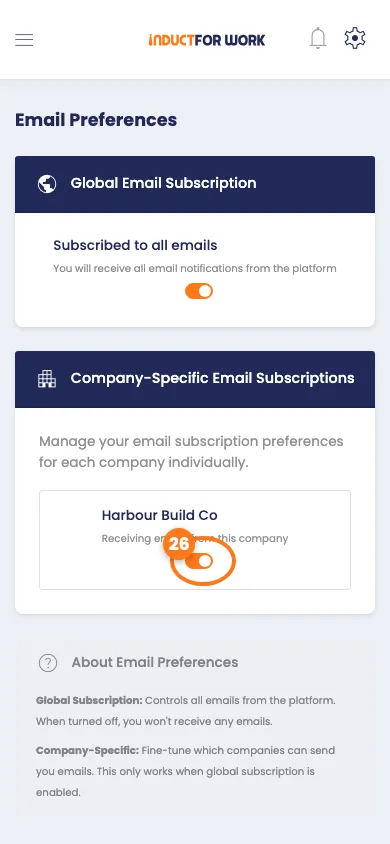
The page shows when each switch was last changed. The company switches are locked while the top switch is off.
Done! What happens next
- Your name, photo, phone number and address are up to date.
- You know how to change the email or mobile number you sign in with.
- Your emergency contacts and email choices are how you want them.