
30 Contractor Management
What is Contractor Management?
Contractor Management checks that every contractor business on your sites has the right paperwork. It also checks that their workers have done your online induction. If something is missing or out of date, their workers can’t sign in until it’s fixed. You set it up once, and it keeps watching for you.
Rules to know
- Plan: included on the Enterprise plan and during your free trial.
- Who: only the Account owner and Administration Users can set up and review contractors.
- Sign-in checks: if anything required expires, is rejected or is missing, none of their workers can sign in anywhere.
- Grace period: approved contractors get 7 days to provide a new requirement. You can pick 1 to 30 days.
- Expiry emails: you and the contractor get emails 14, 7 and 1 days before a document expires, and the day after.
- Change status: you must add a comment. A compliant override lasts up to 30 days.
- Kiosk privacy: the kiosk never shows your comments. Workers only see a short reason.
- Shared workers: if a contractor adds someone already in your contacts, you must click Confirm first.
What you’ll need
- The Enterprise plan or a free trial.
- An Account owner or Administration User login.
- At least one site.
- Your contractors’ email addresses.
Open Contractors
- In the left menu, click Contractors.
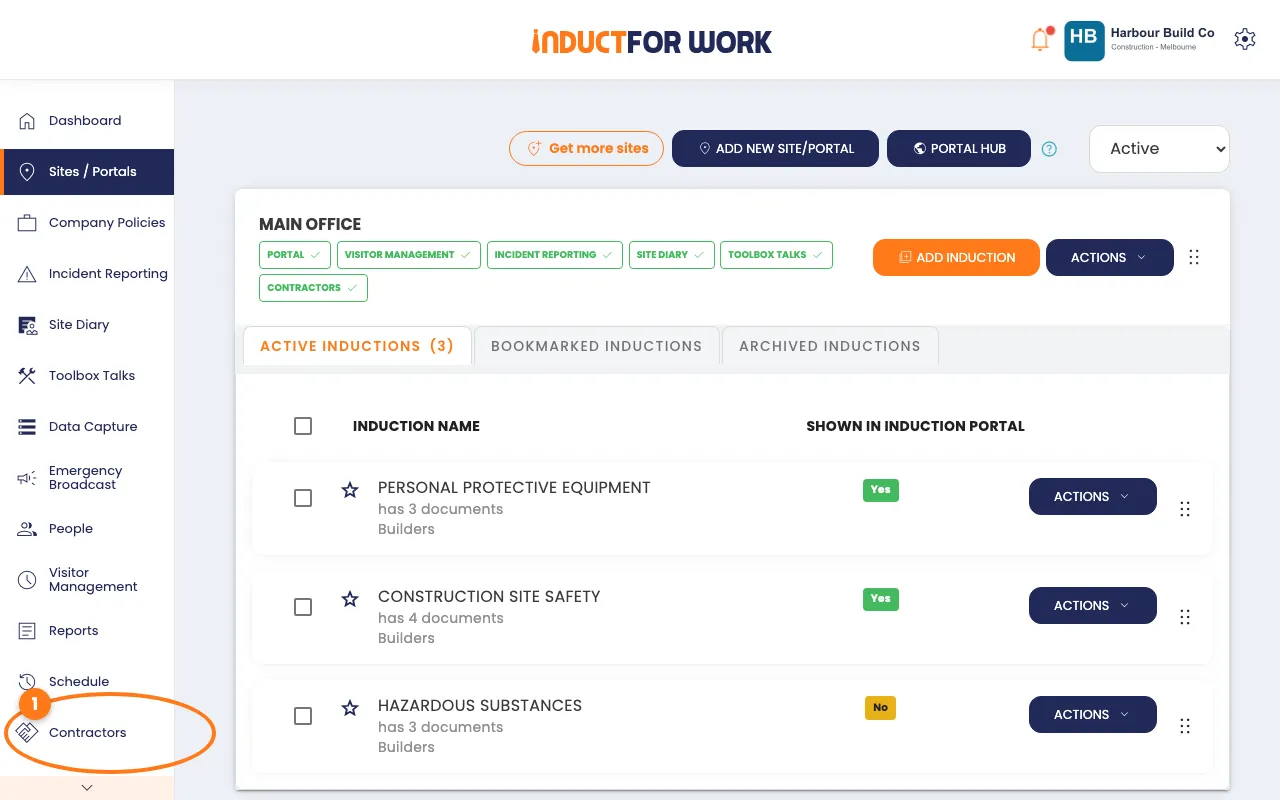
Choose your sites and requirements
- Click the navy Requirements button, top right.
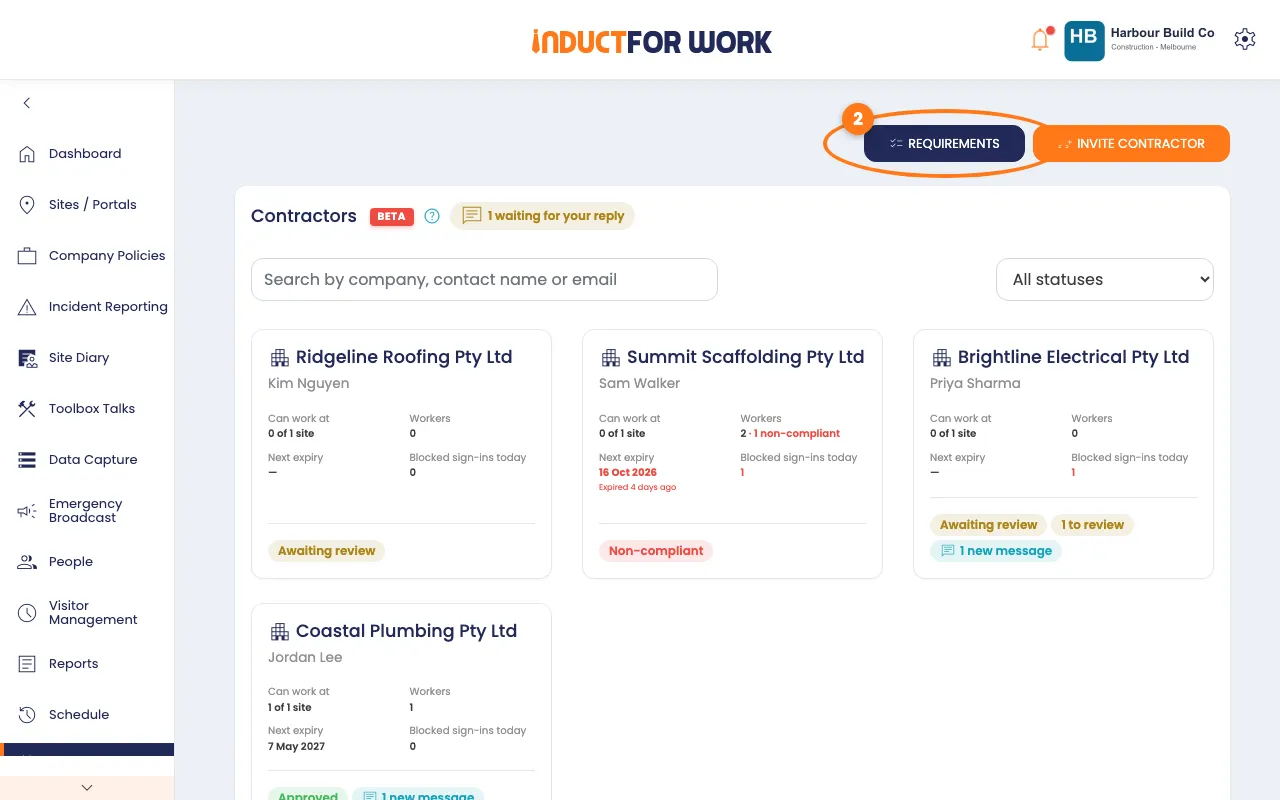
- Under Sites, switch on each site that will take contractors.
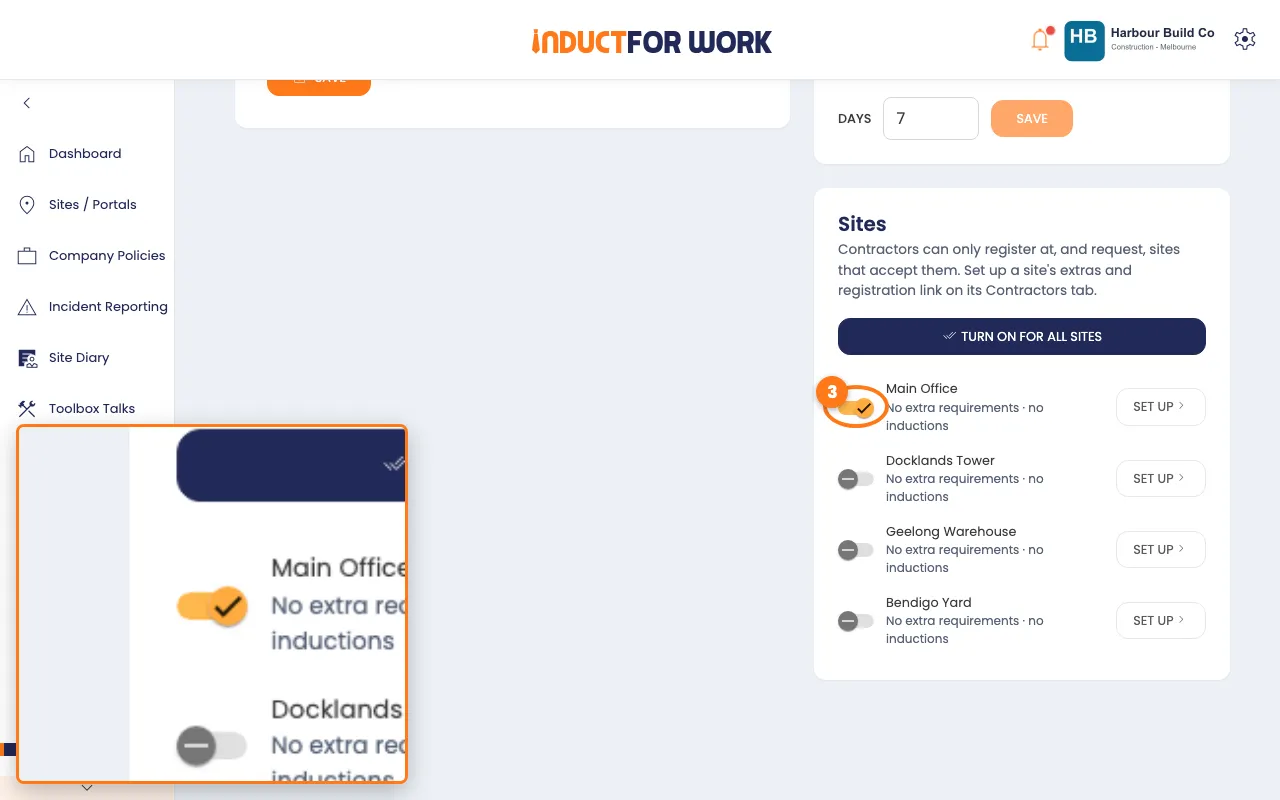
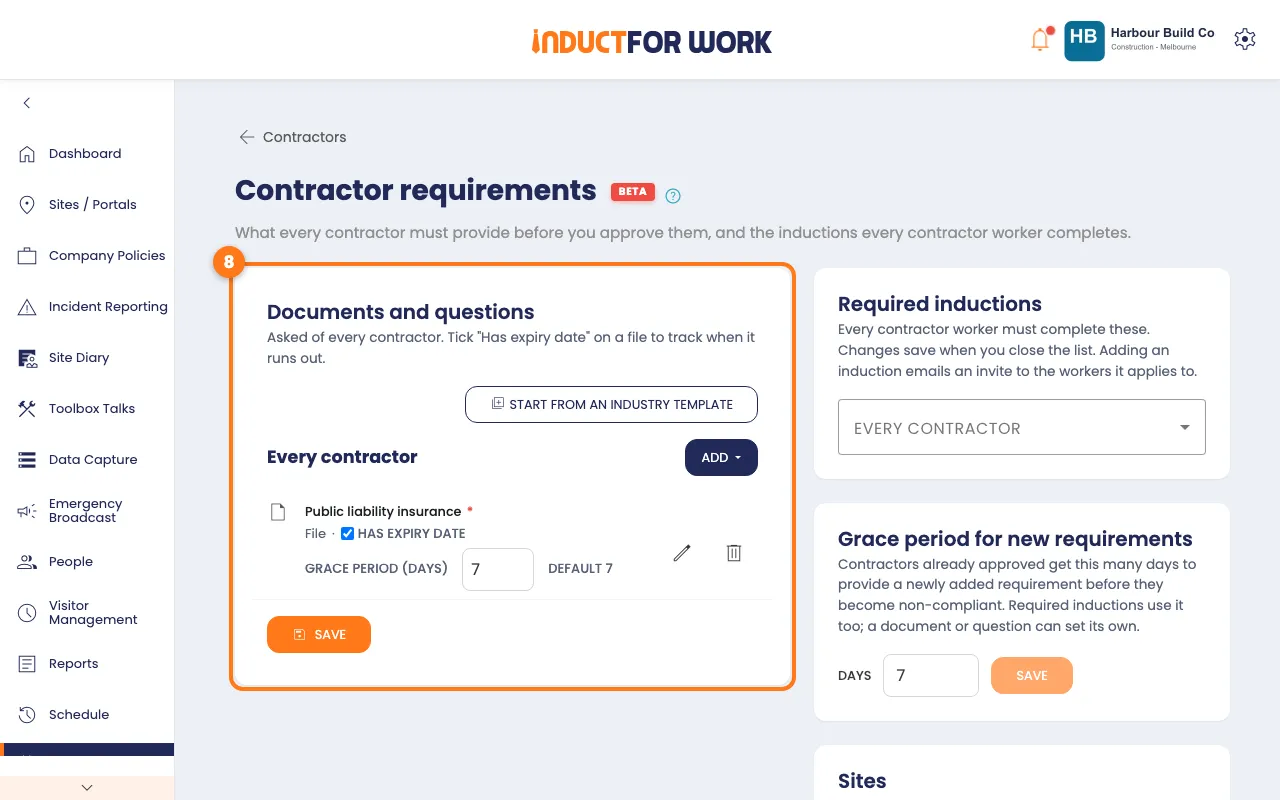
- Under Documents and questions, click Start from an industry template.
- Pick your industry in the Template list.
- Tick the items you want, then click the orange Add … requirements button.
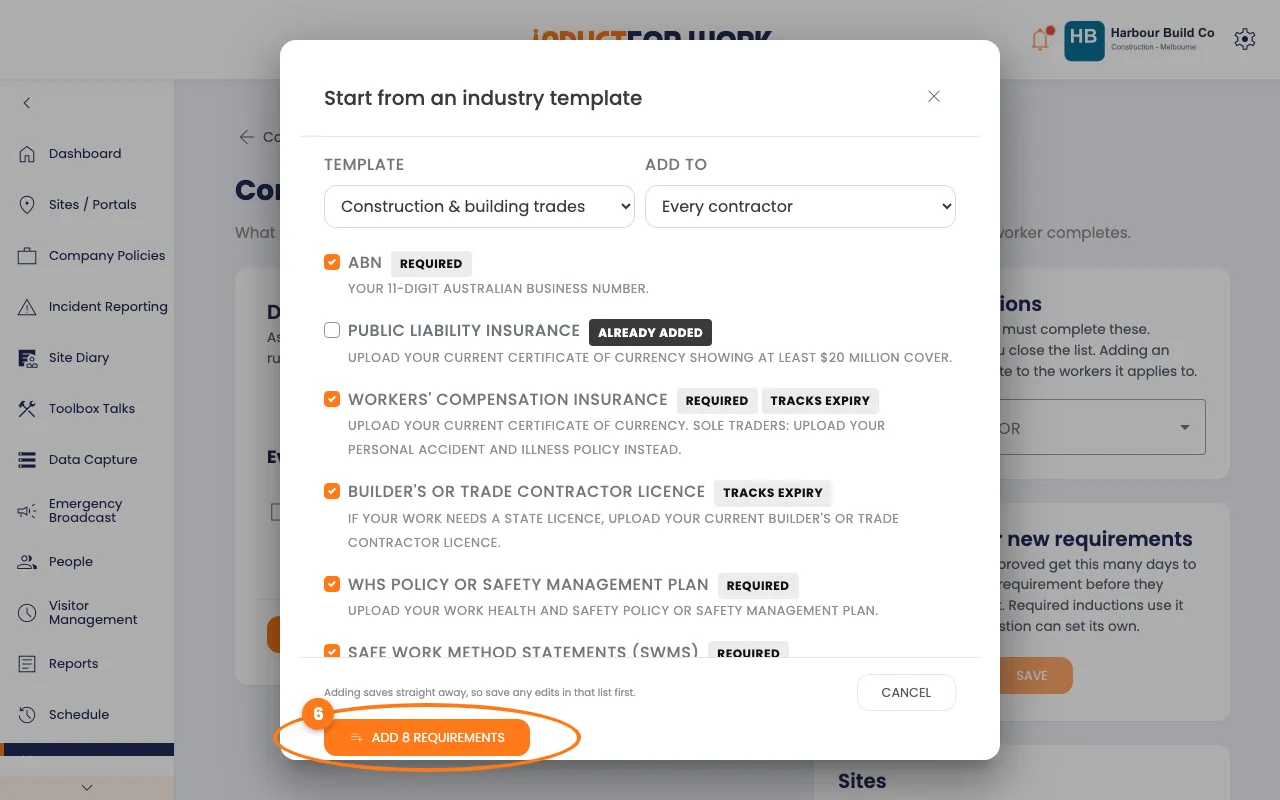
- Tick Has expiry date on any document that runs out.
- Click the orange Save button.
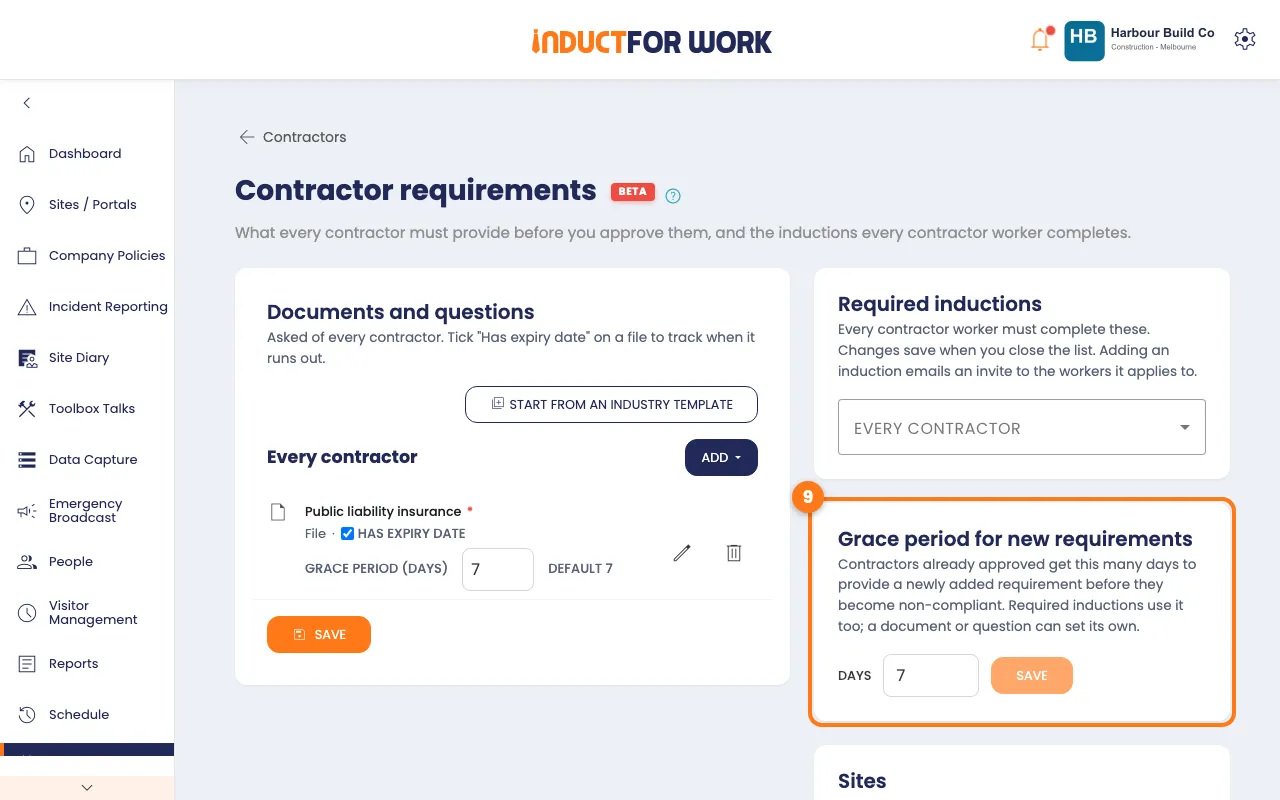
- Under Grace period for new requirements, check the Days, then click Save.
Tip
Templates include common items, such as public liability insurance and ABN. To make your own, click the navy Add button instead.
Invite your contractors
- Click Contractors at the top left to go back.
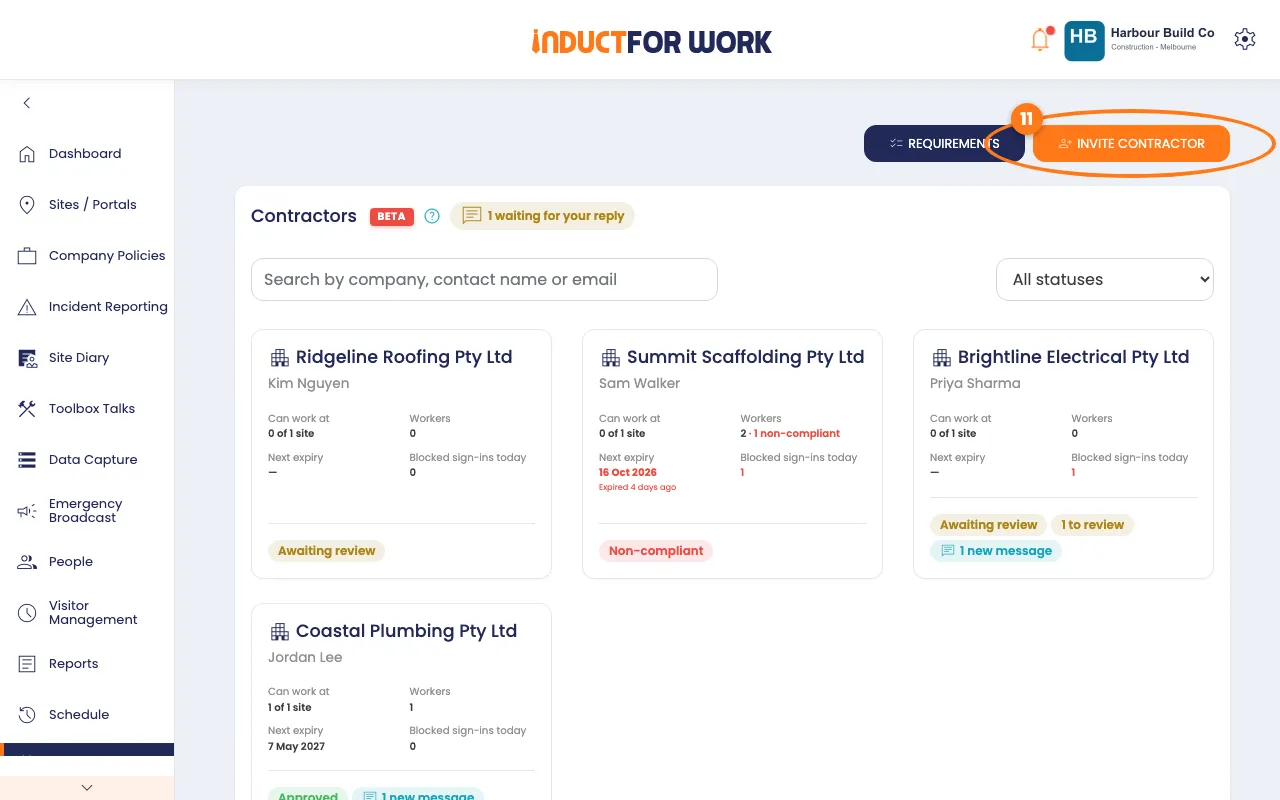
- Click the orange Invite contractor button, top right.
- Pick the site in the Register at list.
- Type up to 10 addresses under Email addresses.
- Click the orange Send invitations button.
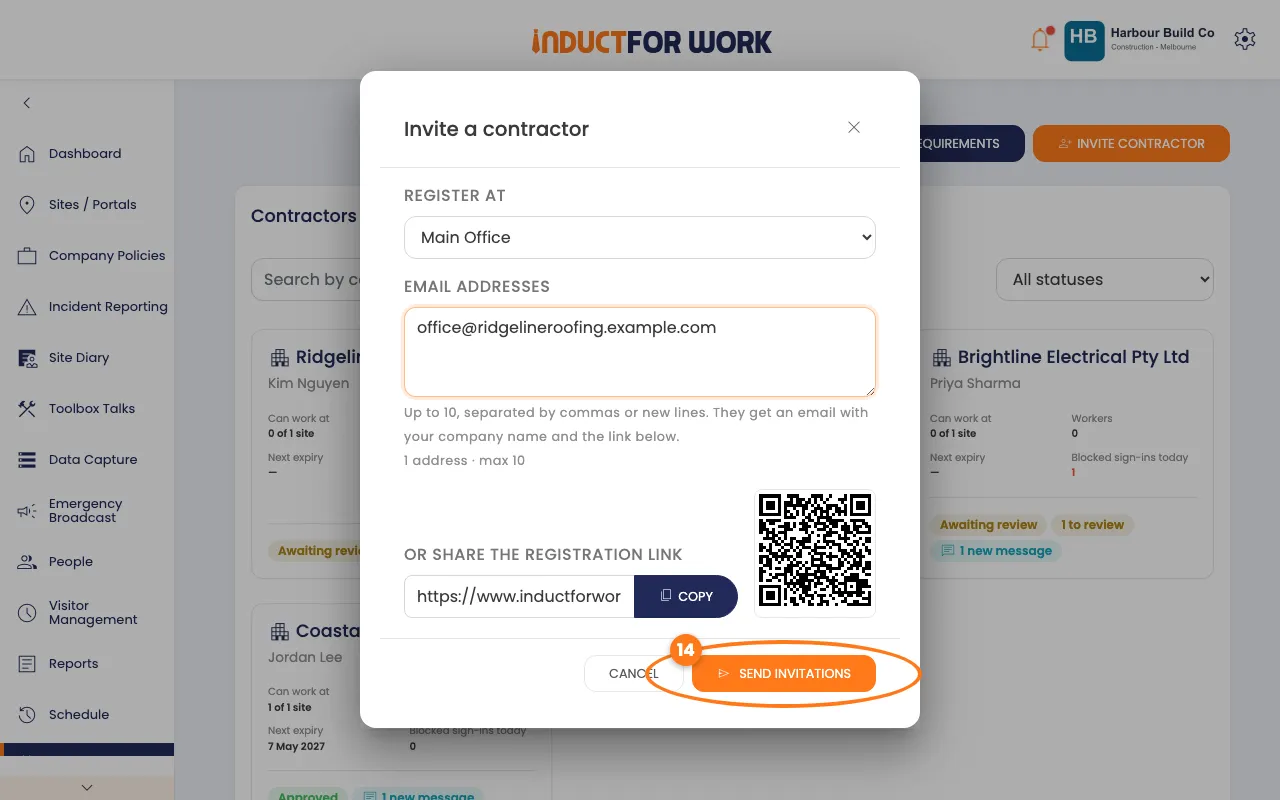
Your contractors get an email with a link and simple steps. You can also copy the link under Or share the registration link and send it yourself.
Review what a contractor sends
- You get an email when a contractor sends documents. Click their card.
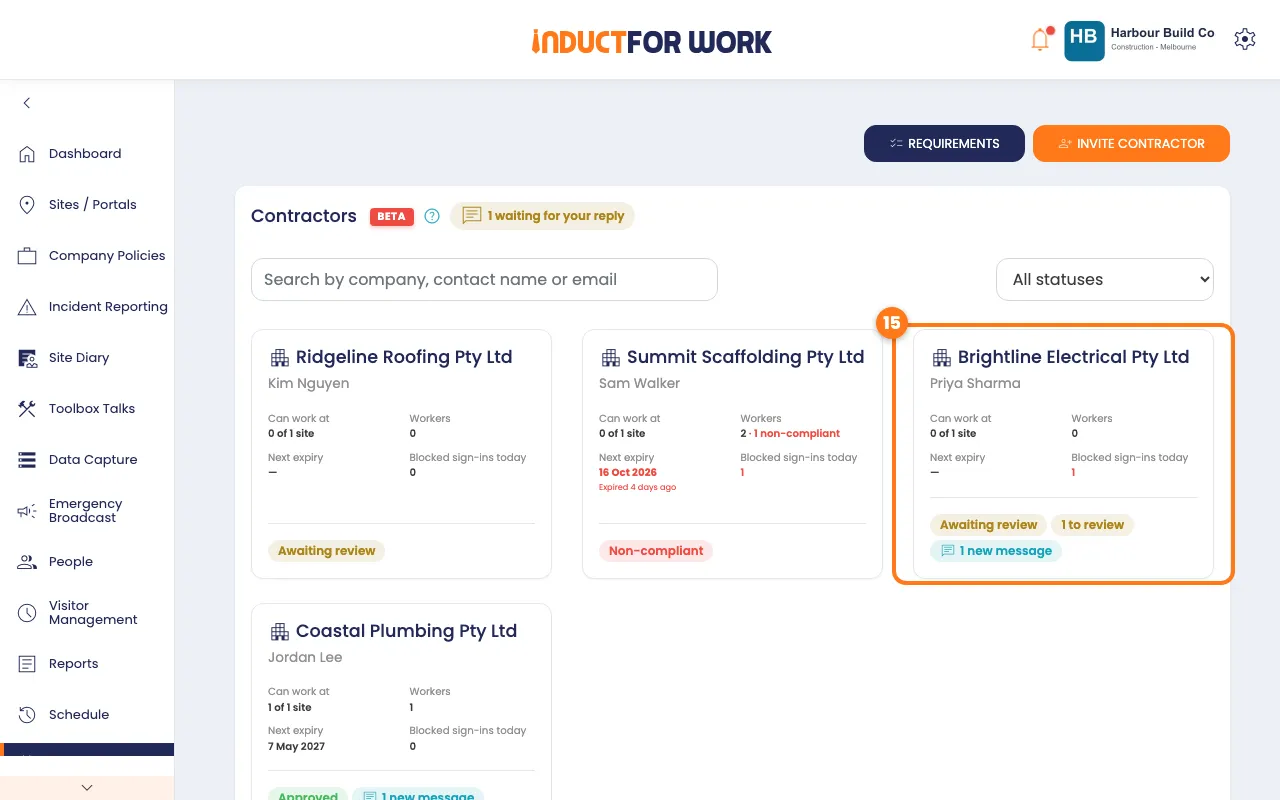
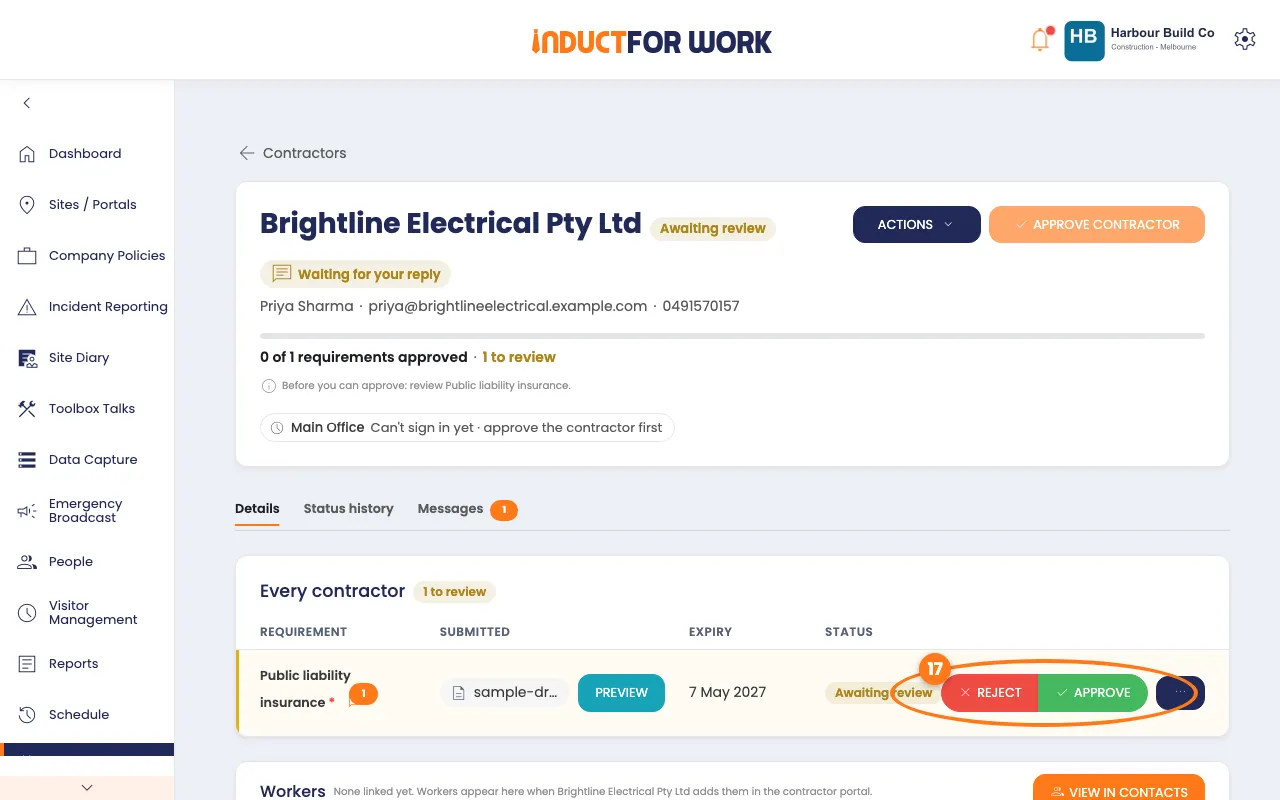
- Click the blue Preview button to check a file.
- Click the green Approve button, or the red Reject button.
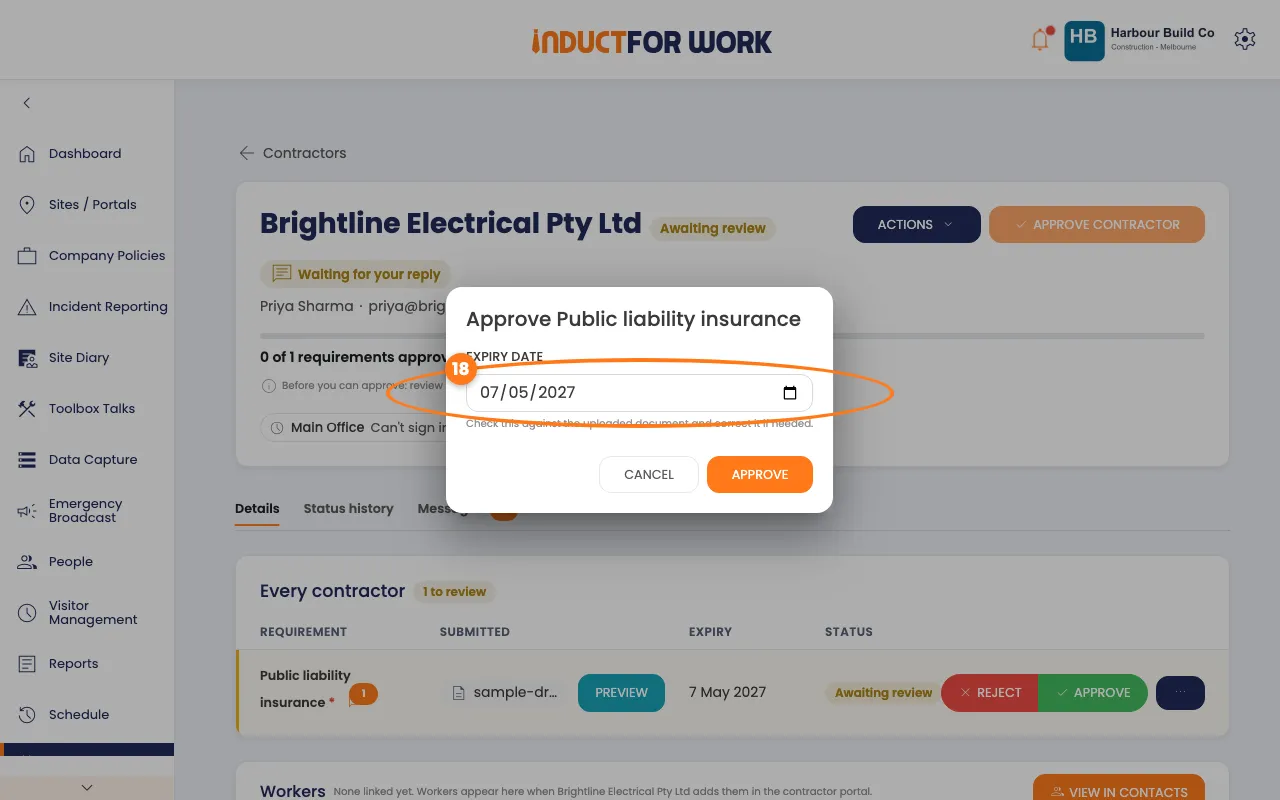
- Check the Expiry date matches the document, then click Approve.
- The orange Approve contractor button, top right, turns on once every item is approved.
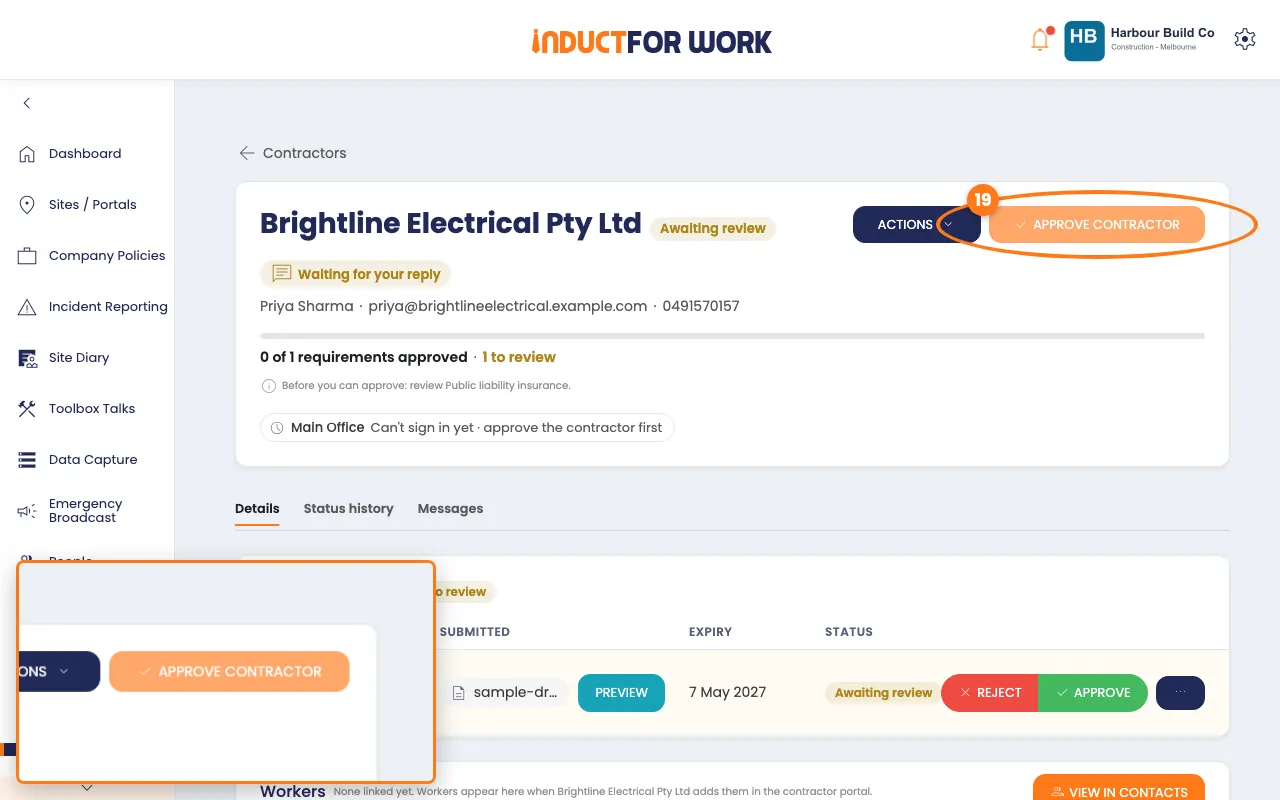
- Click Approve contractor.
Tip
Rejecting asks for a reason, and the contractor sees it. Changed your mind? Click the item’s Actions button and choose Approve instead or Reject instead.
Workers you already know
If a contractor adds someone already in your contacts, they wait under Pending links in Workers. Click the green Confirm button to link them.
Suspend or override a contractor
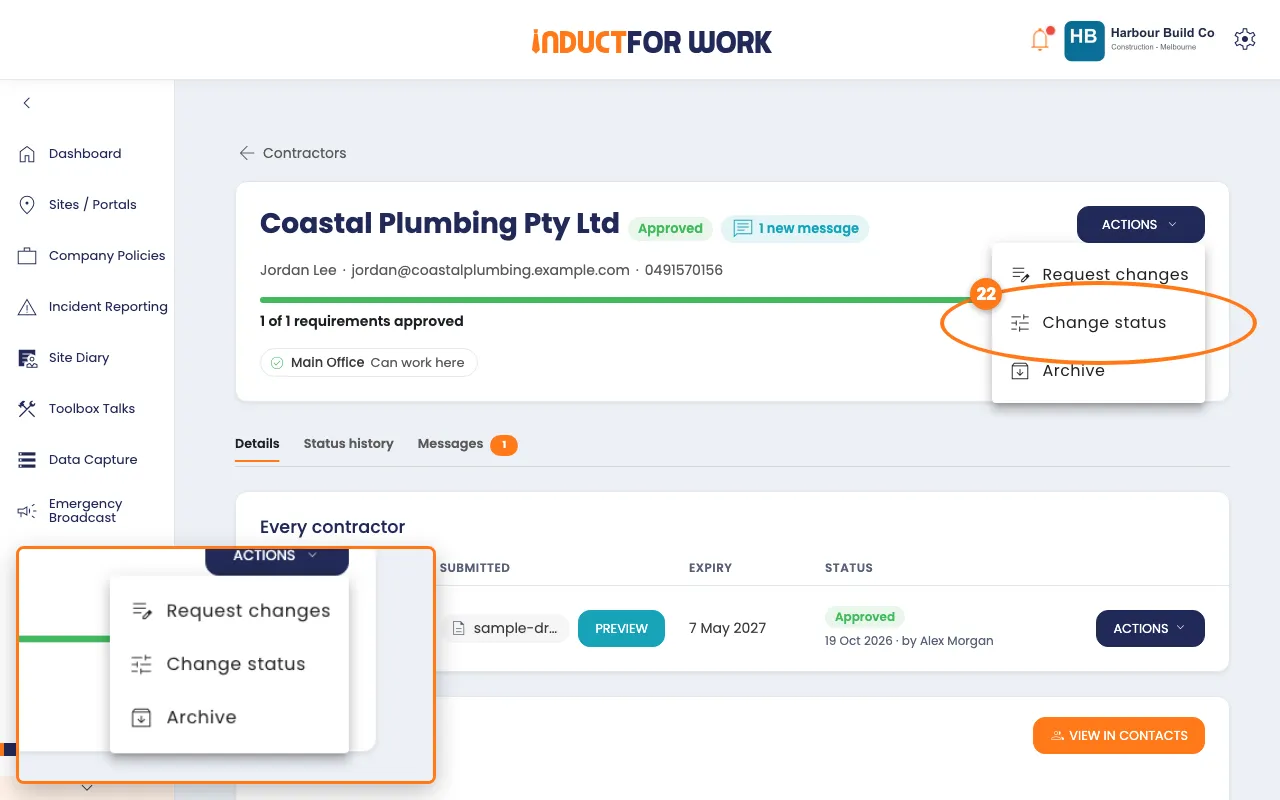
- On the contractor’s page, click the navy Actions button, top right.
- Choose Change status.
- Pick Suspend contractor or Compliant override.
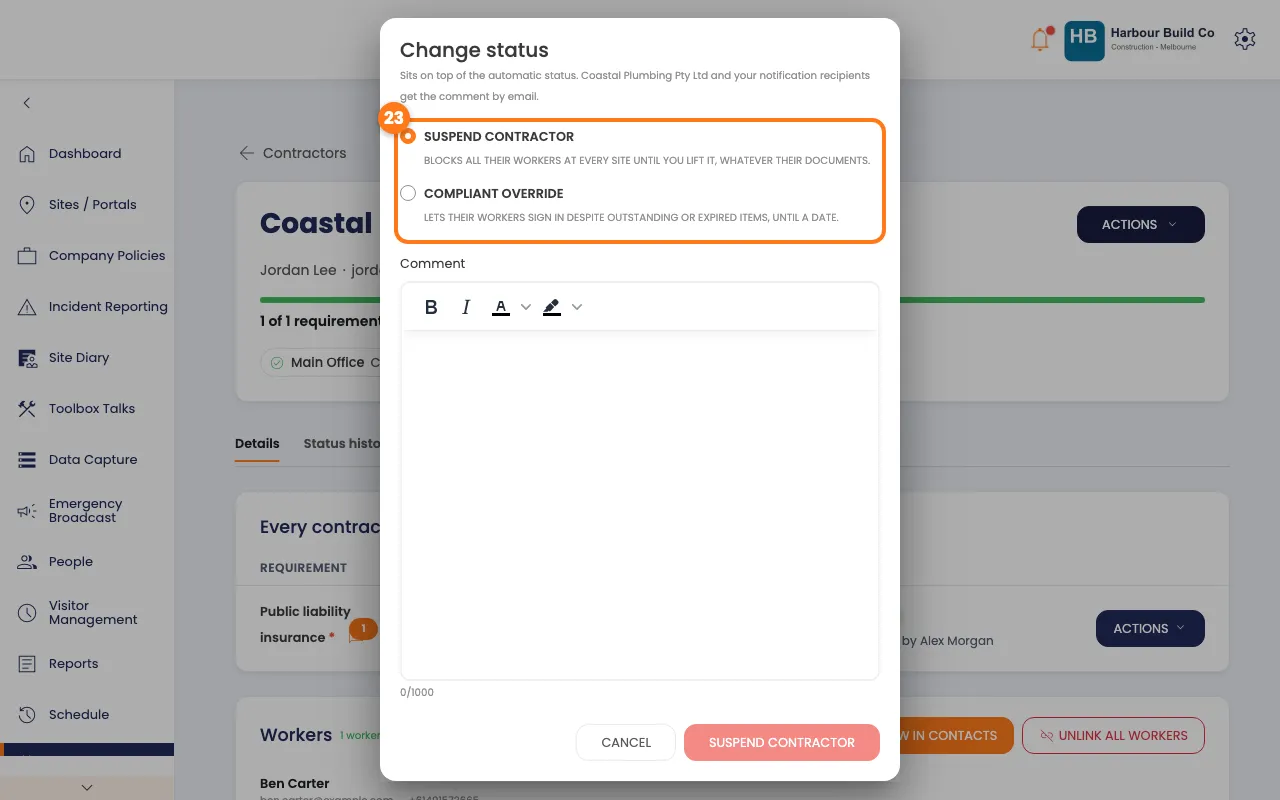
- For an override, pick the Allow sign-in until (end of day) date.
- Write a Comment, then click the button at the bottom.
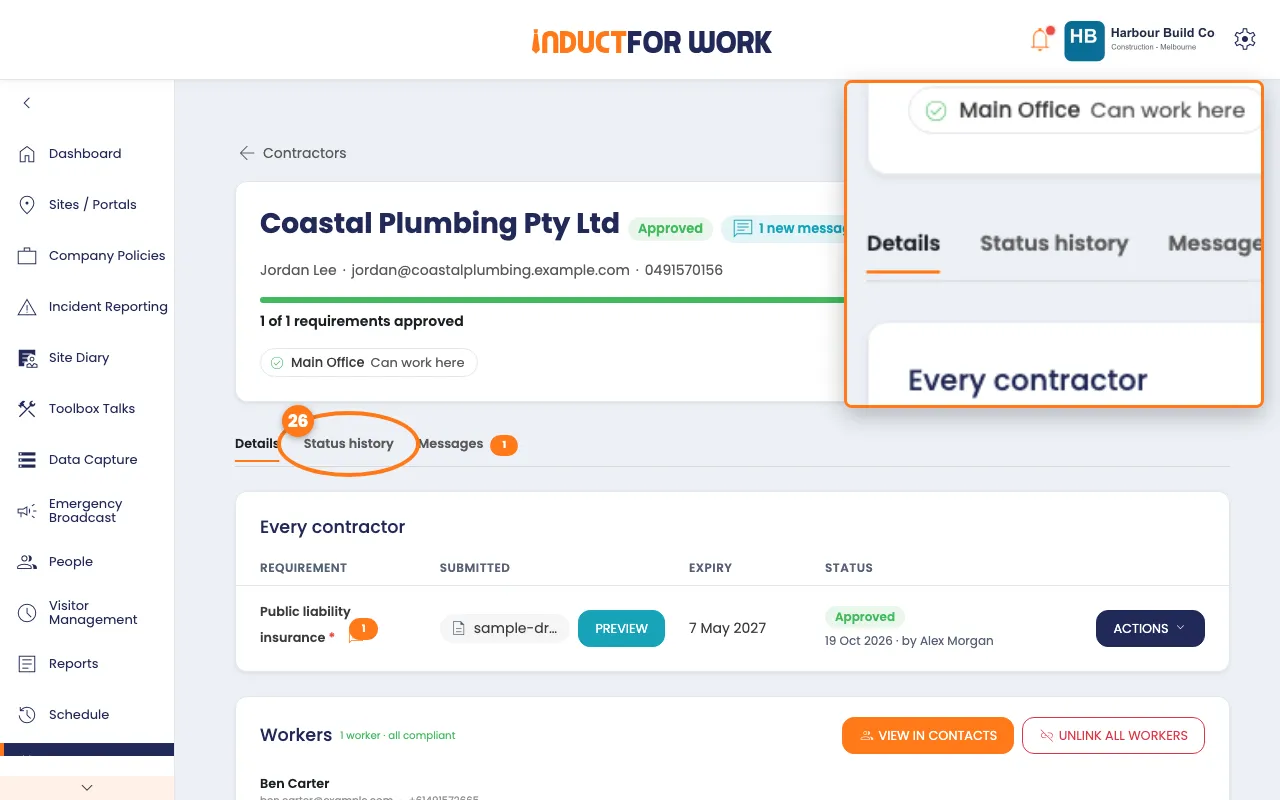
- To see every change, click the Status history tab.
To undo it, open Change status again and choose Lift suspension or End override.
Reply to a message
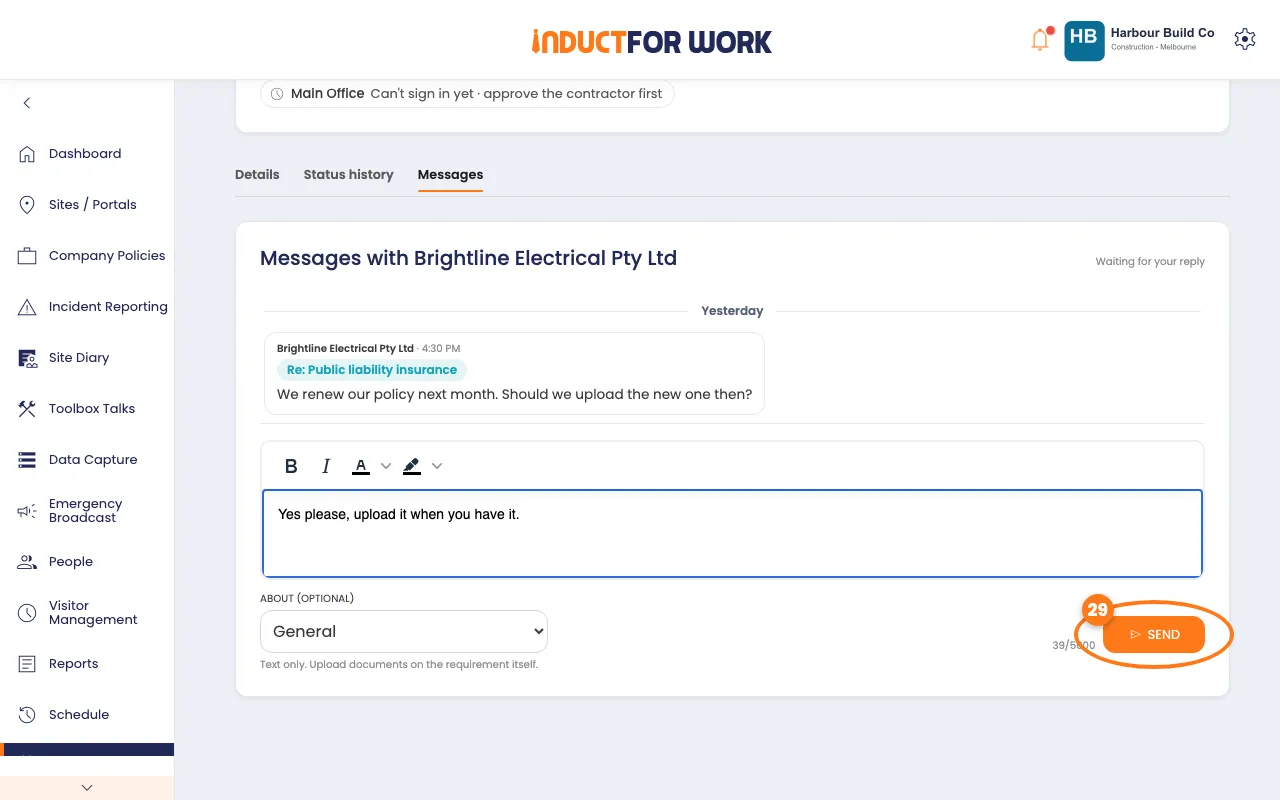
- On the contractor’s page, click the Messages tab.
- Type your reply in the box.
- Click the orange Send button, bottom right.
What happens when a worker signs in
Workers sign in at the kiosk, or on their phone with the site’s QR code. The same checks run both ways.
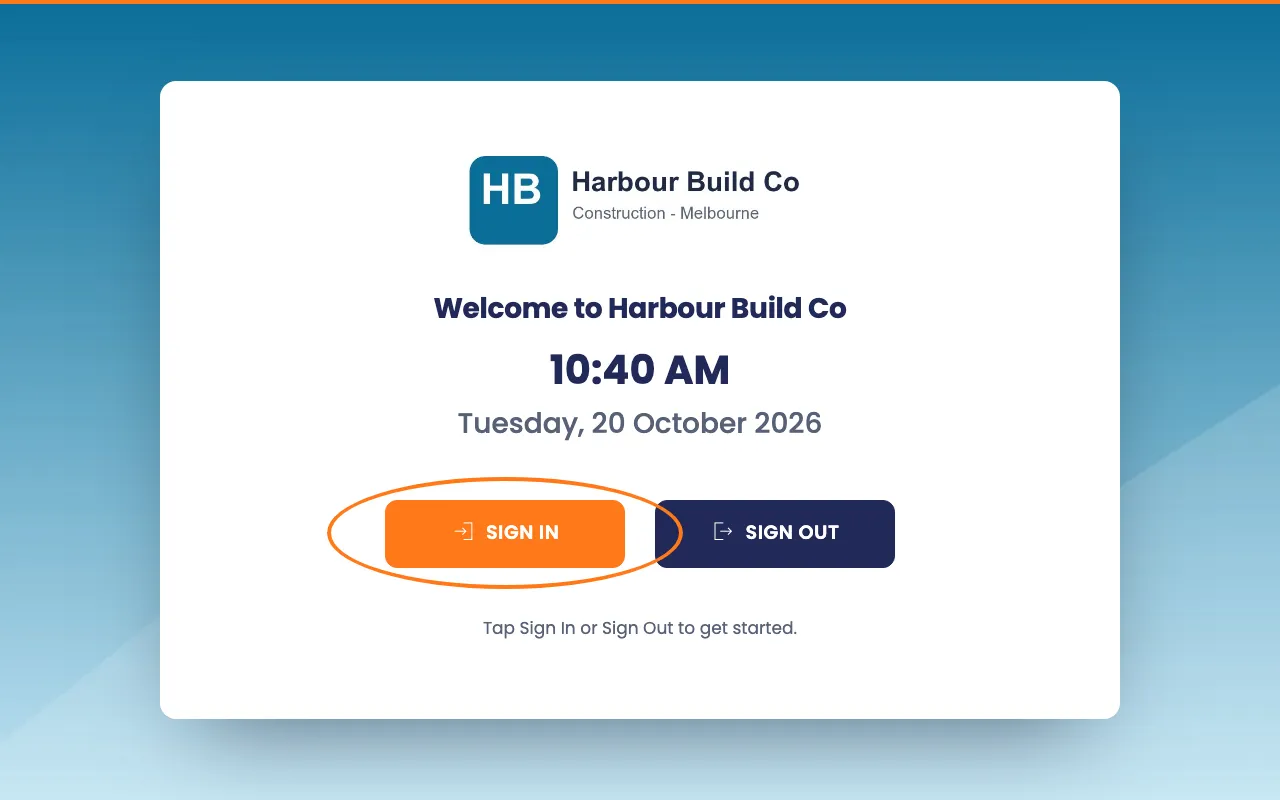
Before a contractor’s worker can sign in, we check that:
- their contractor is approved and not suspended;
- nothing required has expired, been rejected or gone missing;
- the contractor is cleared for this site and has added the worker to it;
- the worker has finished this site’s required inductions.
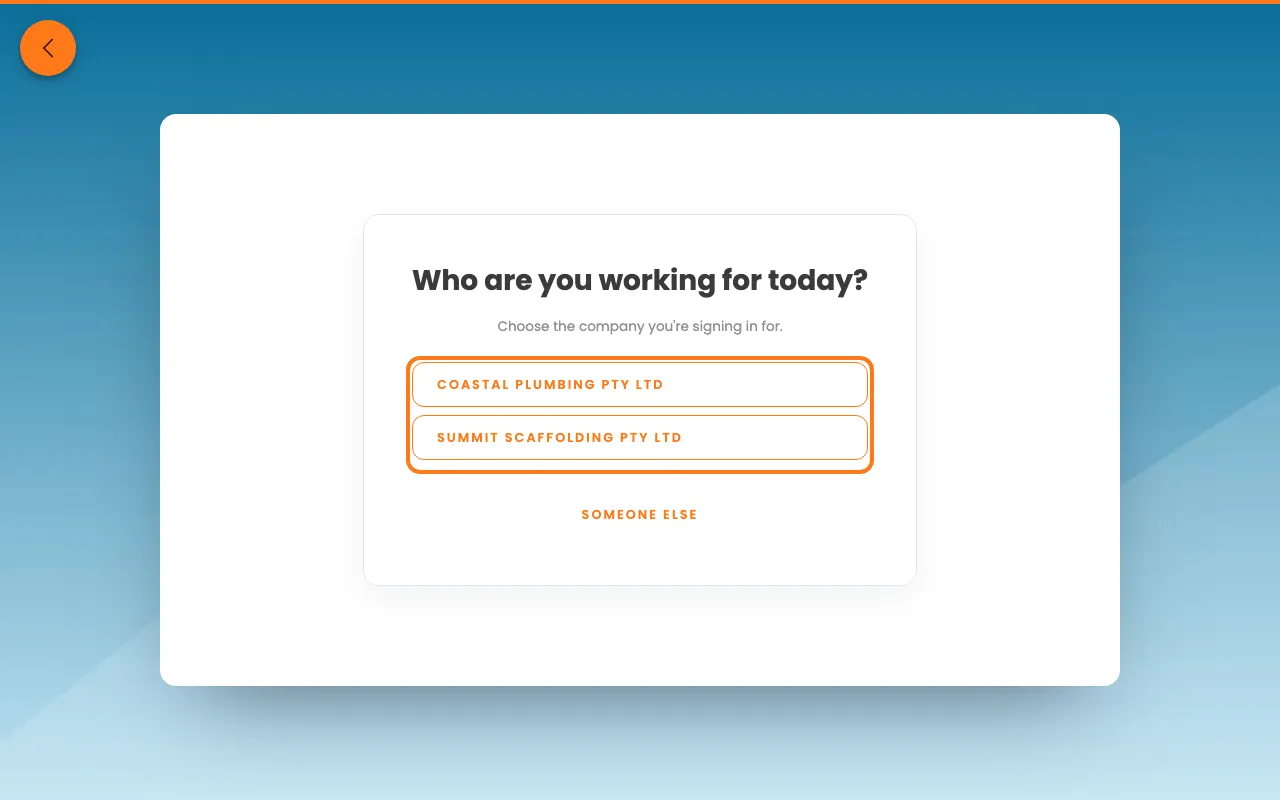
If two or more of your contractors added the person to this site, the kiosk asks Who are you working for today? They tap one, and the sign-in is saved for that contractor. On a phone, we use the first contractor that lets them in.
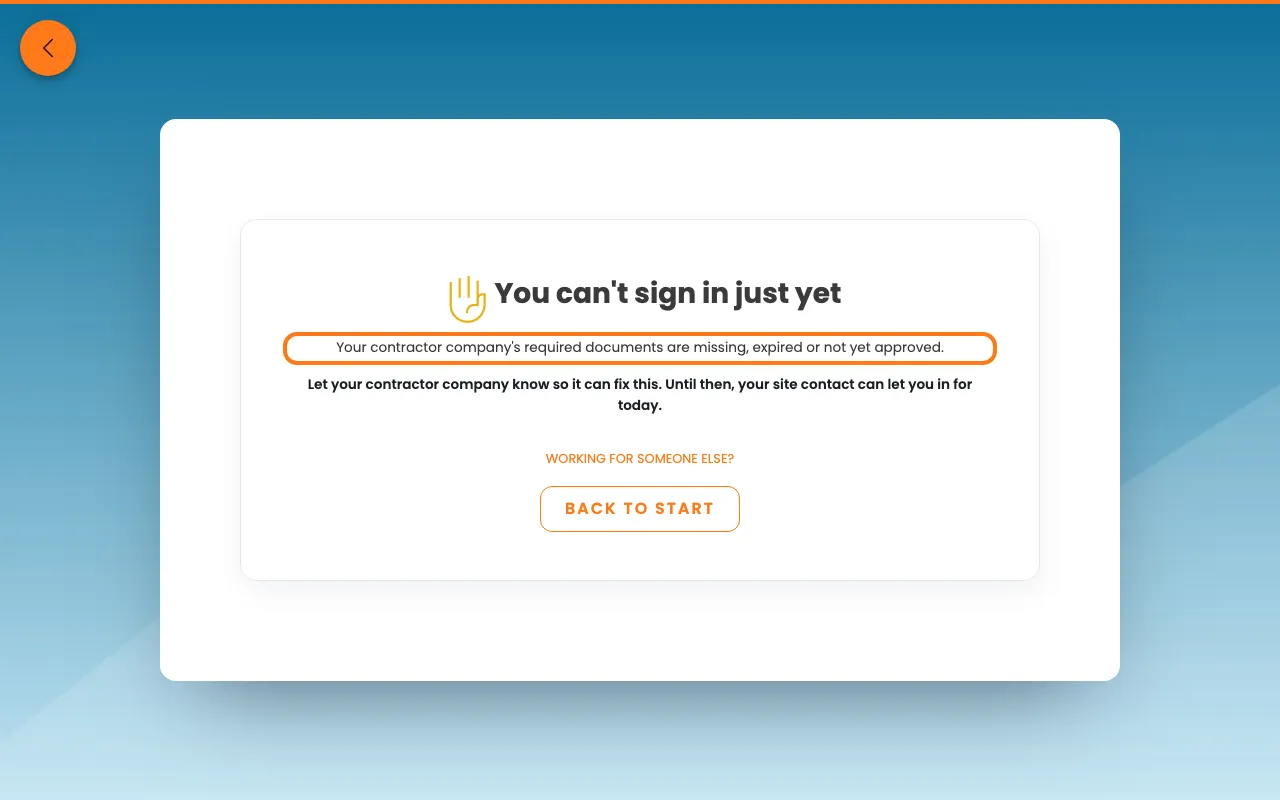
If a check fails, the kiosk says You can’t sign in just yet, with a short reason and what to do next. For a suspended contractor it says You can’t sign in, and that the contractor isn’t currently cleared to work with you. Your comments are never shown.
Every turned-away attempt shows under Blocked sign-ins on the Contractors page for 7 days.
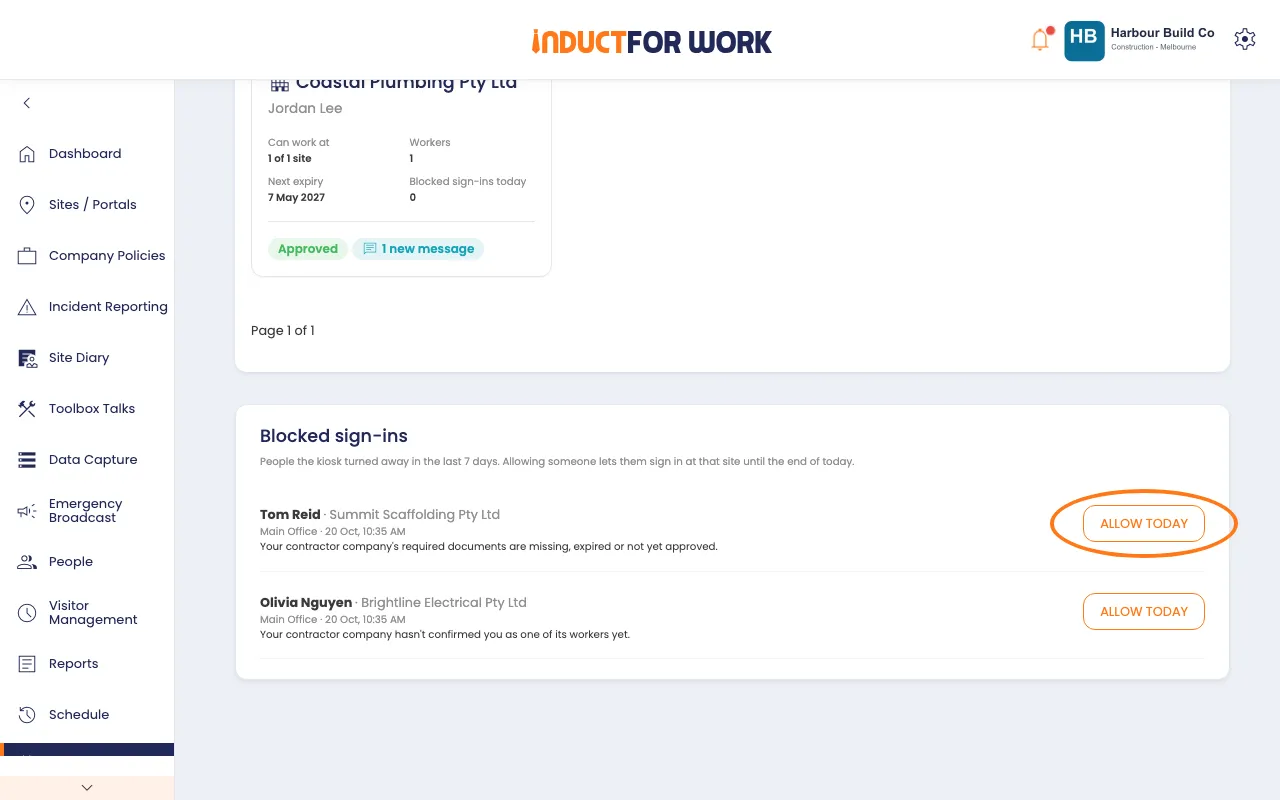
Let a worker in for today
- On the Contractors page, scroll down to Blocked sign-ins.
- Click Allow today next to the person.
- Add a note if you like, then click the orange Allow today button.
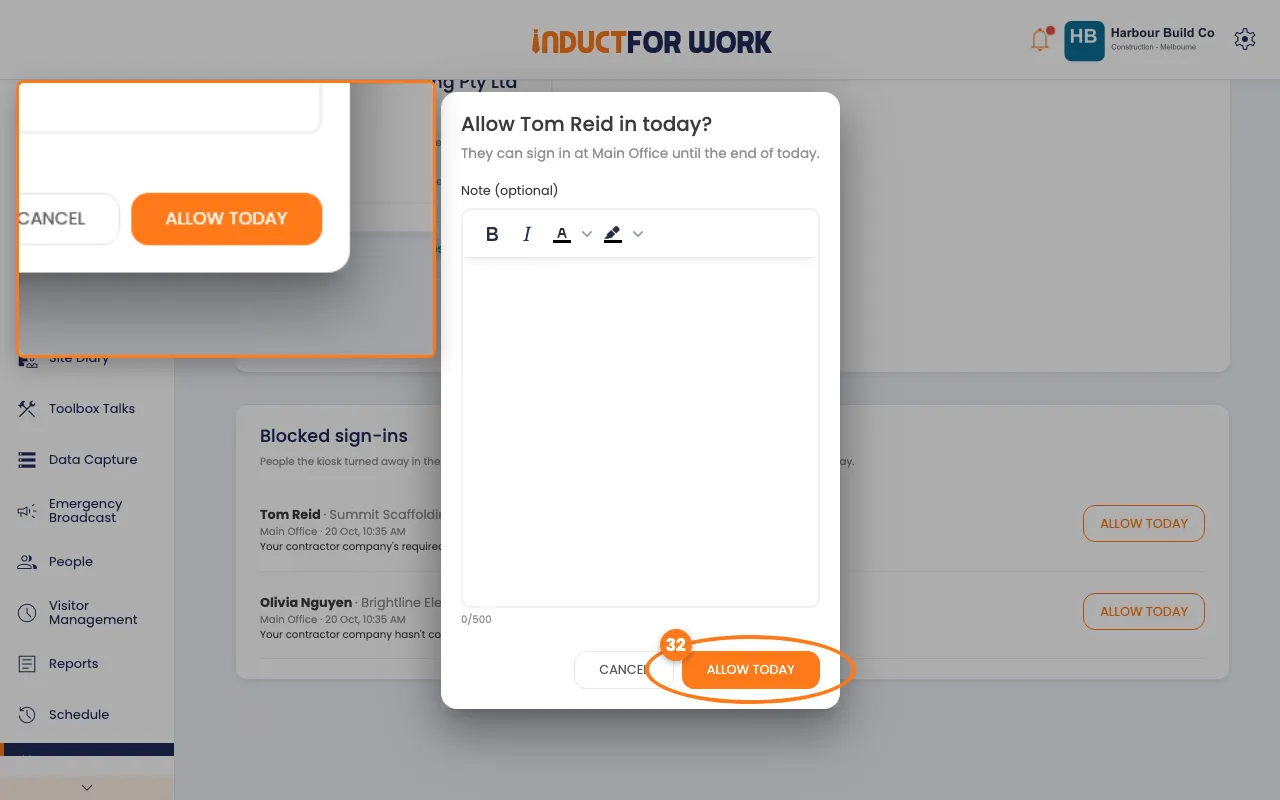
This lets them in at that site until the end of the day. It doesn’t work for a suspended contractor.
Done! What happens next
- Approved contractors’ workers can sign in at the sites they’re cleared for.
- We watch expiry dates and email you and the contractor before anything runs out.
- If something expires or goes missing, their workers are blocked until it’s fixed and approved.
- Contractors who haven’t sent anything are reminded after 2 and 7 days.