
29 Do Not Contact
What does Do Not Contact mean?
A person marked Do Not Contact has turned off emails from Induct For Work, or from your company, or an admin has marked them. They won’t get your online induction invites, reminders or expiry notices. Only the person can turn emails back on, from their own account. This page shows how to help them.
Rules to know
- Only they can turn it off: admins can mark a person Do Not Contact, but can’t clear it. The person turns emails back on themselves.
- Who can mark someone: the Account owner, Administration Users and Site Managers. The profile shows who marked them.
- How it happens: they clicked Unsubscribe from all emails or Unsubscribe from your company’s emails at the bottom of an email, switched emails off under Email Preferences, or marked one of our emails as spam.
- What they miss: induction invites, reminders, expiry notices, emergency broadcasts and other emails from your company.
- No invites: Do Not Contact people are left out of the invite pop-up box. Their profile has no New Invite button.
- Broadcasts: they’re listed as "Do Not Contact" (Skipped) when you send an emergency broadcast.
- Order matters: in Email Preferences, the company switches only work once Global Email Subscription is on.
What you’ll need
- An admin login.
- The person’s email address or phone number, to send them the steps below.
Spot a Do Not Contact person
- In the left menu, click People.
- Click the person’s name to open their profile.
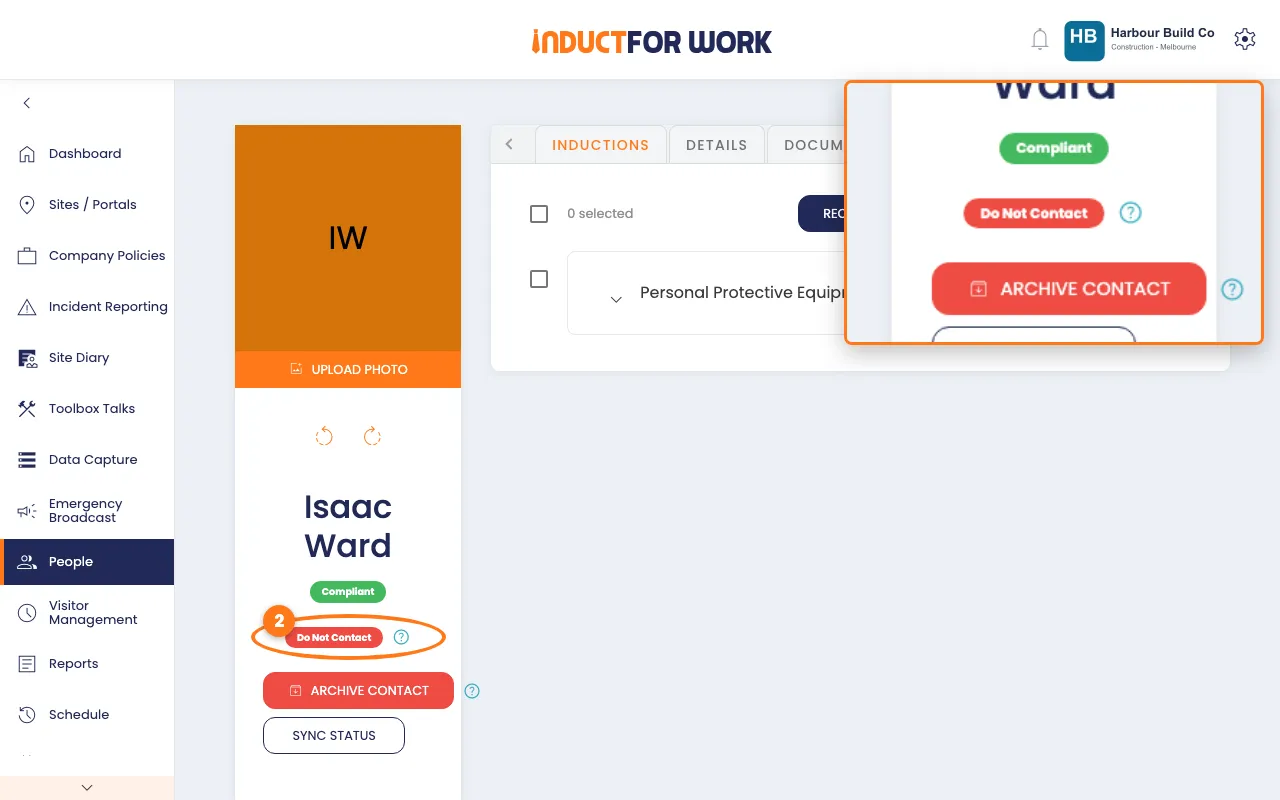
A red Do Not Contact label shows under their name.
Help them turn emails back on
- Ask them to log in to Induct For Work with their own login.
- In their menu on the left, they click Email Preferences.
- They switch on Global Email Subscription.
- Under Company-Specific Email Subscriptions, they switch your company on.
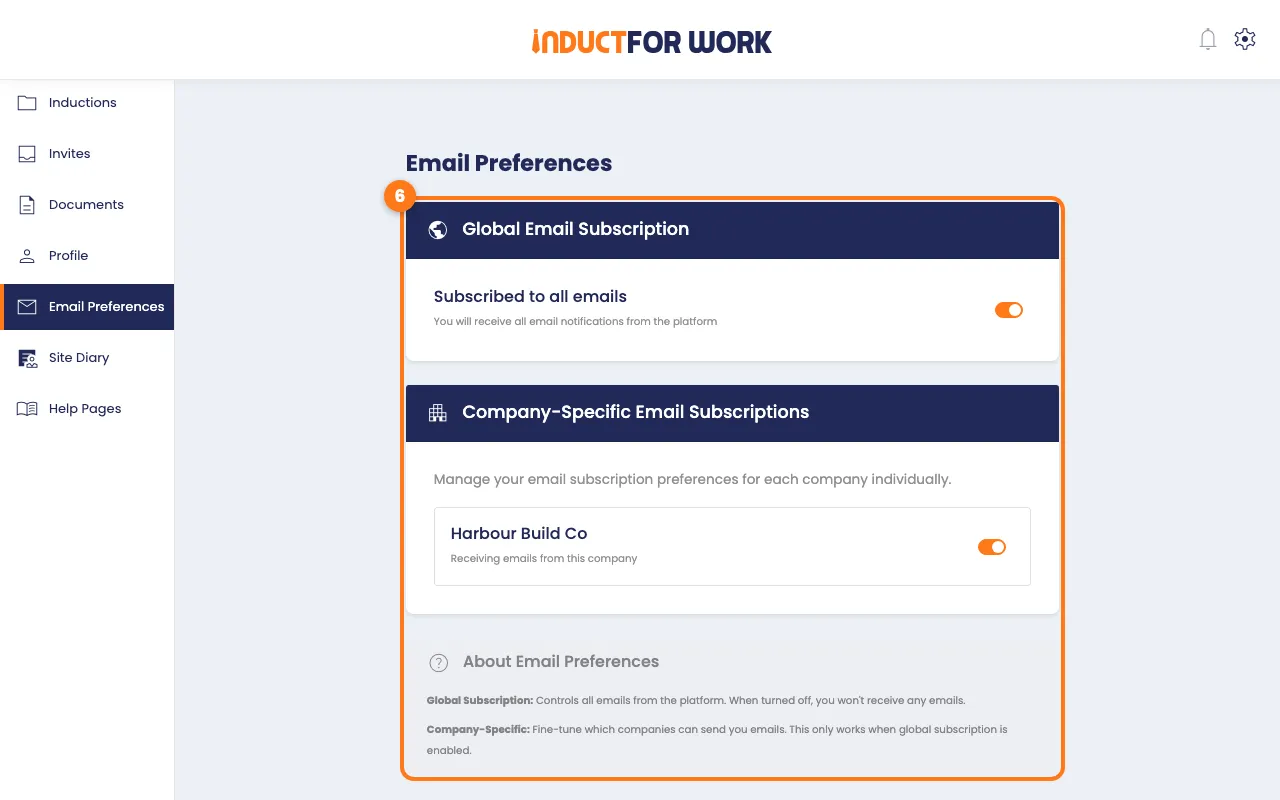
From then on, your invites and reminders reach them again.
Text you can send them
Hi [name], your Induct For Work account is set to "Do Not Contact", so you’re not getting our induction invites or reminders. To turn them back on: log in to Induct For Work, click Email Preferences, then switch on Global Email Subscription and our company under Company-Specific Email Subscriptions. Thanks!
If emails go to spam
Ask them to mark Induct For Work as safe in their email:
- Gmail: open one of our emails, click the three dots, then Filter messages like these. Click Create filter, tick Never send it to Spam, then click Create filter.
- Outlook (desktop): right-click the sender, then click Junk and Never Block Sender.
- Outlook (web): go to Settings, Mail, Junk email, then add us under Safe senders and domains.
- Apple Mail: add us to Contacts, or add a rule that moves our emails to the Inbox.
- Work email (Microsoft 365, Google Workspace or a filter such as Mimecast): ask their IT team to allow our sending domain.
Mark someone as Do Not Contact
Use this when a person asks you to stop contacting them.
- Open the person’s profile, as in steps 1 and 2.
- Click the red Mark as Do Not Contact button, then click Mark as Do Not Contact again to confirm.
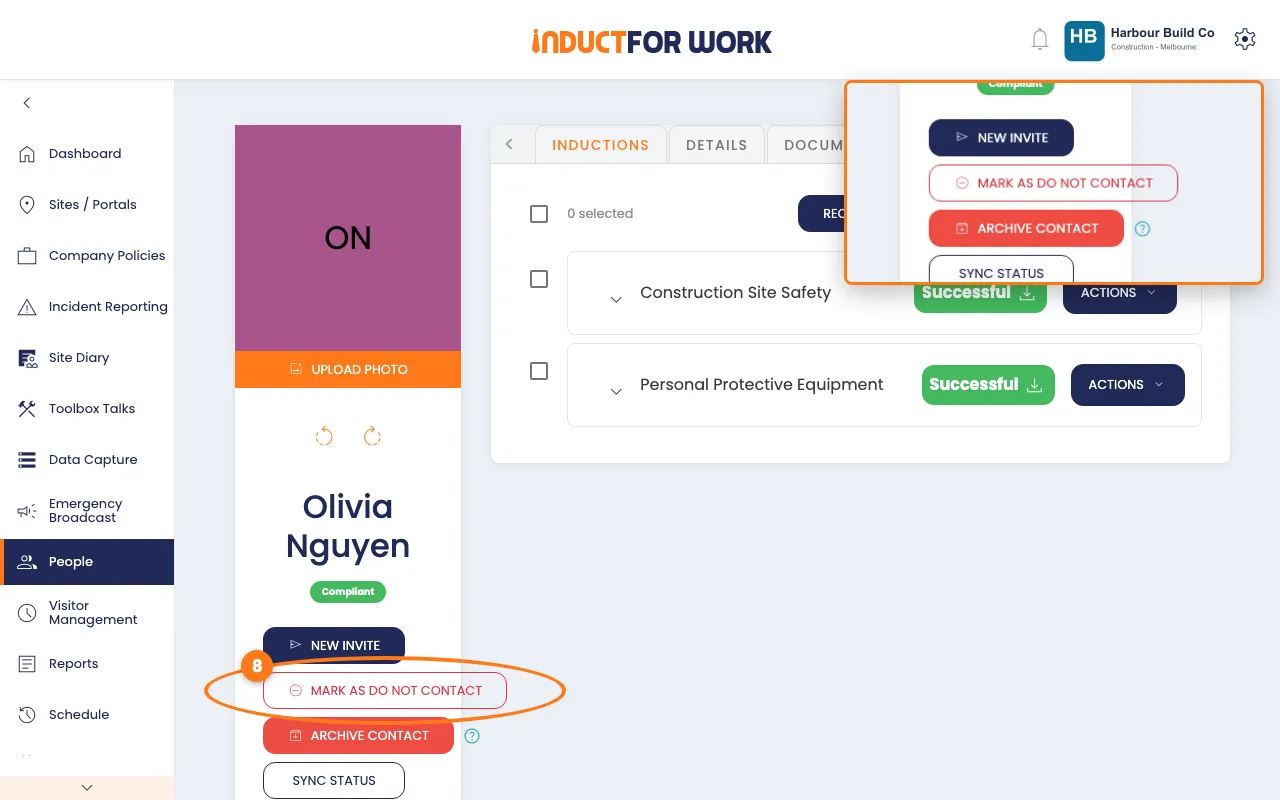
They get no more emails or SMS from your company. Only they can turn this back on.
Done! What happens next
- Once they switch emails back on, the Do Not Contact label goes, and invites and reminders reach them again.
- You can then send any invite they missed. See Induction Invites.