
1 Starting Your Induction
What happens when you start an induction?
Your company asks you to do an online induction before you work on site. You start it from an email, a QR code or a link. You can do it on your phone. It only takes a minute to get going.
Rules to know
- Invite email: the link takes you straight into your induction. You don’t need to sign up first.
- Cancelled invite: if the company cancels your invite, the link stops working. Ask them to send a new one.
- Old invites: an invite link that is about a year old may not work. Ask for a new one.
- Open it twice: if you open your invite again, you carry on where you left off.
- New to us: if you’re new, we email you a Welcome message with your username and password. Keep it.
- Password: use 8 or more characters, with a number, a symbol such as ! or @, and capital and small letters.
- Mobile number: you can sign up with your mobile number only if the company has text messages to use.
- Company key: if the company gave you a key, type it in. It doesn’t matter if it’s in capitals or not.
- Unavailable: if the page says it’s unavailable, tell the company. They can’t take more people right now.
- Confirm your details: after you sign up, you may need to confirm your email or mobile. The link works for 1 month.
What you’ll need
- Your invite email, or the QR code or link from the company.
- An email address or mobile number you can open now.
- The company key, if they gave you one.
Start from your invite email
- Open the email from the company that invited you.
- Tap the link in the email.
Tip
Your invite already confirms your email. You won’t be asked to confirm it again.
Start from a QR code or link
- Scan the QR code with your phone camera, or open the link.
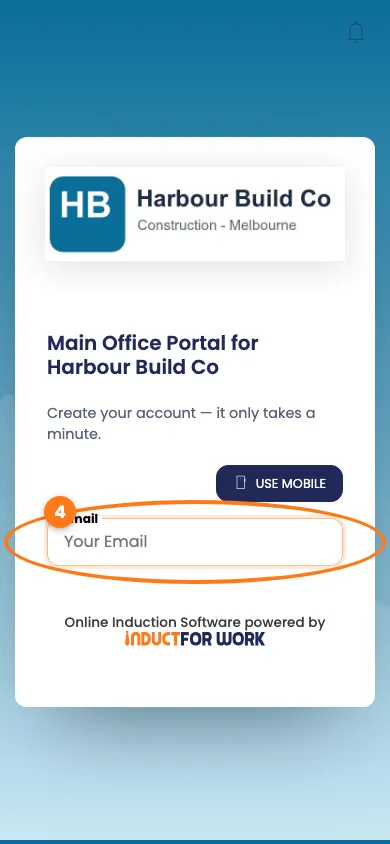
- Type your email address in the Email box.
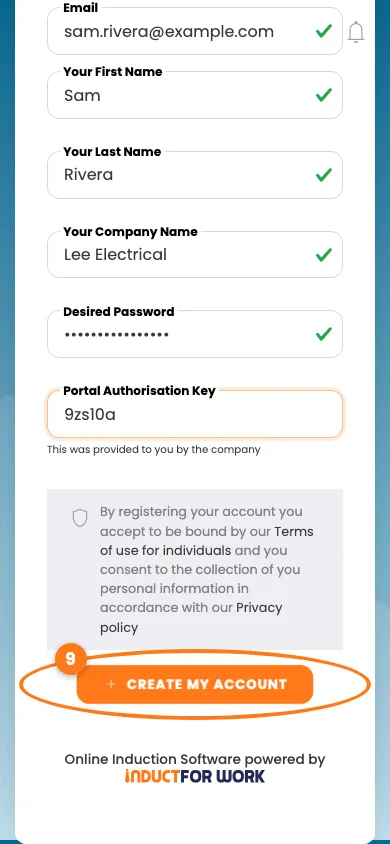
- Fill in Your First Name and Your Last Name.
- If asked, fill in Your Company Name.
- Choose a Desired Password.
- If the company gave you a key, type it in Portal Authorisation Key.
- Tap the orange Create my account button.
Tip
Can’t see the button? Scroll down. It stays faded until every box is filled in.
If you already have an account
- Open the QR code or link, and type your email address.
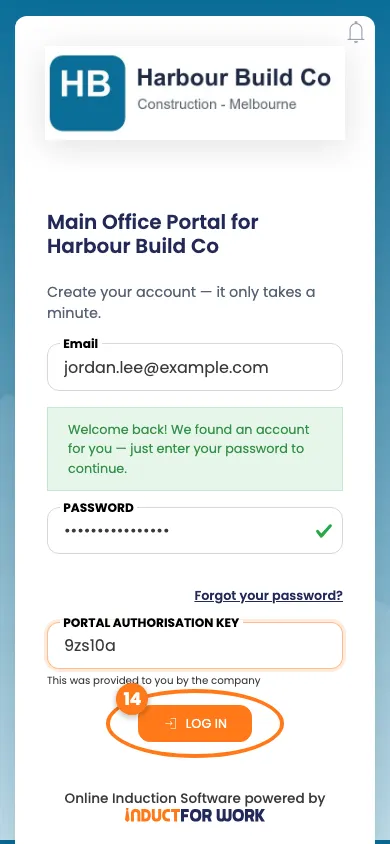
- Wait for the green Welcome back! message.
- Type your Password.
- If asked, type the Portal Authorisation Key.
- Tap the orange Log in button.
Tip
Forgot your password? Tap Forgot your password? under the Password box.
Confirm your details
- If you see One more step, check your email or text messages.
- Tap the link in the message we sent you.
- Tap Resend if nothing arrives. Check your spam folder first.
Done! What happens next
- You’re signed in and can see your Your Inductions list.
- Tap Start on the induction you need to do.
- Come back any time with the same link, your email and your password.