
33 Site Diary
What is the Site Diary?
The Site Diary is a daily log for each site. You and your site team write what happened, add photos and files, and comment on each other’s entries. You can share entries with the people who did your online induction at that site, so everyone knows what’s going on.
Rules to know
- Plans: Site Diary is on Team, Team Plus, Team Pro, Enterprise and the free trial. It isn’t on Lite. Without it, clicking Enable shows which plans include it.
- Changing plan: moving to a plan without Site Diary switches it off on every site. Your entries are kept.
- Who: everyone from Supervisor up can read and write entries in Site Diary, in the left menu. Switching it on or off, and its settings, need a Site Manager or above.
- Sites: Site Administrators, Site Managers and Supervisors only see the diaries of their own sites.
- Switched off: while a site’s diary is off, nobody can read or add entries there. Your entries and settings are kept.
- Inductees: they only see the diary when you tick Allow inductees to view and comment on diary entries. Only people who’ve started or done an induction at that site can open it.
- Sharing: new entries aren’t shared until you click the eye button. Inductees see shared entries and their own, or every entry if you tick Show all entries, including unshared ones.
- What inductees can do: like, comment and add their own entries. They can’t share or archive.
- Changing entries: admins can change any entry at any time. Inductees can change their own entries and comments for 20 minutes. Everyone can only change their own comments.
- Entries: the date can’t be in the future. Attach up to 20 photos, PDFs or Word files.
- Weather: the day’s weather (in °C) is added on its own, from the site’s address.
- Privacy: everyone who can see an entry or comment sees the writer’s email address and role.
- Archived entries leave the feed but stay under Archived. They can’t be brought back.
- The feed shows 50 entries at a time. No emails are sent about new entries or comments.
What you’ll need
- An admin login: Site Manager or above to switch it on, Supervisor or above to write entries.
- A plan with Site Diary, or the free trial.
- A site with its address filled in, so the weather shows.
Switch on the Site Diary
- In the left menu, click Sites / Portals, then click your site’s name.
- Click the Site Diary tab.
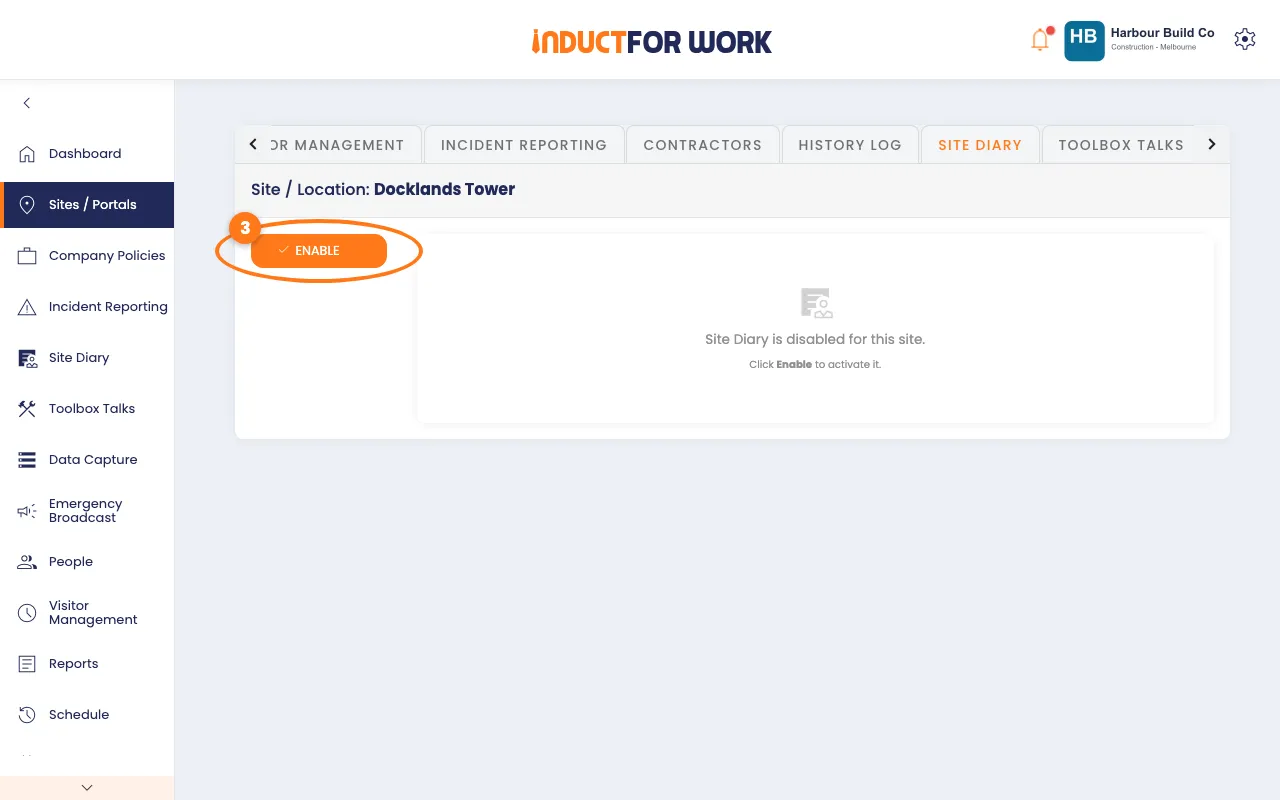
- Click the orange Enable button, on the left.
Choose what inductees see
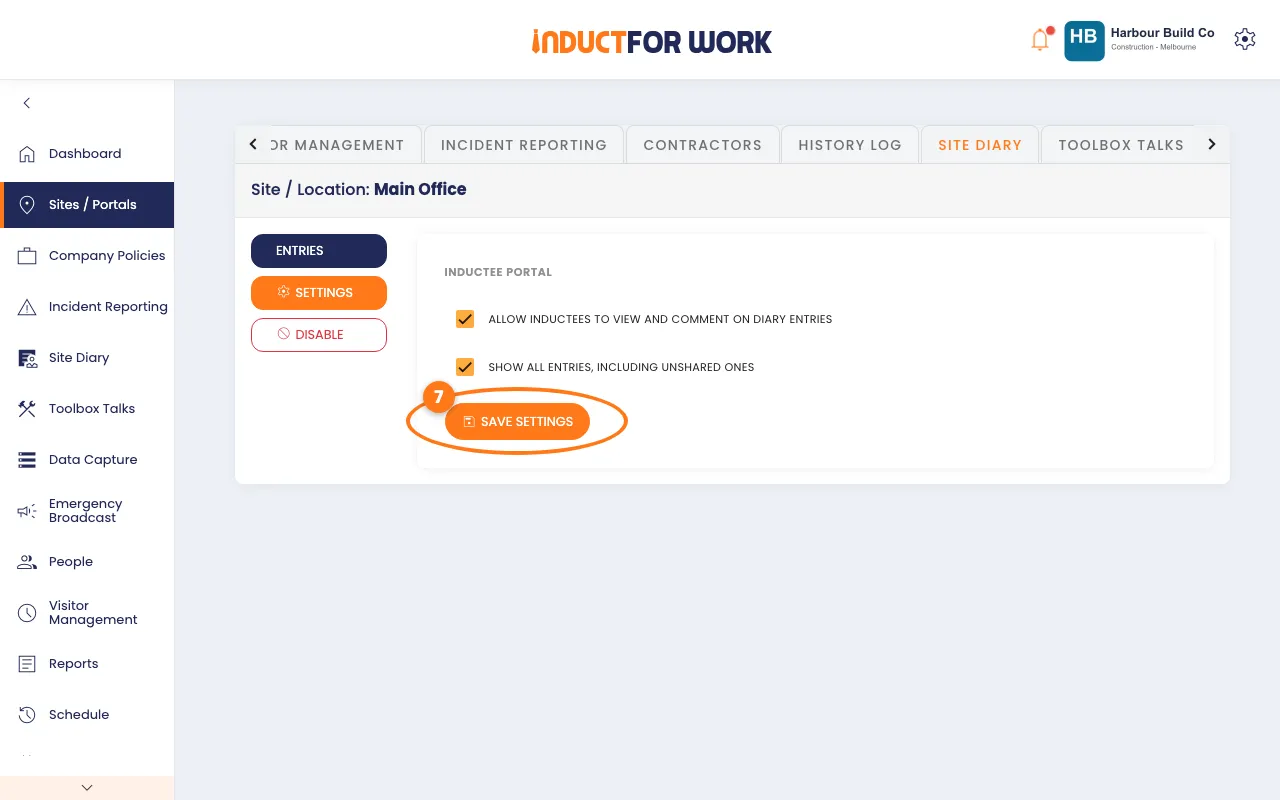
- Click Settings, on the left.
- Tick Allow inductees to view and comment on diary entries.
- Optional: tick Show all entries, including unshared ones.
- Click the orange Save settings button.
Write an entry
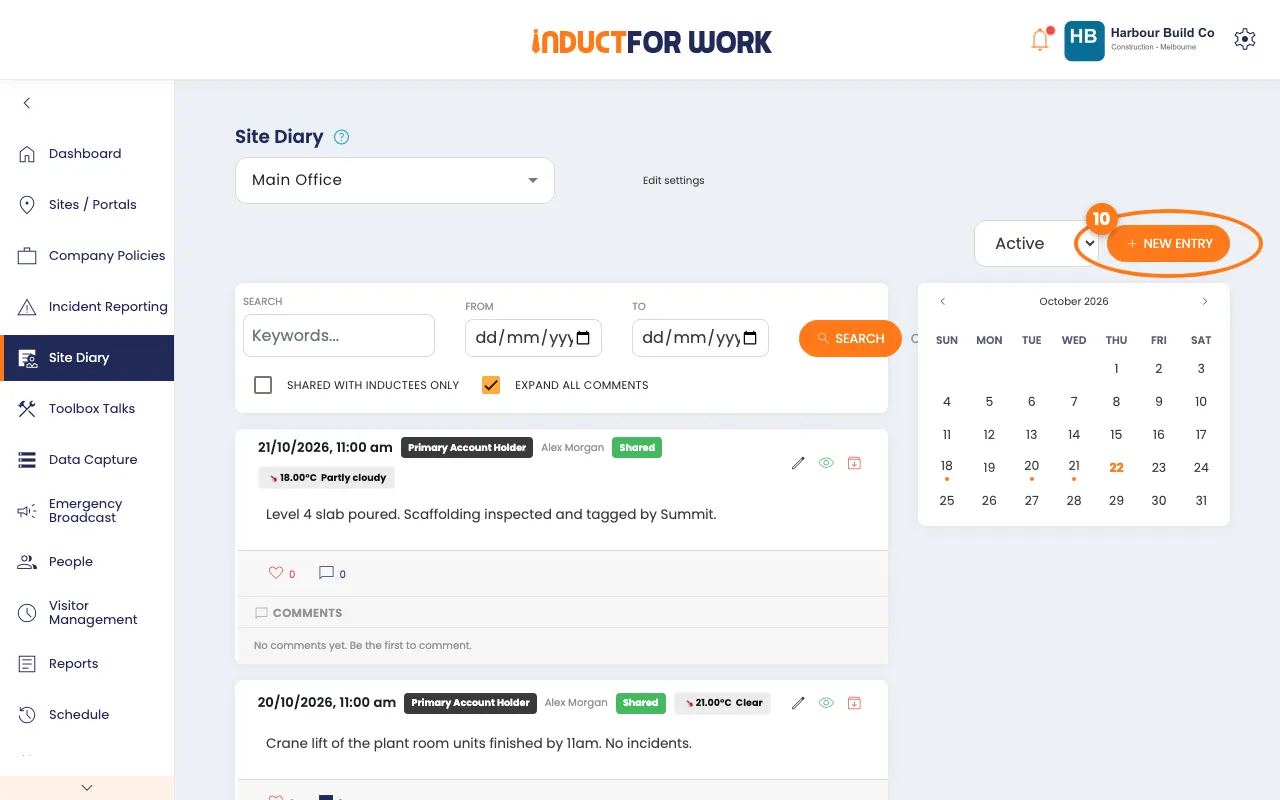
- In the left menu, click Site Diary.
- If you have more than one site, pick it from the list at the top.
- Click the orange New Entry button, top right.
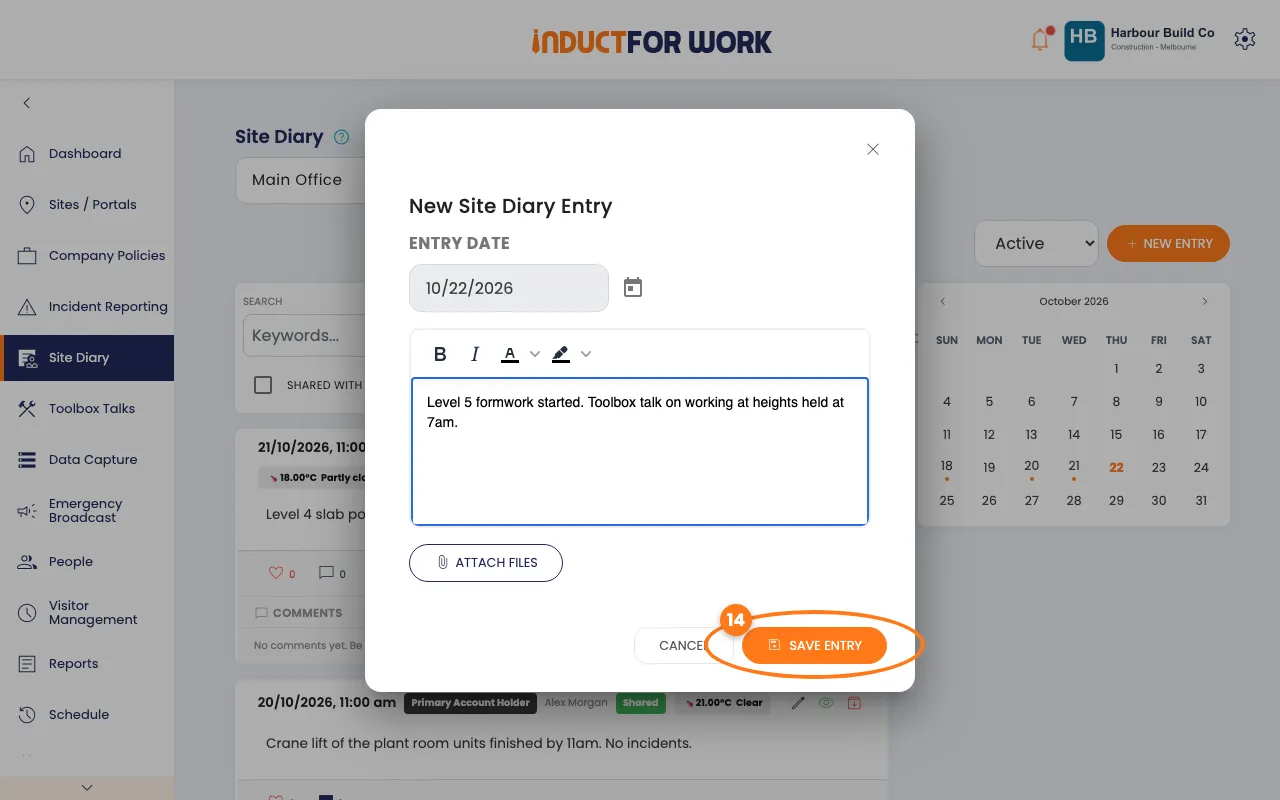
- Check the Entry date.
- Type what happened in the big box.
- Optional: click Attach files to add photos, PDFs or Word files.
- Click the orange Save entry button.
The entry shows at the top of the feed, with the day’s weather, your role and your email address.
Share an entry with inductees
- Click the grey eye button, top right of the entry.
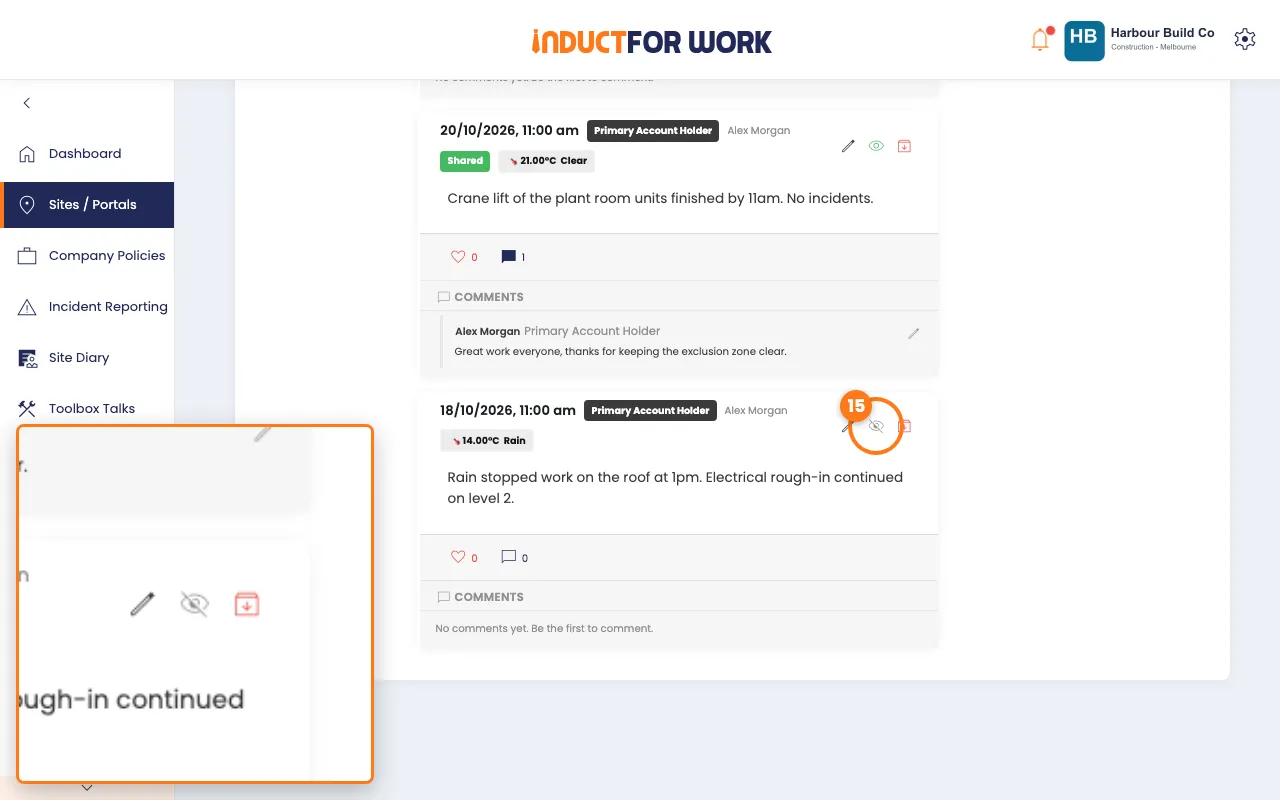
A green Shared label then shows on the entry. Click the eye again to stop sharing it.
Comment on an entry
- Click the speech bubble under the entry.
- Type your comment, then click the orange Post comment button.
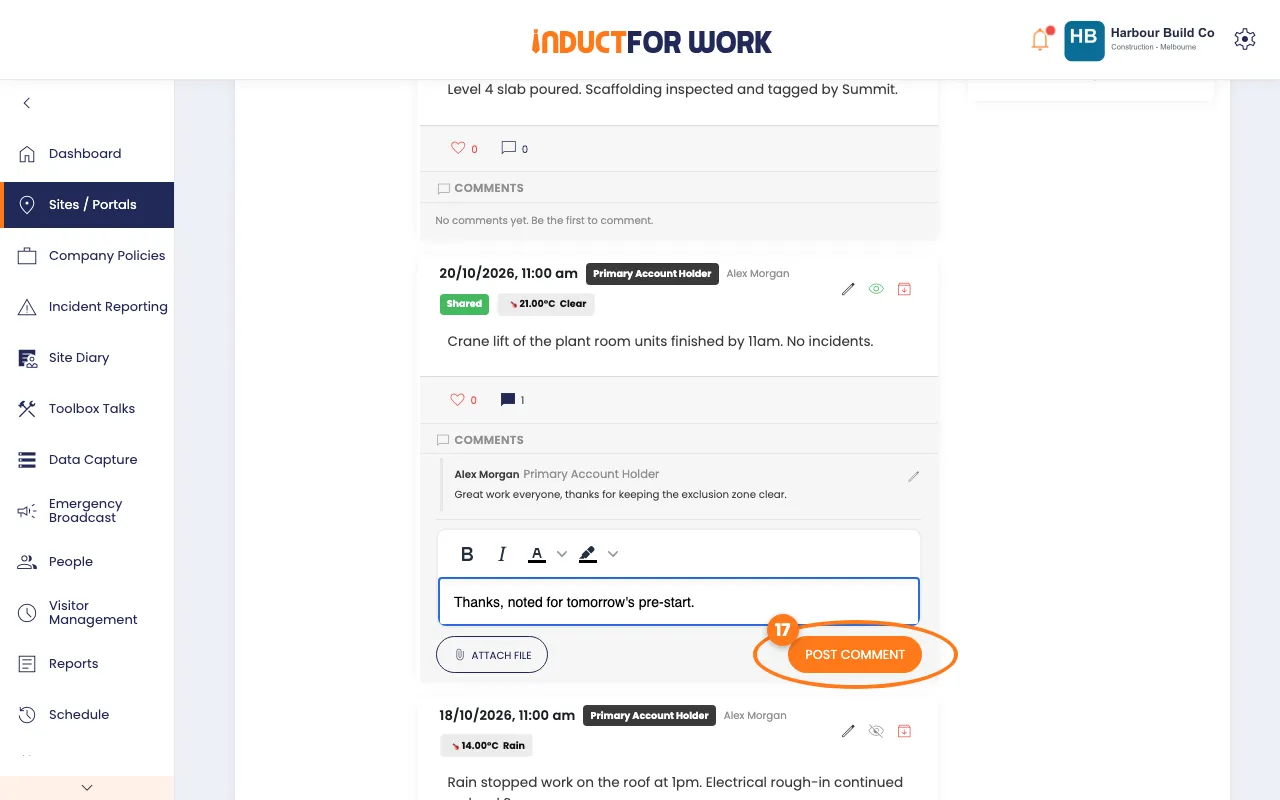
Click the heart under an entry to like it.
Find an entry
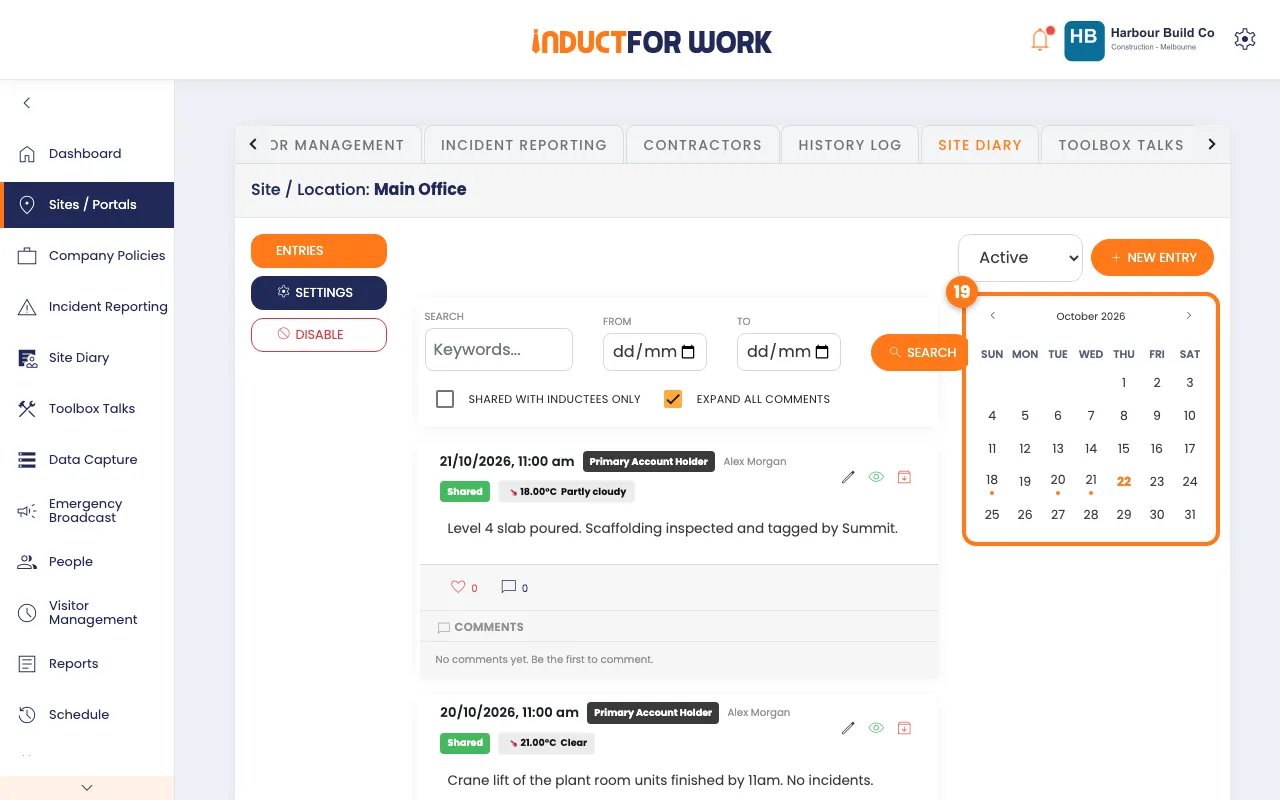
- Type a word in Search, or pick From and To dates, then click Search.
- Or click a day with a dot in the calendar, on the right. Click it again to see every day.
Archive an entry
- Click the red archive button, top right of the entry.
- Click Archive in the pop-up box.
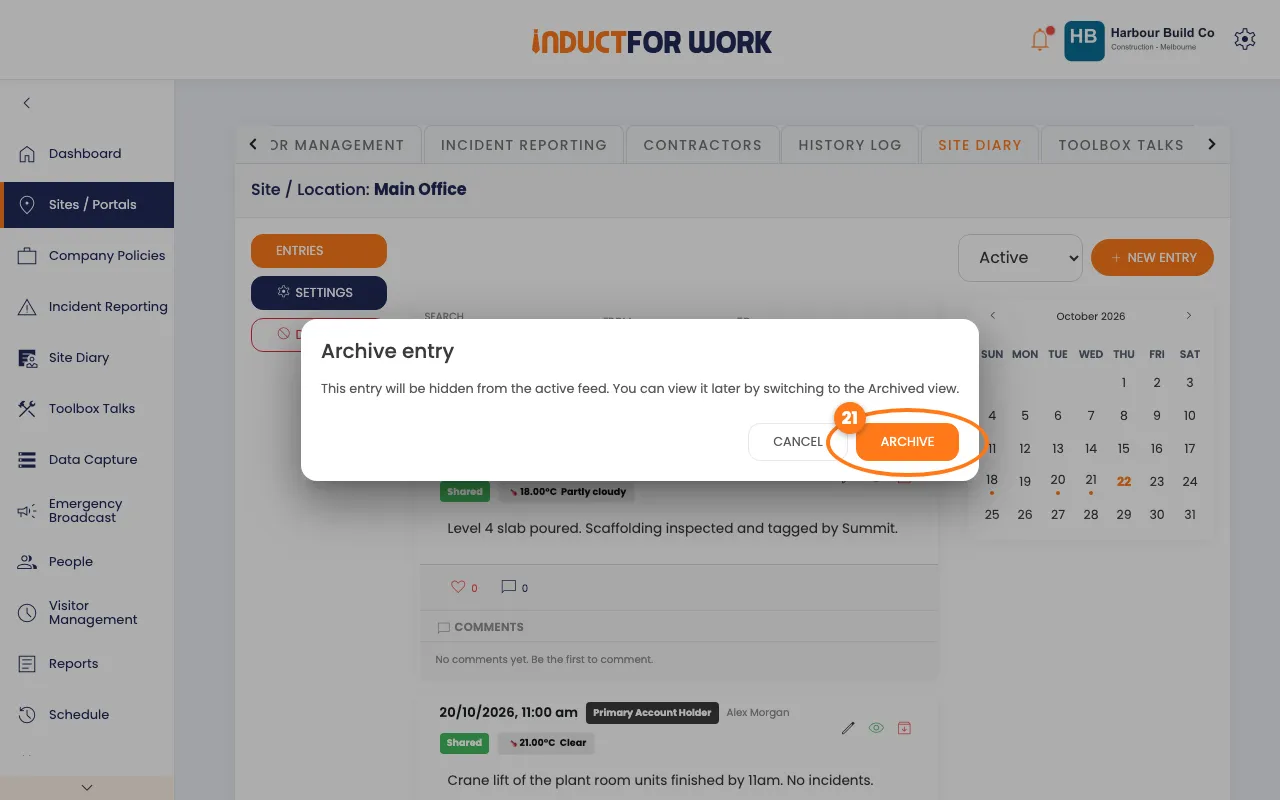
To see archived entries, pick Archived in the list, top right. To change an entry instead, click its pencil.
Switch off the Site Diary
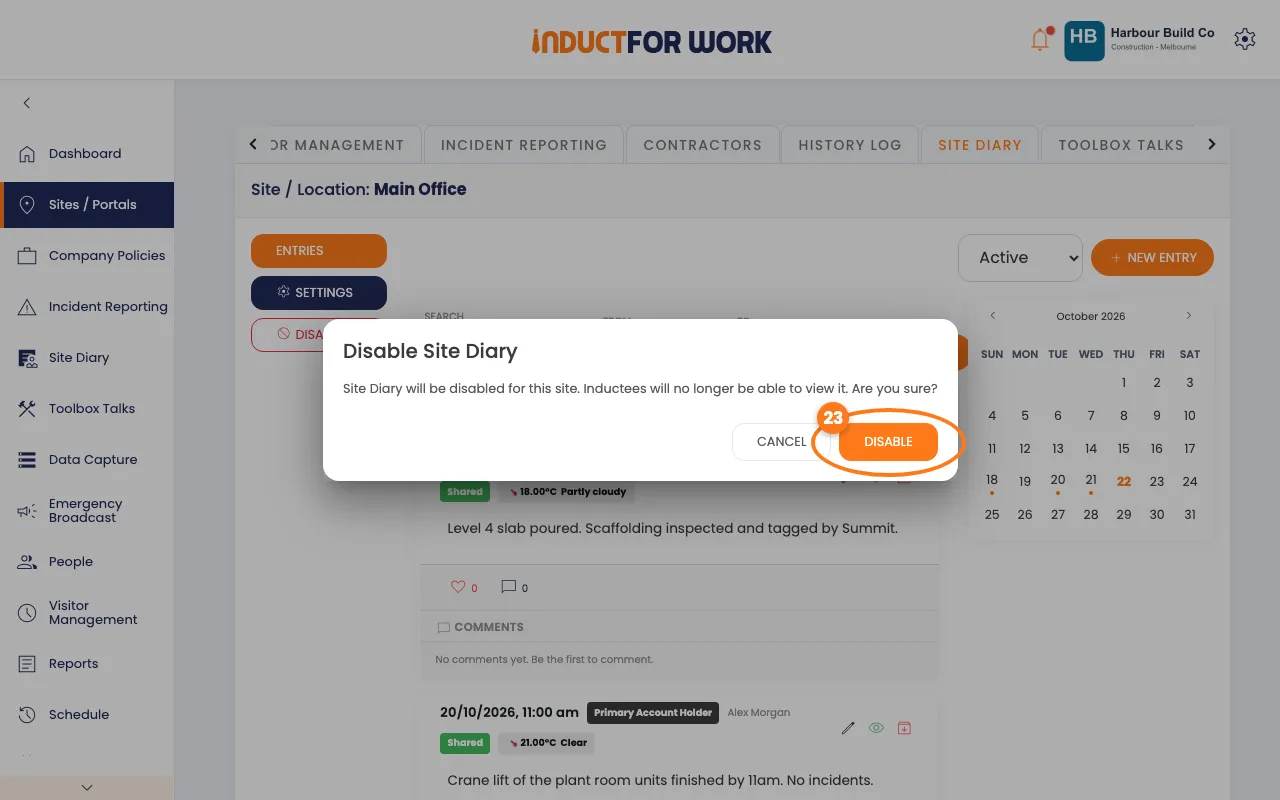
- On the site’s Site Diary tab, click the red Disable button, on the left.
- Click Disable in the pop-up box.
What inductees see
When people who did an induction at the site log in to Induct For Work, they click Site Diary in the left menu. They see the entries you’ve shared, plus their own. They can like, comment and click New Entry to add their own.
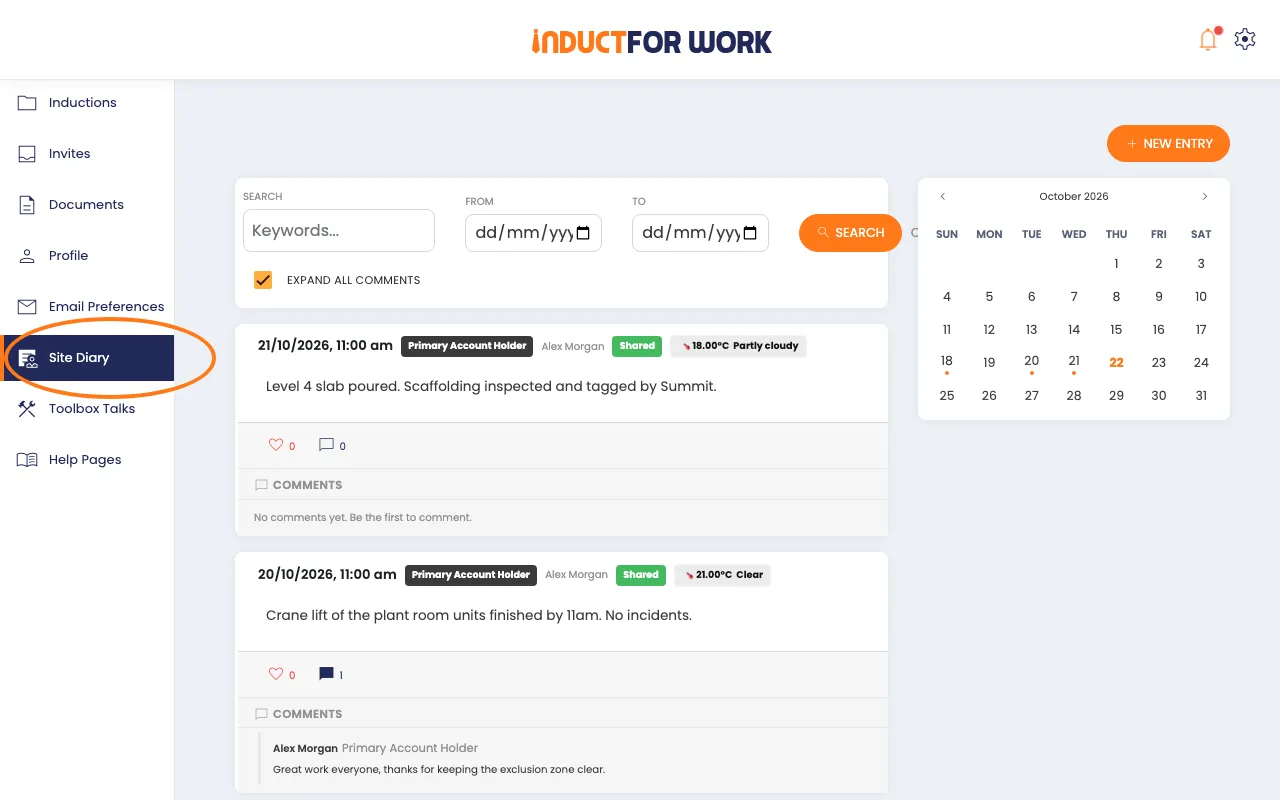
Entries and comments they add show in your feed with the role Inductee.
Done! What happens next
- Your team’s entries, photos and comments build a dated record for each site.
- Use the calendar or Search to find what happened on any day.
- Inductees who can see the diary find your shared entries in their profile, any time.