
32 Toolbox Talks
What are Toolbox Talks?
Toolbox Talks are short safety briefings you send to a group of workers, alongside your online induction. People open the talk on their phone, read the pages, answer a few questions and sign. Each send is a session, so you can see who has done it and remind anyone who hasn’t.
Rules to know
- Plans: Toolbox Talks is on Team Plus, Team Pro, Enterprise and the free trial. It can’t be bought as an add-on.
- Lite and Team: clicking Toolbox Talks shows a pop-up box with the plans that include it.
- Who: Supervisors and up can create, send and check talks. Switching Toolbox Talks on for a site needs a Site Manager or higher.
- Sites: you can only create a talk on a site that has Toolbox Talks switched on. Switching it off stops that site’s schedules.
- Who gets it: you send a talk to a contact group. Everyone in the group when it sends is invited.
- When it sends: scheduled invites go out within about 30 minutes of the time you pick. Send Now sends them straight away.
- The invite: each person gets an email with a link, or a text message if they only have a mobile number. People marked Do Not Contact aren’t sent it. No login is needed.
- Passing: the pass mark starts at 80%, and you can set it from 1% to 100%. A talk with no questions always counts as passed. Below the pass mark, people can click Try again.
- Signing: people must sign to finish.
- Reminders: Remind pending emails the invite again to everyone in that session who hasn’t finished.
- Sessions: the Sessions tab shows the latest 50.
- Archiving: archiving a talk stops its schedules. Restoring it doesn’t turn them back on.
- Privacy: the Report shows each person’s name, email, score and whether they signed.
What you’ll need
- An admin login, from Supervisor up. A Site Manager or higher to switch it on for a site.
- A contact group with your workers in it. See Contact Groups.
Switch on Toolbox Talks for a site
- In the left menu, click Sites / Portals, then click your site’s name.
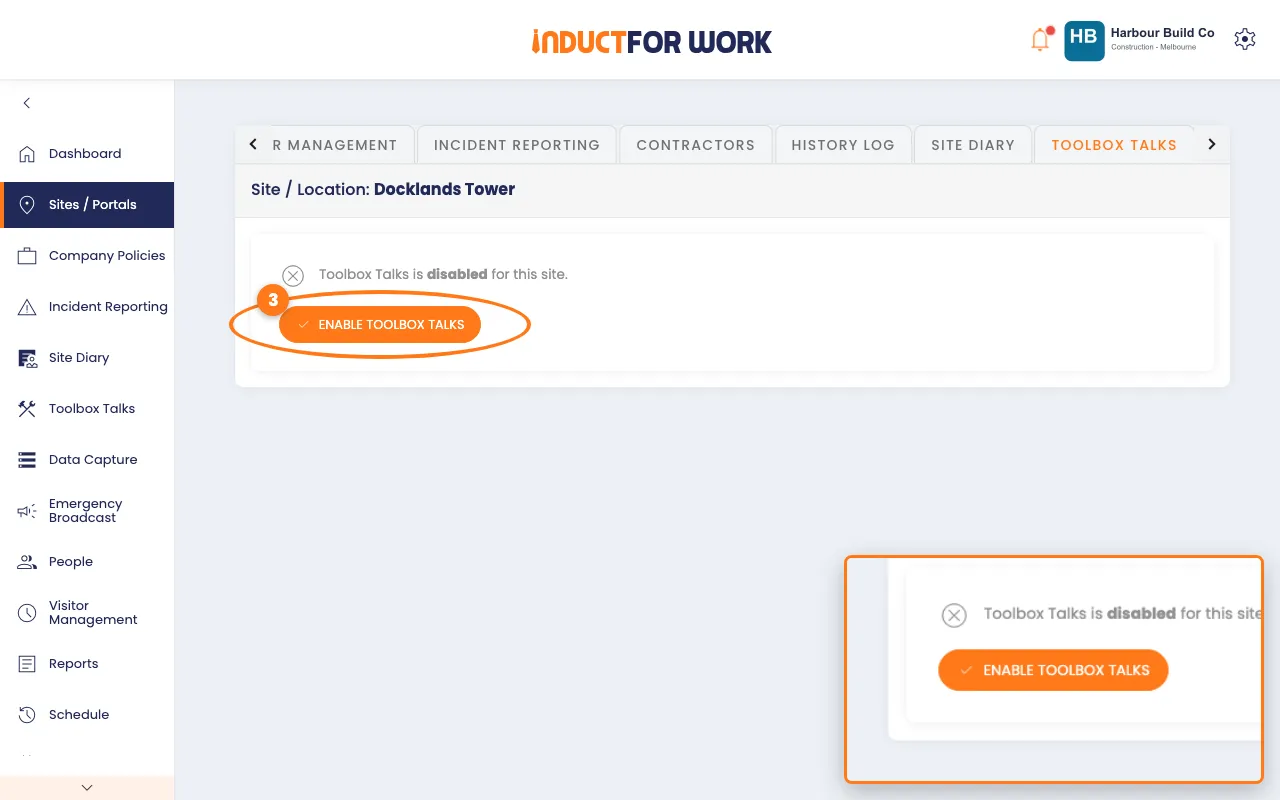
- Click the Toolbox Talks tab.
- Click the orange Enable Toolbox Talks button.
Create a talk
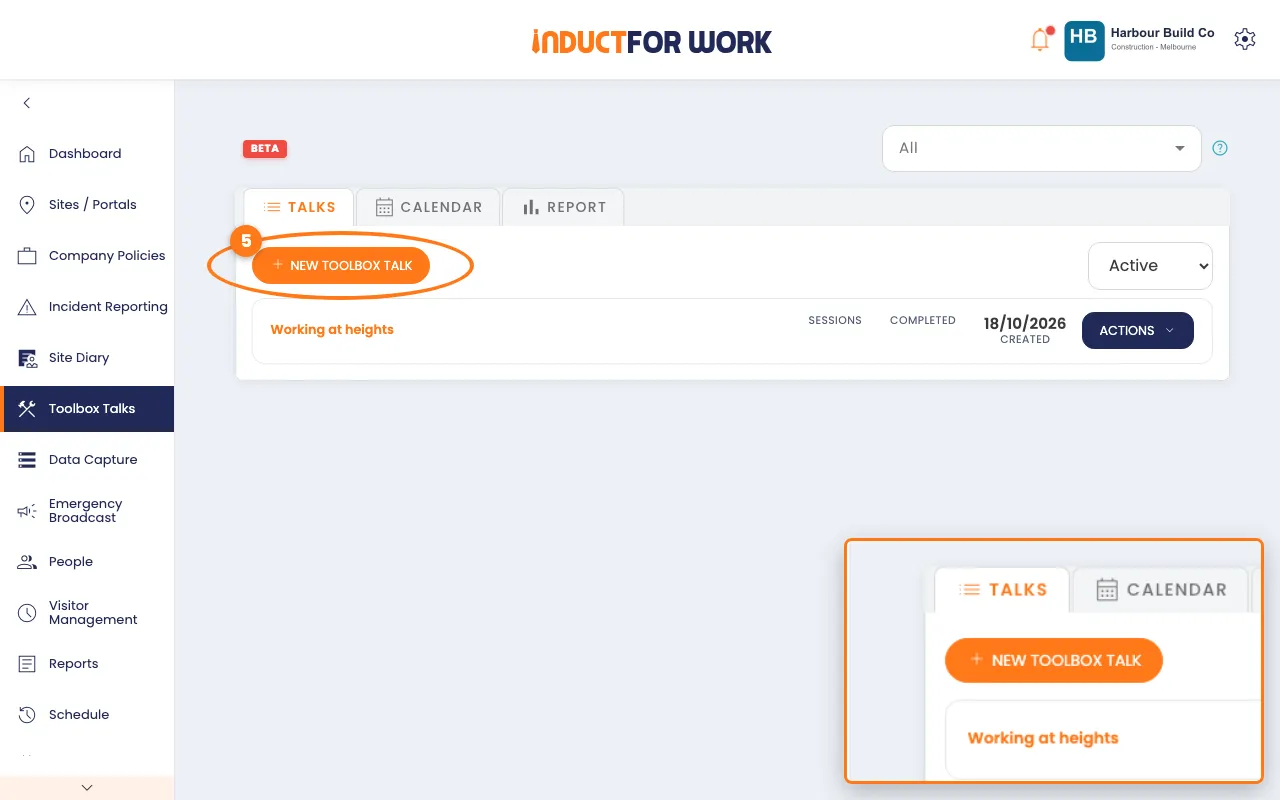
- In the left menu, click Toolbox Talks.
- Click the orange New Toolbox Talk button.
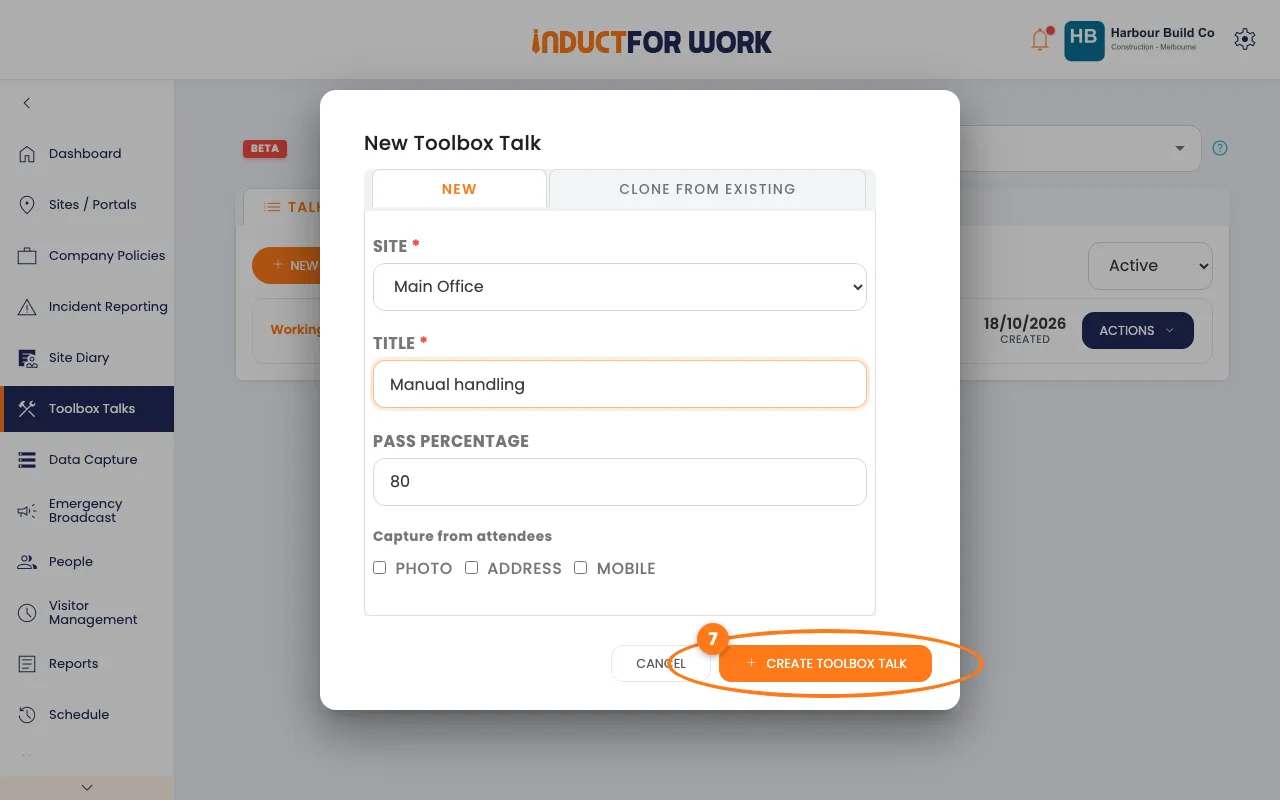
- Pick the Site, then type a Title.
- Click the orange Create Toolbox Talk button.
The talk opens on its Pages tab.
Add pages and questions
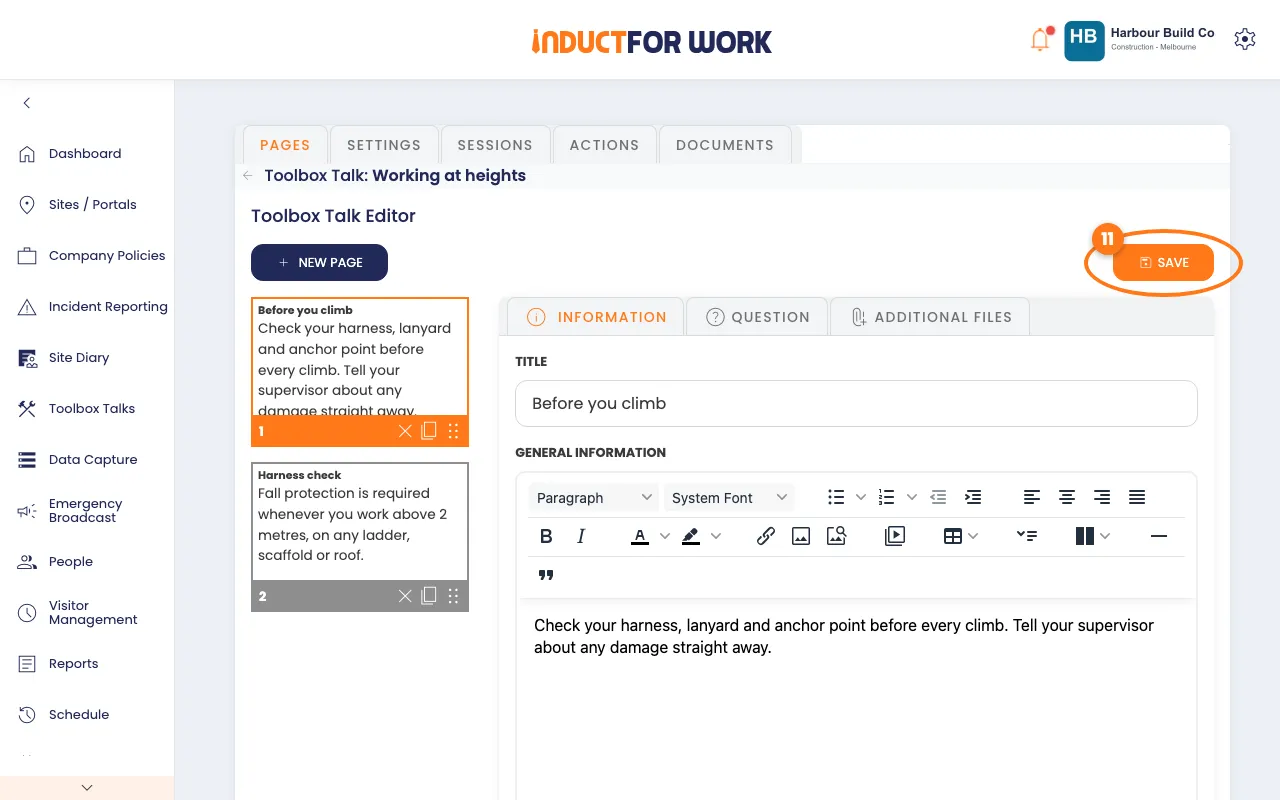
- Click the navy New page button.
- On Information, type a Title and the text under General Information.
- To ask a question, click the Question tab and type the question and its answers.
- Click the orange Save button, top right.
Tip
Pages and questions work the same way as in an induction. See Induction Editor.
Set the pass mark
- Click the Settings tab.
- Drag the Pass percentage slider to your pass mark.
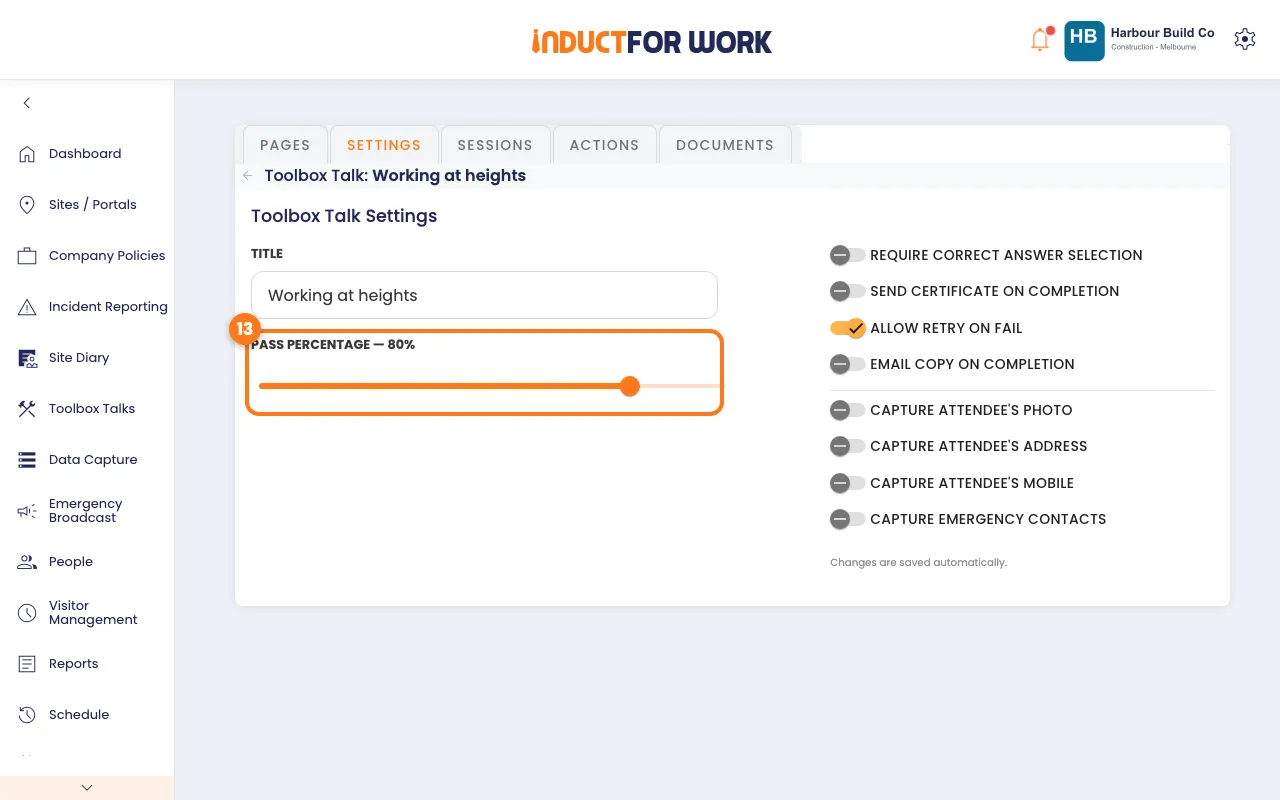
Your change saves itself.
Send it to a group
- In the left menu, click Toolbox Talks.
- Click the navy Actions button next to the talk, then click Schedules.
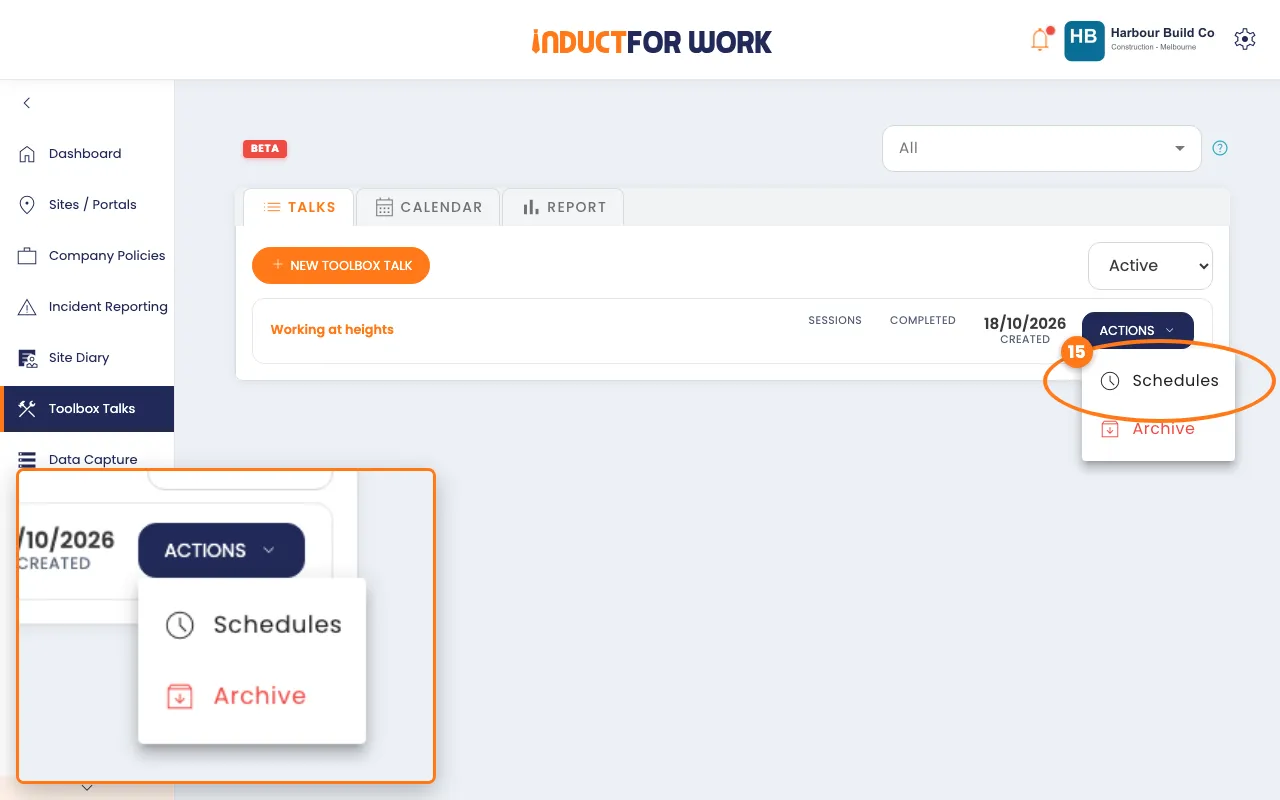
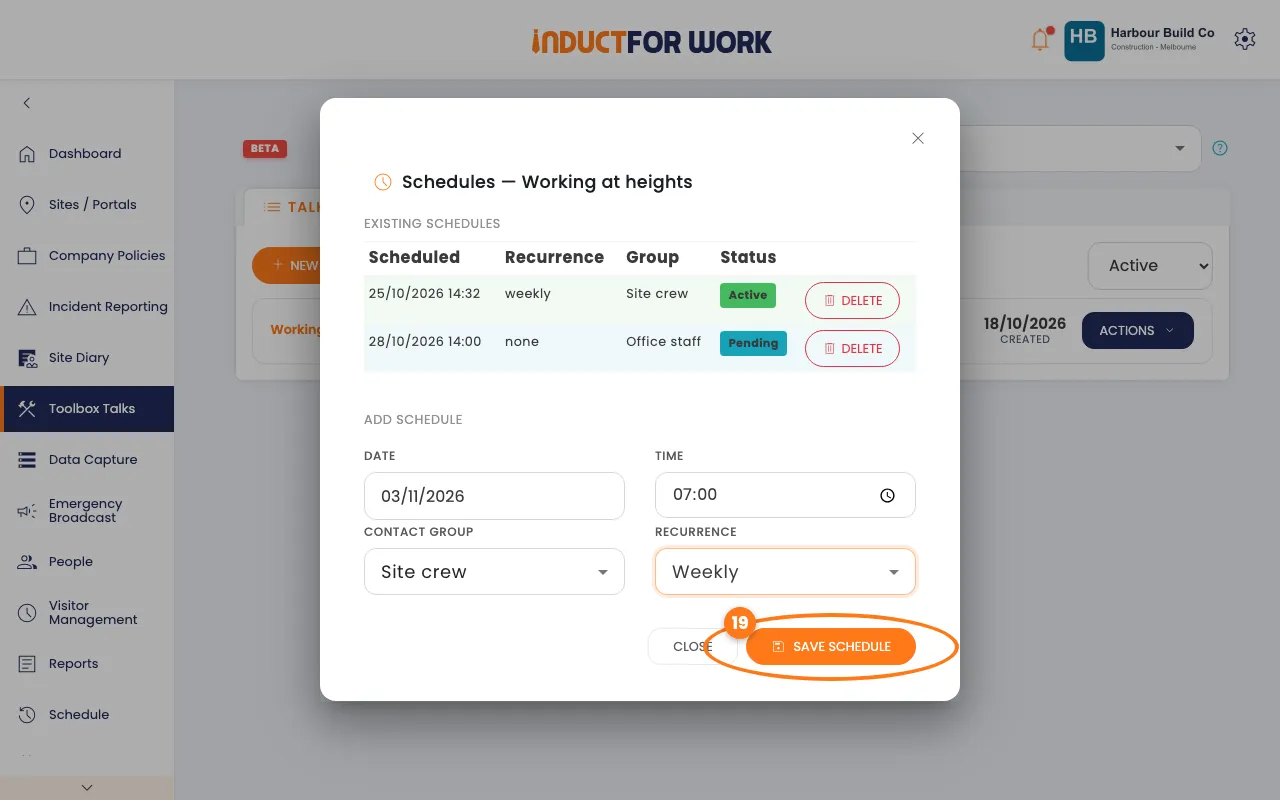
- Pick the Date and Time.
- Pick the Contact Group.
- Under Recurrence, pick One-off, Weekly, Fortnightly or Monthly.
- Click the orange Save Schedule button.
Send it now
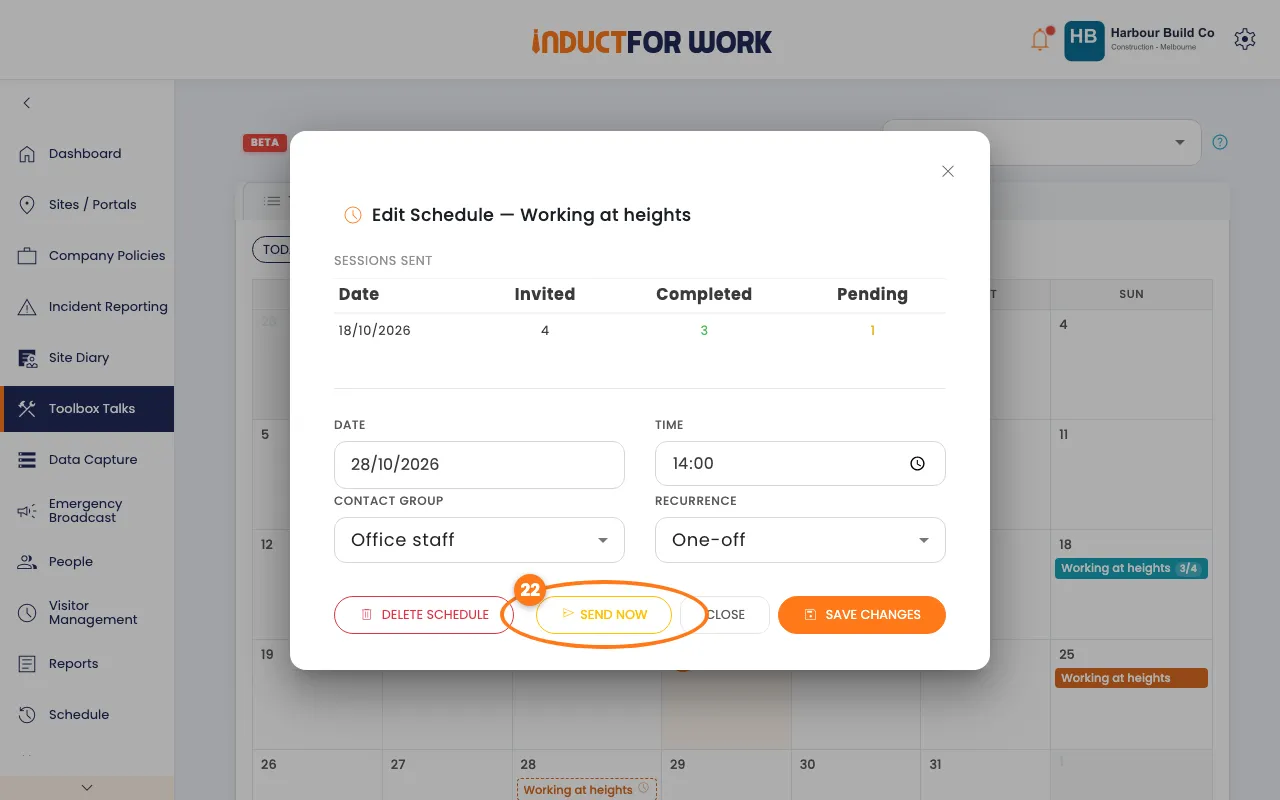
- Click the Calendar tab.
- Click the talk on its day. It has a clock icon until it sends.
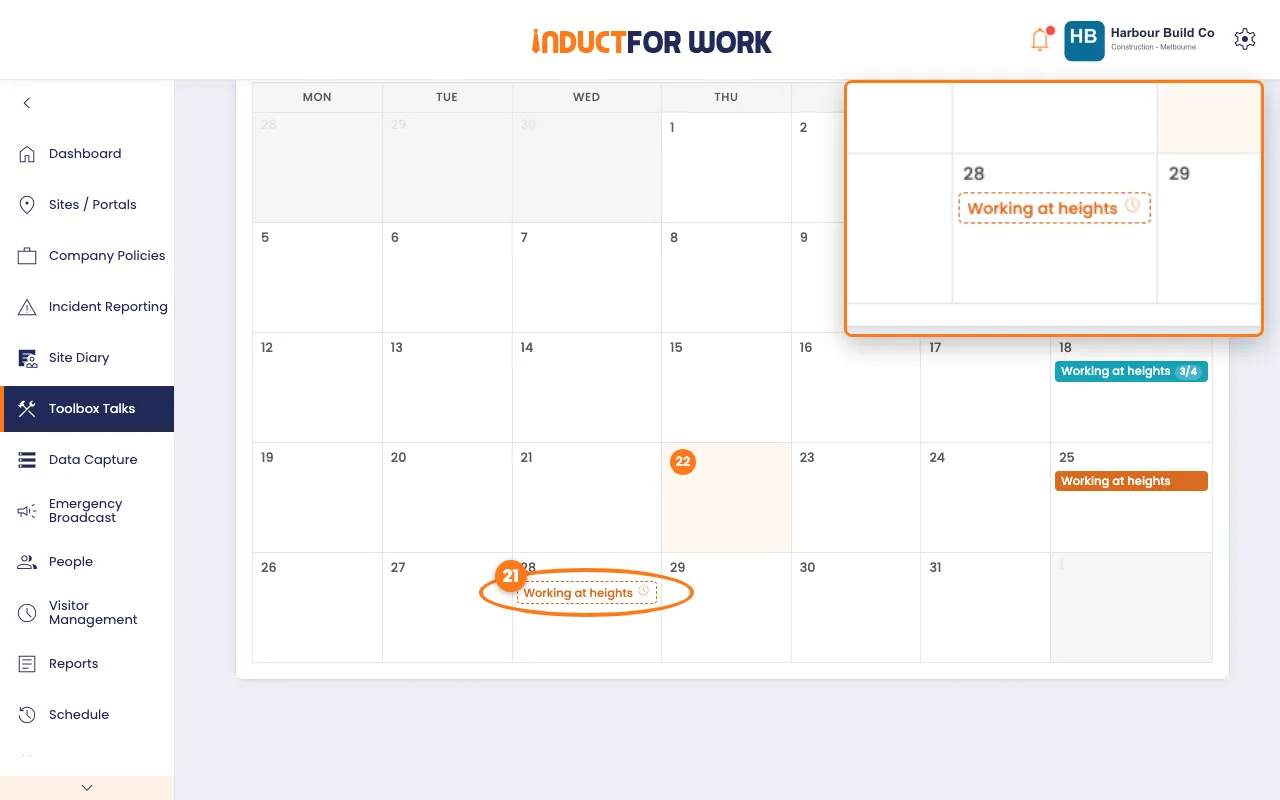
- Click the yellow Send Now button.
What workers see
People get an email called [Action Required] Toolbox Talk from your company. They click the link to open the talk. No login is needed.
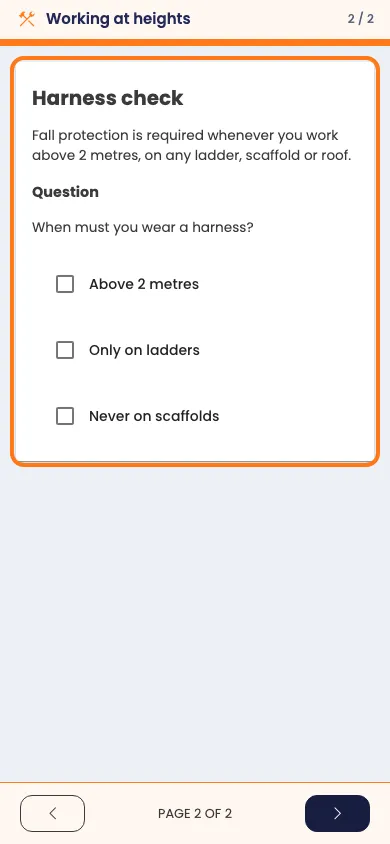
They read each page and answer the questions, tapping the arrow, bottom right, to move on.
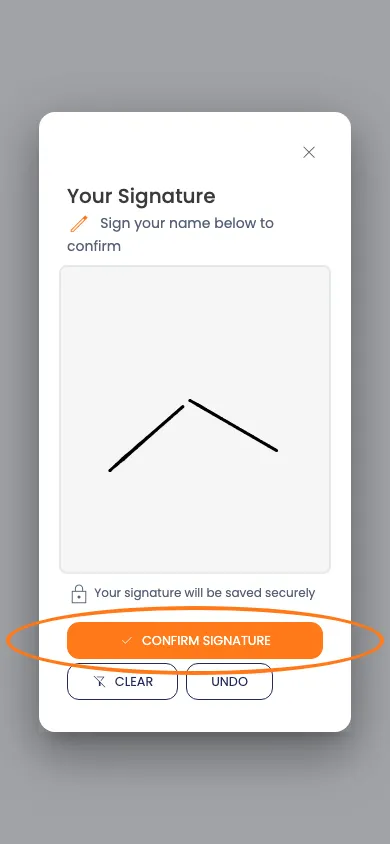
After the last page, a signature pad opens. They sign with their finger and tap Confirm Signature.
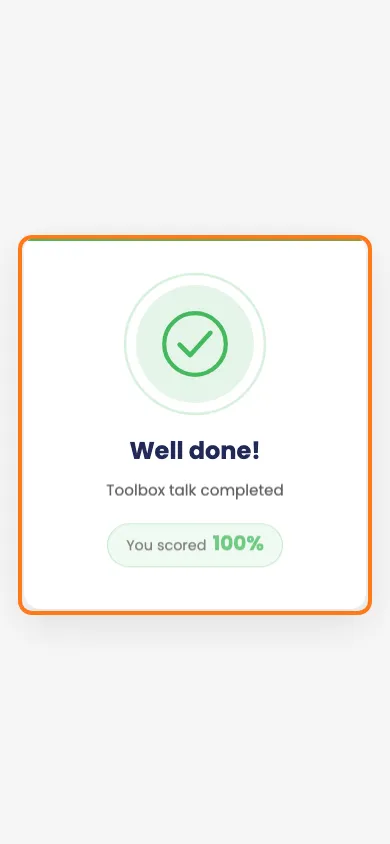
If they reach the pass mark, they see Well done! with their score. If not, they see Not quite there and can click Try again.
Check who has done it
- In the left menu, click Toolbox Talks, then click the talk’s name.
- Click the Sessions tab.
- Click the navy View report button next to a session.
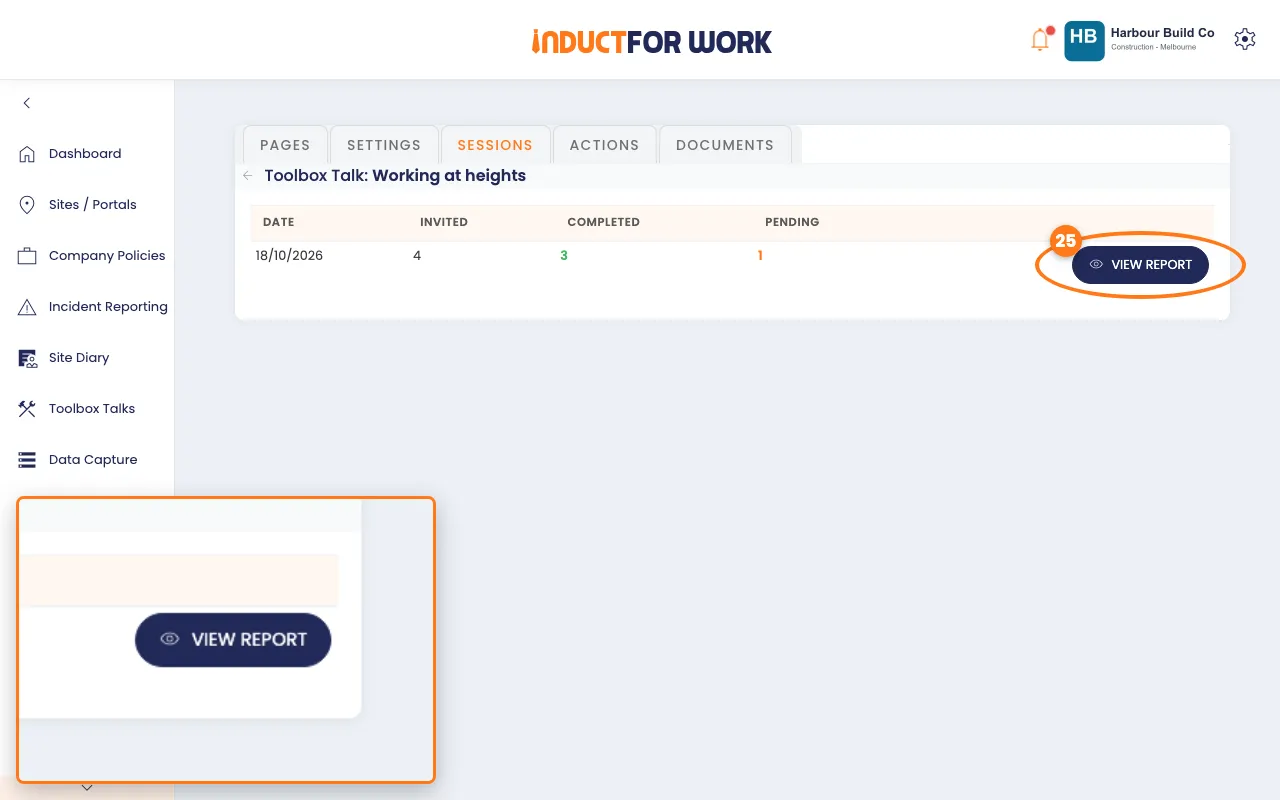
The Session Report shows who completed it, who is pending and who signed.
- Click Remind pending to email everyone who hasn’t finished.
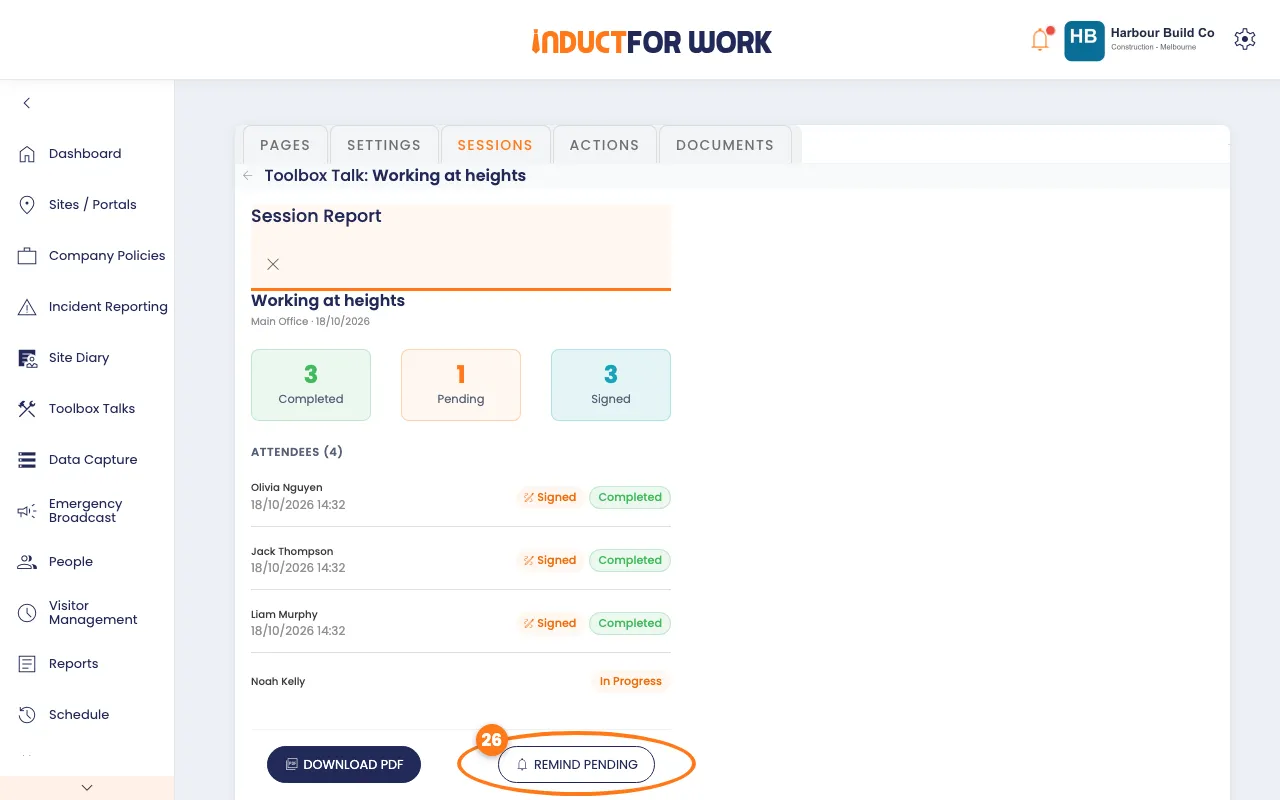
- Click Download PDF for a copy with everyone’s signatures.
See every attendee
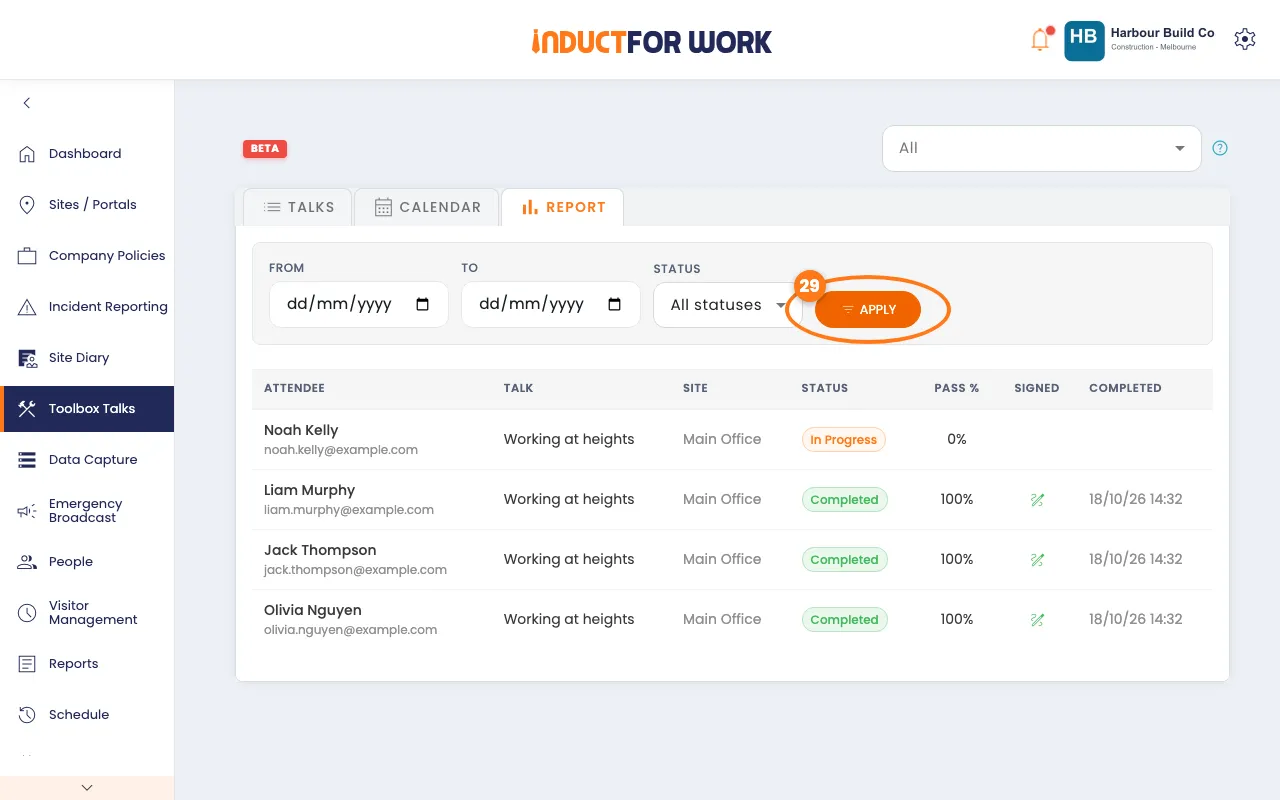
- In the left menu, click Toolbox Talks, then click the Report tab.
- Pick the dates and Status, then click the orange Apply button.
Done! What happens next
- Each send shows on the Calendar with how many people finished, such as 3/4.
- The Report keeps every attendee, score and signature.
- To stop a talk, click Actions, then Archive. Its schedules stop too.