
31 Documents, Signatures and Forms
What are Documents and Signatures, Custom Forms and Feedback?
Documents and Signatures turns your own PDF, Word or Excel form into one people fill in and sign during an online induction. Custom Forms are forms you build from questions, and can show extra questions based on an answer. Feedback forms ask people what they thought, once they pass.
Rules to know
- Plans: Documents and Signatures and Custom Forms are on Team Plus, Team Pro, Enterprise and the free trial.
- Lite and Team: these tabs show an upgrade box instead. Some older plans can still add them as an add-on.
- Feedback forms: on Lite, Team, Team Plus, Team Pro, Enterprise and the free trial.
- Who: the Account owner, Administration Users, Site Administrators and Site Managers, for their own sites.
- Files you can upload: PDF, Word or Excel, up to 100MB. We convert it into a fillable form, which takes a moment.
- Showing questions based on an answer: only Radio and Select questions can have Logical statements.
- Manually Approved: the certificate isn’t sent until you approve the form. You’re emailed when one is waiting.
- When people see it: forms come after people pass the questions, before their certificate. The feedback form shows once they’ve passed, even while their documents wait for approval. It stays until they answer.
- One feedback form per induction. You can switch it off with Disable.
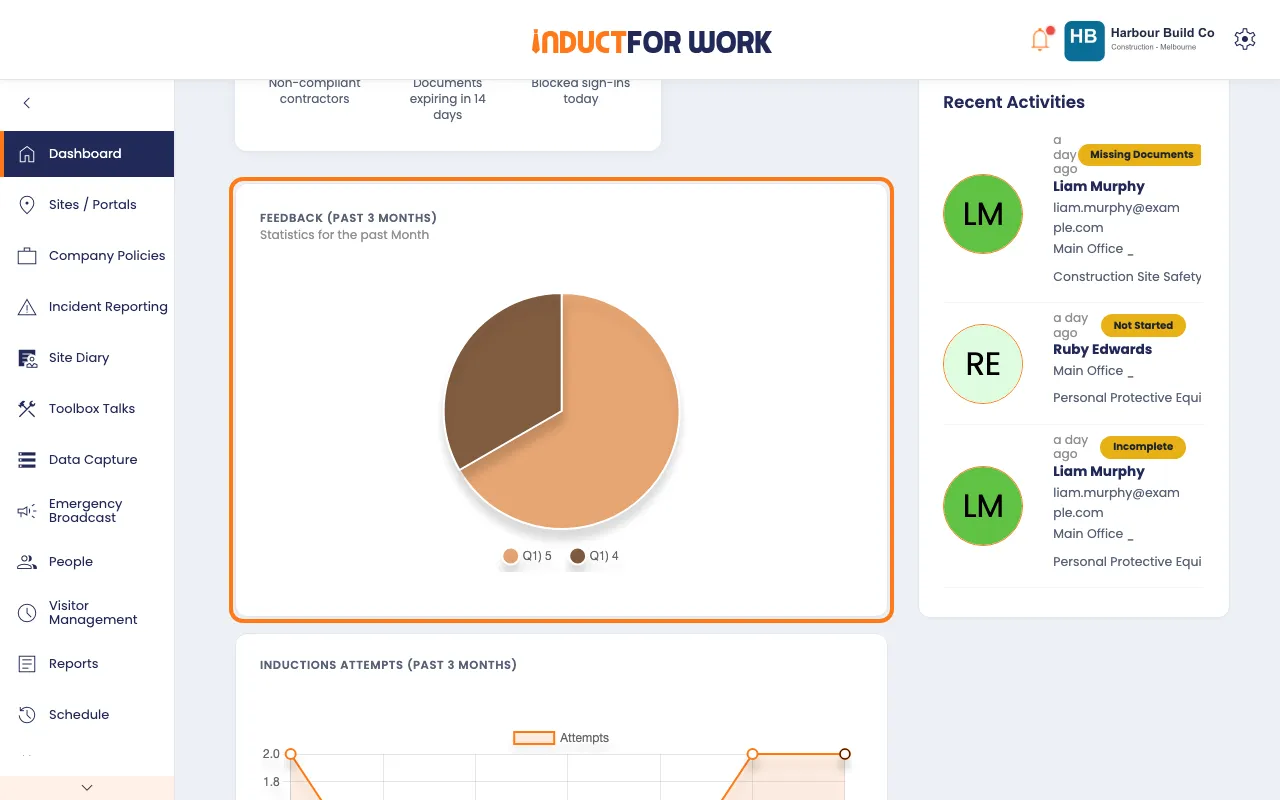
- Feedback results: each answer is listed under the feedback form, 10 at a time. Site roles only see answers for their own sites’ inductions. The Dashboard chart shows choice and star answers from the last 3 months.
What you’ll need
- An admin login, from Site Manager up.
- An induction. See Document Collection for licences and permits.
- For Documents and Signatures: your form as a PDF, Word or Excel file.
Add a form people sign
- In the left menu, click Sites / Portals, then click your site’s name.
- On the Inductions tab, click the induction’s name.
- Click the Documents tab, then click Documents and Signatures.
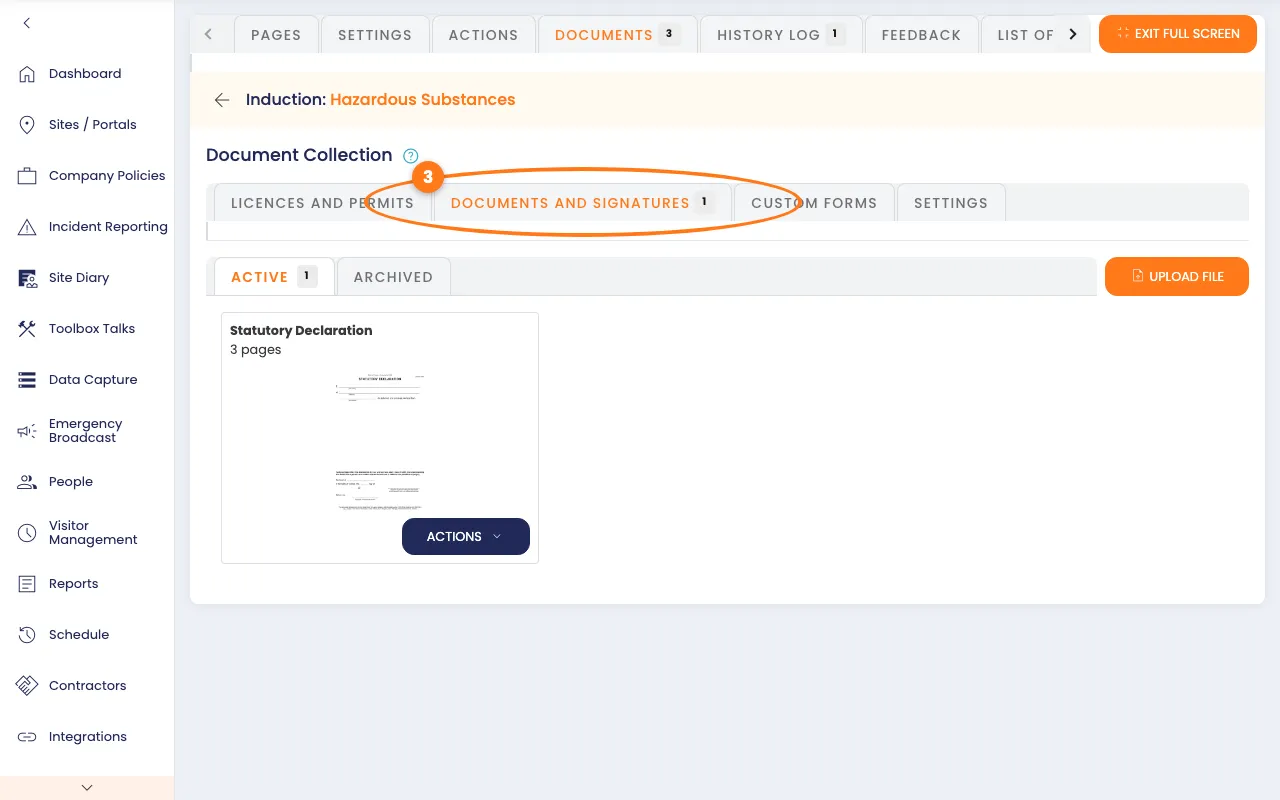
- Click the orange Upload file button, top right, and pick your file.
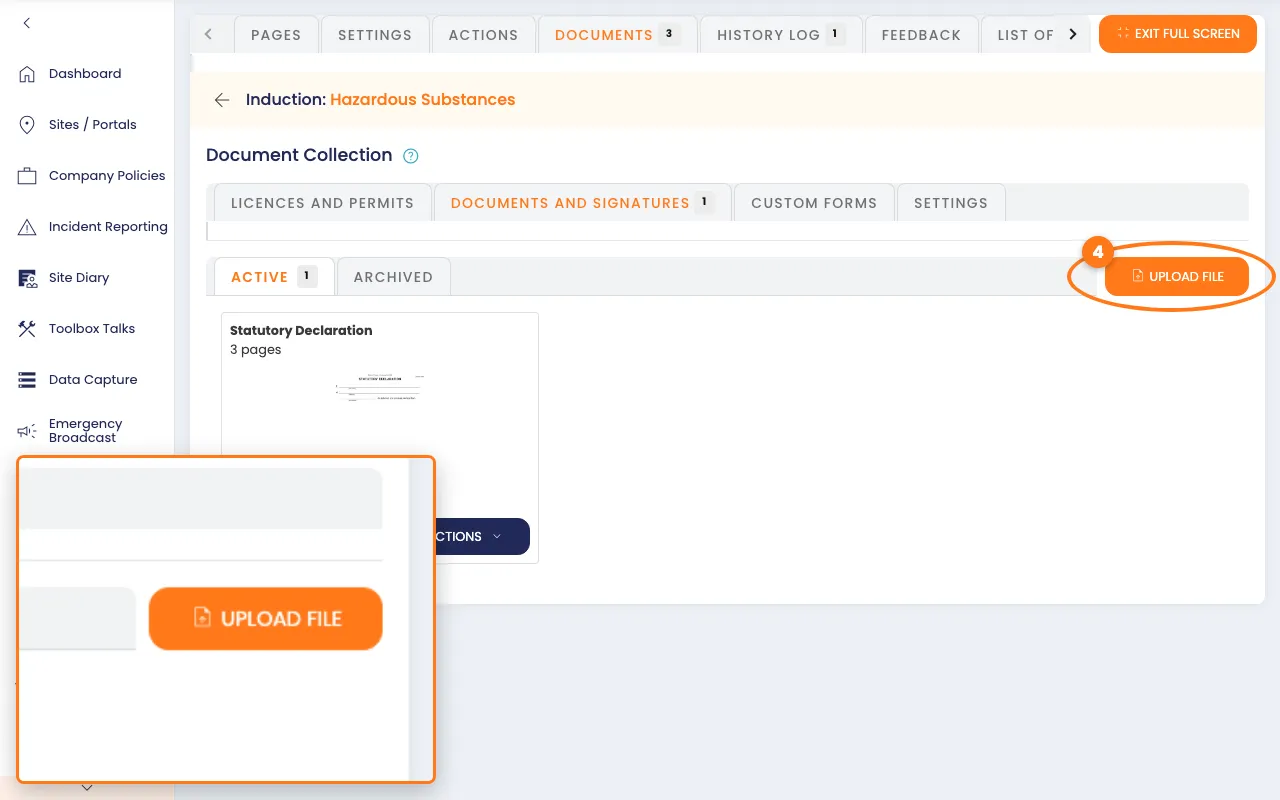
Wait while it converts. Your form then shows as a card.
- Click the form’s picture to open it.
- Click Add input field in the toolbar, then drag the box where people type.
- Click Add signature field, then drag it where people sign.
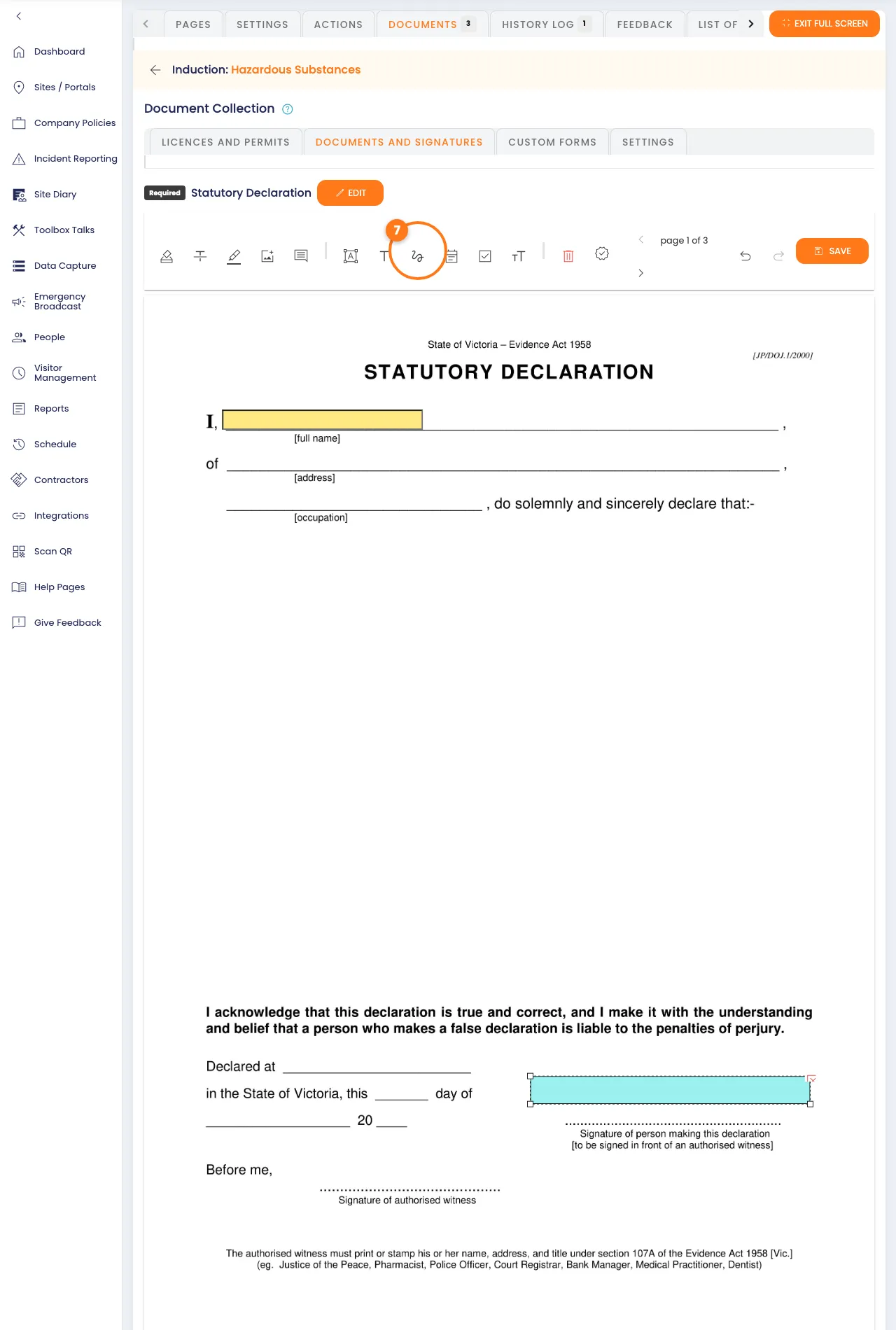
- Click the orange Save button, top right.
Tip
Automatically populated information fills in details such as the person’s name, or today’s date, for them. To check signed forms before the certificate goes out, open the card’s Actions list, click Settings and tick Manually Approved.
Build a custom form
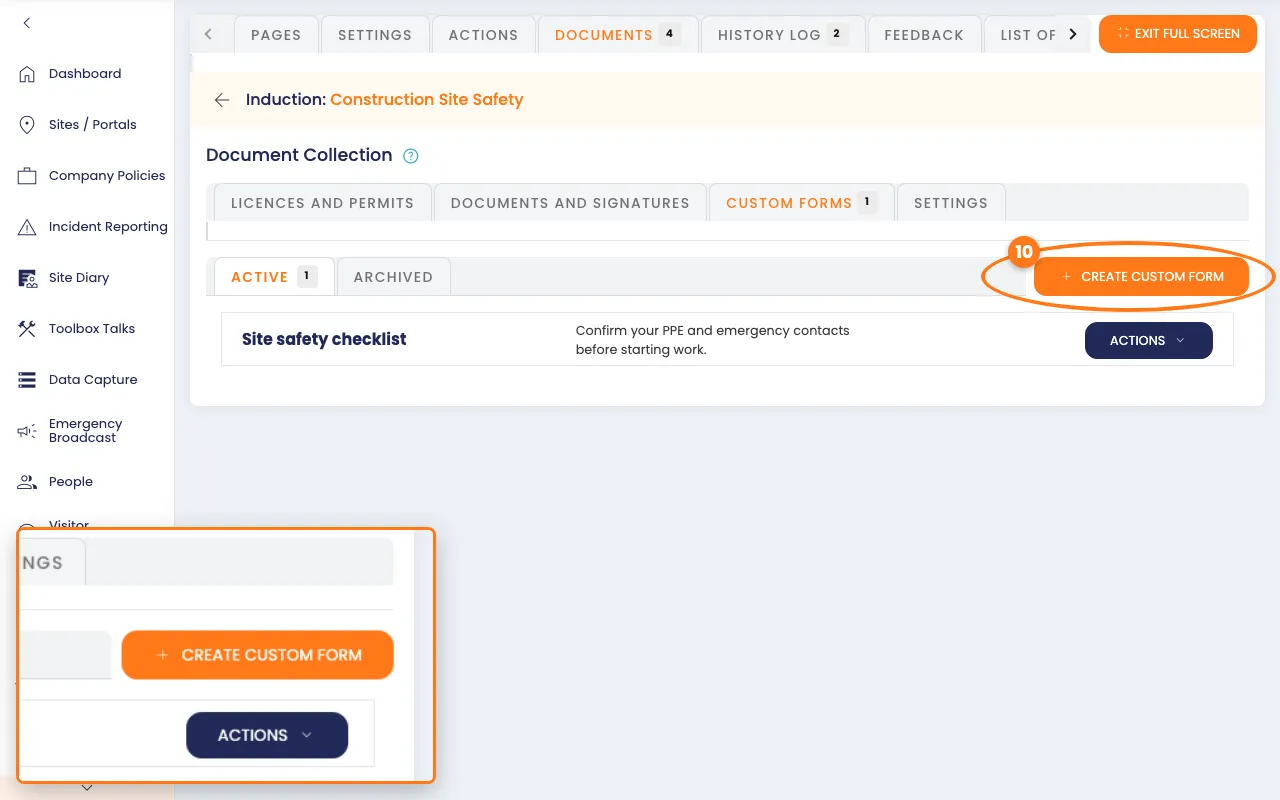
- On the Documents tab, click Custom Forms.
- Click the orange Create custom form button.
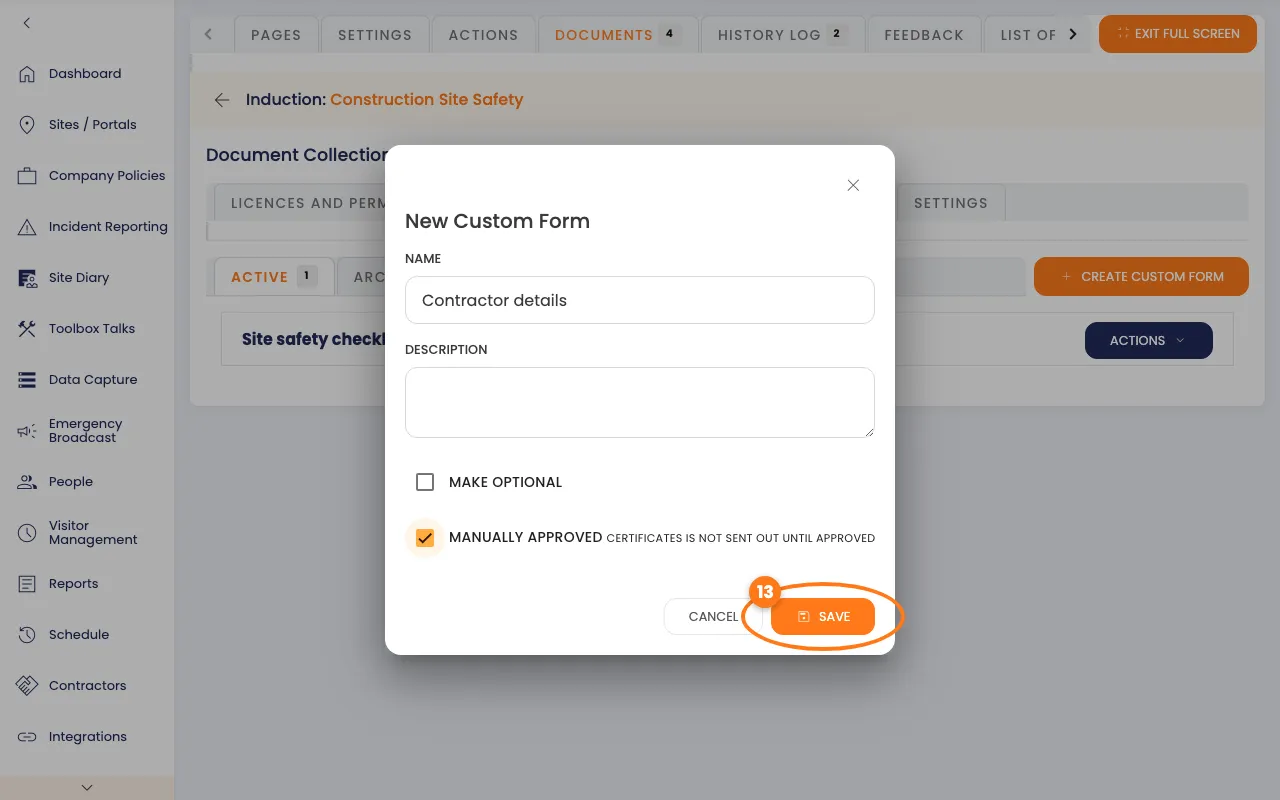
- Type a Name.
- Optional: tick Manually Approved to check answers before the certificate goes out.
- Click the orange Save button.
- Click the form’s name to open it.
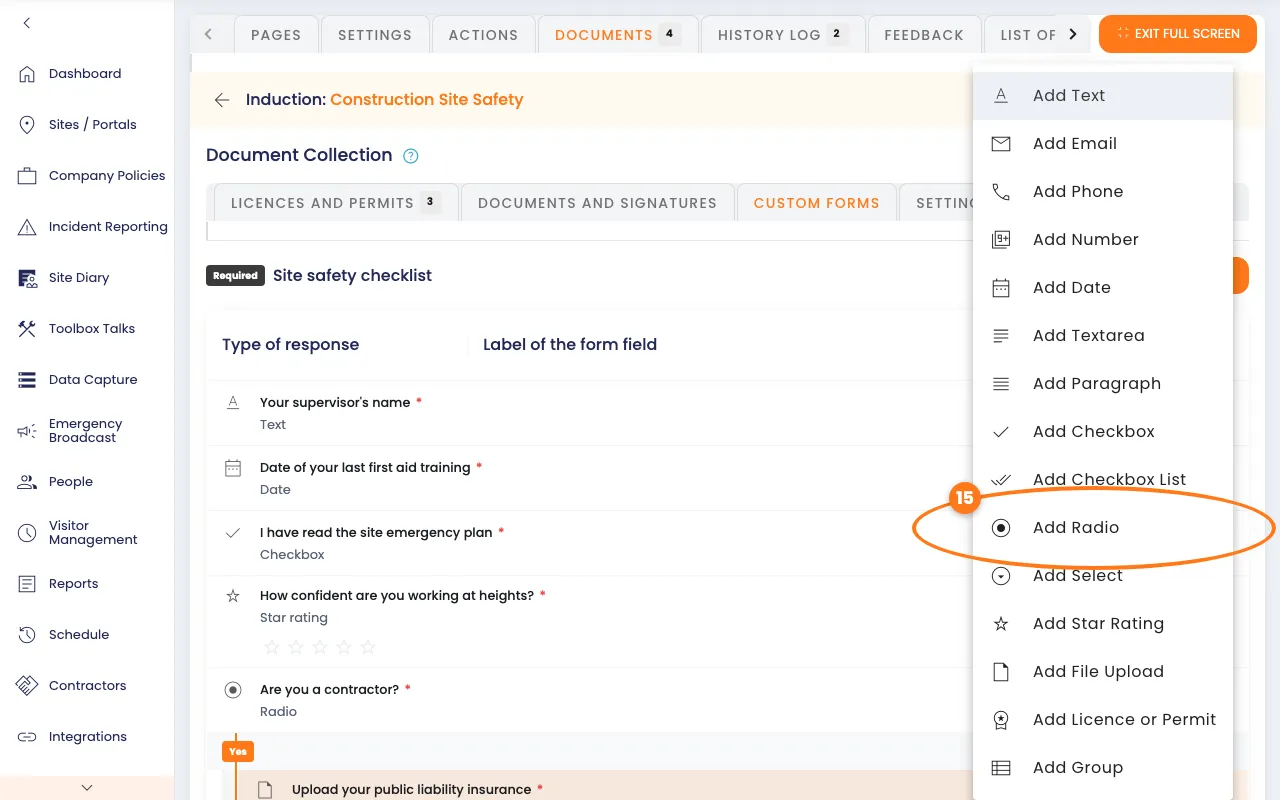
- Click the navy Add button, then click Add Radio.
- Click the pencil next to the new question.
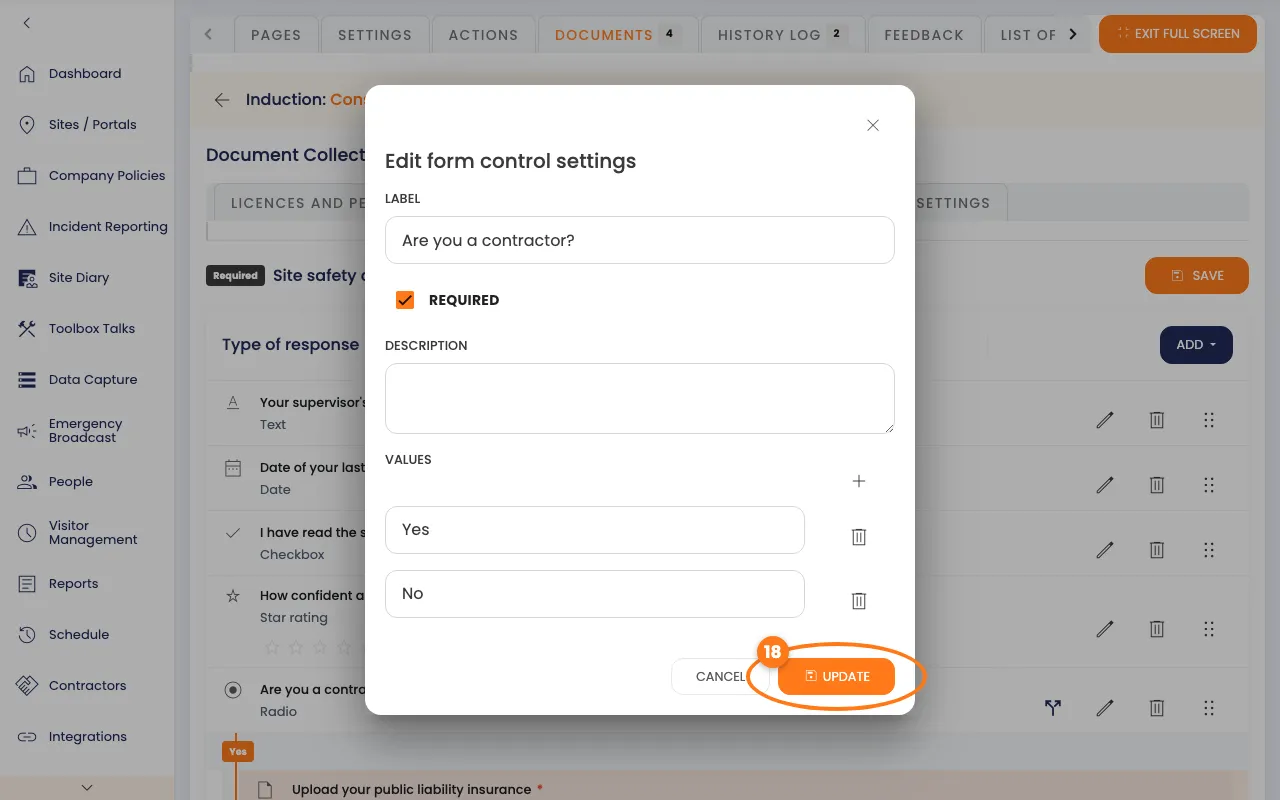
- Type the Label, and each answer under Values.
- Click the orange Update button.
Ask more questions based on an answer
For example, ask contractors for their insurance but not employees.
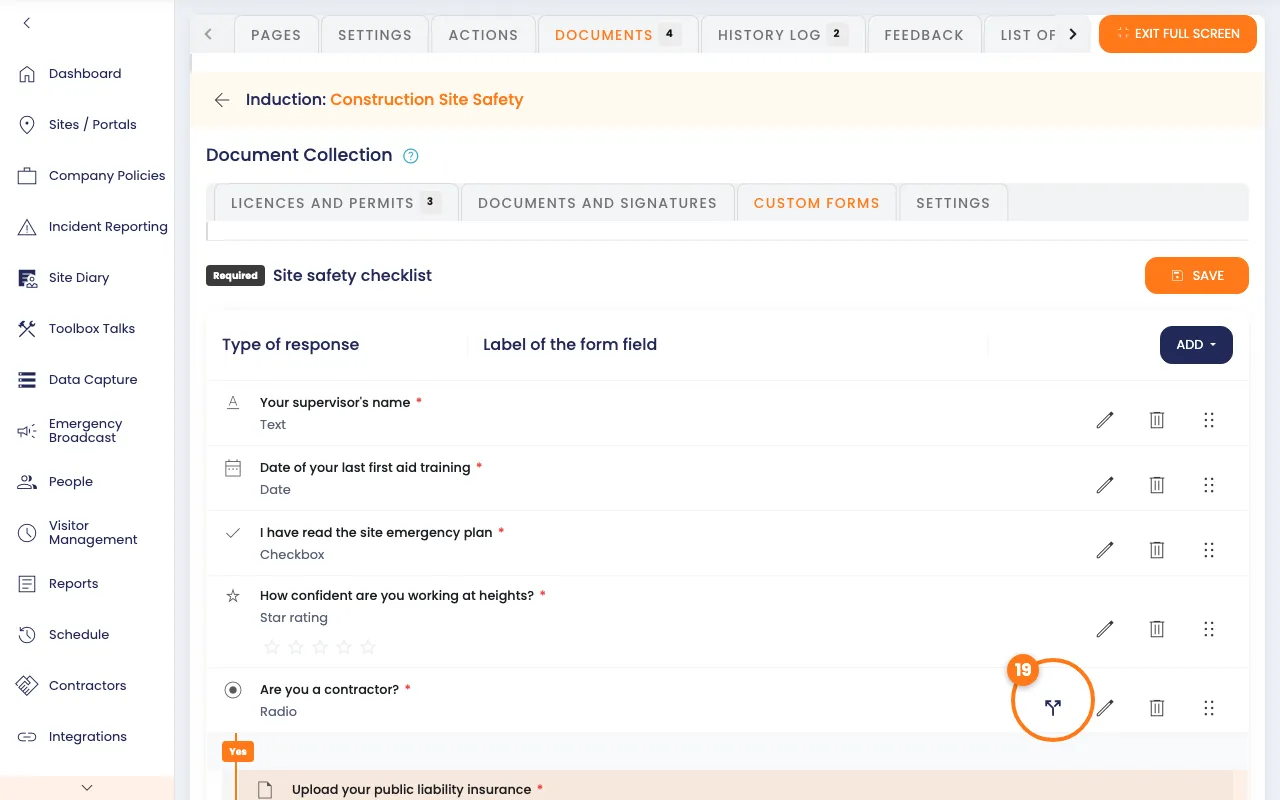
- Click the Logical statements button next to the Radio question.
- Under an answer, click Add a specific step for that answer.
- Click the question to add, such as Add File Upload.
- Click the orange Update button.
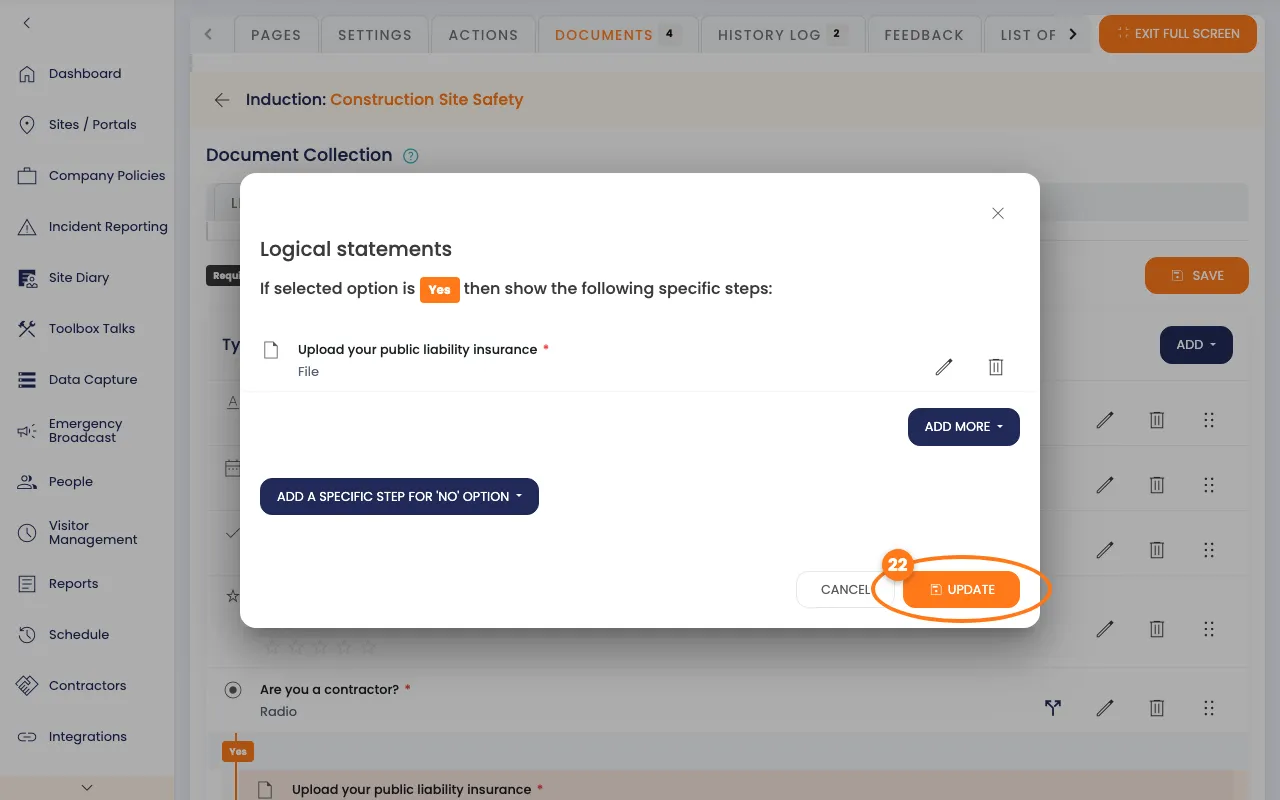
- Click the orange Save button, top right.
Ask for feedback
- On the induction, click the Feedback tab.
- Click the orange Create feedback form button.
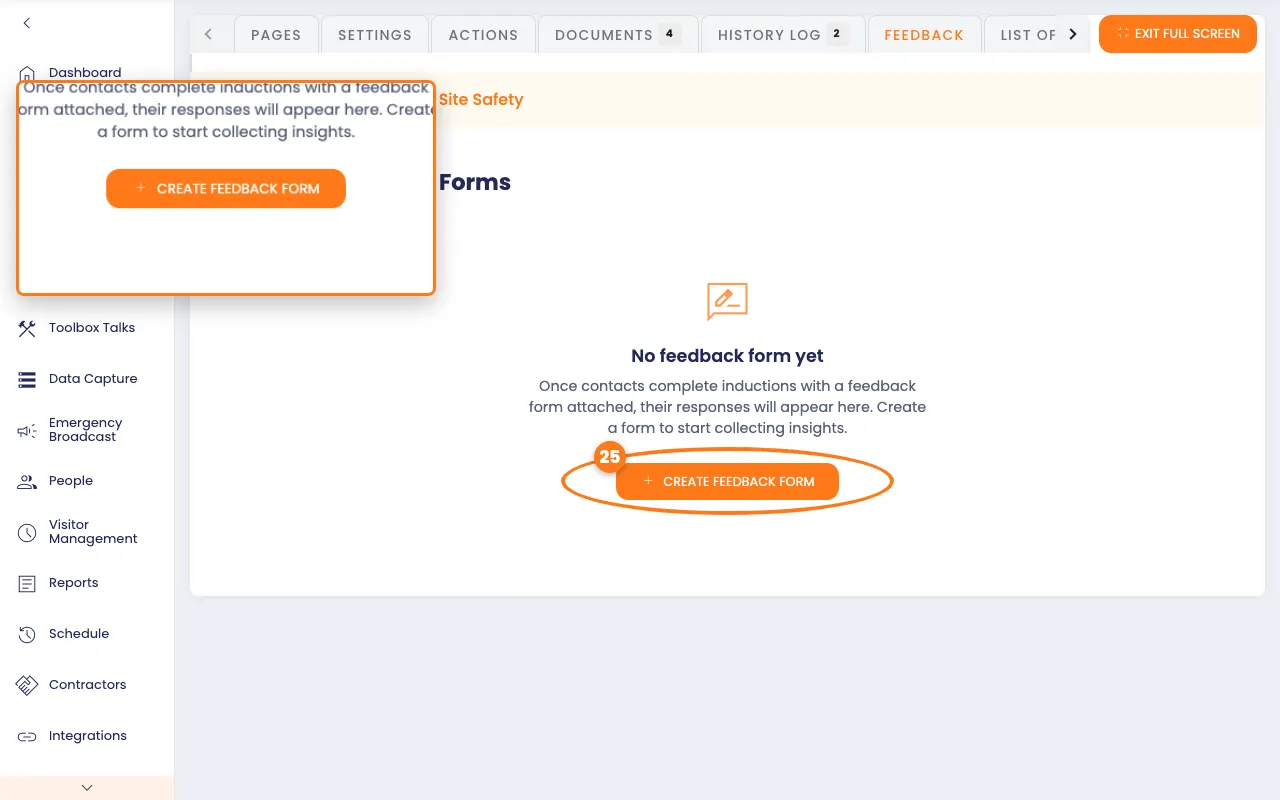
- Click the navy Add button, then click Add Star Rating.
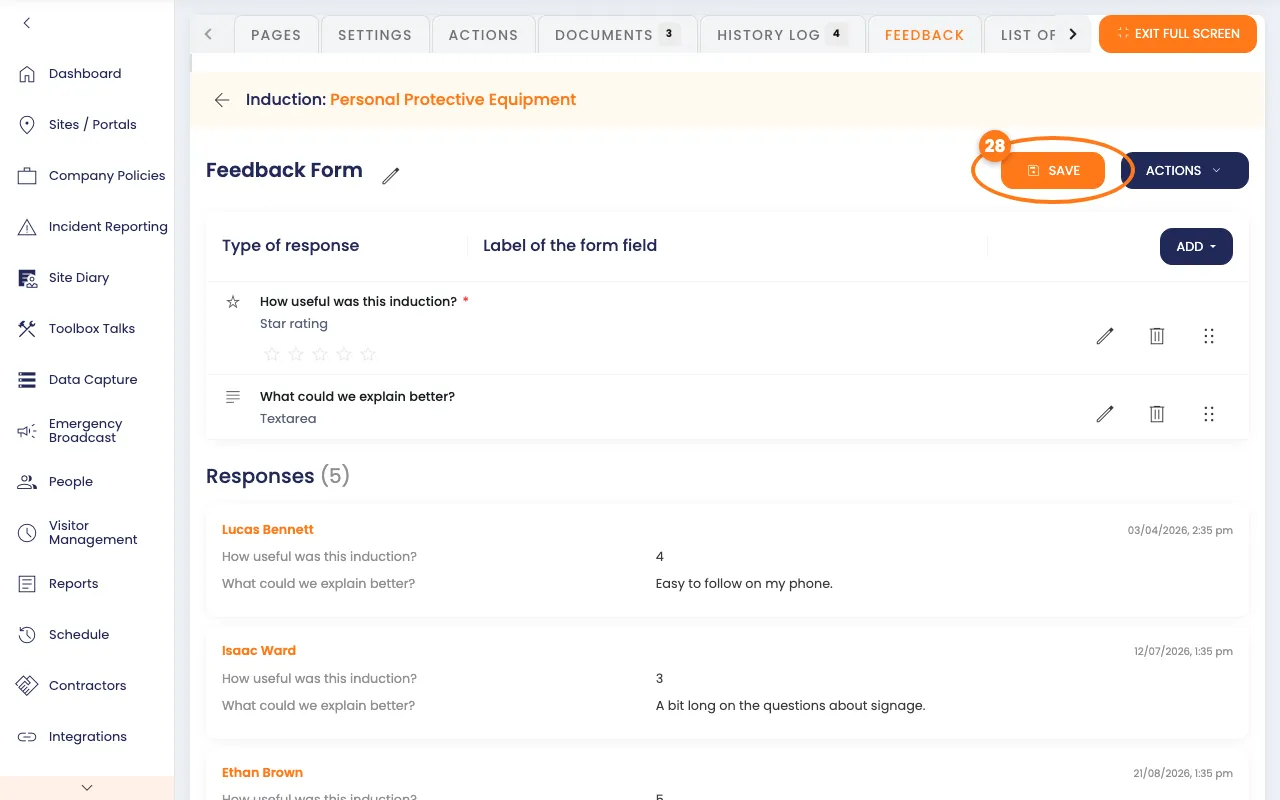
- Click the pencil, type your question in Label, then click Update.
- Click the orange Save button.
What people see
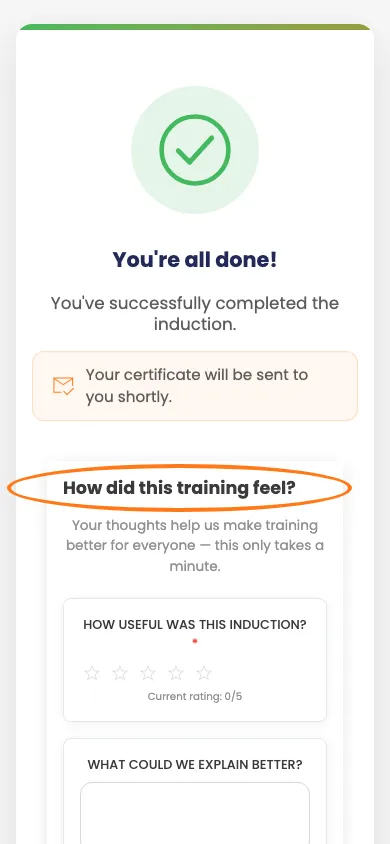
After they pass the questions, your forms are in the Documents & data for list. People click Fill to complete each one, and sign where you placed a signature field.
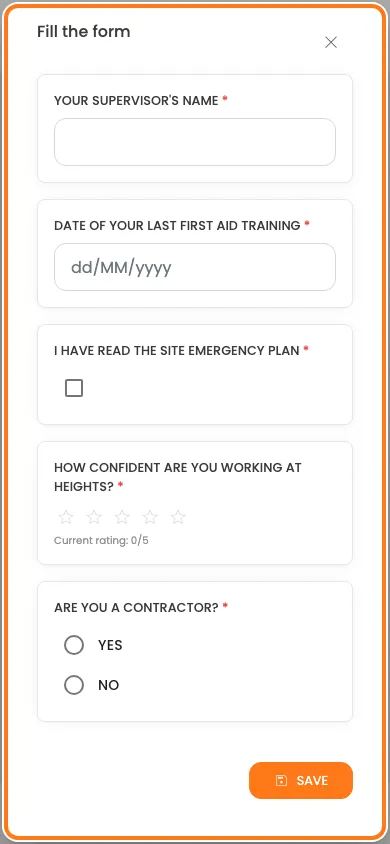
Once they’ve passed, the feedback form shows on their pass page, or on the Submitted — almost there! page while you check their documents. They click Submit feedback.
Where the answers go
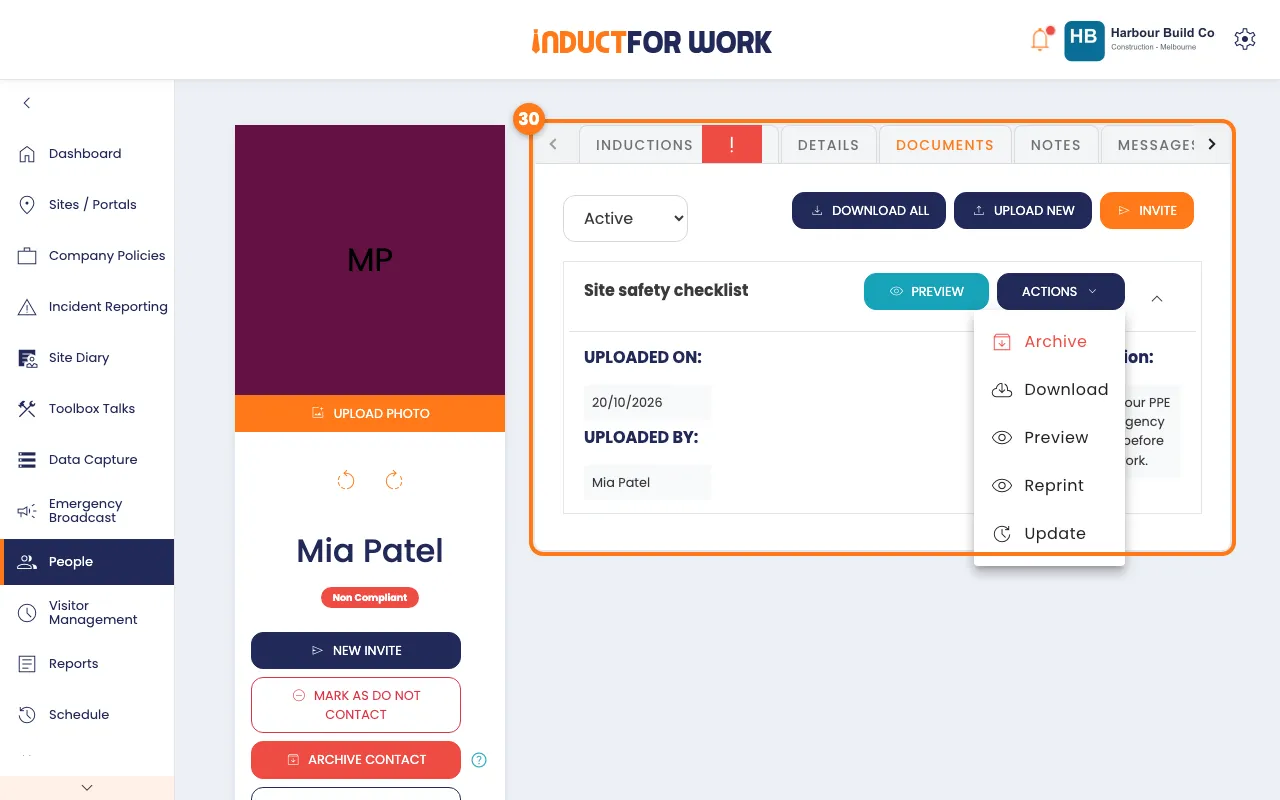
- In the left menu, click People, then click the person’s name.
- Click the Documents tab to see their signed forms and answers.
Feedback shows on your Dashboard in the Feedback chart, once answers come in.
Read feedback answers
- On the induction, click the Feedback tab.
- Scroll down to Responses, under the form.
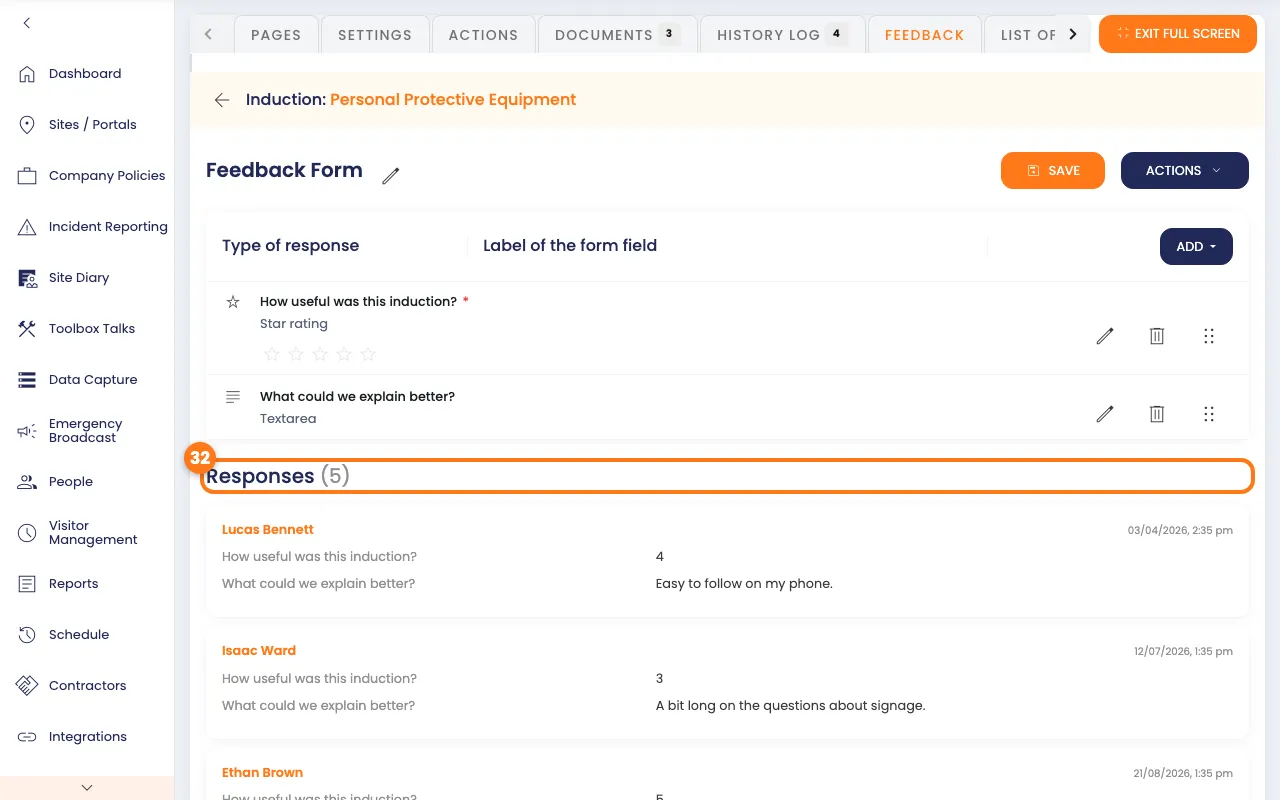
Each answer shows the person, the date and what they said. Click the person’s name to open their profile.
- Click Older to see earlier answers, or Newer to go back.
Done! What happens next
- Signed forms and answers are saved on each person’s Documents tab. Use Reprint in its Actions list for a fresh copy.
- The Provided Documents report in Reports lists everything people have given you.
- To approve or reject forms, see Document Collection.