
35 Contact Groups
What are Contact Groups?
Contact Groups sort the people in your People list into named groups, such as a site crew or night shift. Groups can sit inside other groups, so "Scaffolders" can be part of "Site crew". Use a group to find people fast, invite them all to an online induction at once, or send them a Toolbox Talk. For the basics of People, see People.
Rules to know
- Plans: on Team Plus, Team Pro, Enterprise and the free trial. Older plans you’re still on include groups too.
- Lite and Team: Manage Groups opens the plans pop-up box instead, and Filter by Groups doesn’t show.
- Changing plan: on a plan without groups, your groups are hidden, not deleted. They come back when you upgrade.
- Who sets up groups: only the Account owner and Administration Users can create, rename, move, archive or restore groups.
- Who adds people: Site Administrators and Site Managers can also add people to groups and take them out, for people linked to their own sites. Supervisors can only look.
- Names: 3 to 100 characters. Two groups can’t share a name at the same level, but the same name is fine under different parent groups.
- Subgroups: a group’s tab also lists the people in its subgroups. Only top-level groups get a tab on People. The first 3 show, the rest are under + More.
- Archiving a group: it keeps its people, but you can’t add anyone to it until you restore it. Its subgroups move to the top level, and stay there when you restore it.
- Archived people: can’t be added to a group. People you archive stay in their groups but aren’t counted, and are back when you restore them.
- Merging people: the kept person joins all of the other person’s groups.
- On a person’s profile: group changes save straight away. The Account owner and Administration Users can create a new group right there.
- Inviting a group: reaches the people added straight to that group, not its subgroups. Archived, Do Not Contact and people with no email or mobile are skipped. Site roles only invite people from their own sites.
- Which groups you can invite: the Contact Group list only shows groups with at least one active person added straight to them.
- Also used by: Toolbox Talks (sent to a group, now or on a schedule) and Invite to Document Group.
What you’ll need
- Team Plus, Team Pro, Enterprise or the free trial.
- An Account owner or Administration User login to create groups. Site Managers and up can add people.
- Some people in People. See People.
Create a group or subgroup
- In the left menu, click People.
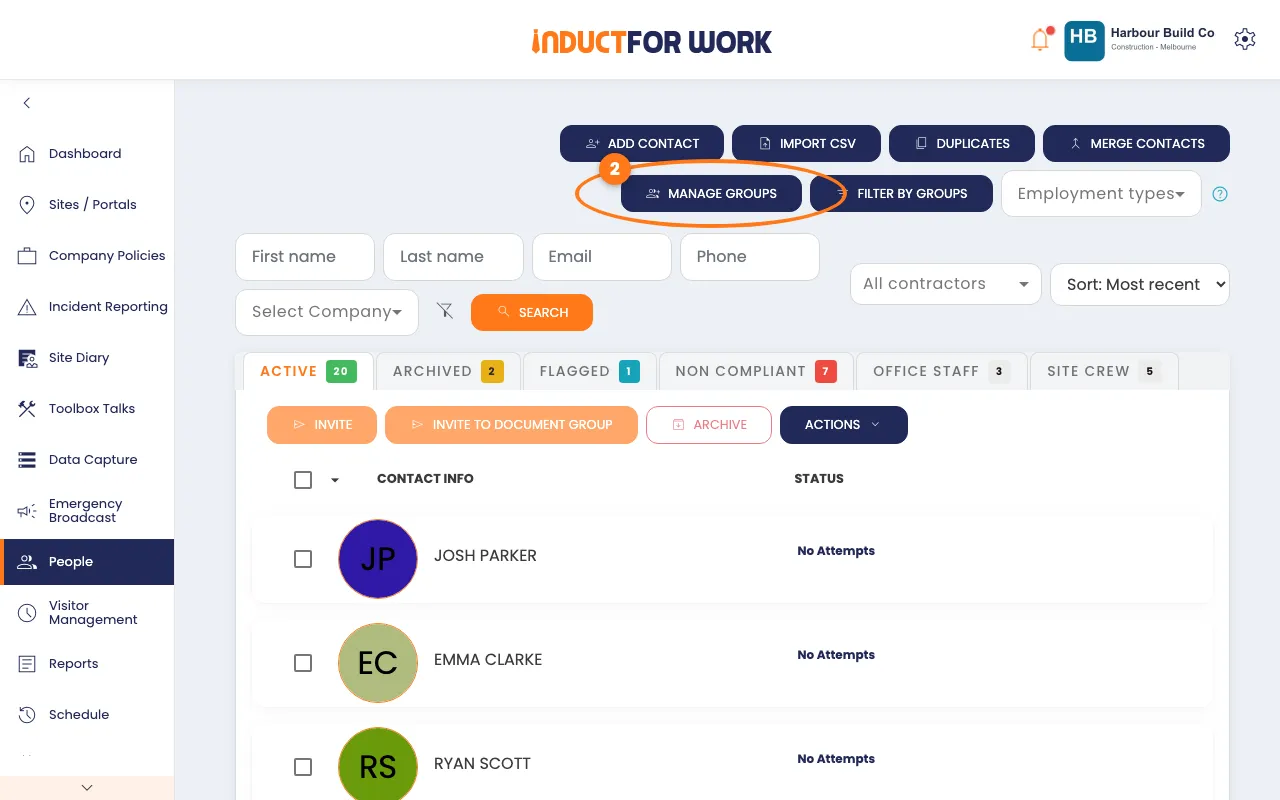
- Click the navy Manage Groups button, top right.
- Under New group, type a Name, such as Scaffolders.
- Optional: pick a Parent, such as Site crew, to make it a subgroup.
- Optional: click a Colour.
- Click the orange Create button.
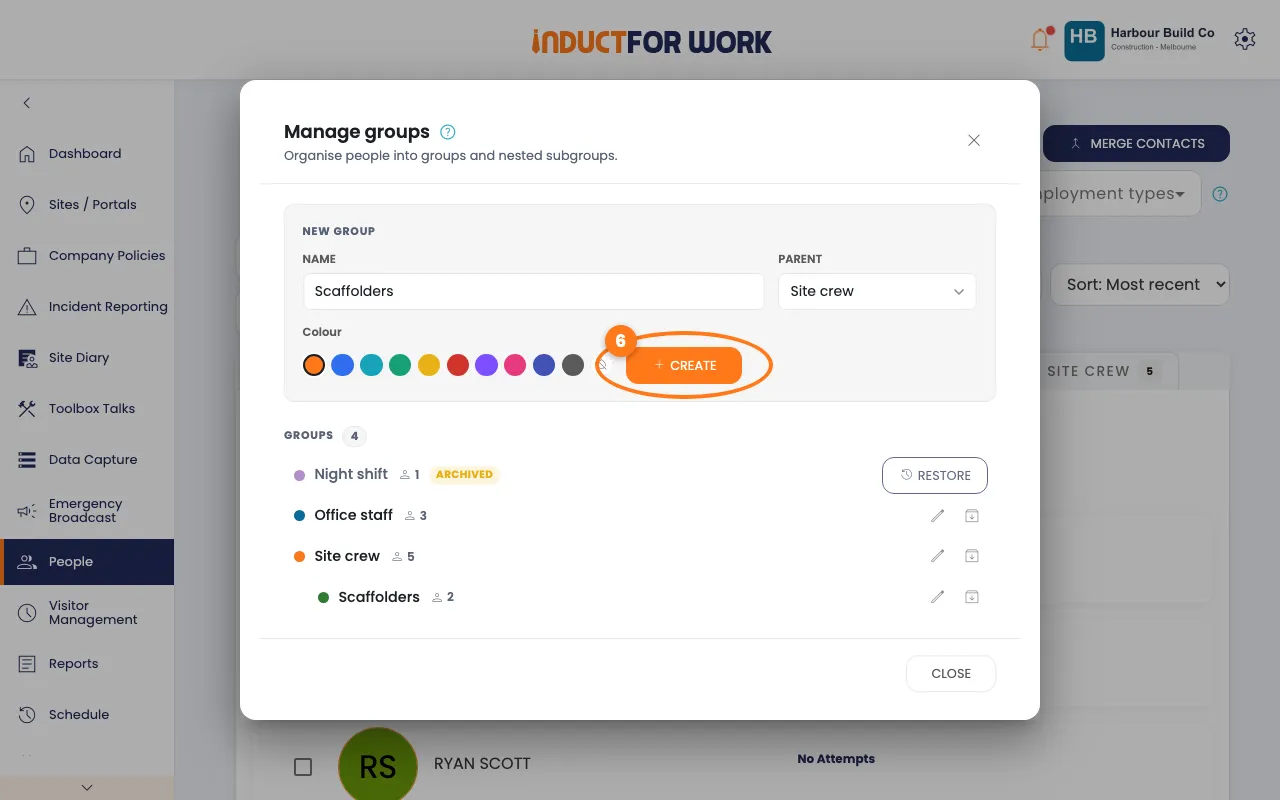
The group shows in the list below, inside its parent.
Rename, move or archive a group
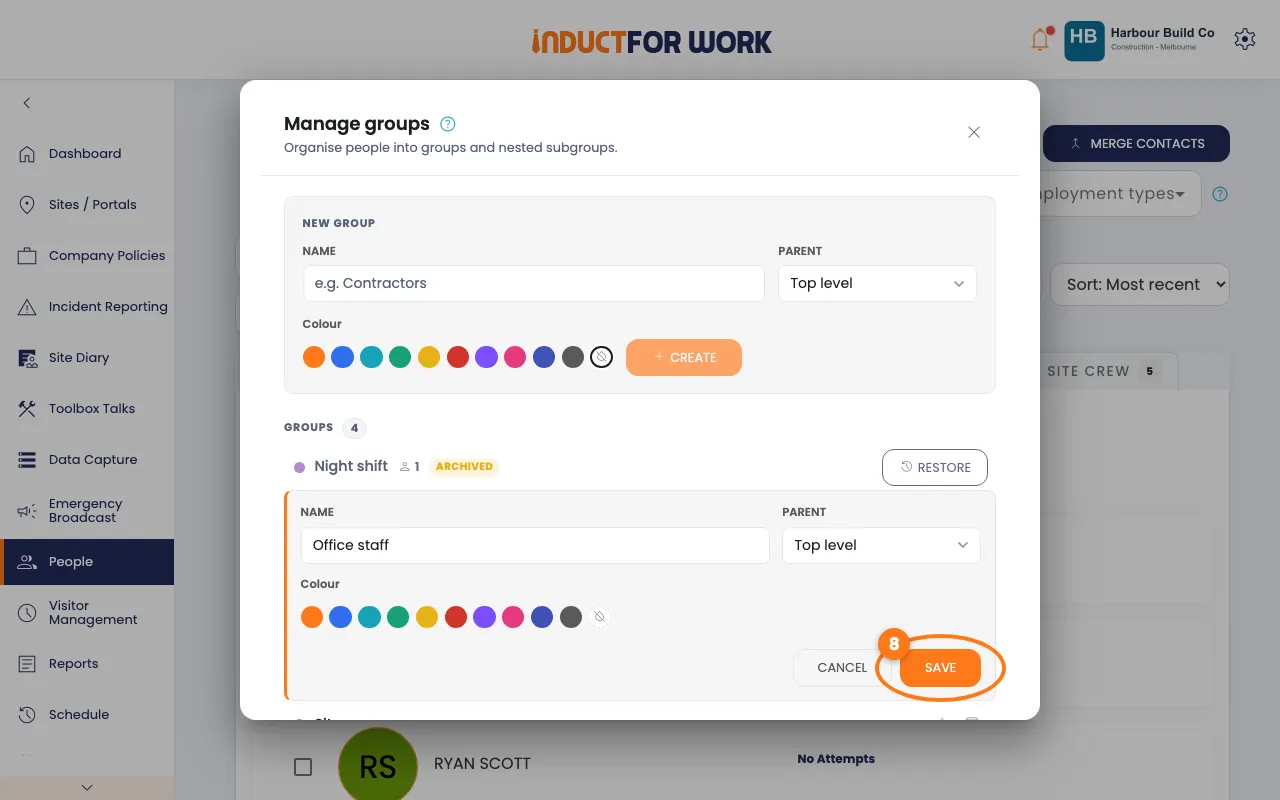
- In the Manage groups pop-up box, click the pencil next to the group.
- Change the Name, Parent or Colour, then click the orange Save button.
- To put a group away, click the archive icon next to it.
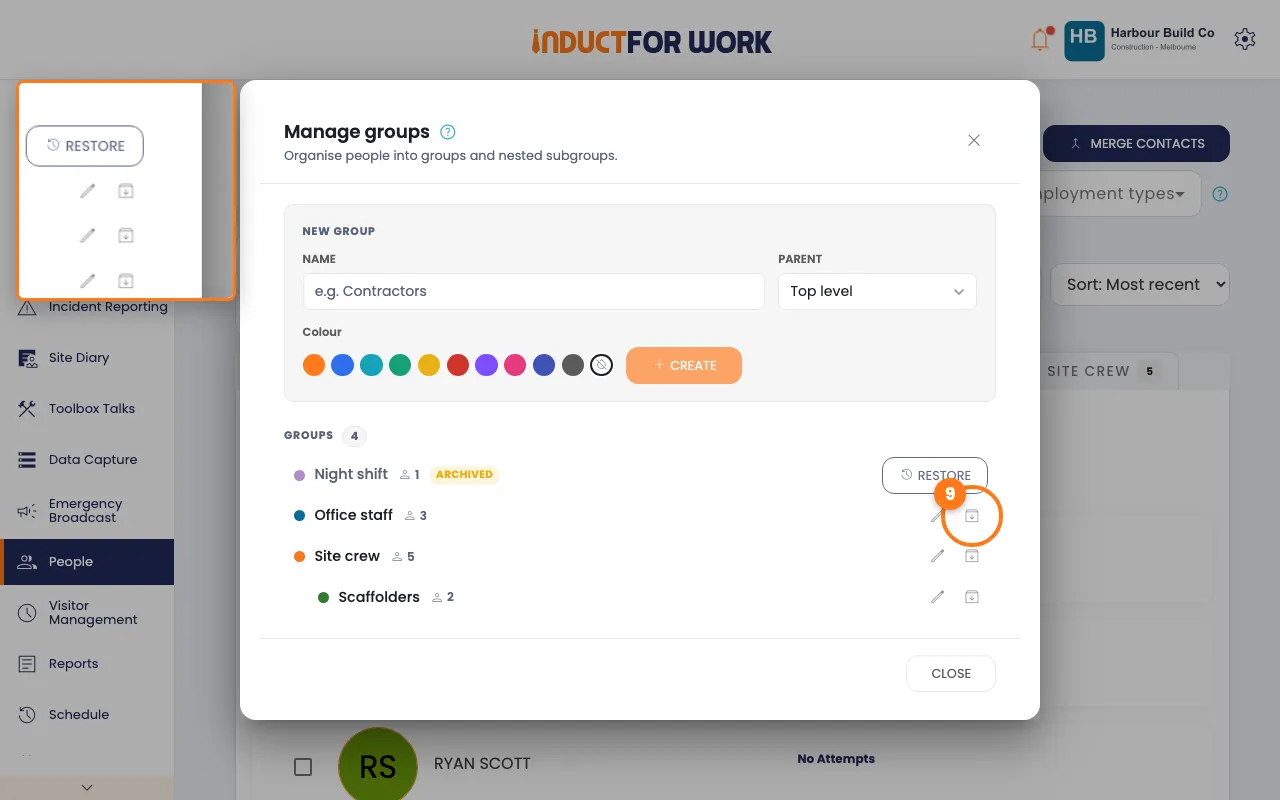
The group now shows Archived. Click Restore to bring it back.
- Click Close.
Add people to a group
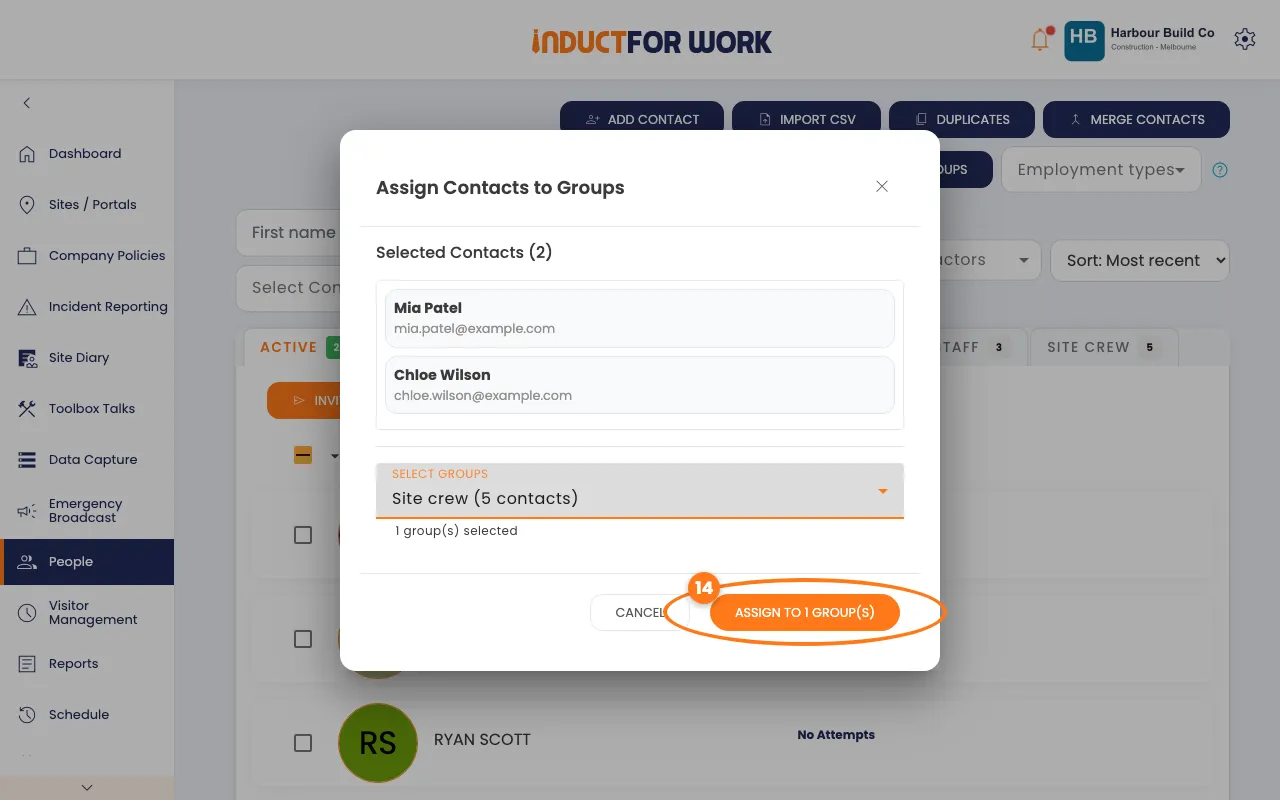
- On the Active tab, tick the box next to each person.
- Click the navy Actions button, then click Add to Groups.
- Under Select Groups, pick one or more groups.
- Click the orange Assign to 1 Group(s) button.
You can also do it from a person’s profile:
- Click the person’s name, then click the Details tab.
- Click the navy Edit button.
- Under Groups, type the group’s name, then click it in the list.
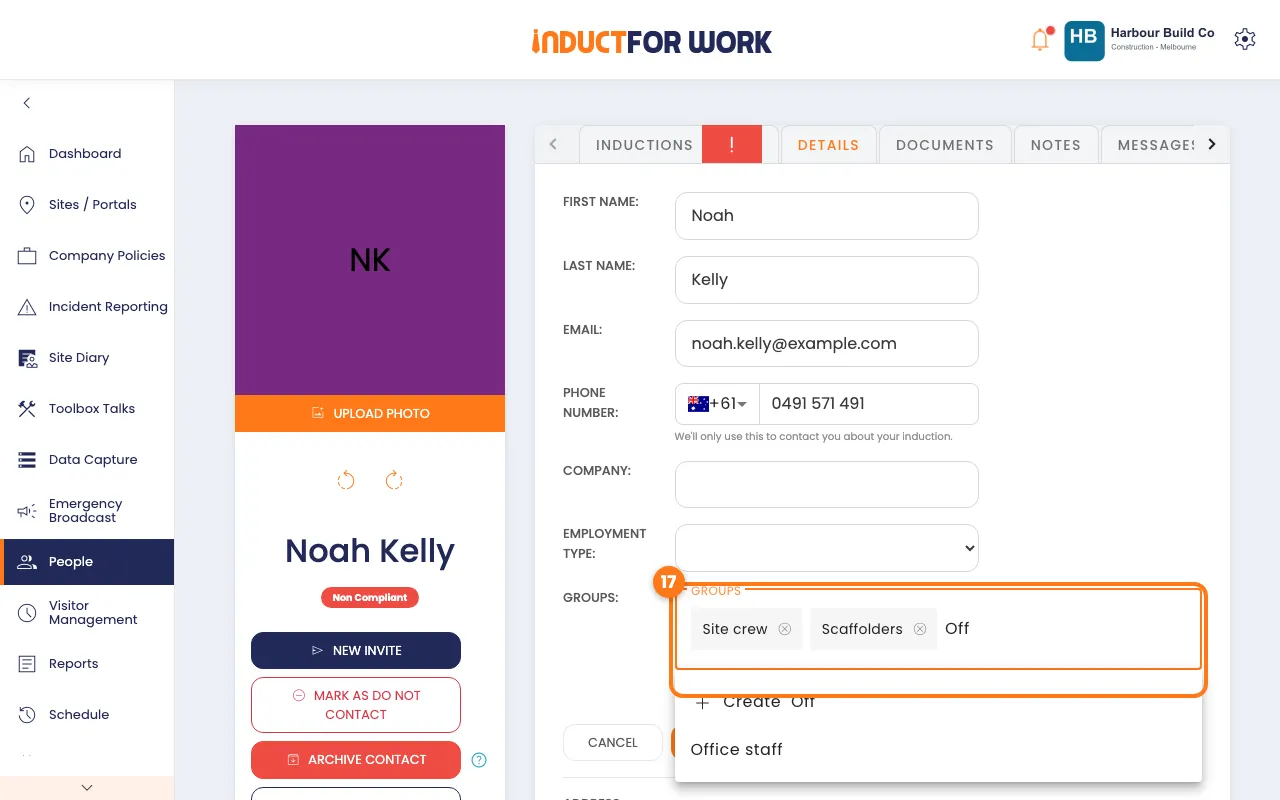
The change saves straight away. Outlined names are parent groups the person is in through a subgroup.
Take people out of a group
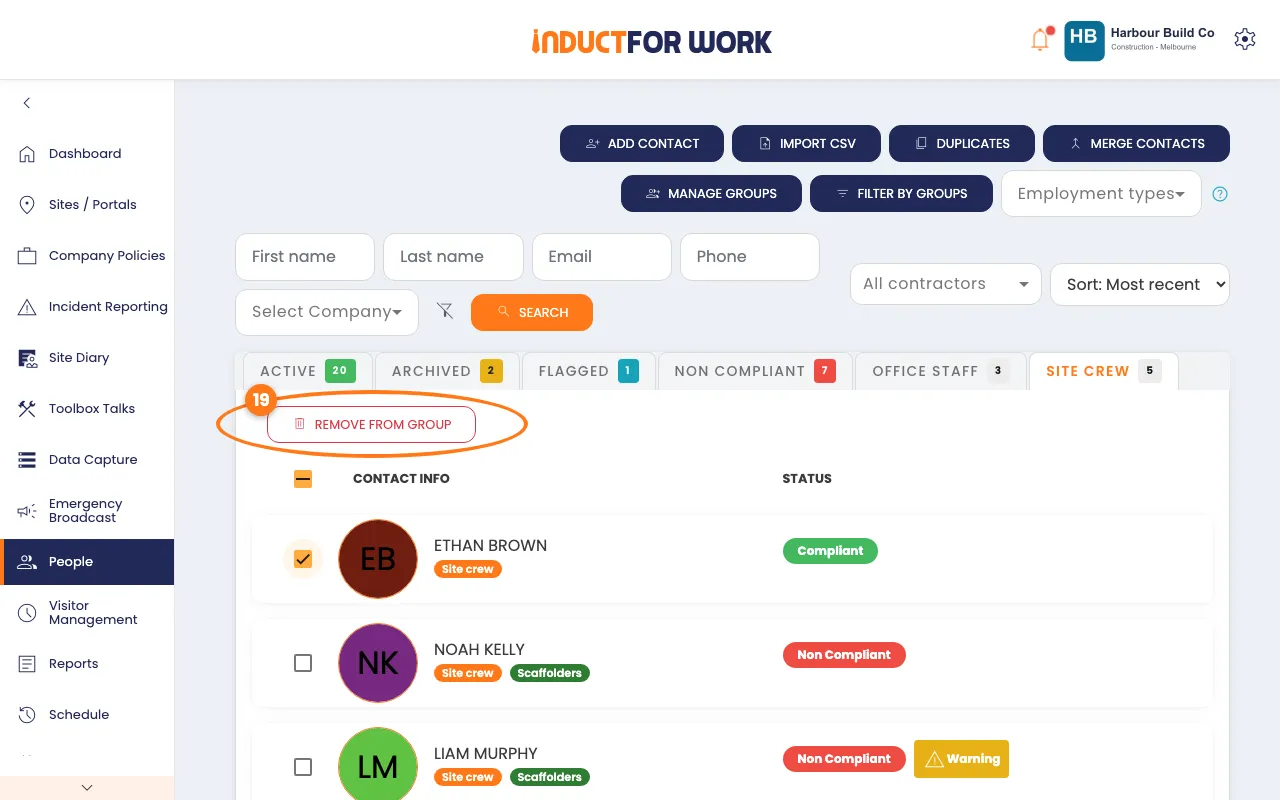
- On the People page, click the group’s tab.
- Tick the people, then click the red Remove from Group button.
Find people by group
- Click the navy Filter by Groups button, top right.
- Click in Add group, then click each group you want.
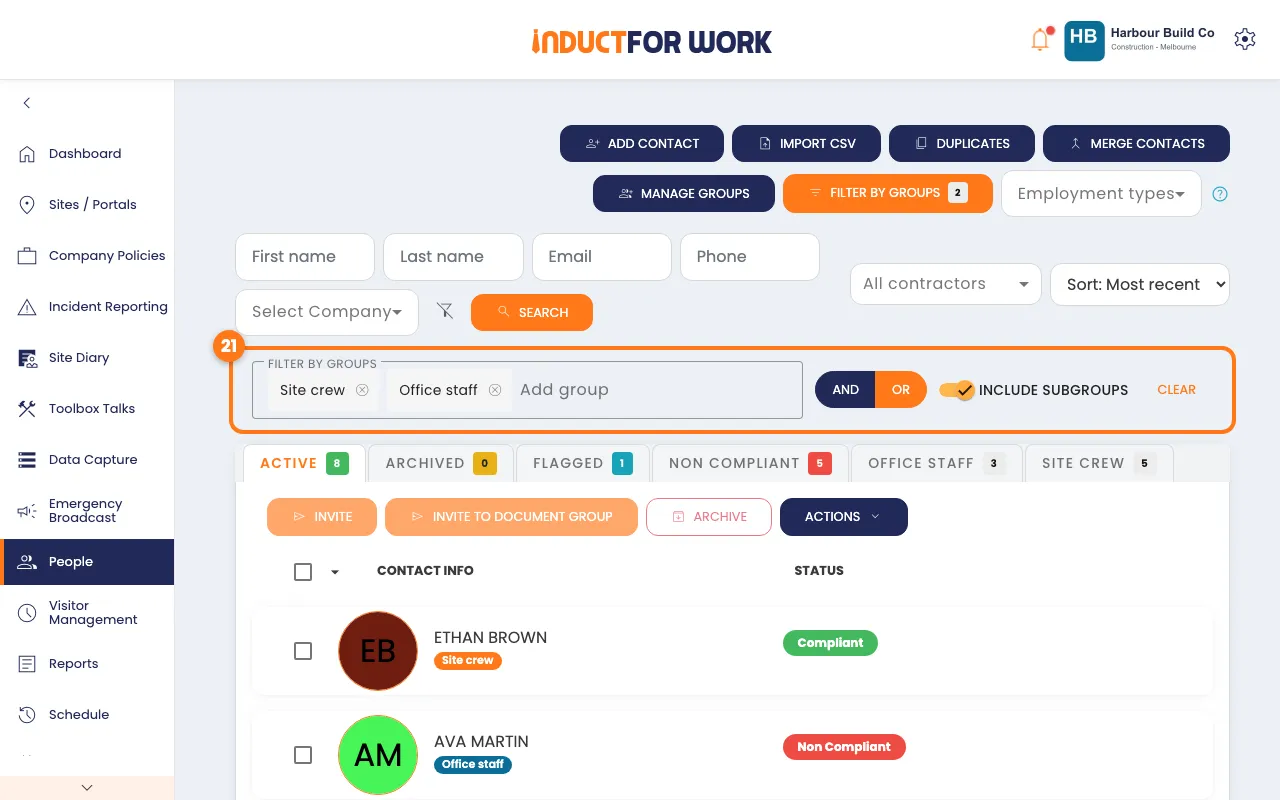
- Click AND for people in every group, or OR for people in any of them.
- Optional: switch off Include subgroups to leave out people in subgroups.
Click Clear to see everyone again.
Invite a whole group
- On your Dashboard, click the orange Send Invite button.
- Under 1. Select Inductions, search for the induction and click it.
- Under 2. Choose the Method to Invite People, click Contact Group.
- Pick the group under Select Contact Group.
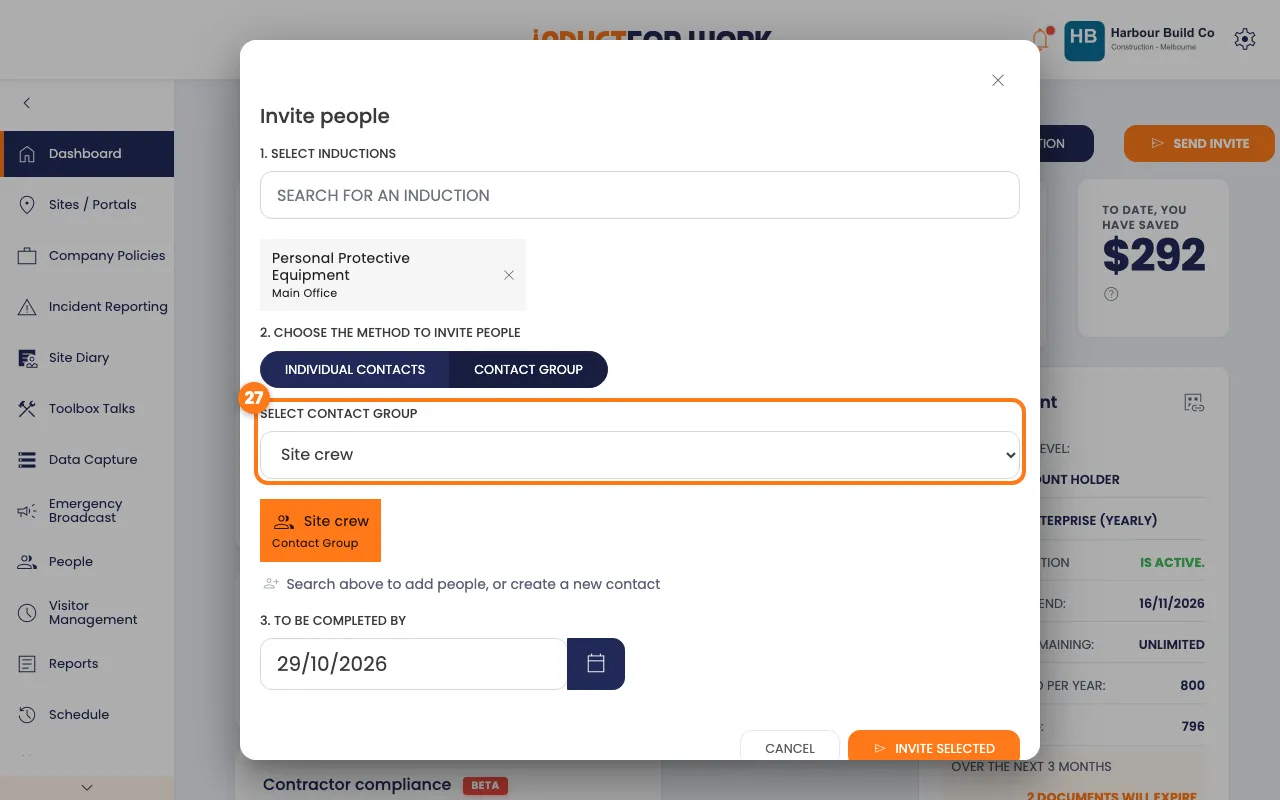
- Check the To Be Completed By date, then click the orange Invite selected button.
Done! What happens next
- Each top-level group has its own tab on People.
- Everyone you invited gets their invite by email, or by text if they only have a mobile.
- Toolbox Talks use your groups too: pick the group when you send or schedule a talk.
- To see who passed, open the group’s tab on People and check each person’s status.