
34 Site Document Registry
What is the Site Document Registry?
The Document Registry keeps each site’s own paperwork in one place: insurance certificates, permits, SWMS and site plans. You sort them into groups, and we email you before they expire. It’s for admins only. It sits next to your online induction on the site, but people doing the induction never see it.
Rules to know
- Plans: Team Plus, Team Pro, Enterprise and the free trial.
- Lite and Team: the Document Registry tab shows a pop-up box with the plans that include it.
- Who: the Account owner, Administration Users, Site Administrators and Site Managers. Site roles only see their own sites.
- Privacy: only admins see the registry. Workers, inductees and contractors never do. Files are stored privately.
- Files: any file type, up to 15MB. Add a back side for two-sided cards.
- Required: only the Document Type. Pick Other to type your own name and description.
- Expiring soon: shows in a document’s details when it expires within 3 months.
- Reminder emails: only for groups with Monitor Expiration switched on. It’s off for a new group.
- When: every Monday morning. The email lists documents that expire in the next 14 days, or expired in the last 14 days.
- Who gets them: the Account owner, plus Administration Users and that site’s admins with Notifications switched on.
- Archiving a group archives every document in it. Restoring the group doesn’t bring them back: restore each one.
- Restoring a document also restores its group. Archived groups are read-only.
- Contractors who take their own plan: their approved documents are copied into a Contractor documents group on their first site.
What you’ll need
- An admin login, from Site Manager up.
- A site to keep the documents on.
- Your documents as files, up to 15MB each.
Open the Document Registry
- In the left menu, click Sites / Portals.
- Click your site’s name.
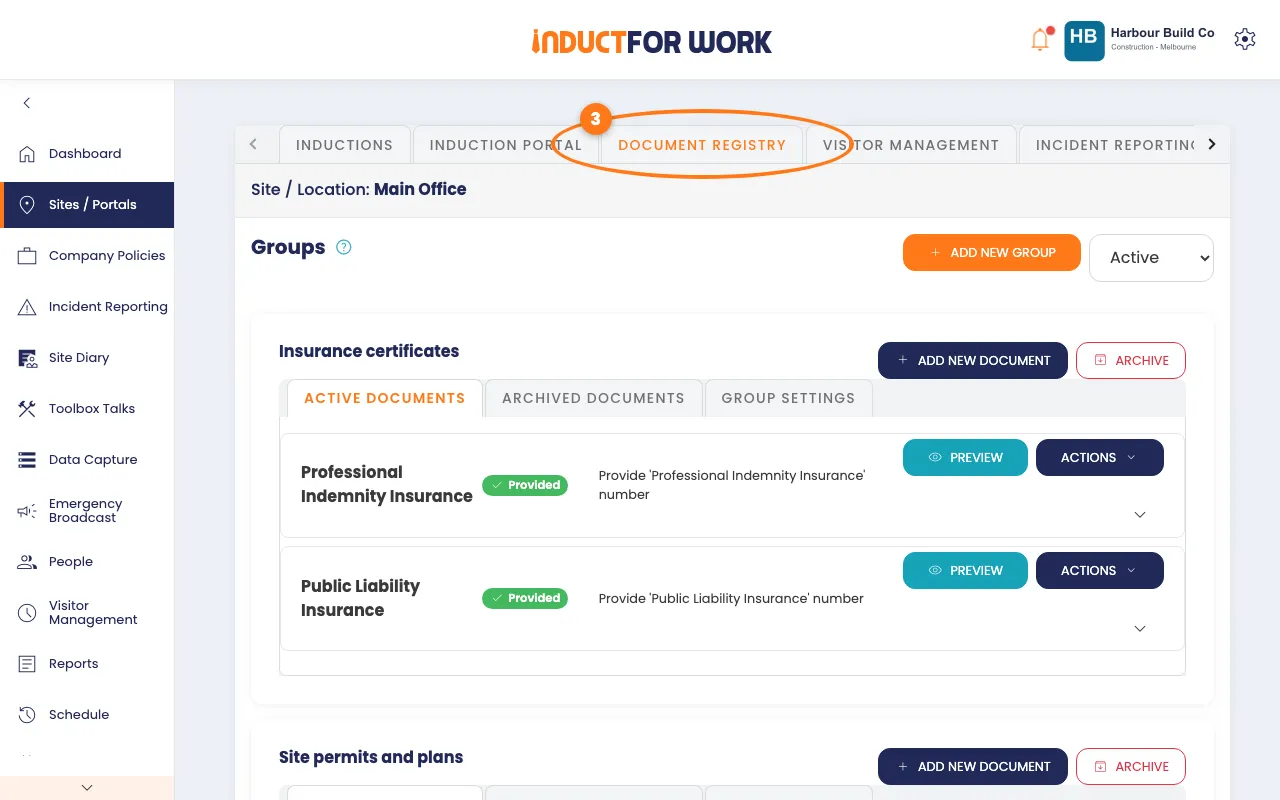
- Click the Document Registry tab.
Add a group
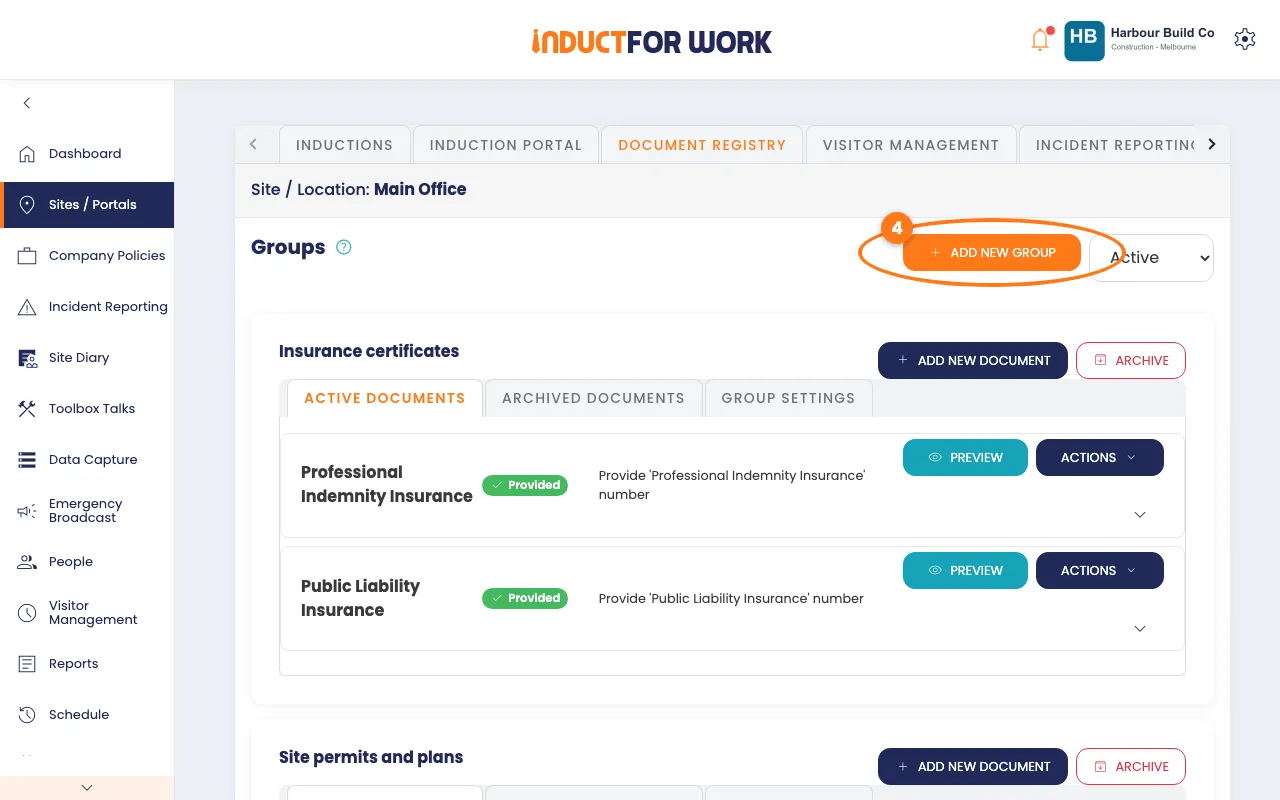
- Click the orange Add New Group button, top right.
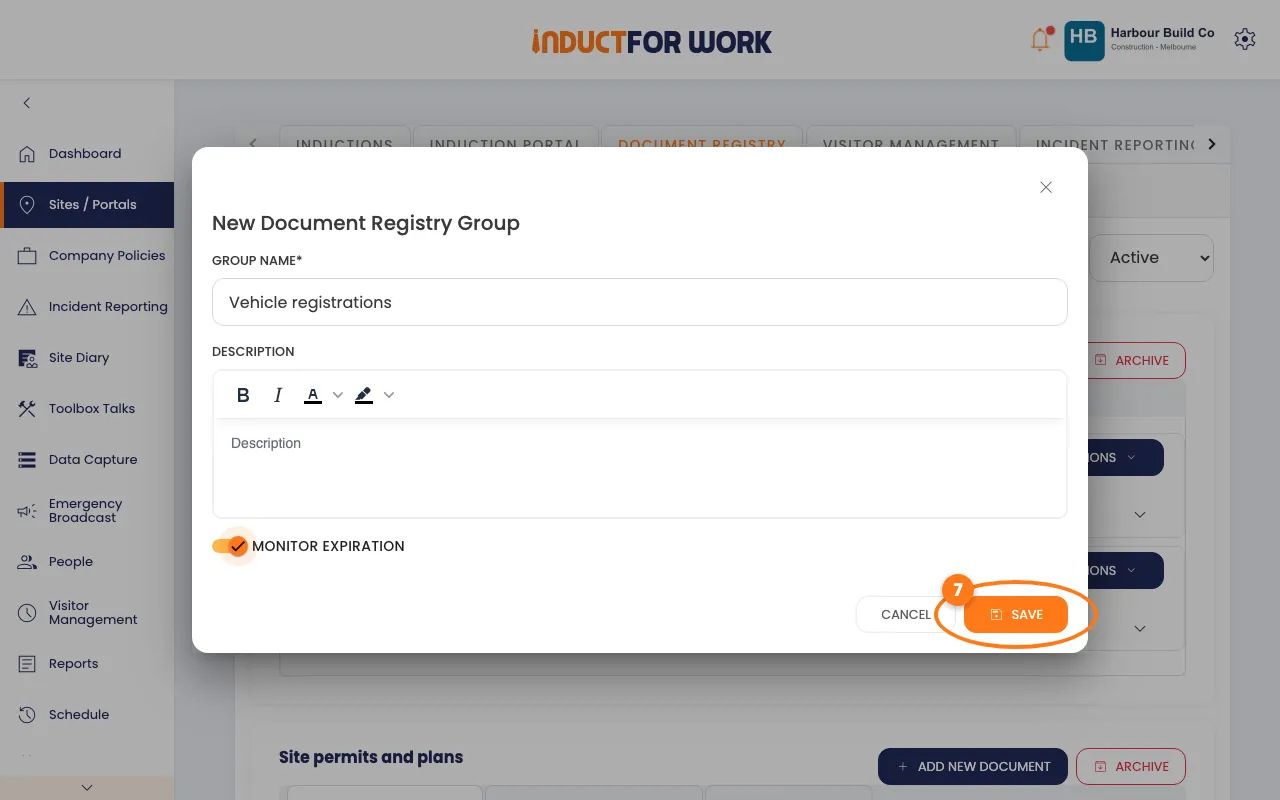
- Type a Group Name, such as "Insurance certificates".
- Switch on Monitor Expiration to get reminder emails.
- Click the orange Save button.
Add a document
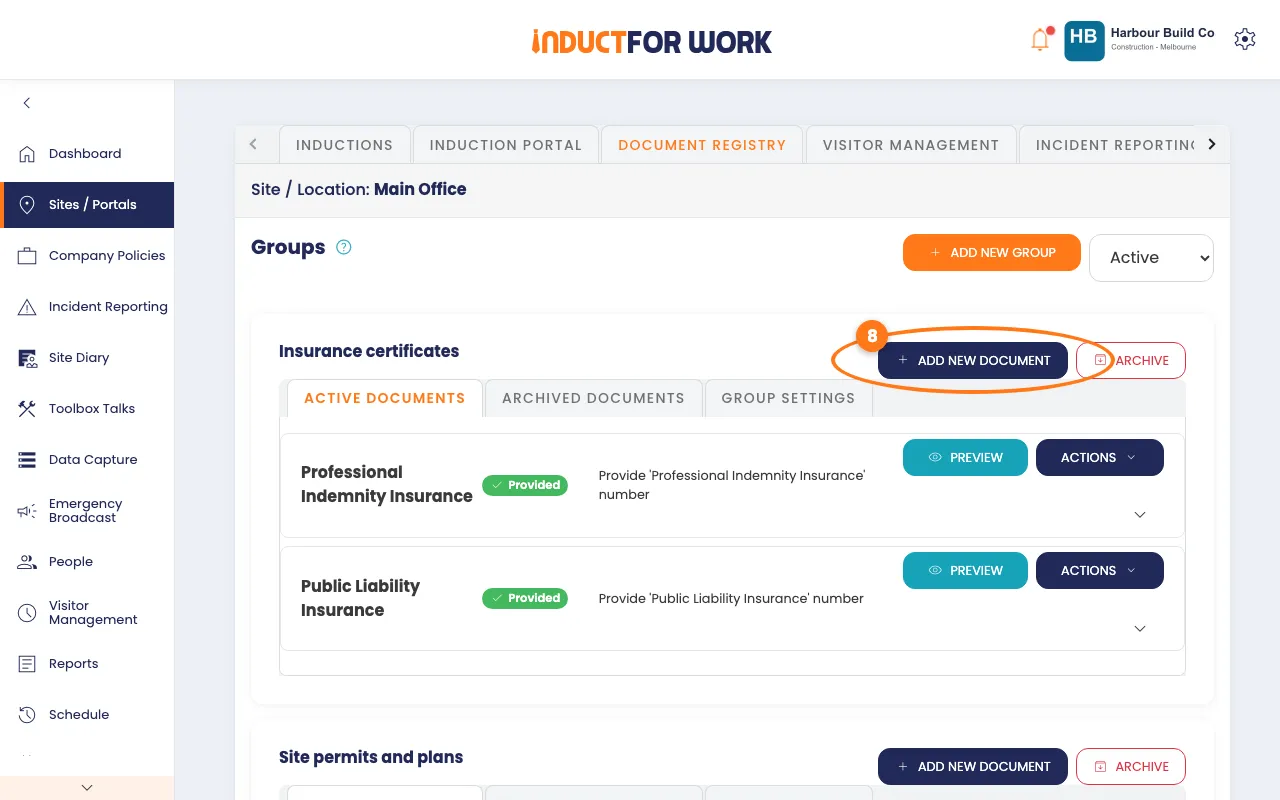
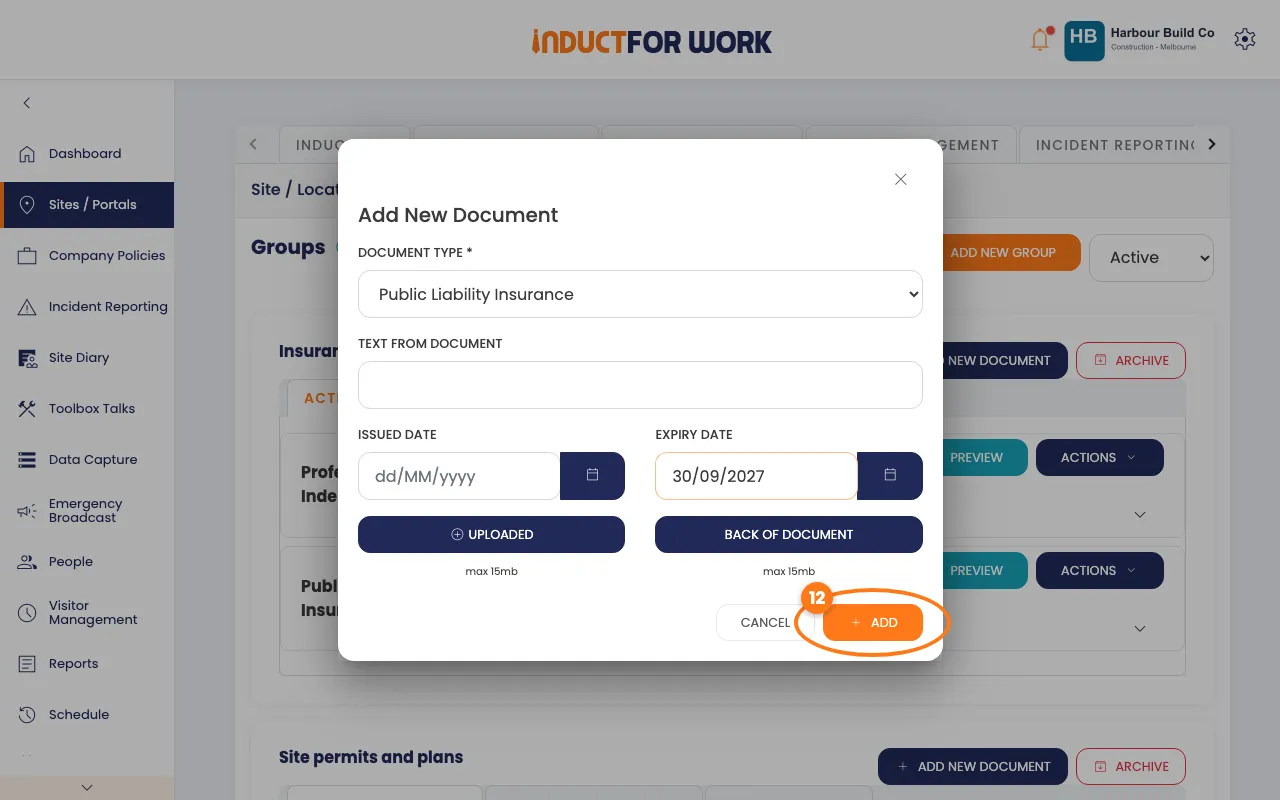
- On your group, click the navy Add New Document button.
- Pick a Document Type, such as Public Liability Insurance.
- Pick the Expiry Date with the calendar button.
- Click Front of Document and pick your file.
- Click the orange Add button.
Tip
For a card with two sides, such as a licence, also click Back of Document. Text From Document is handy for a policy or licence number.
Check or replace a document
- Click the arrow at the right of a document to see its dates and file.
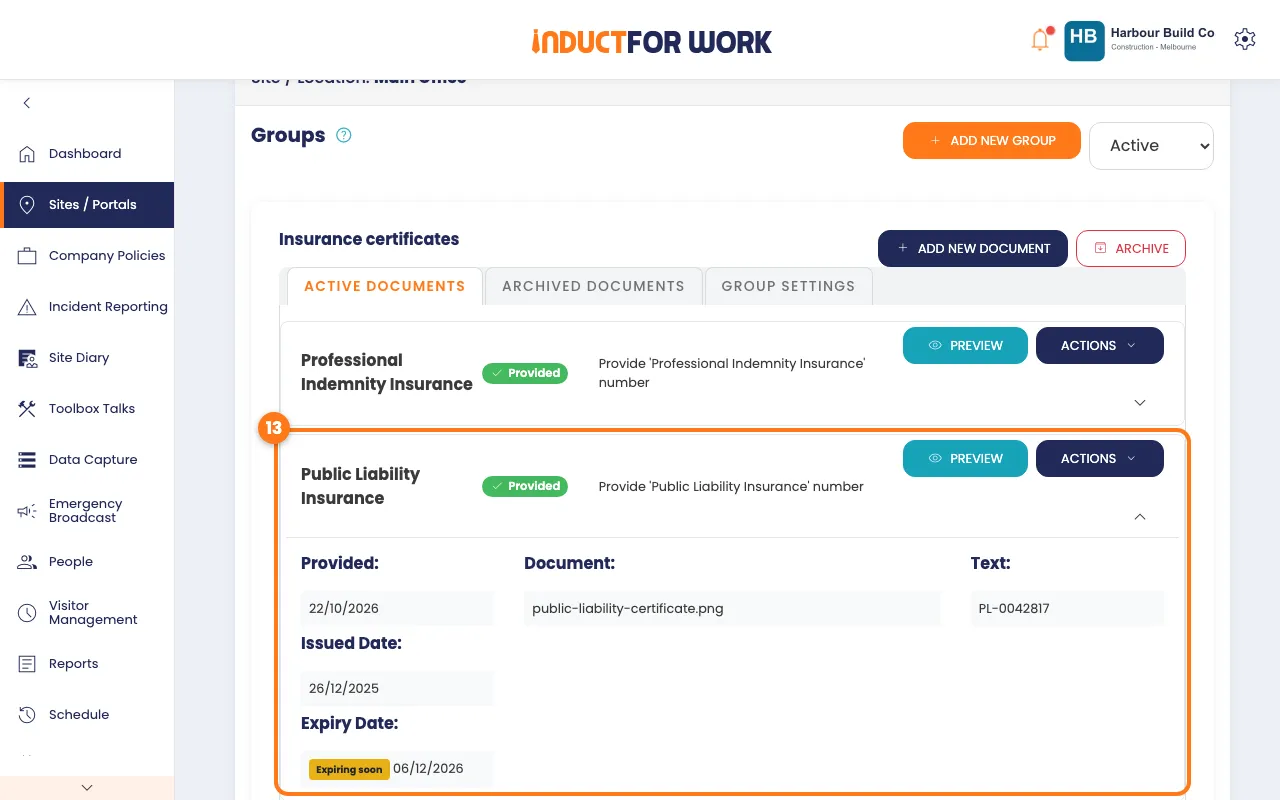
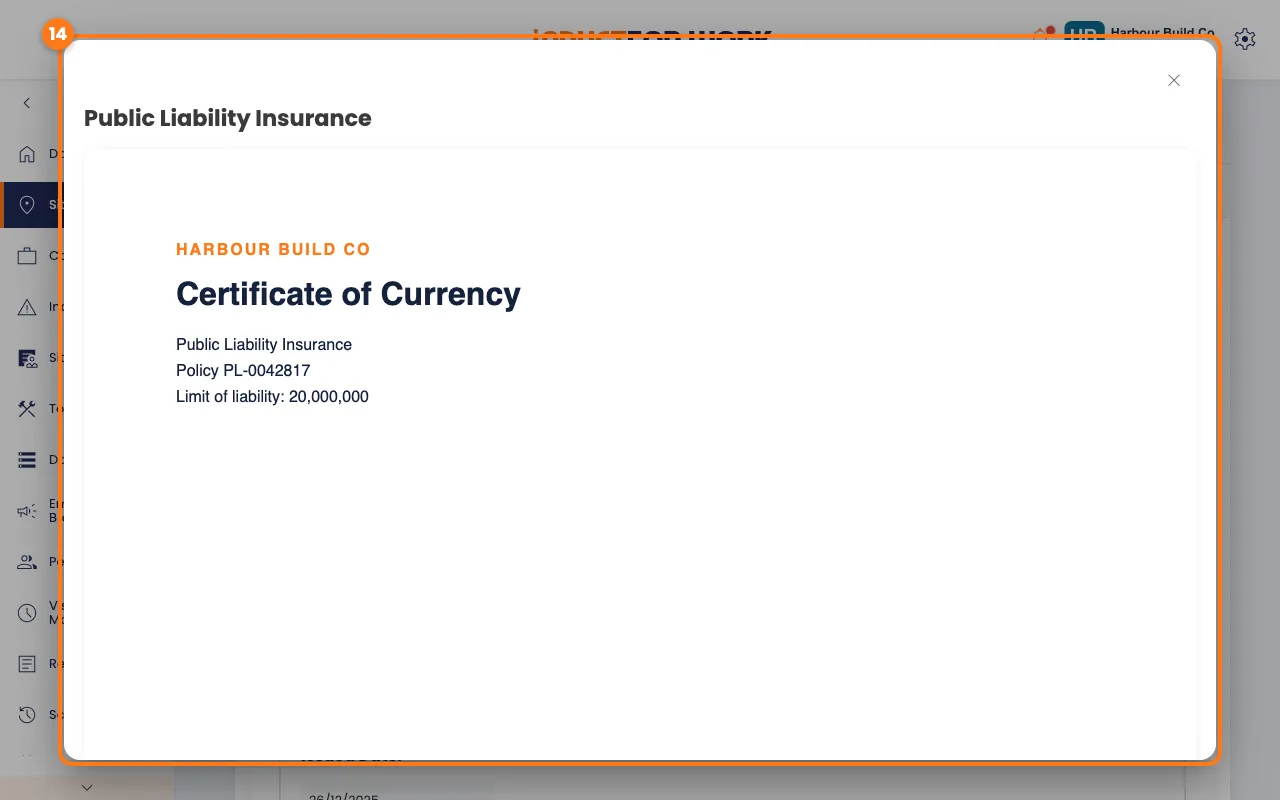
- Click Preview to open the file.
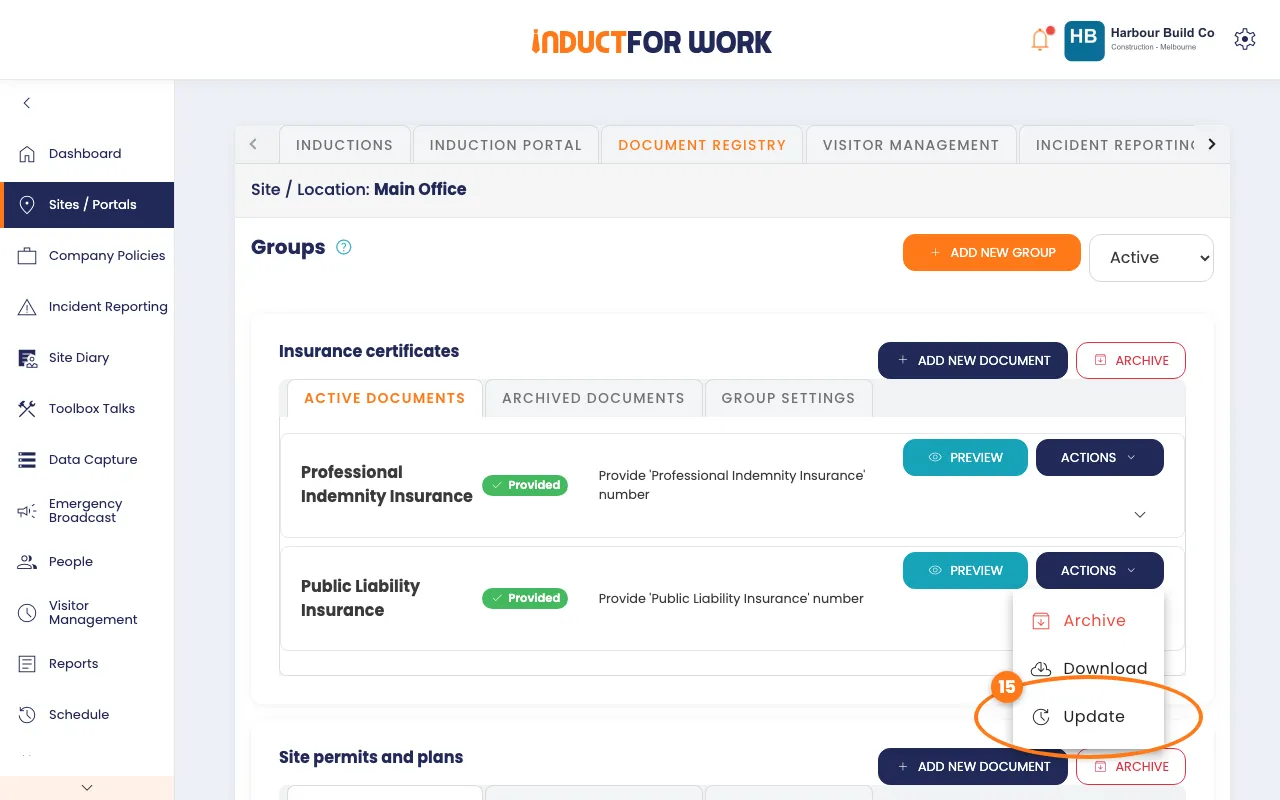
- To replace the file or dates, click Actions, then click Update.
Get expiry reminders
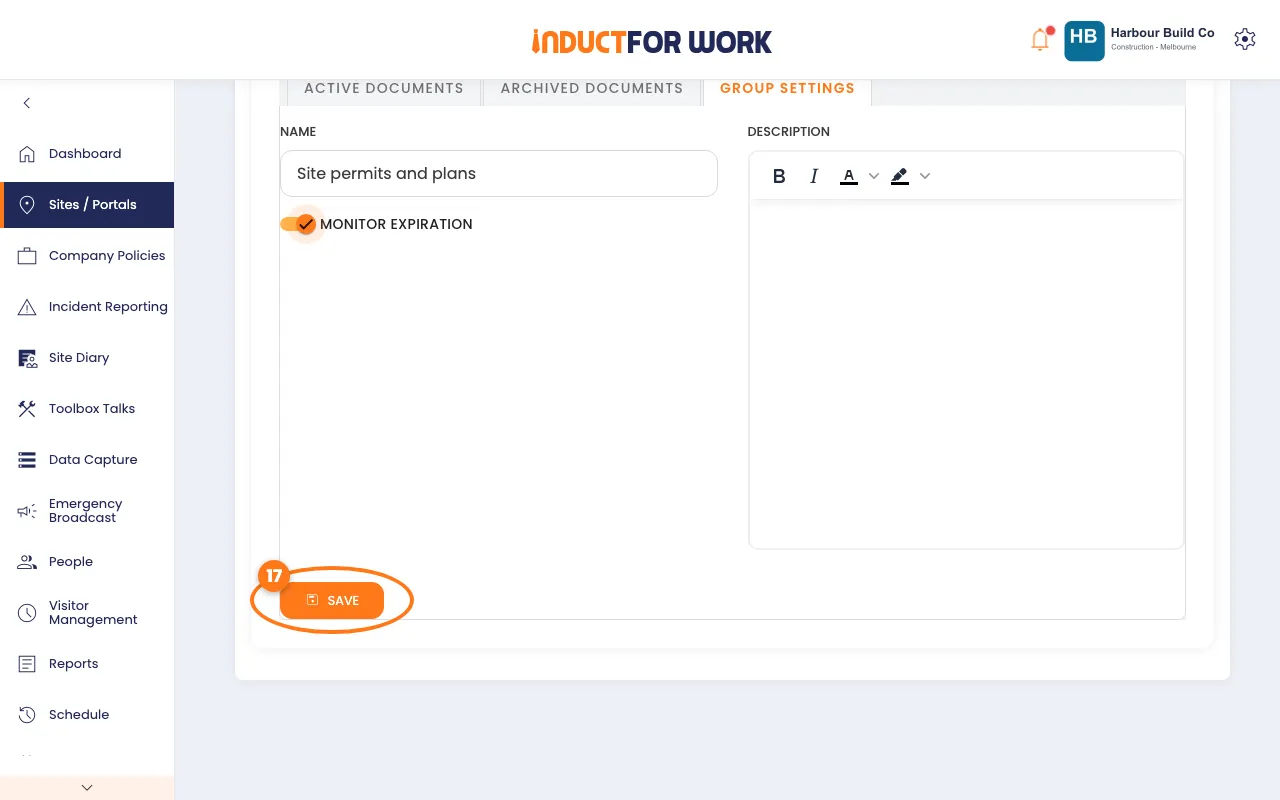
- On the group, click the Group Settings tab.
- Switch on Monitor Expiration, then click the orange Save button.
Archive old documents
- Click the document’s Actions button, then click Archive.
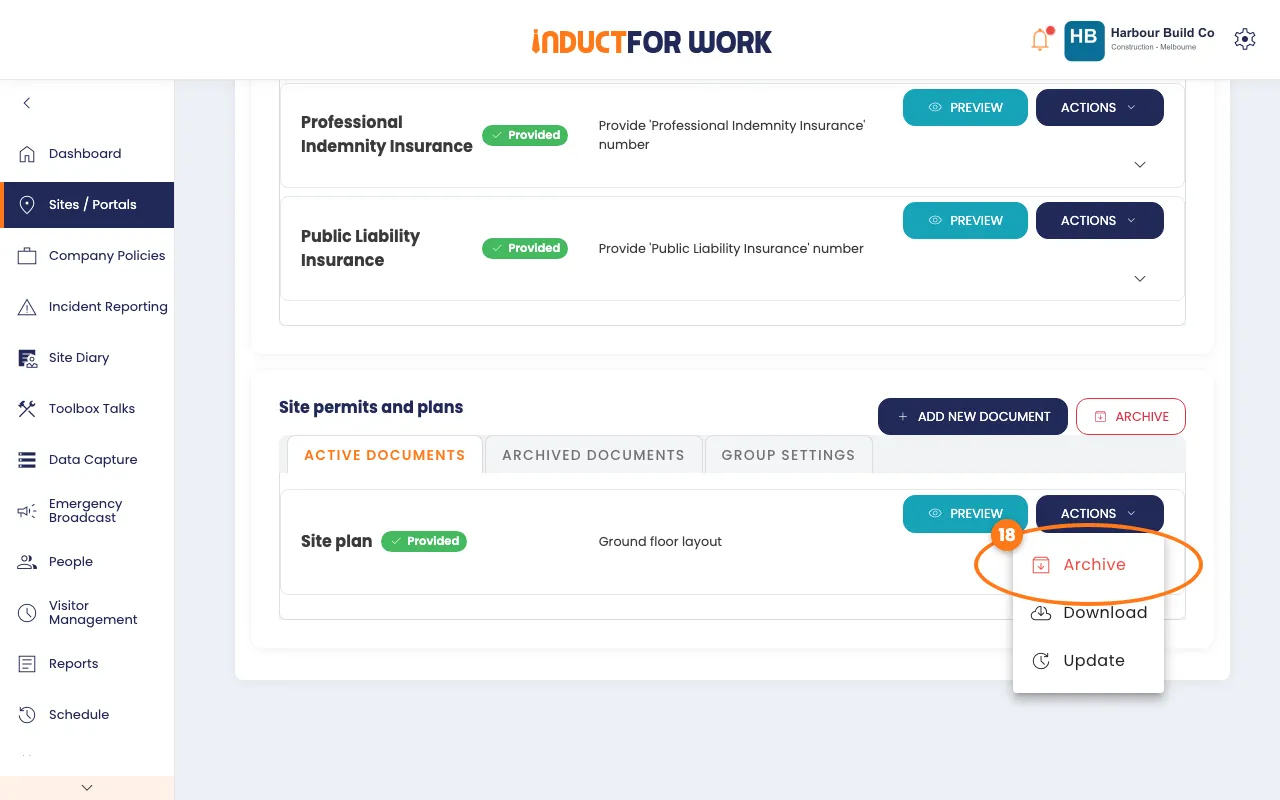
- Click Archive in the pop-up box to confirm.
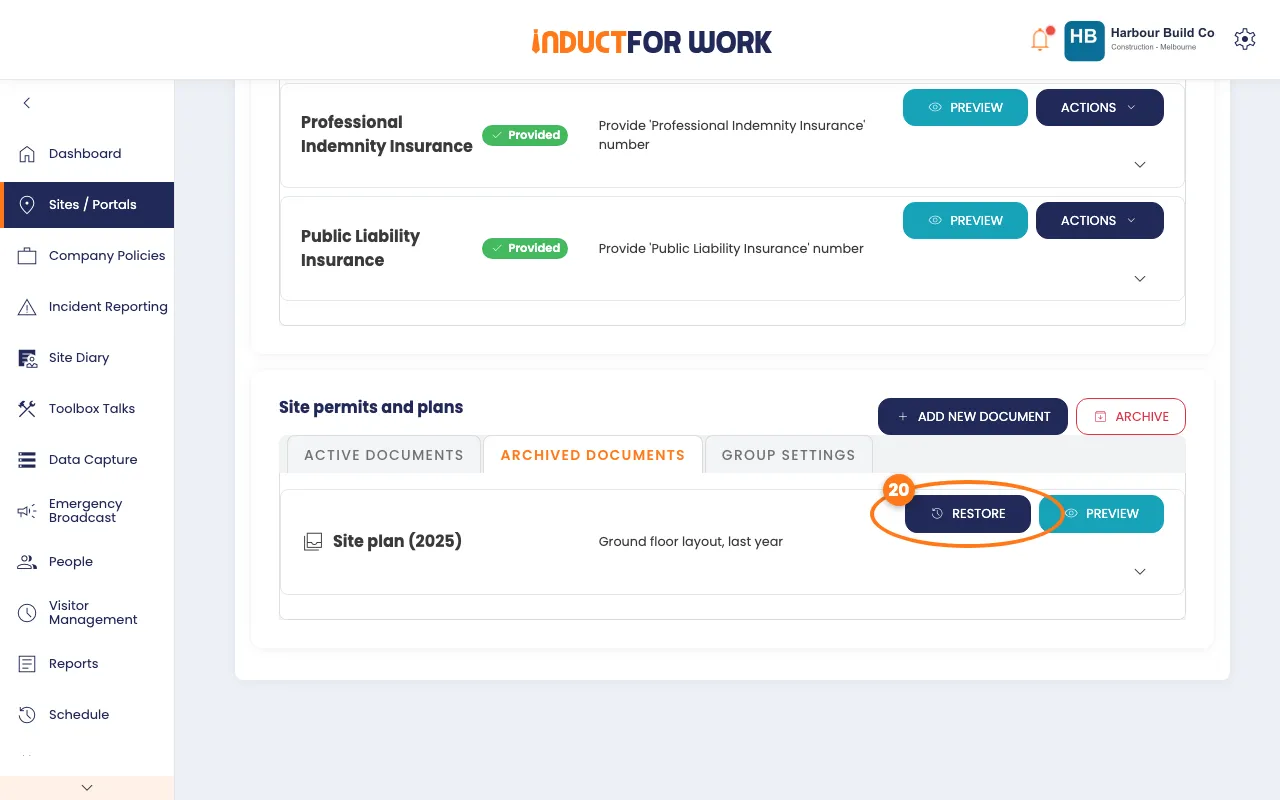
- To bring it back, click the Archived Documents tab, then click Restore.
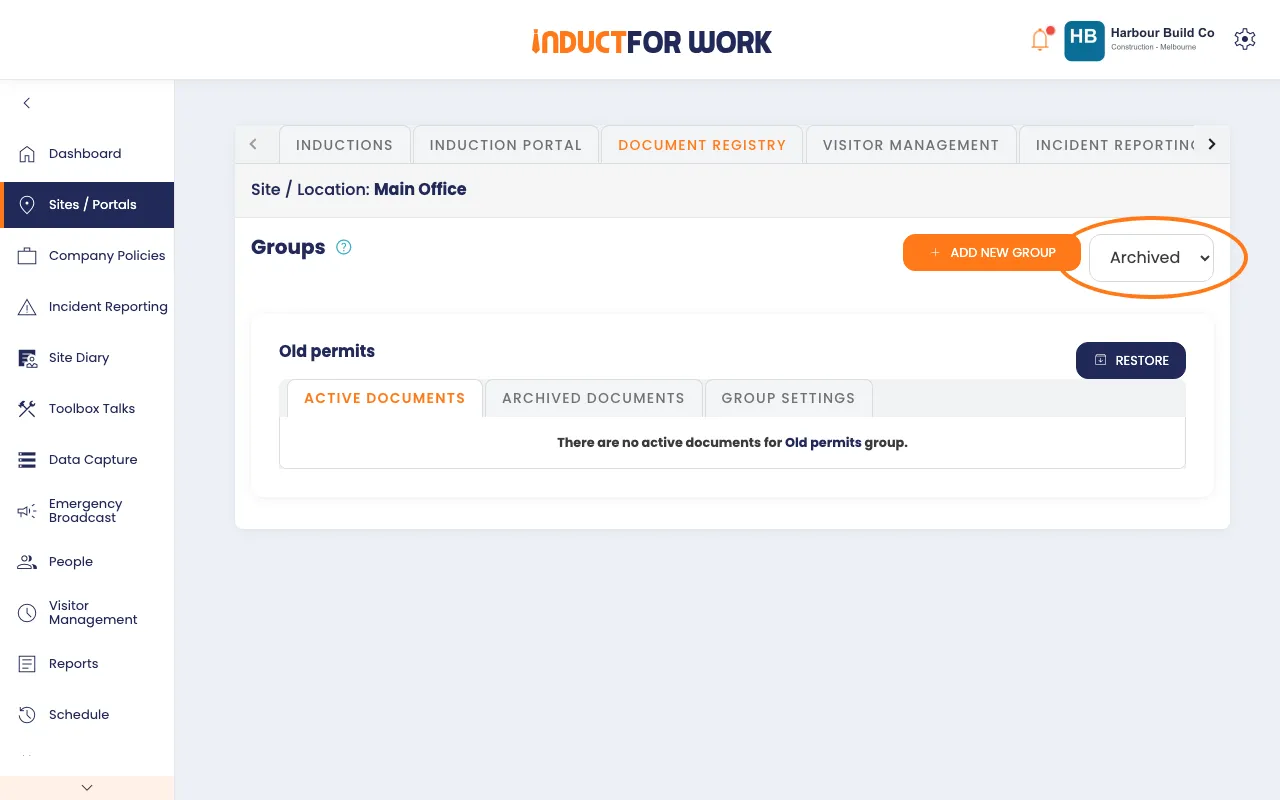
To put away a whole group, click its red Archive button. Pick Archived in the list, top right, to see archived groups.
Done! What happens next
- Your documents stay in the registry until you archive them.
- If Monitor Expiration is on, you’re emailed every Monday about documents expiring soon. Upload the new version with Update.
- For documents your people give you during an induction, see Document Collection.