
36 History Log
What is the History Log?
The History Log records who changed what, and when, across your online induction account: inductions, policies, sites, people and admin access. It’s kept for you automatically, with nothing to switch on. Use it to check a change, or put an induction’s pages back the way they were.
Rules to know
- Plans: on Lite, Team, Team Plus, Team Pro, Enterprise and the free trial. On the free plan, the history tabs show an upgrade box.
- Older plans: some have the History Log as an add-on. It shows history from the day the add-on started.
- Who: an induction’s or a site’s history is for Site Managers and up, for their own sites. Policy history, All history and each admin’s history are for the Account owner and Administration Users. A person’s History tab shows for anyone who can open that person.
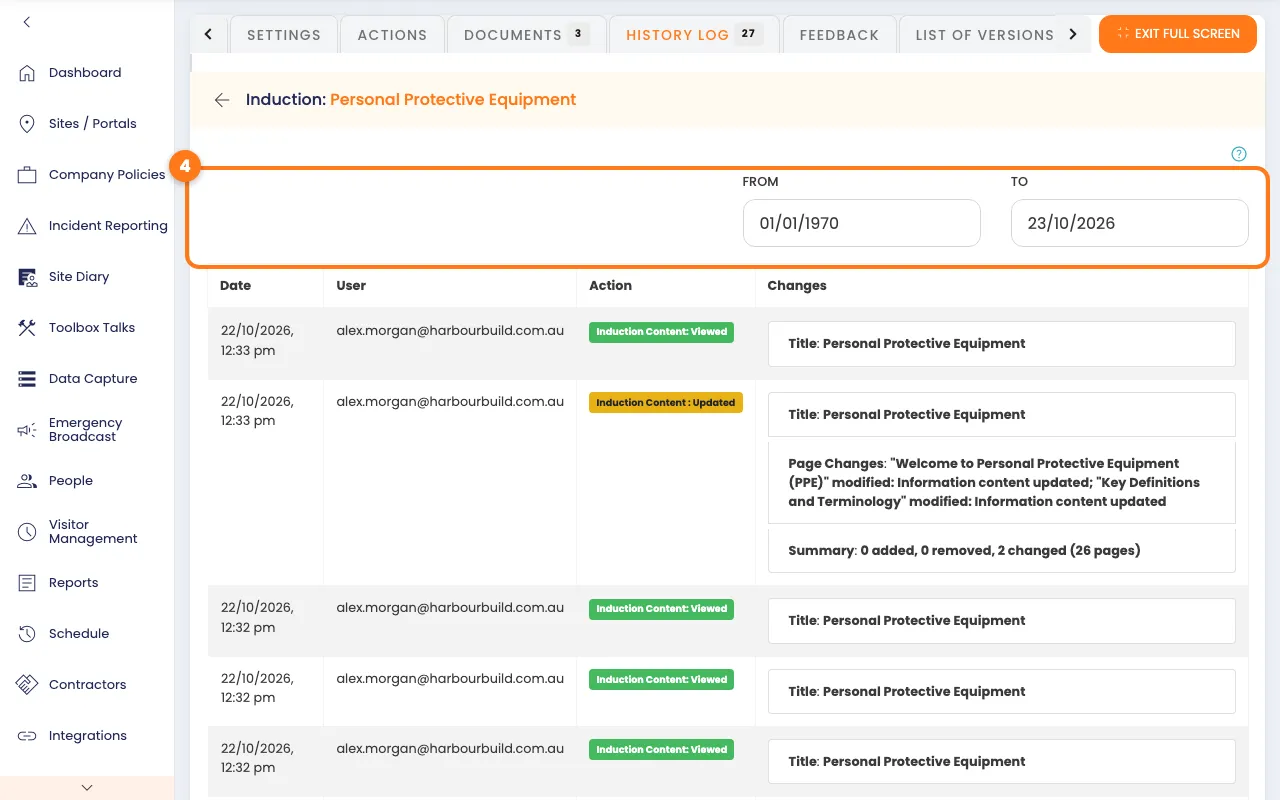
- How far back: 24 months. Pick From and To dates to narrow it down. 20 lines show per page.
- Each line: the date, who did it, the action and what changed (old value, arrow, new value). Added lines are green, updates yellow, and archived or removed lines red.
- Recorded automatically: opening an induction’s pages adds a Viewed line. A person’s History also lists their own steps: when they started, pages they viewed, when they finished and documents they sent.
- Our support team: changes we make for you show as SYSTEM ADMINISTRATOR.
- The number on an induction’s History Log tab counts its changes in the last month.
- All history lists every action across your account, including logins, without the details of each change.
- Versions: List of Versions keeps each saved copy of an induction’s or a policy’s pages, with who saved or restored it. Saving the same content twice shows once.
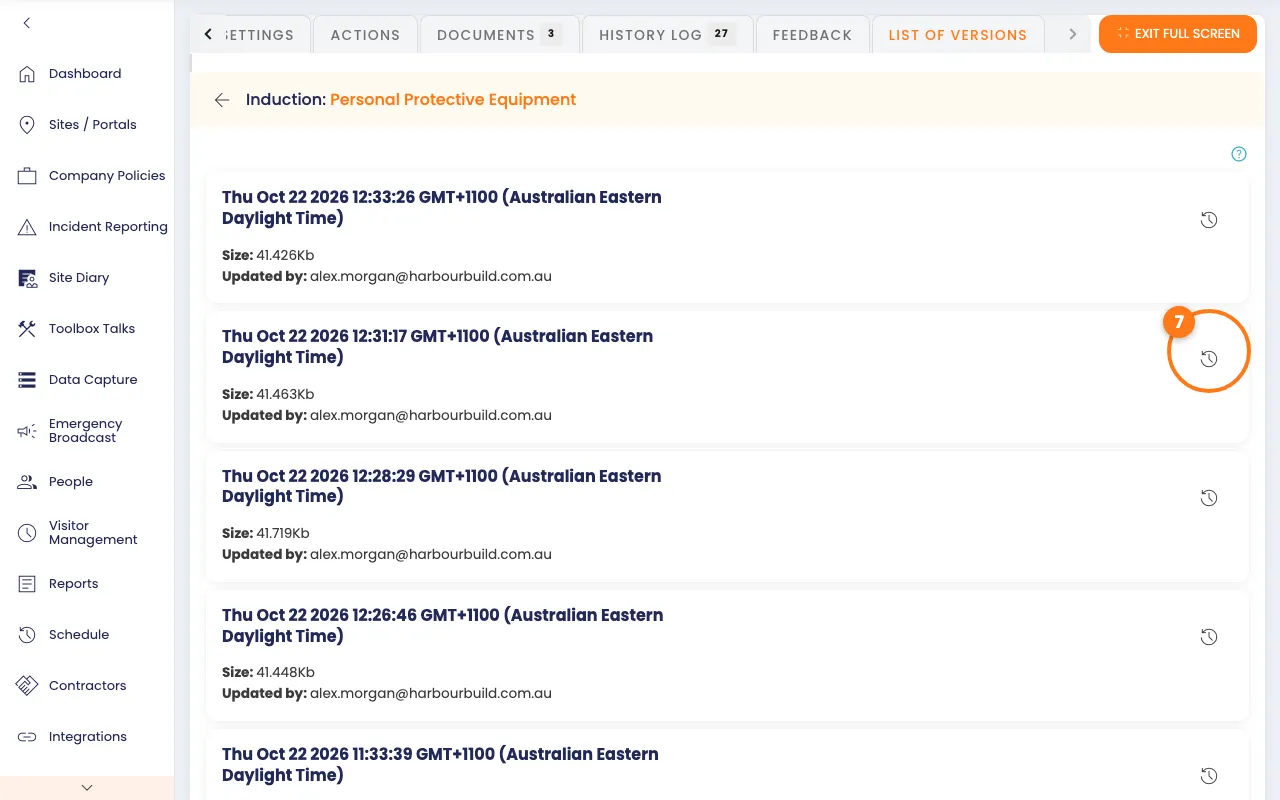
- Restoring asks first, then replaces the pages. The pages you had stay in the list, so you can switch back. The restore shows in the History Log.
- Someone else editing: you can’t restore while another admin has opened or saved the pages in the last 5 minutes, unless they’ve logged out.
What you’ll need
- An admin login, from Site Manager up. Policies and All history need an Administration User or the Account owner.
- Something that has changed, such as an induction you’ve edited.
See an induction's history
- In the left menu, click Sites / Portals, then click your site’s name.
- On the Inductions tab, click the induction’s name.
- Click the History Log tab.
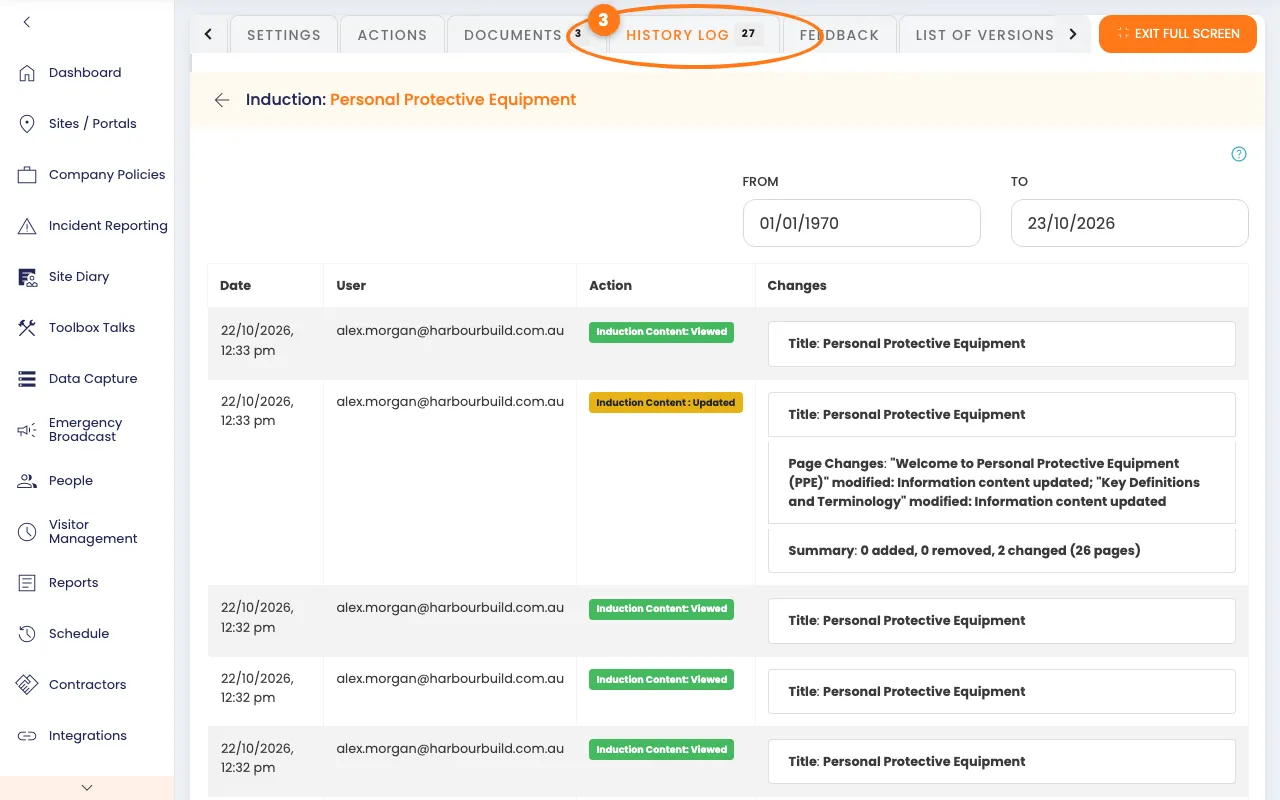
Each line shows the Date, the User, the Action and the Changes.
- To narrow it down, pick a From date and a To date, top right.
- Click the right arrow next to Page 1 of …, under the list, to see older lines.
Put back an earlier version of the pages
- On the induction, click the List of Versions tab.
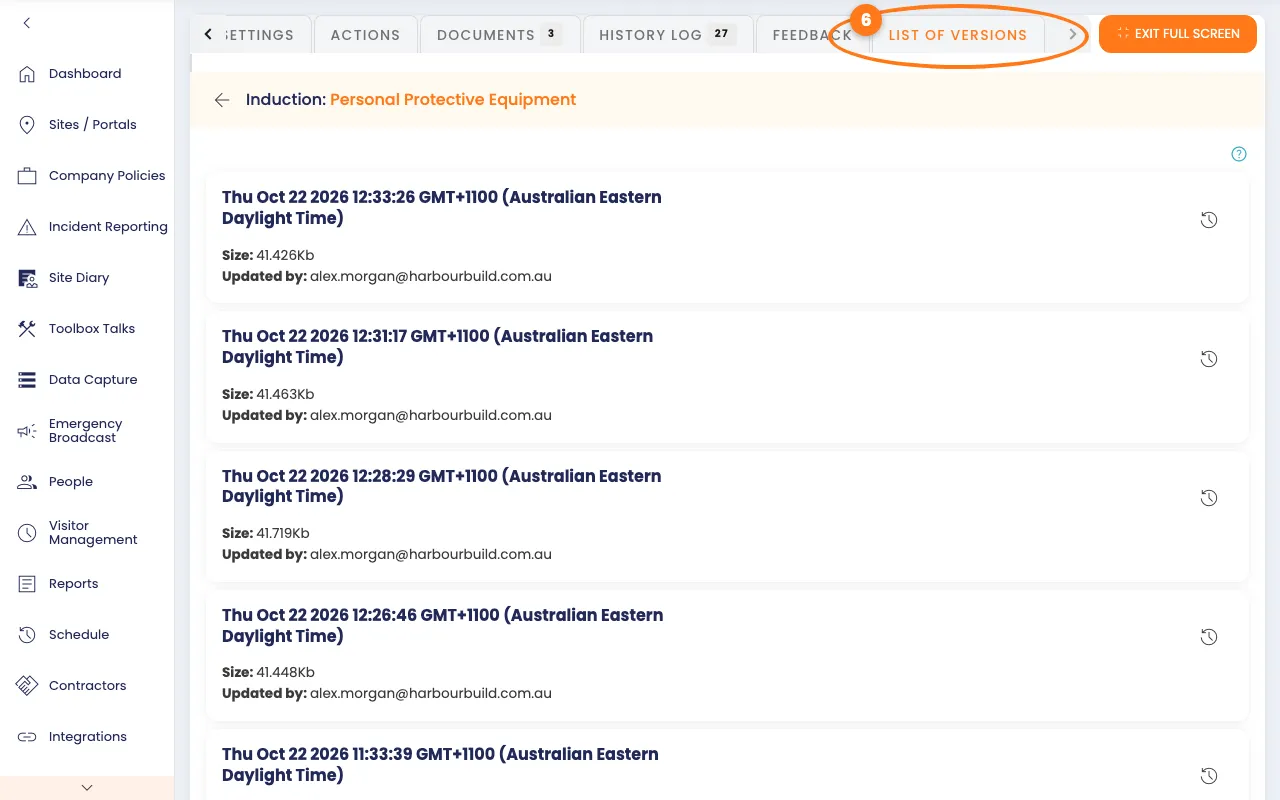
Each version shows when it was saved and who saved it.
- Click the round-arrow Restore button on the version you want.
- Click Restore in the pop-up box.
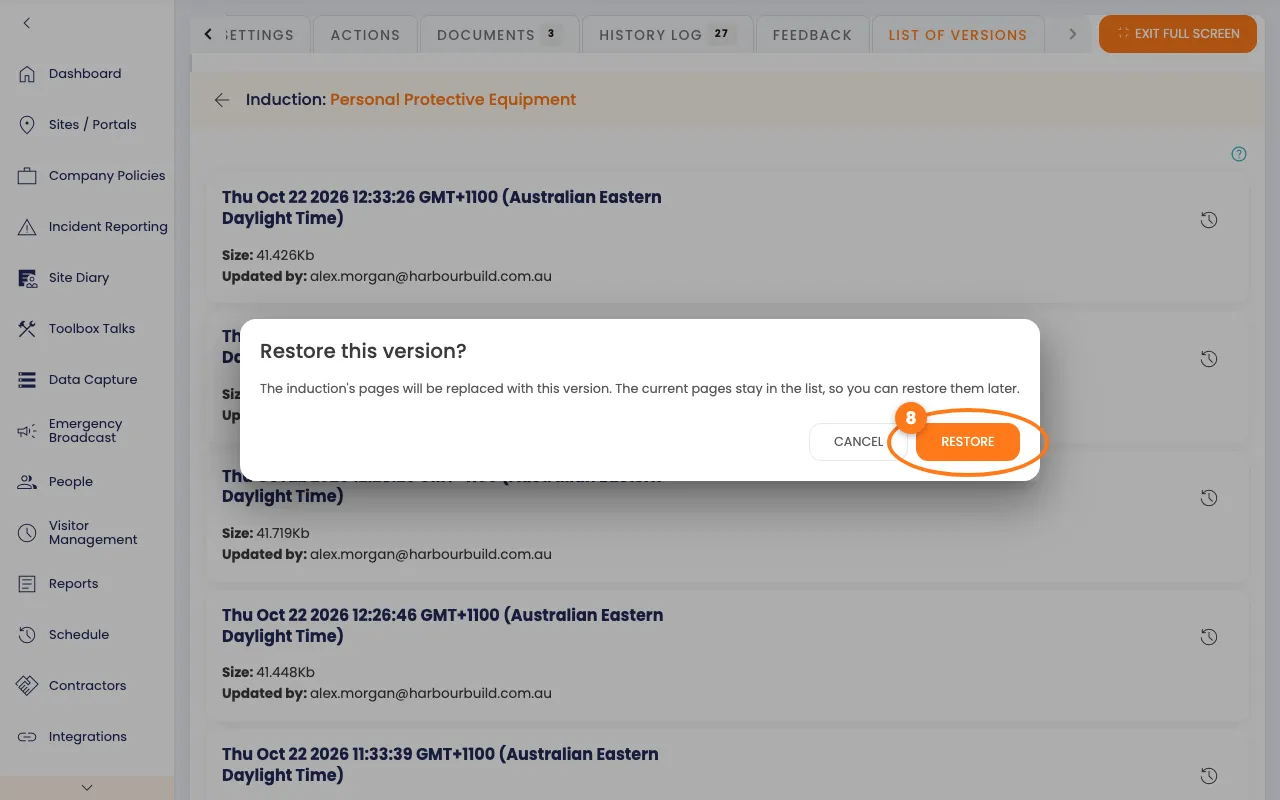
The pages are replaced and open, so you can check them.
Tip
Policies have the same History Log and List of Versions tabs. See Company Policies.
See a site's history
- In the left menu, click Sites / Portals, then click your site’s name.
- Click the History Log tab.
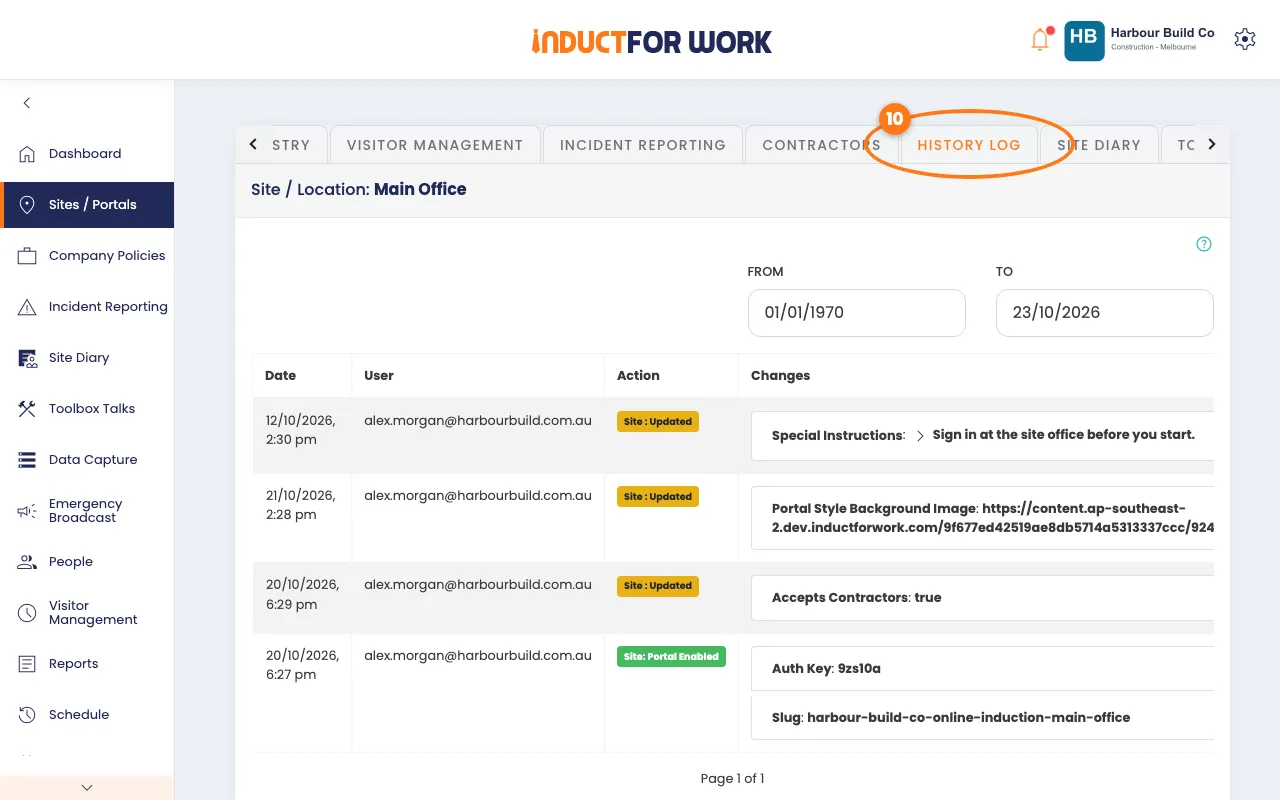
It shows when the site was added, changes to its details and when its portal or auth key changed.
See a person's history
- In the left menu, click People, then click the person’s name.
- Click the History tab.
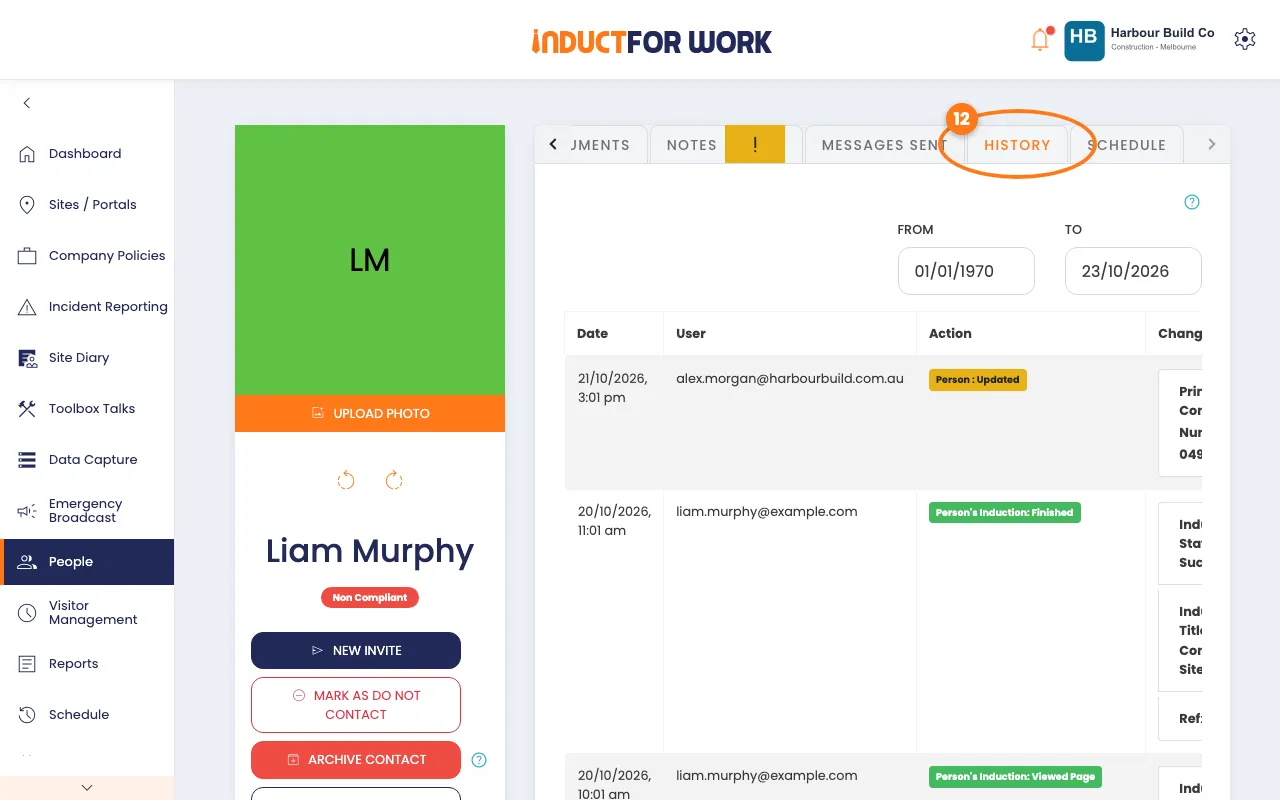
It shows changes to their details and documents, and their own steps through each induction.
See everything that's changed
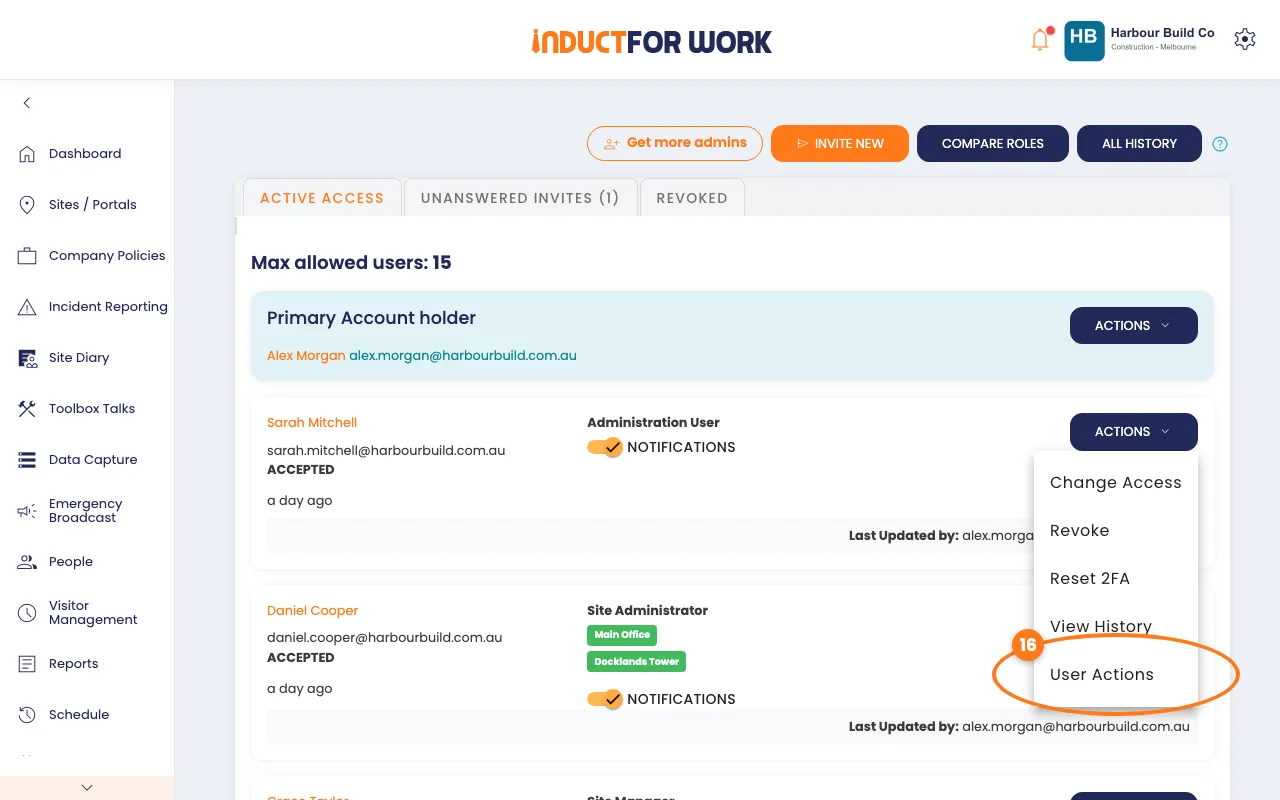
- Click the gear icon, top right, then click Account Access.
- Click the navy All history button, top right.
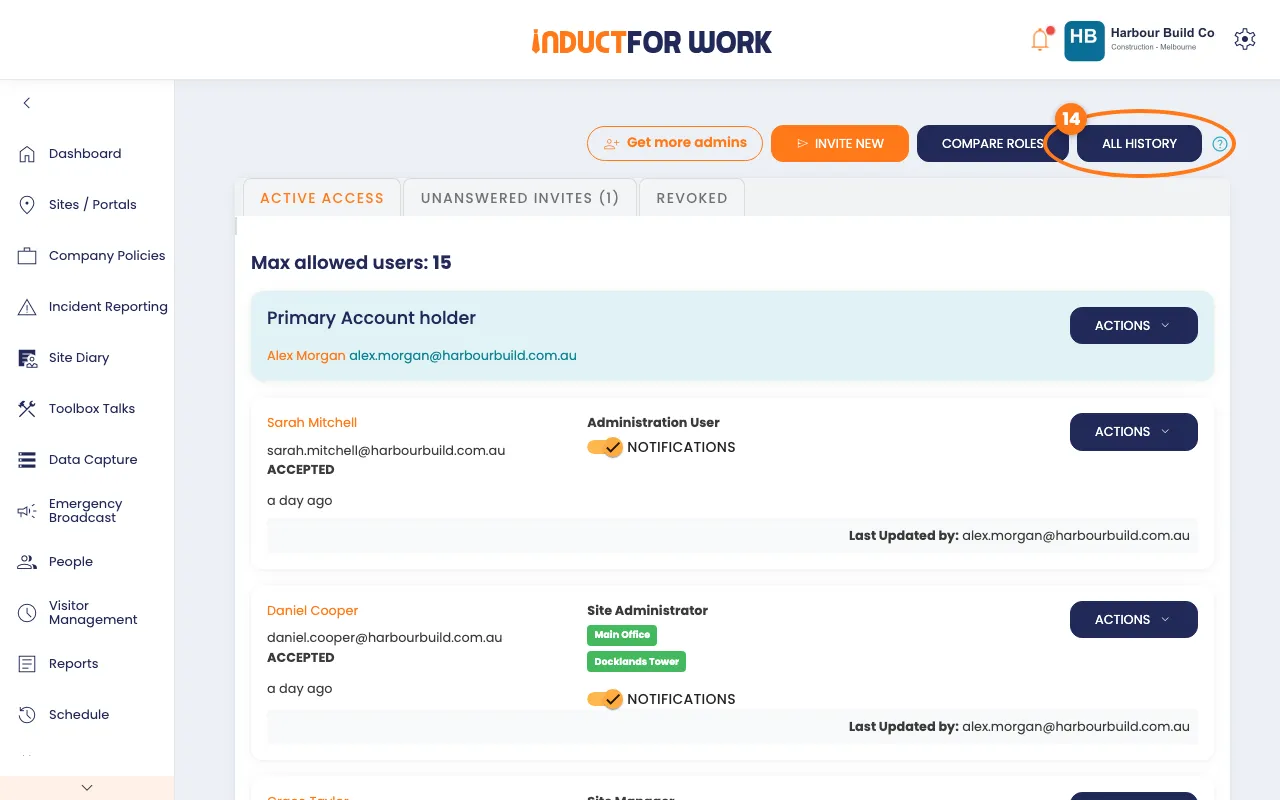
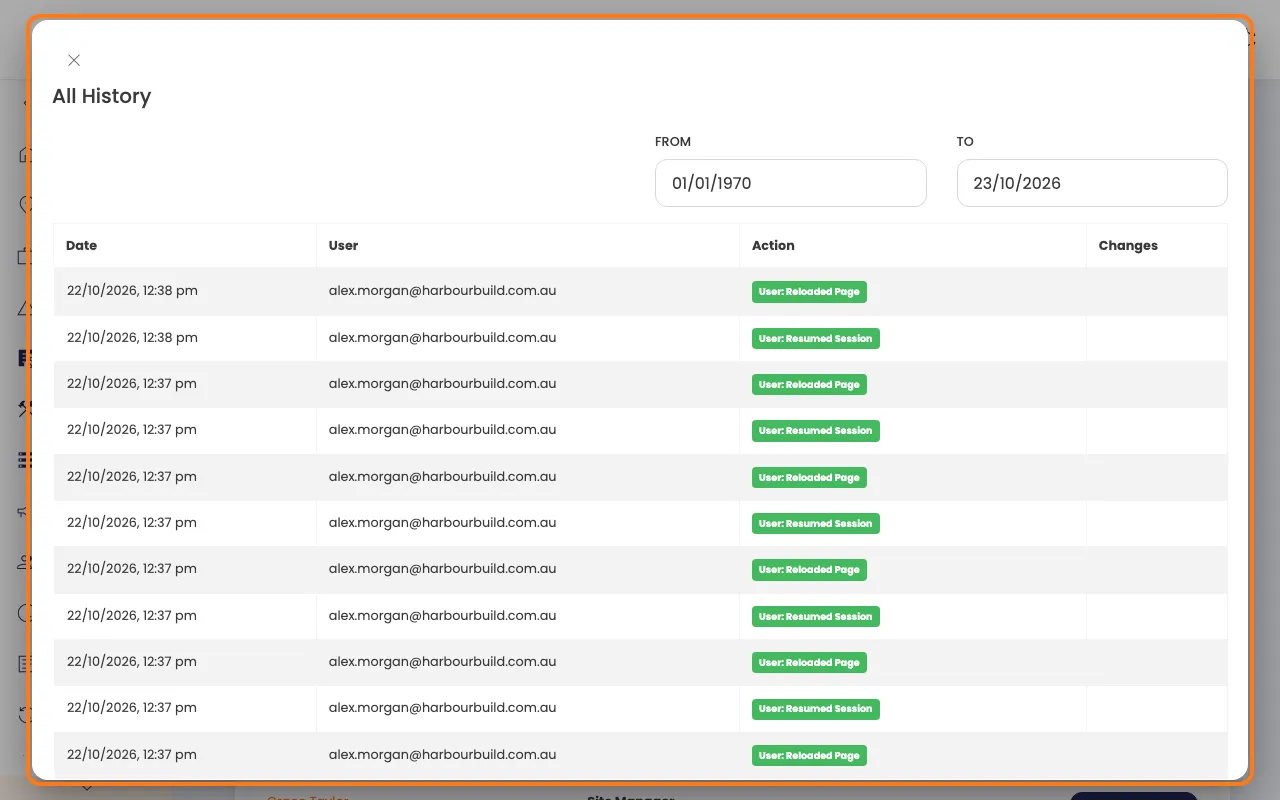
- To see one admin’s history, click Actions on their card.
- Click User Actions for everything they did, or View History for changes to their access.
Done! What happens next
- Every change keeps being recorded on its own. Lines older than 24 months drop off.
- For an induction’s other tabs, see Induction Settings.
- To manage who can see what, see Admin Users.