
37 Account Security and SSO
What is Account Security?
Account Security is where you protect your own admin login. Turn on two-factor authentication (two-step verification), so you sign in with your password plus a code from an app on your phone. It also lists your recent sign-ins. On the Enterprise plan, your team can also log in to your online induction account with their Google or Microsoft work account, using single sign-on (SSO).
Rules to know
- Plans: two-factor authentication is on every plan. Single sign-on (SSO) is on the Enterprise plan and the free trial.
- Who: every admin, from Supervisor up, sets up their own. Only the Account owner and Administration Users can require it for everyone, or set up SSO.
- Authenticator app only: use an app such as Google Authenticator, Microsoft Authenticator, Authy or 1Password. We don’t send setup codes by text. If you still get sign-in codes by text, setting up an app switches you over.
- One app per login: it’s asked for in every company you sign in to. Replacing your device turns off the old one.
- Limits: you can make a new setup QR code up to 3 times a day. You get 5 tries at a sign-in code every 15 minutes.
- Lost your phone: the Account owner or an Administration User can Reset 2FA for you. The Account owner’s own reset goes through our support team.
- Requiring it for everyone: we email the Account owner and every admin. Each one sets up an app at their next sign-in. People who log in with SSO aren’t asked. Turning it off doesn’t remove anyone’s app.
- Recent sign-ins: your own sign-ins from the last 30 days, up to 50. Nobody else’s are shown.
- One device at a time: logging in somewhere else signs you out of the first device.
- Sign-ins from another country: while you’re signed in elsewhere, they’re paused until you approve them from an email. The link lasts 10 hours. Not during the free trial.
- SSO domains: the first is the domain of your own email address. You can add up to 5, and one must stay on. For Microsoft, the domain must belong to your Microsoft Entra ID (Azure AD) account.
- SSO sign-ins: the first time someone logs in with SSO, they’re added to People. They only get admin access if you’ve invited them in Account Access. Their SSO provider handles their two-factor authentication.
What you’ll need
- Your admin login.
- A phone with an authenticator app, such as Google Authenticator or Microsoft Authenticator.
- For SSO: the Enterprise plan, an Account owner or Administration User login, and a Google Workspace or Microsoft 365 work email.
Turn on two-factor authentication
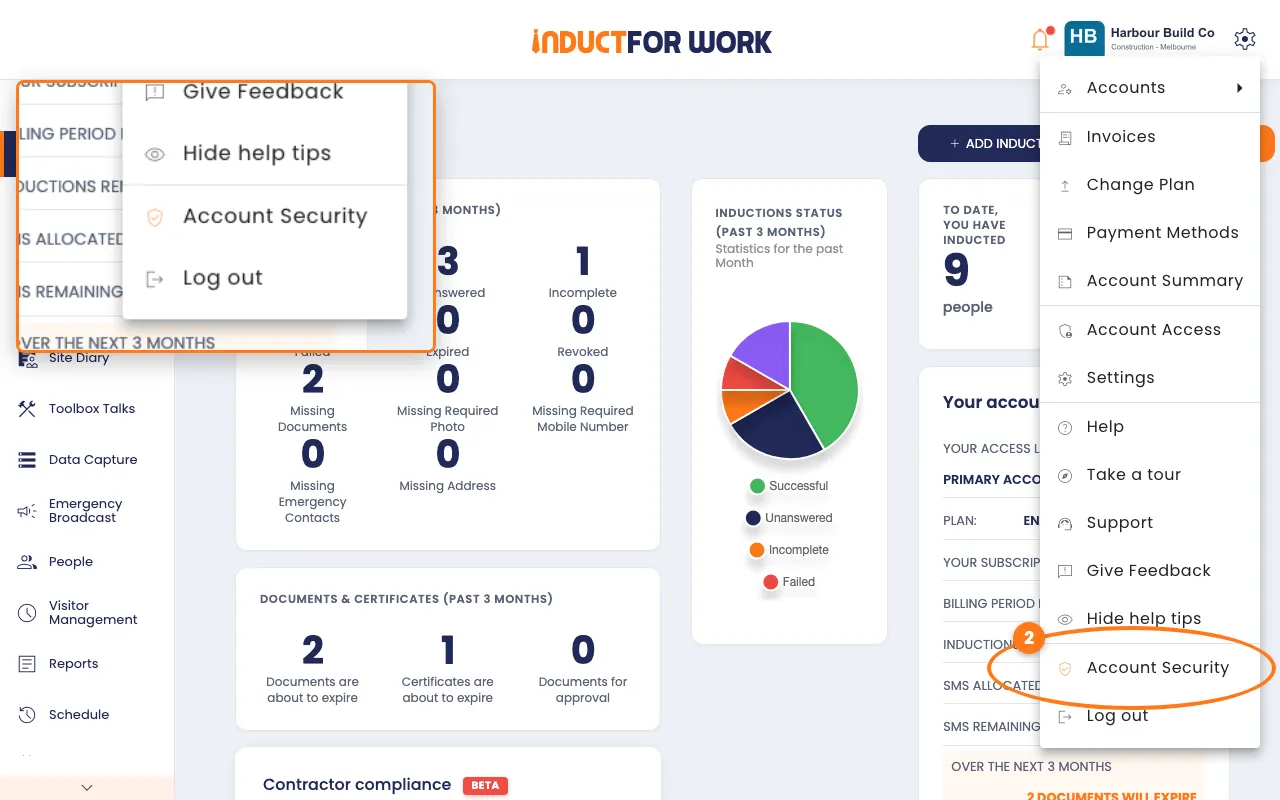
- Click the gear icon, top right.
- Click Account Security.
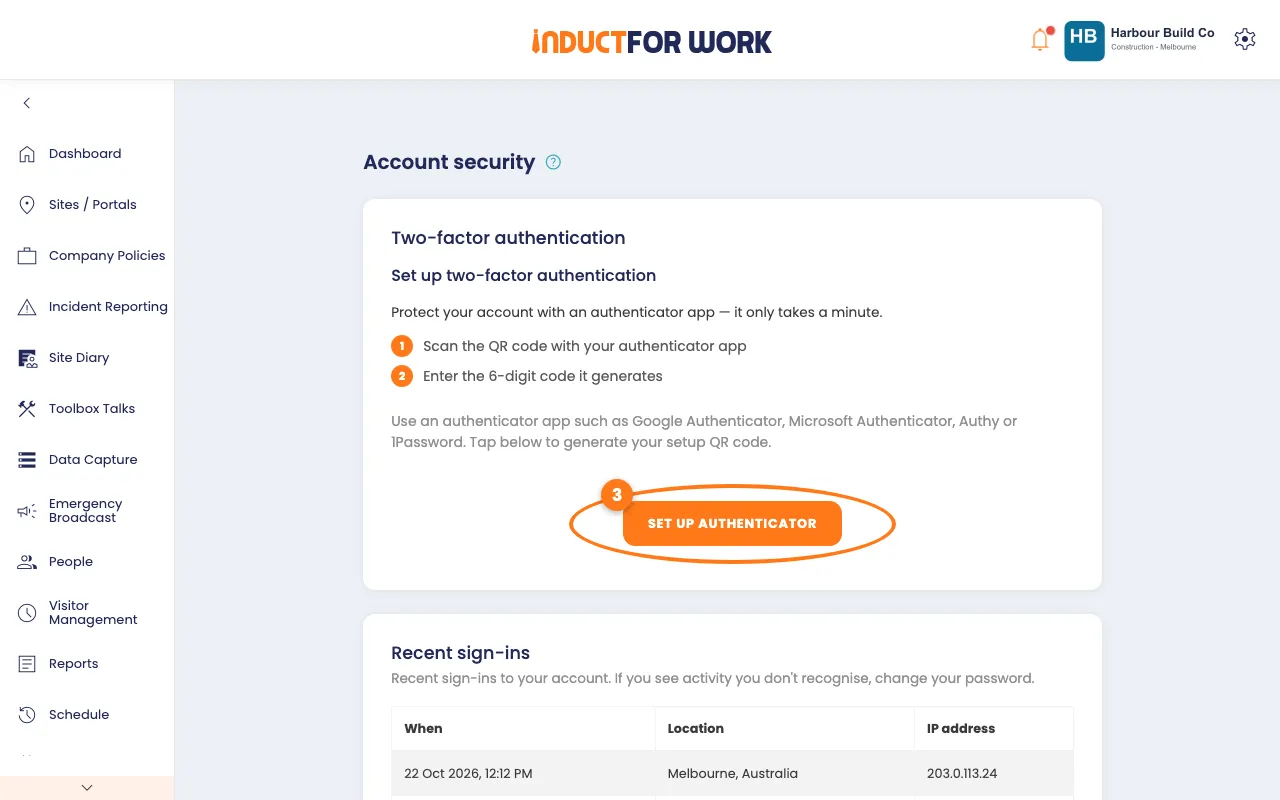
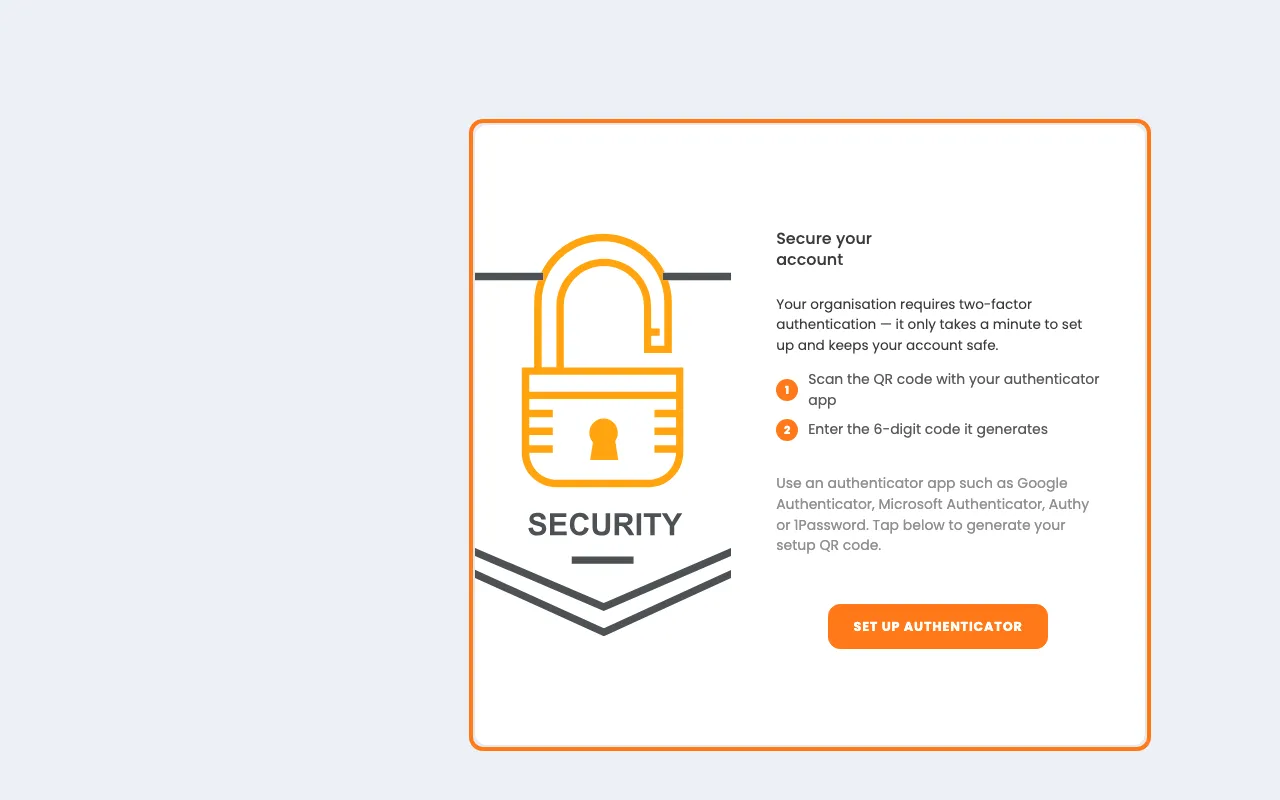
- Click the orange Set up authenticator button.
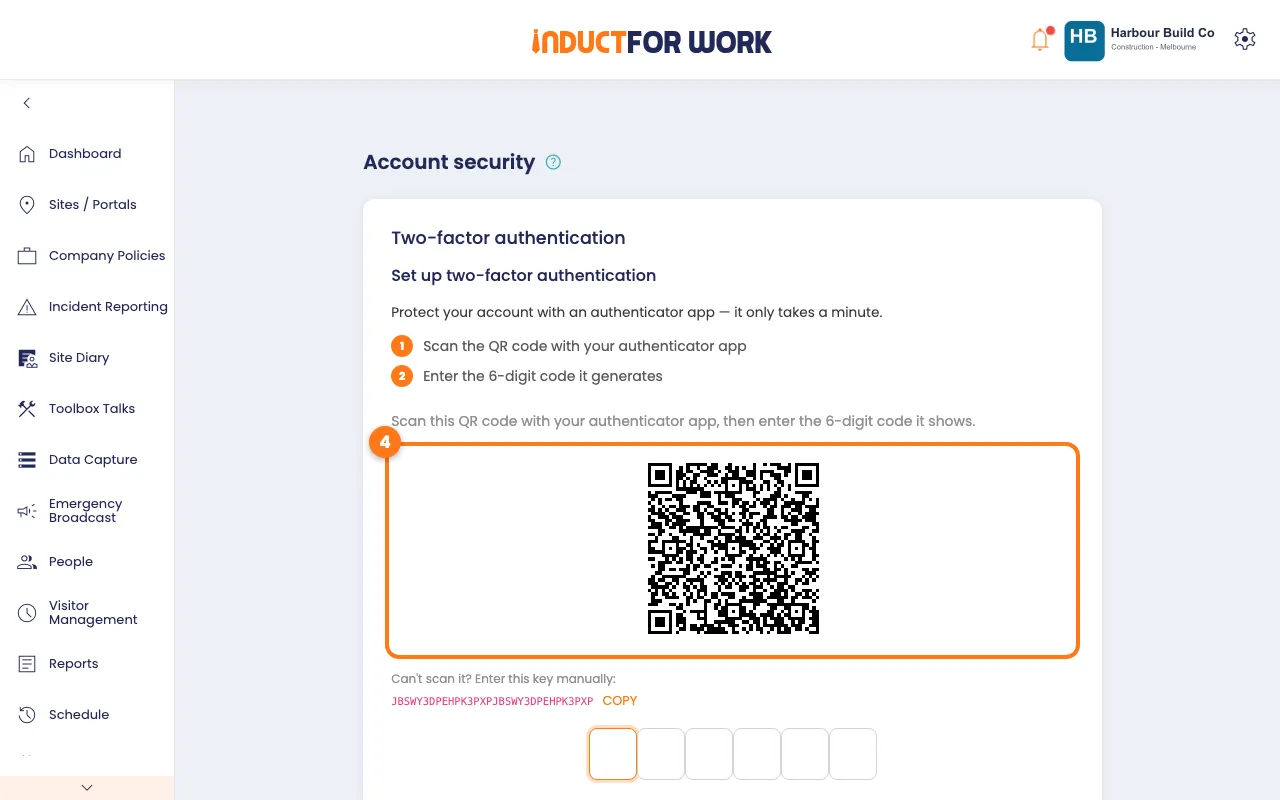
- Open your authenticator app and scan the QR code.
- Type the 6-digit code your app shows.
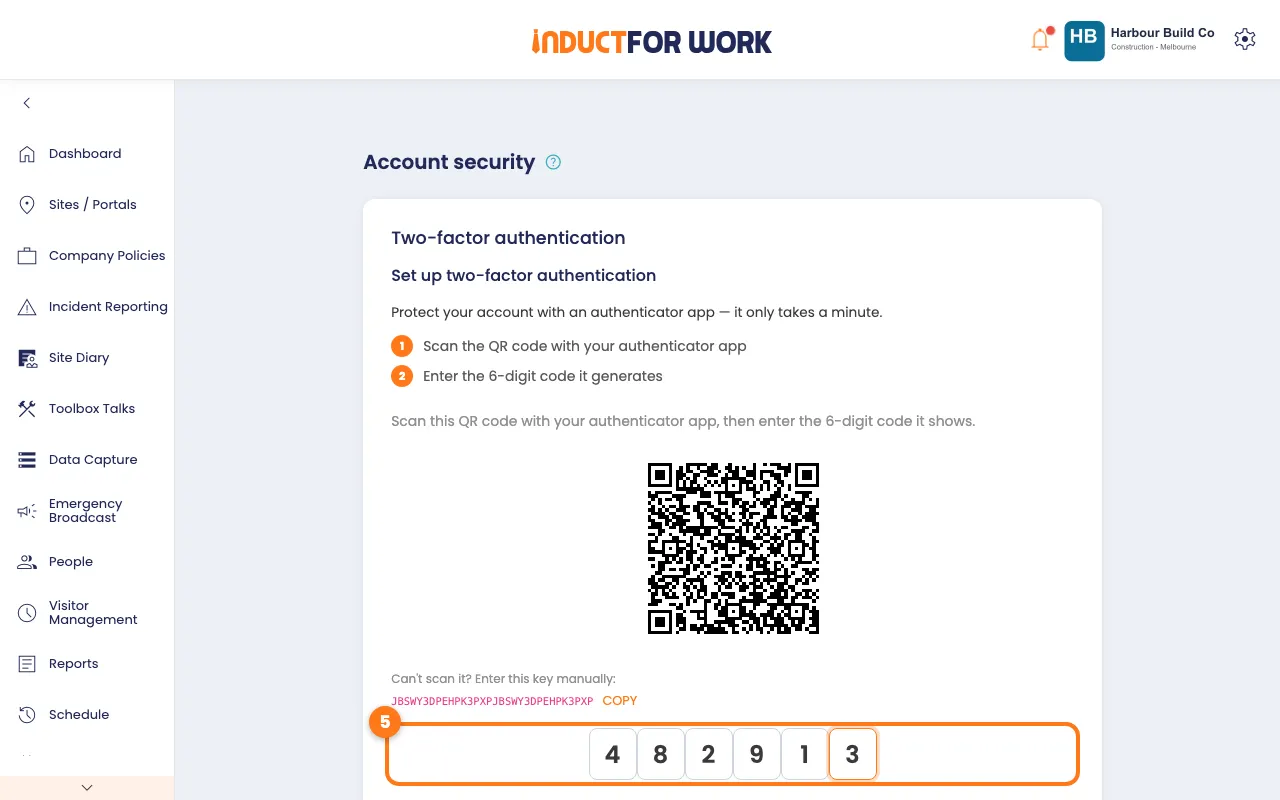
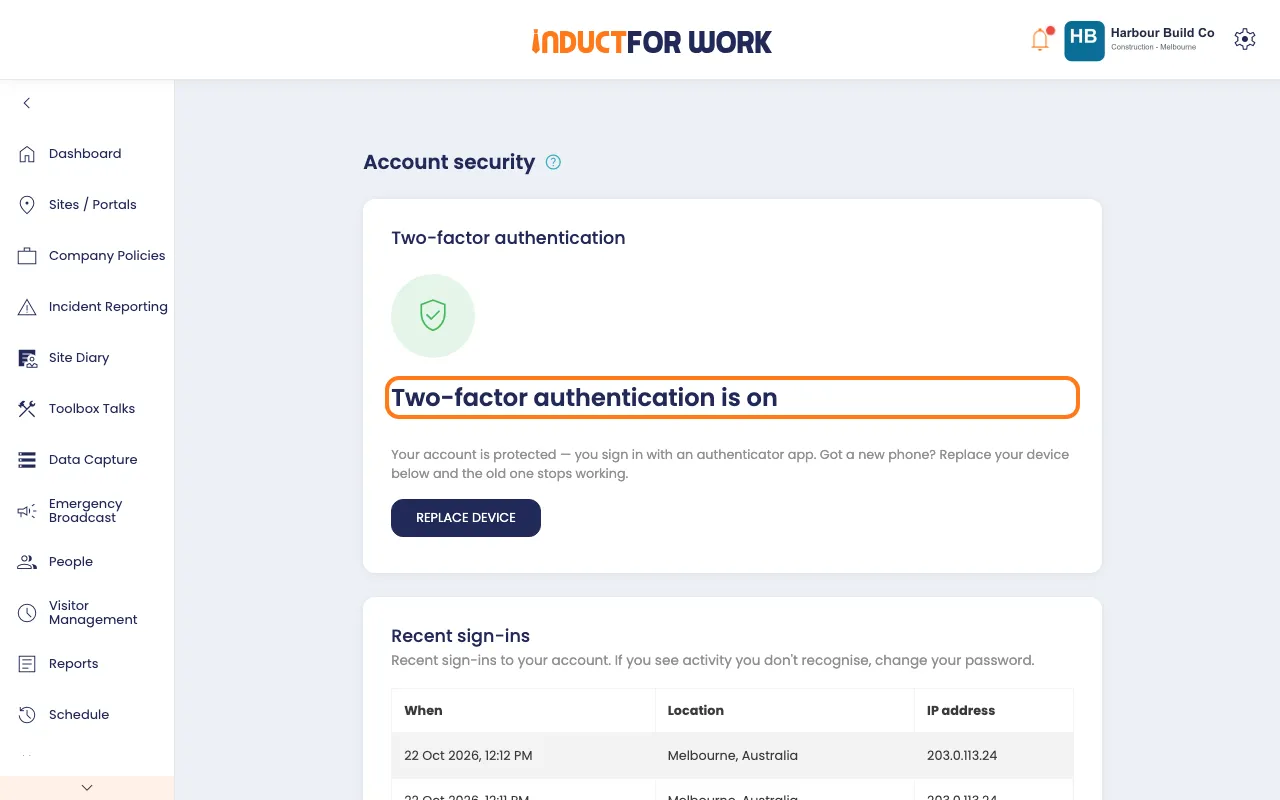
The code is checked straight away. The page then says Two-factor authentication is on, and the Account Security icon in the gear menu turns green.
What you see when you log in
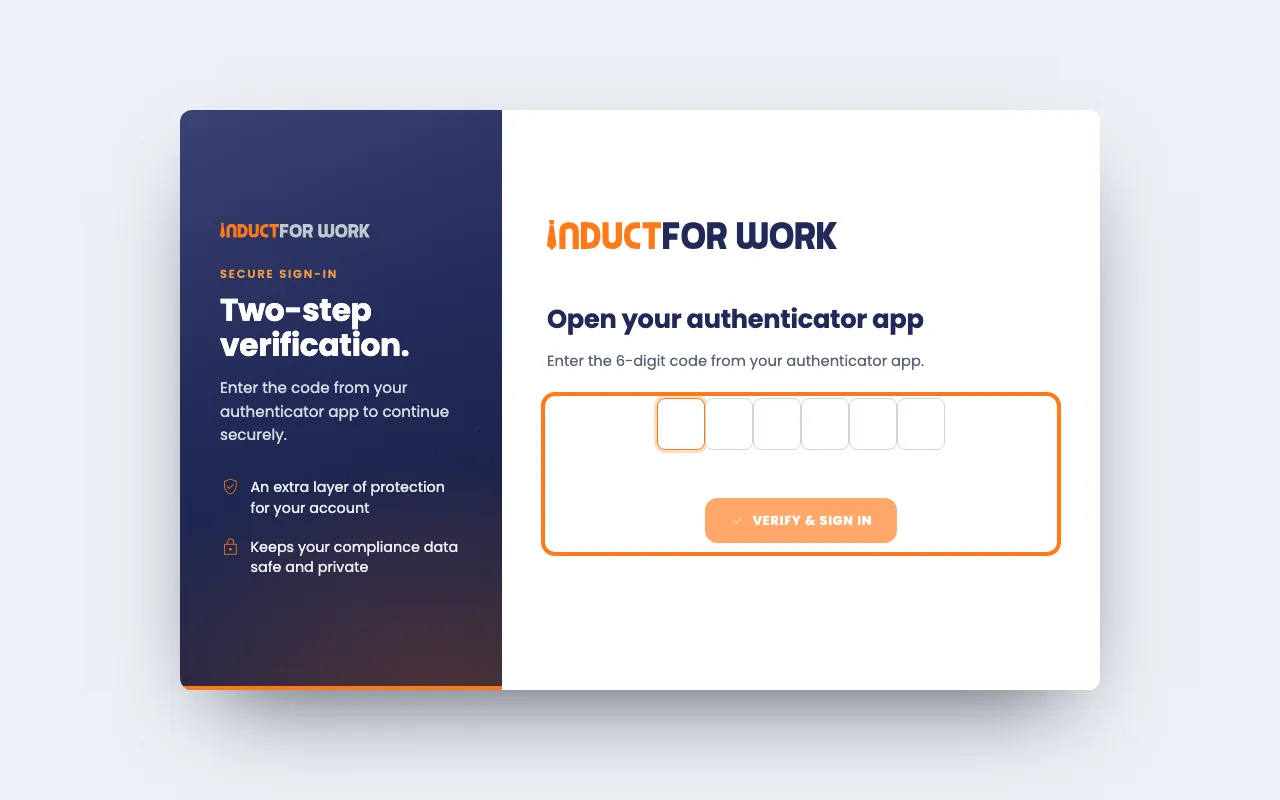
After your password, you see Open your authenticator app. Type the 6-digit code from your app, then click Verify & sign in.
Got a new phone?
- On Account Security, click the navy Replace device button.
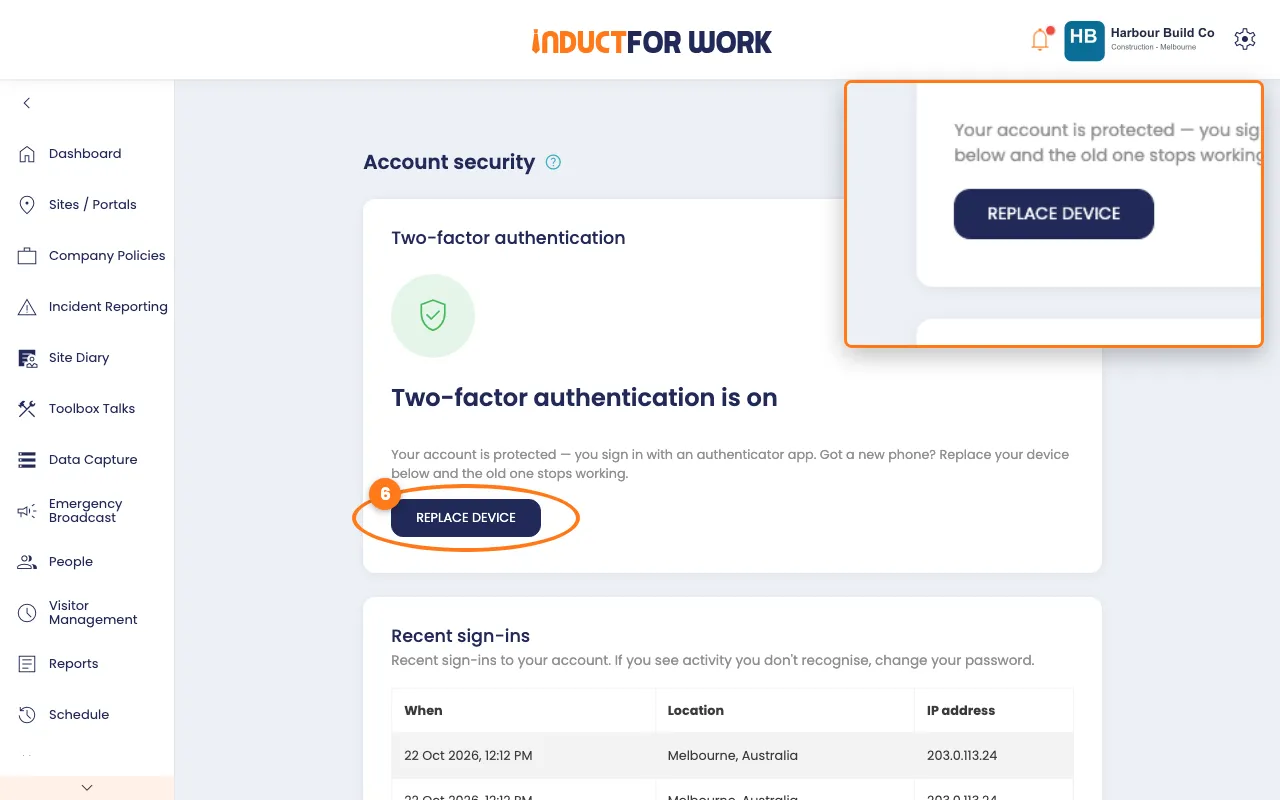
- Scan the new QR code with your new phone, then type its code.
Your old phone’s code stops working.
Tip
Lost your phone? Ask your Account owner or an Administration User to reset it. They click Actions next to you in Account Access, then Reset 2FA. See Admin users.
Require it for every admin
- Click the gear icon, then click Settings.
- Click the Security Settings tab.
- Switch on Two-factor authentication, then click Yes.
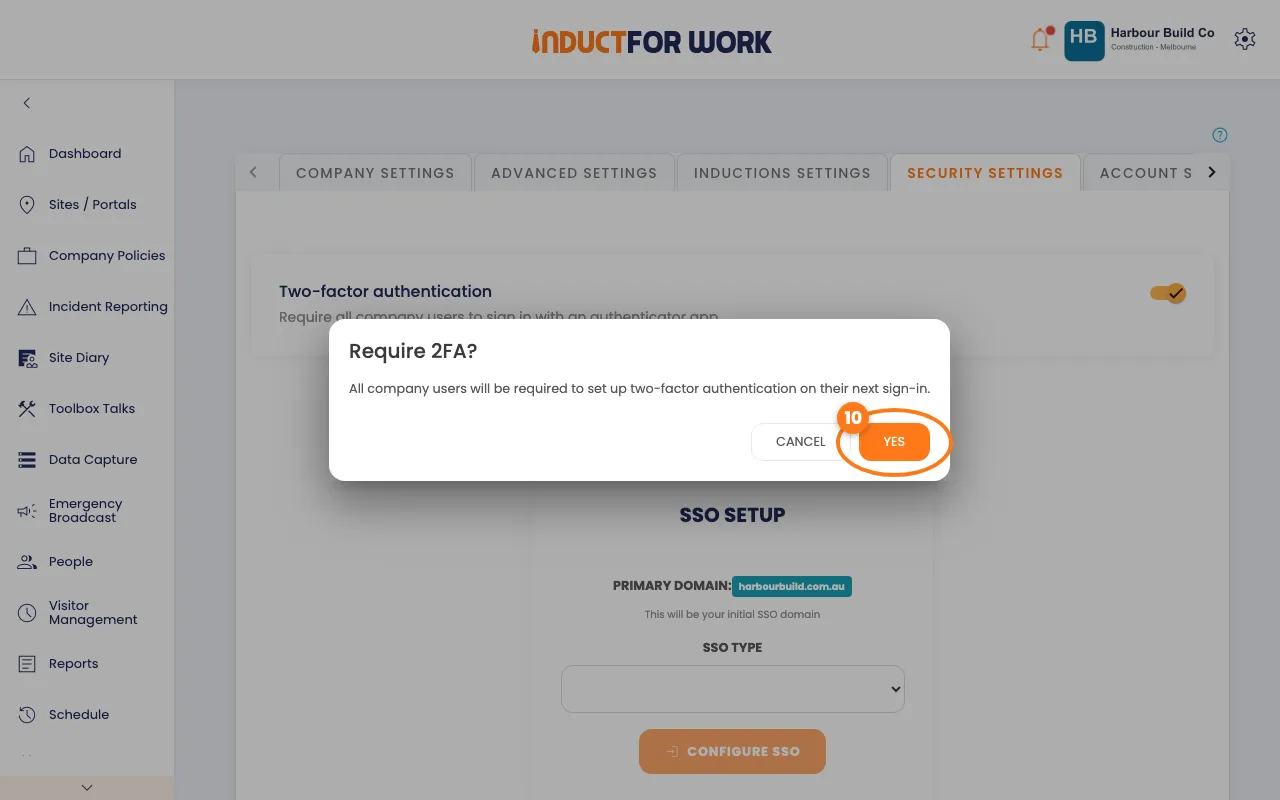
Every admin gets an email. At their next sign-in they see Secure your account, and set up their app the same way.
Check your recent sign-ins
- On Account Security, scroll down to Recent sign-ins.
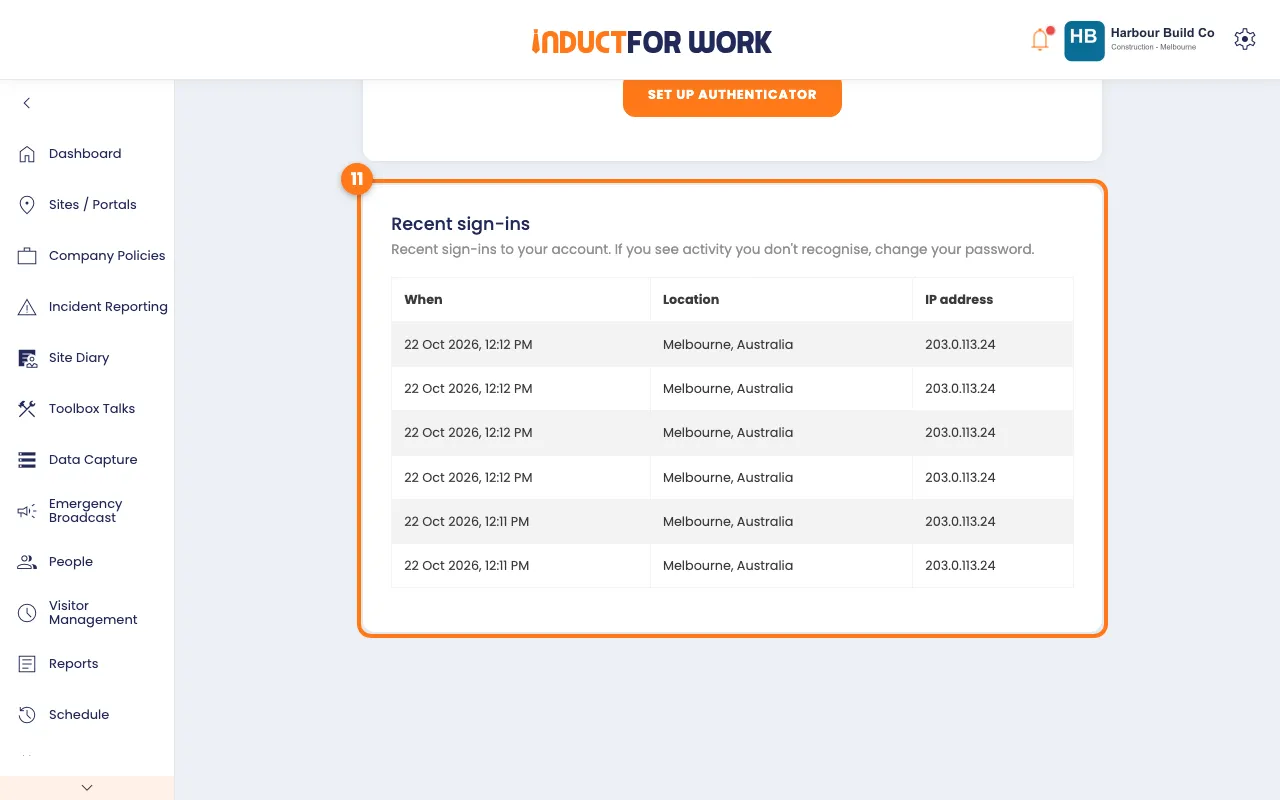
Each row shows when, where and from which IP address you signed in. VPN means the sign-in came through a VPN. Don’t recognise one? Change your password. See Resetting your password.
When a sign-in looks unusual
Your login stays signed in on one device at a time. Logging in on another device signs out the first one.
If someone logs in from another country while you’re signed in, we pause that sign-in. They see Quick check — was this you? and we email you.
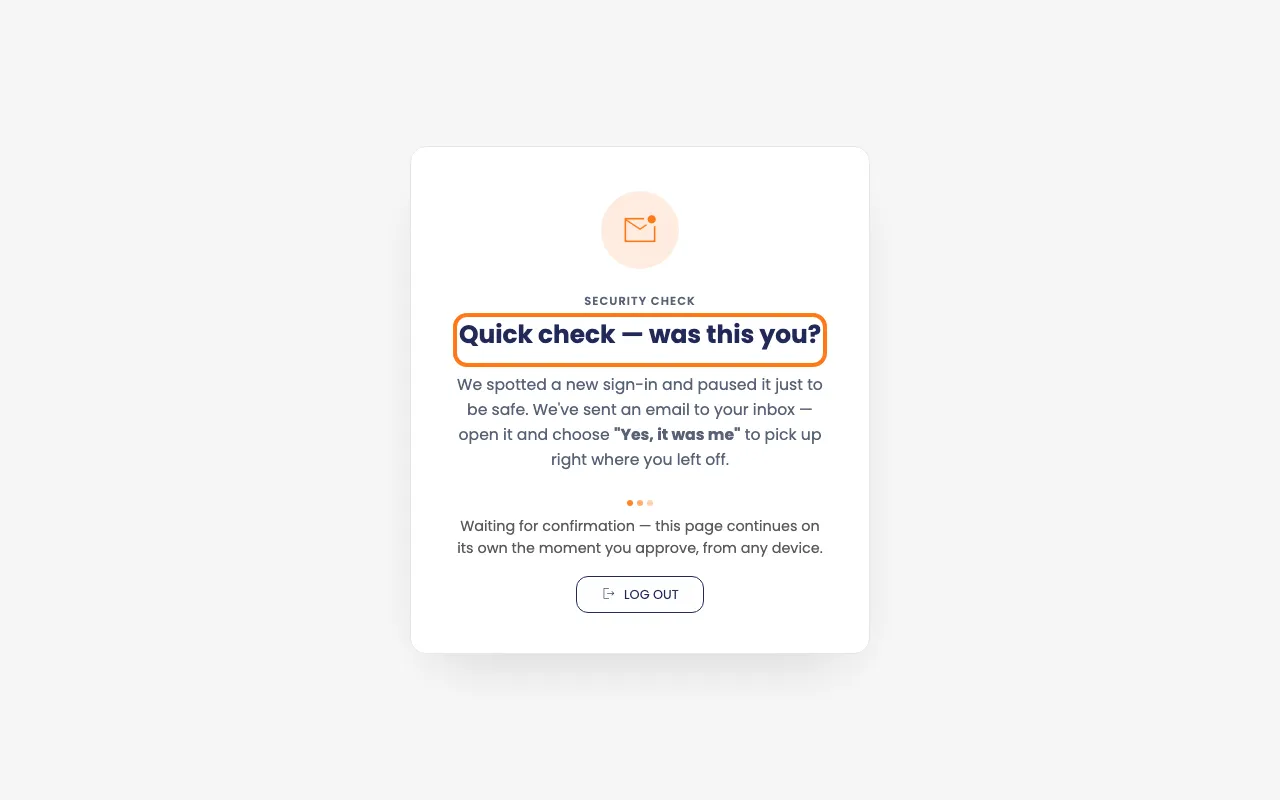
In the email, click Yes, it was me to carry on. Click No, secure my account to sign out everywhere and get a password reset email.
Set up single sign-on (SSO)
- On Settings, click the Security Settings tab.
- In the SSO Type list, pick Google or Microsoft.
- Click the orange Configure SSO button, then click Confirm.
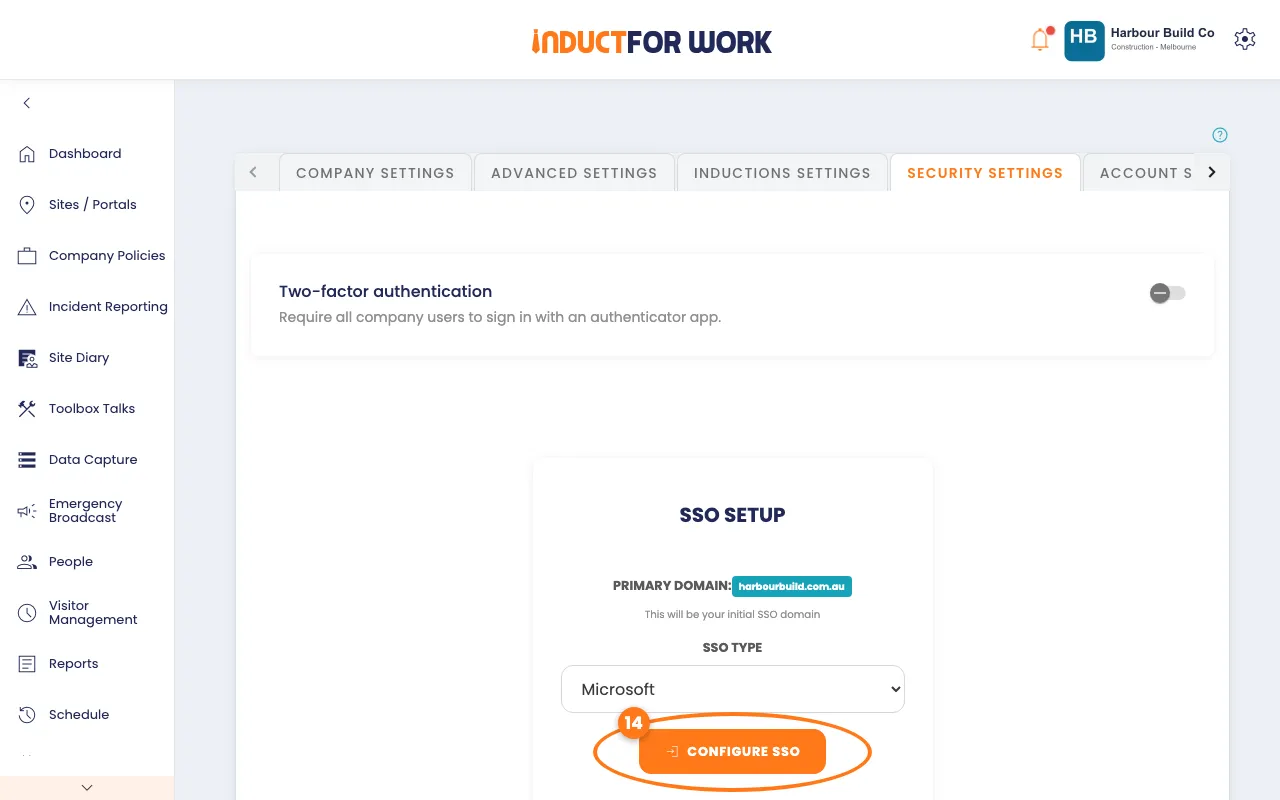
Wait up to 40 seconds while it’s set up. Provisioned then shows Yes.
- Optional: type another email domain under Add New Domain, then click Add.
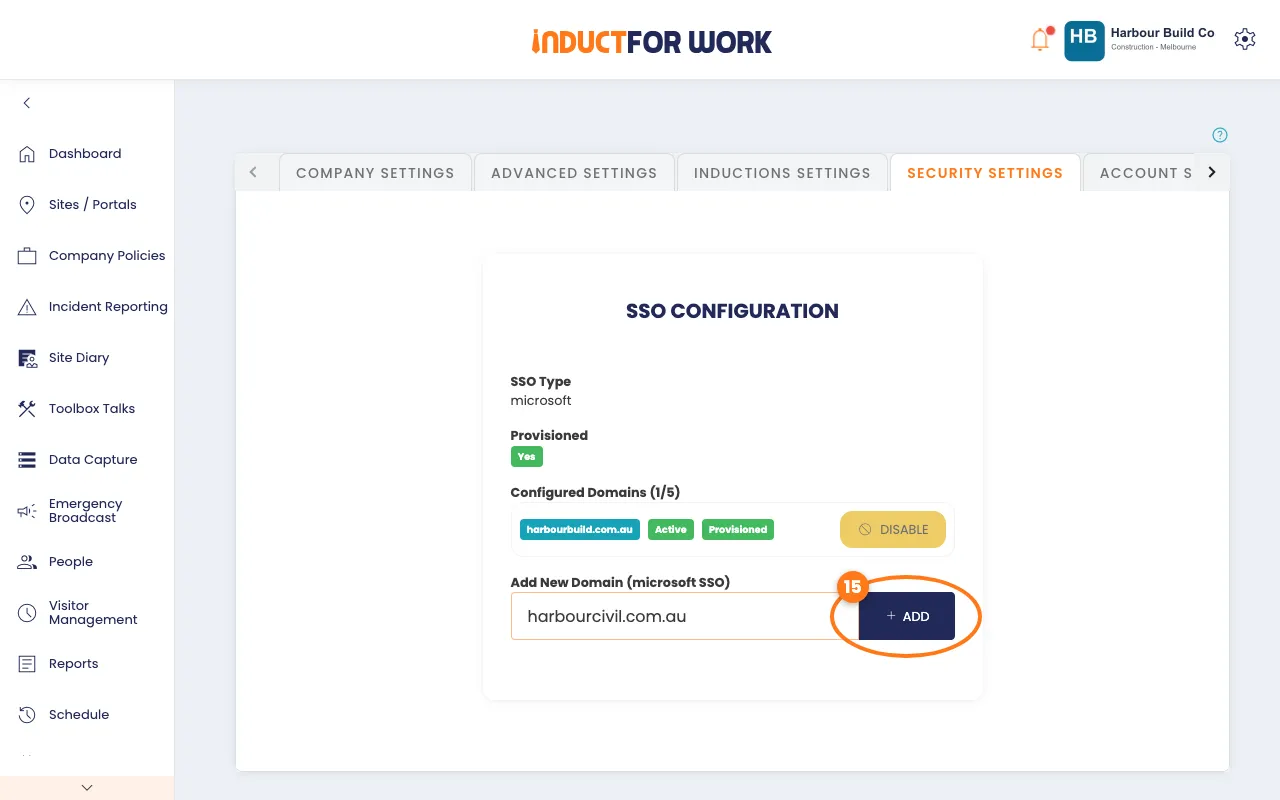
To stop one domain using SSO, click Disable next to it.
How your team logs in with SSO
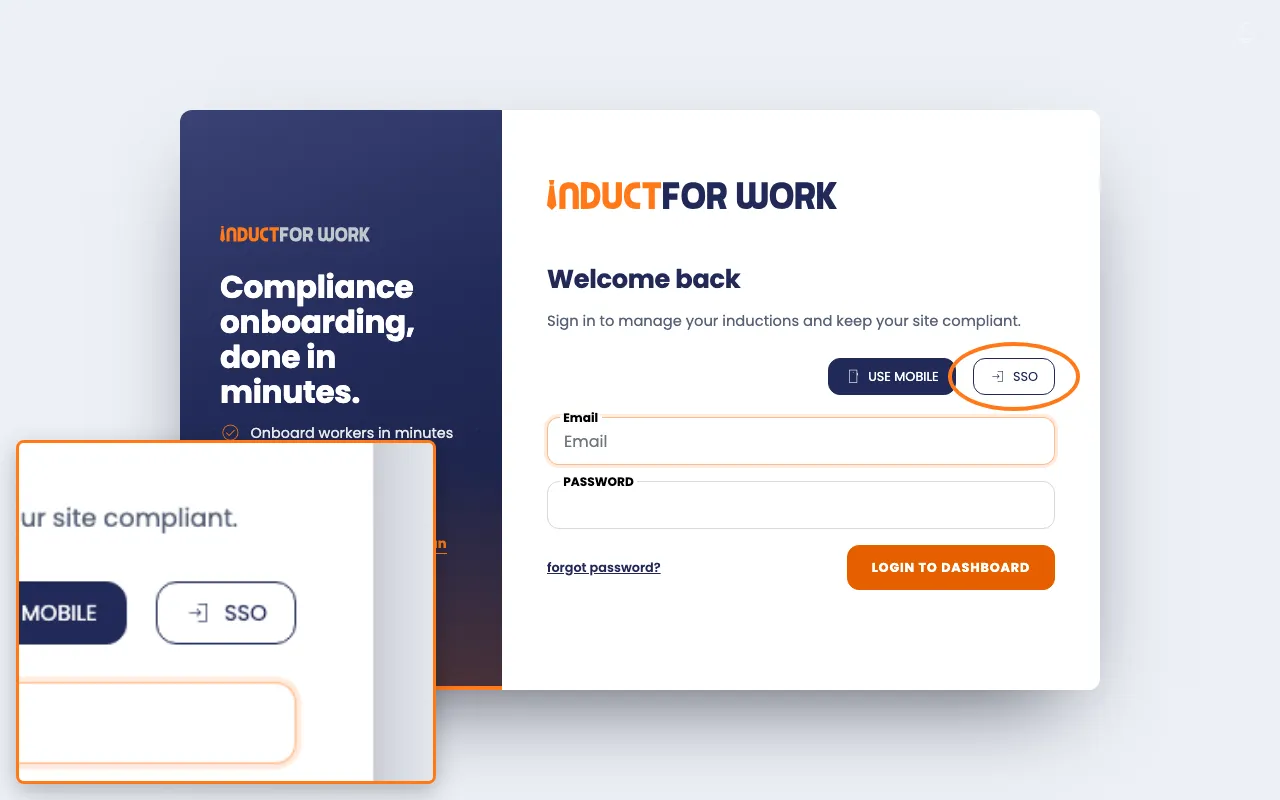
Your team clicks SSO on the login page.
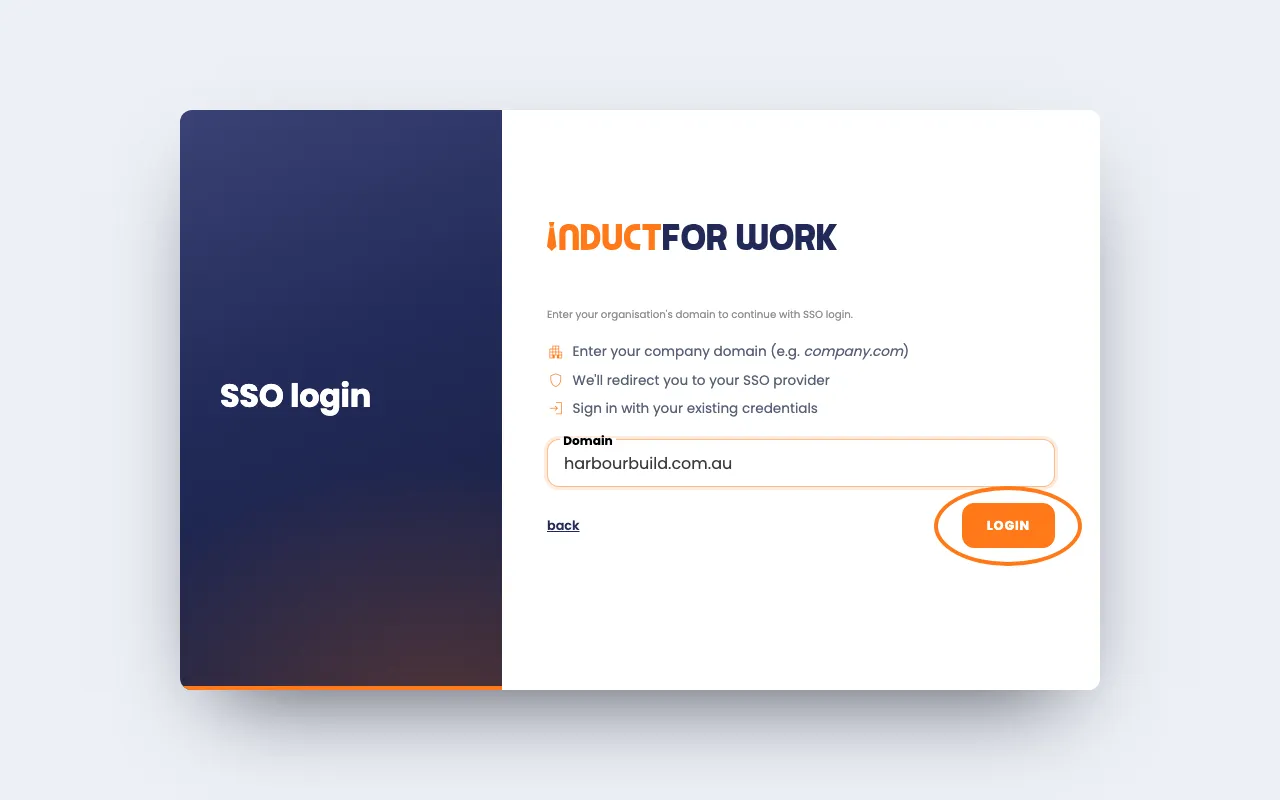
They type your company’s email domain, such as harbourbuild.com.au, and click Login. They then sign in with their Google or Microsoft work account.
Done! What happens next
- Two-factor authentication now protects your login in every company you belong to.
- Your Recent sign-ins list keeps a record of each login, for 30 days.
- Changed your mind about the company-wide requirement? Switch it off on the Security Settings tab. See Settings.
- People who log in with SSO change their password and two-factor settings with Google or Microsoft, not here.