
38 Scan QR Codes
What is Scan QR?
Most certificates and ID cards from an online induction carry a QR code. Scan QR turns your phone or tablet into a checker: scan the code to open that person’s profile. You see straight away whether their inductions are current, expired or revoked. It helps at the gate, on site, or before someone starts work.
Rules to know
- Plans: every plan, and the free trial.
- Who: anyone with an admin login, from Supervisor up. Site Administrators, Site Managers and Supervisors only see people linked to their own sites.
- Supervisors can look, but have no Actions list on a person’s inductions.
- Camera: you need a phone, tablet or laptop with a camera, and must allow camera access.
- Only our codes: only Induct For Work QR codes open. Any other code shows a "not allowed" message.
- Always up to date: the QR code points to the person, not to one certificate. You see all their inductions as they are today, such as Successful, Expired or Revoked.
- Your phone’s camera app works too: the link opens the person’s profile when you’re logged in.
- Which designs: not every certificate design has a QR code. Some A4 designs have one, such as A4 (type – classic), and most ID cards have it on the back. On your own design, add the Inductee QR Code field.
- Privacy: the QR code holds no personal details, only a web link with a number. Anyone who isn’t logged in only gets the login page, and admins of another company see nothing.
What you’ll need
- An admin login, from Supervisor up.
- A phone or tablet with a camera.
- A certificate or ID card with a QR code. See Certificate Designer.
Scan a certificate
- On your phone or tablet, log in to Induct For Work.
- In the left menu, click Scan QR.
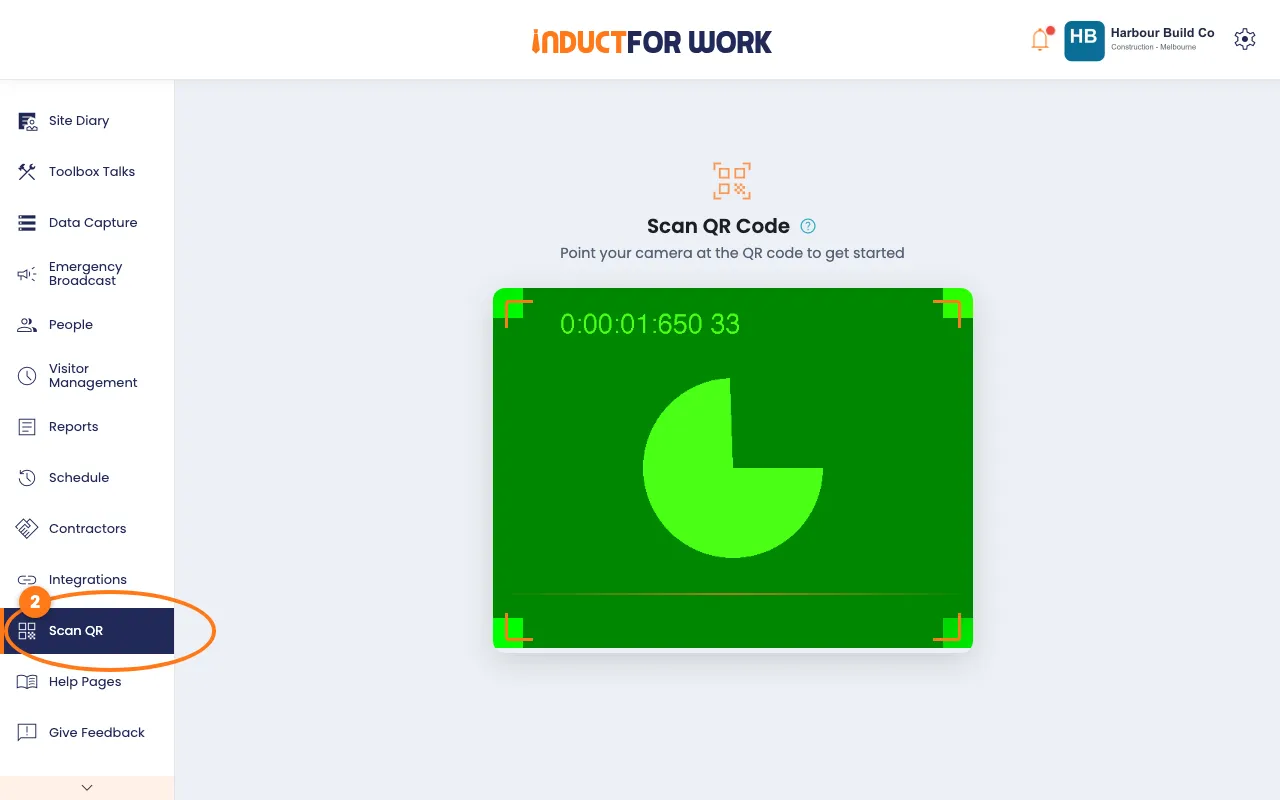
- Click Allow when your browser asks to use the camera.
- Point the camera at the QR code on the certificate or ID card.
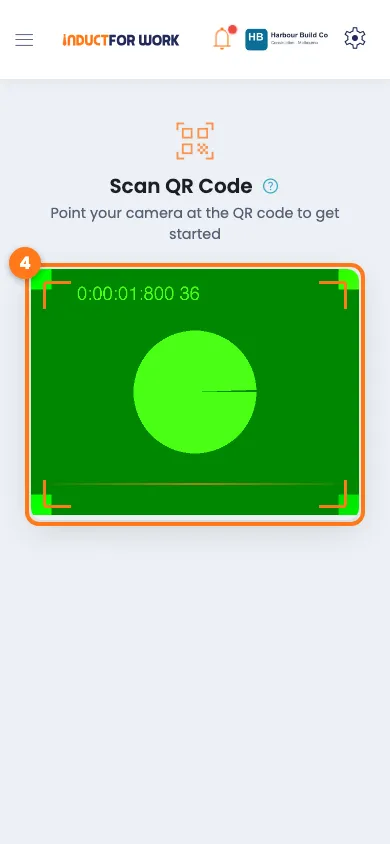
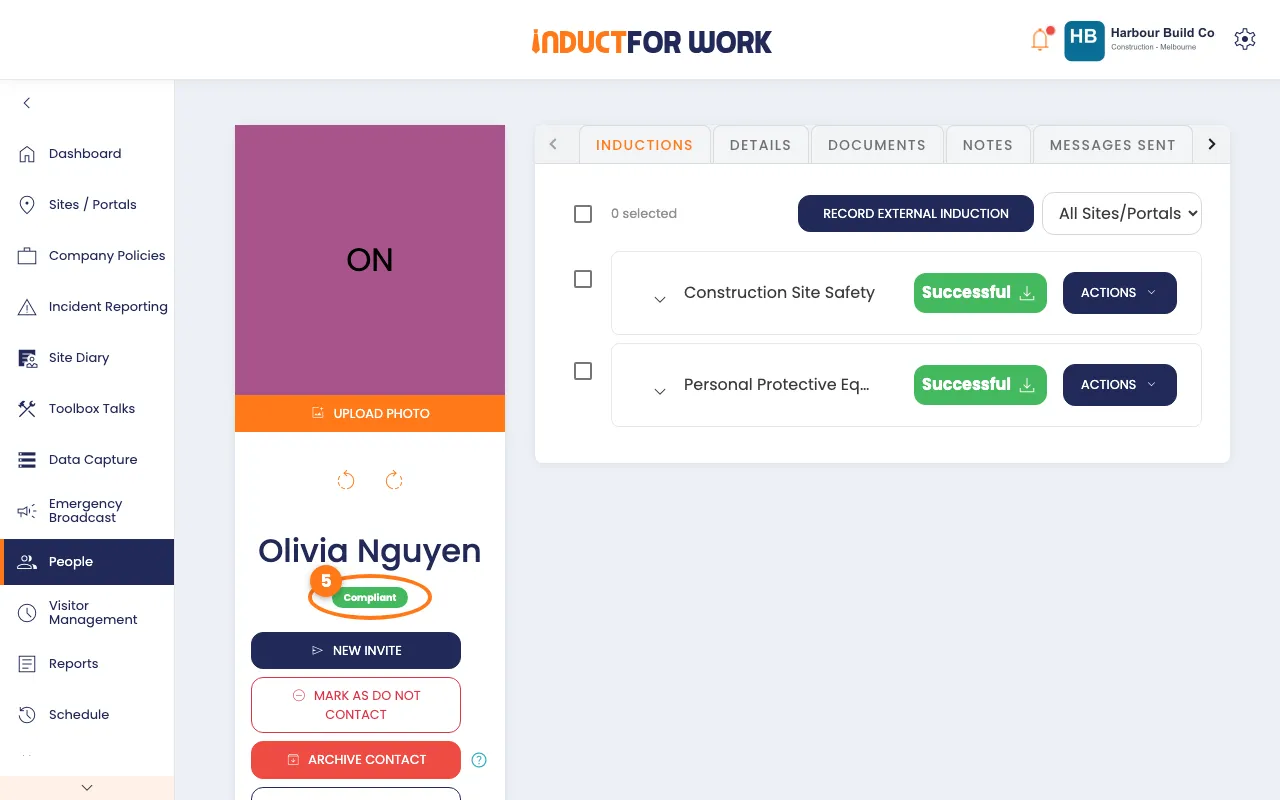
The person’s profile opens by itself.
- Check their status under their name, top left.
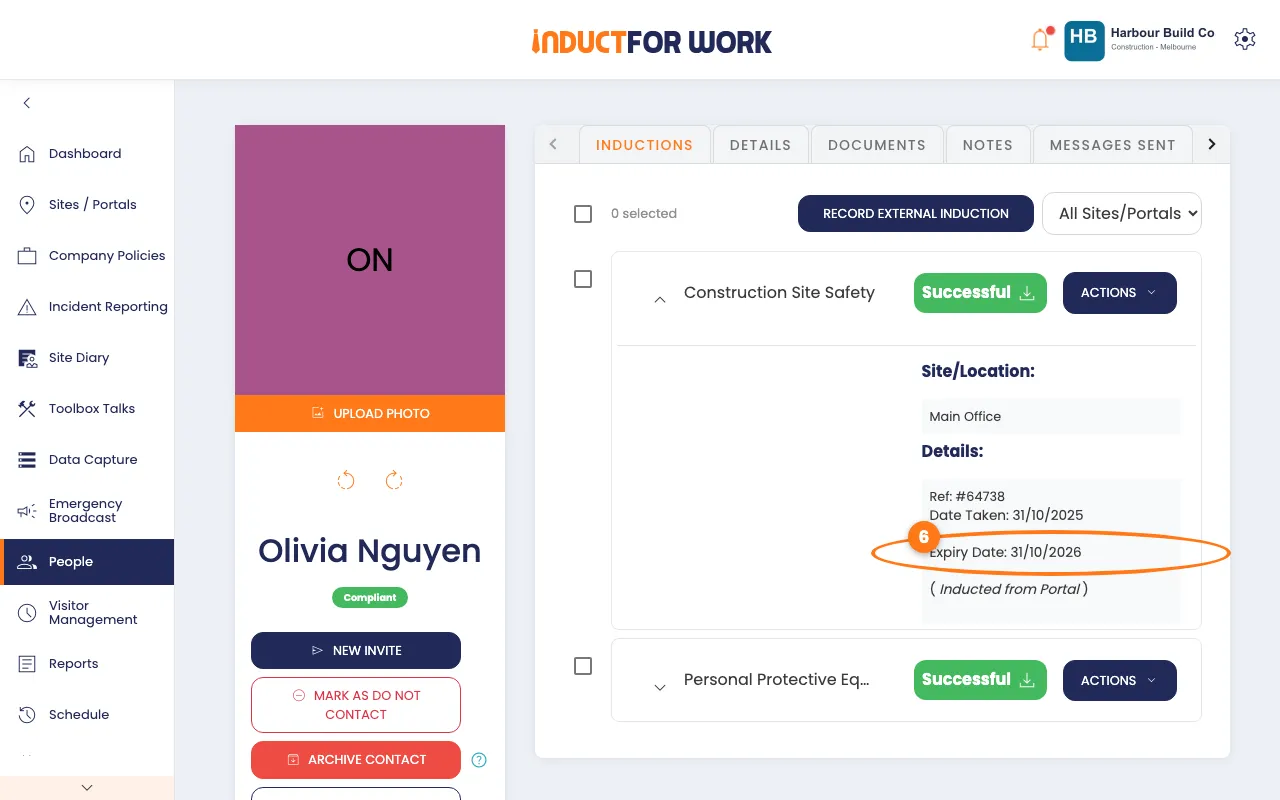
- Click an induction’s name to see when it was taken and when it expires.
Tip
A revoked induction also shows the reason and the date it was revoked. To see everything else about the person, see People.
Check your certificates have a QR code
The Account owner and Administration Users can check this.
- Click the gear icon, top right, then click Settings.
- Click the Advanced Settings tab.
- Look for a QR code in the preview under Certificate Style Type.
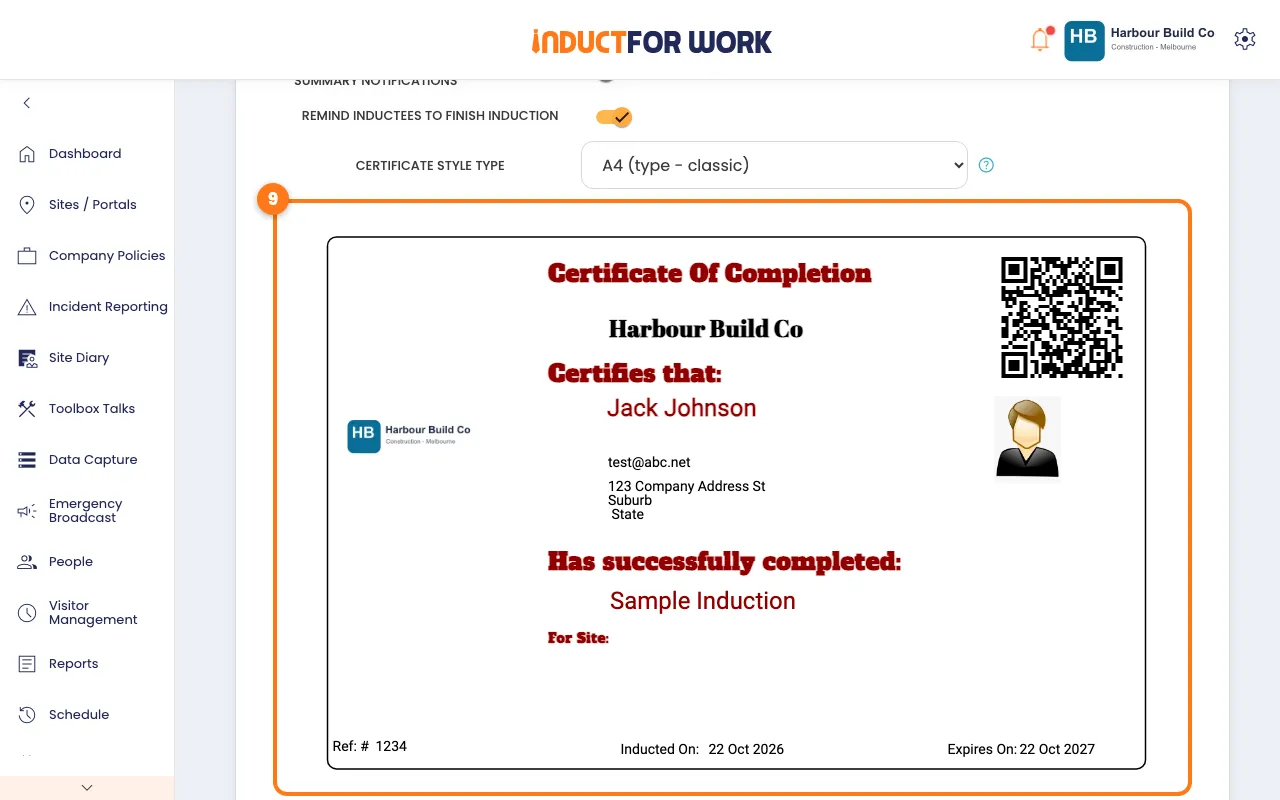
No QR code? Pick a design that has one, then click the orange Save button. People who pass from then on get the new design.
What your workers carry
Workers show the certificate or ID card they got when they passed, printed or on their phone. Nothing changes for them when you scan it.
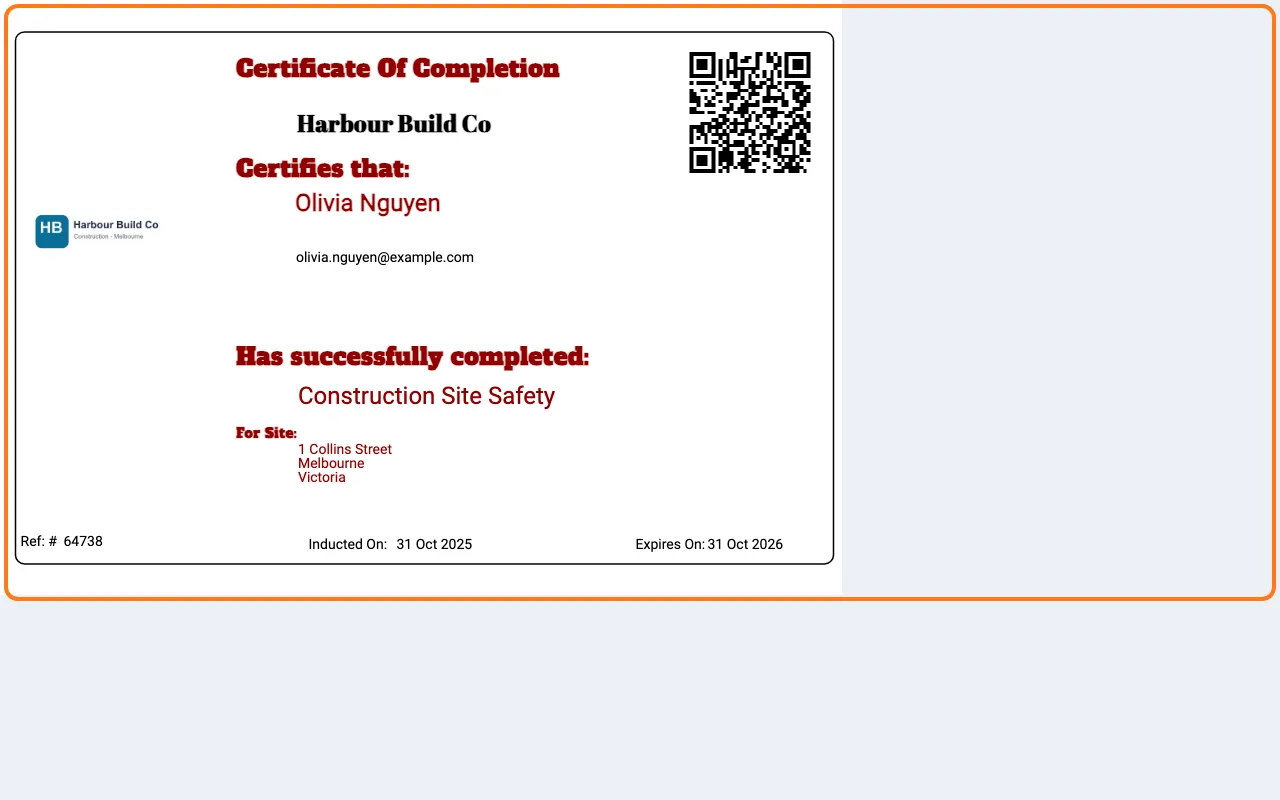
If someone else scans the code, such as a member of the public, they only see the Induct For Work login page.
Done! What happens next
- You see the person’s live status every time you scan, so an old printout can’t hide an expired induction.
- To renew an expired induction, send a new invite. See Induction Invites.