
39 AI Help
What is AI help?
IFW Assist is a chat box in your account. Ask it how to do something in Induct For Work, and it answers from our help pages, any time. Our AI can also turn your documents into an online induction and write quiz questions from your page text, so you start with a draft instead of a blank page.
Rules to know
- IFW Assist messages each month: Lite 25, Team 100, Team Plus 250, Team Pro 500. Enterprise is unlimited.
- What counts: each answer you get uses one message. Your allowance starts again each month, even on yearly billing.
- Daily limit: up to 200 answers a day for your whole account, even on Enterprise.
- No IFW Assist on your plan? Clicking the chat button shows the plans that include it.
- Who: the Account owner, Administration Users, Site Administrators and Site Managers. Supervisors don’t see the chat button.
- Private: you only see your own chats. Other admins can’t open them.
- Kept for 12 months: older chats are deleted.
- Questions: up to 4,000 characters each.
- AI quiz questions each month: Lite 10, Team 20, Team Plus 40, Team Pro 60, Enterprise 80. The free trial has 20. They start again each month.
- AI import: on every plan and the free trial. It uses one of your monthly imports, makes up to 40 pages and sets a pass mark of 80%.
- AI import files: PDF, Word, PowerPoint or Excel.
What you’ll need
- An admin login, from Site Manager up.
- For an AI import: a PDF, Word, PowerPoint or Excel file, such as your safety manual.
Ask IFW Assist
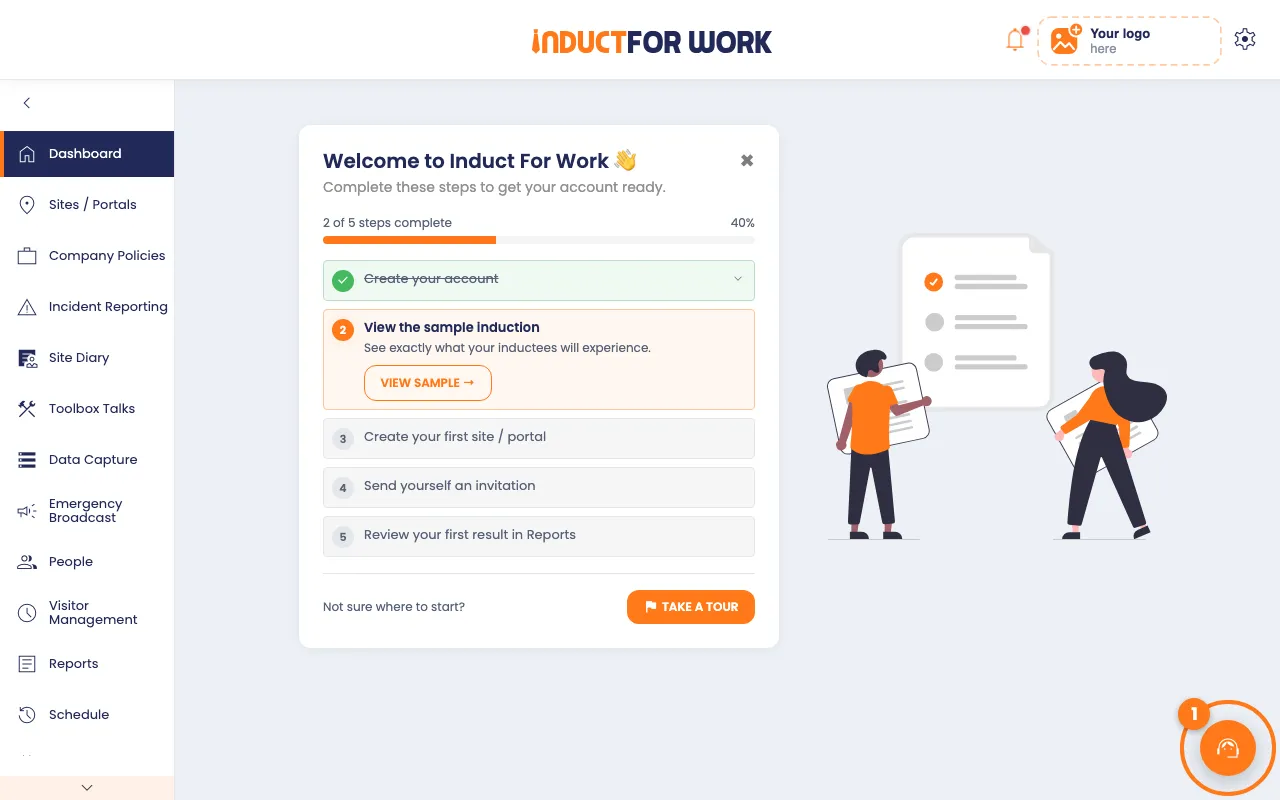
- Click the orange chat button, bottom right of any page.
- Type your question in the box at the bottom, then press Enter.
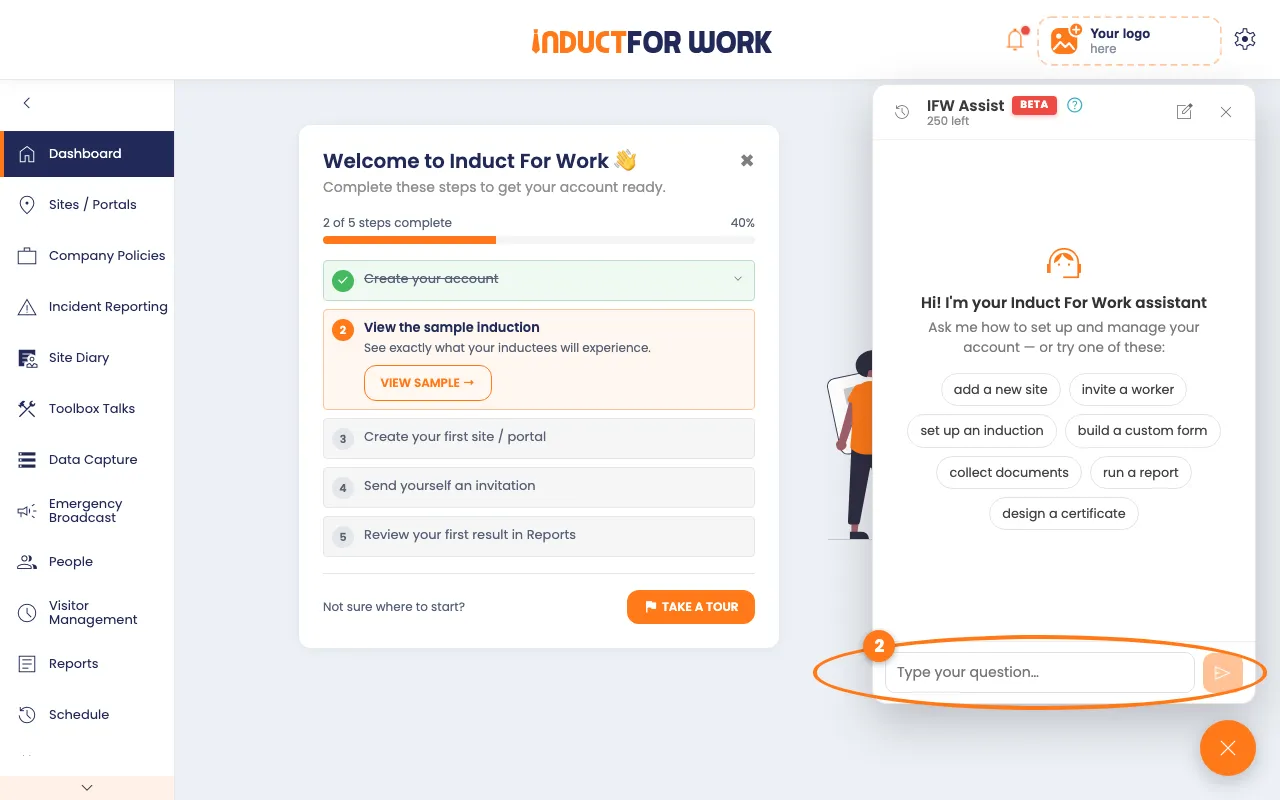
- Or click a suggestion, such as invite a worker.
The answer appears in a few seconds. If it comes from one of our help pages, the topic shows under it with a book icon.
- Click the thumbs up or thumbs down under the answer.
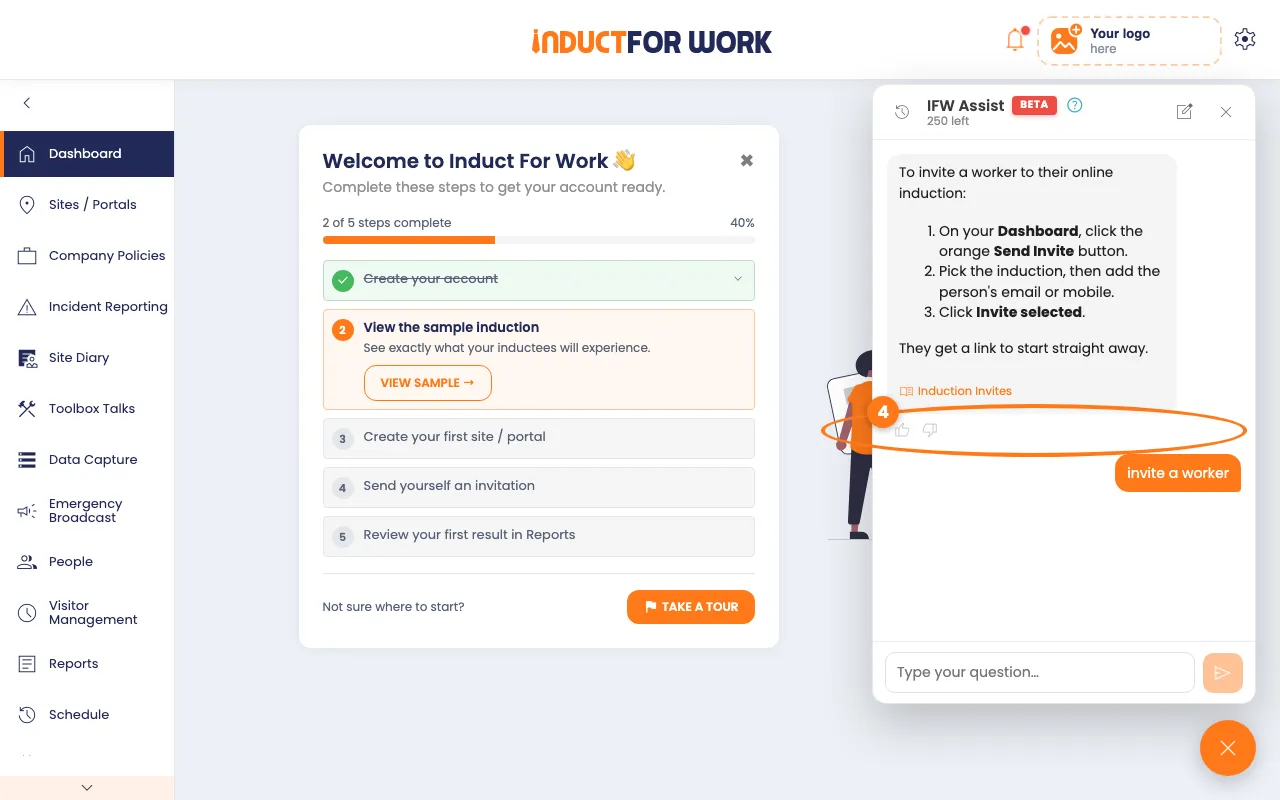
- After a thumbs down, type what was missing, then press Enter.
Tip
Ask one thing at a time, in your own words. For example: "How do I send an induction by text message?"
Go back to an earlier chat
- Click the clock icon, top left of the chat box.
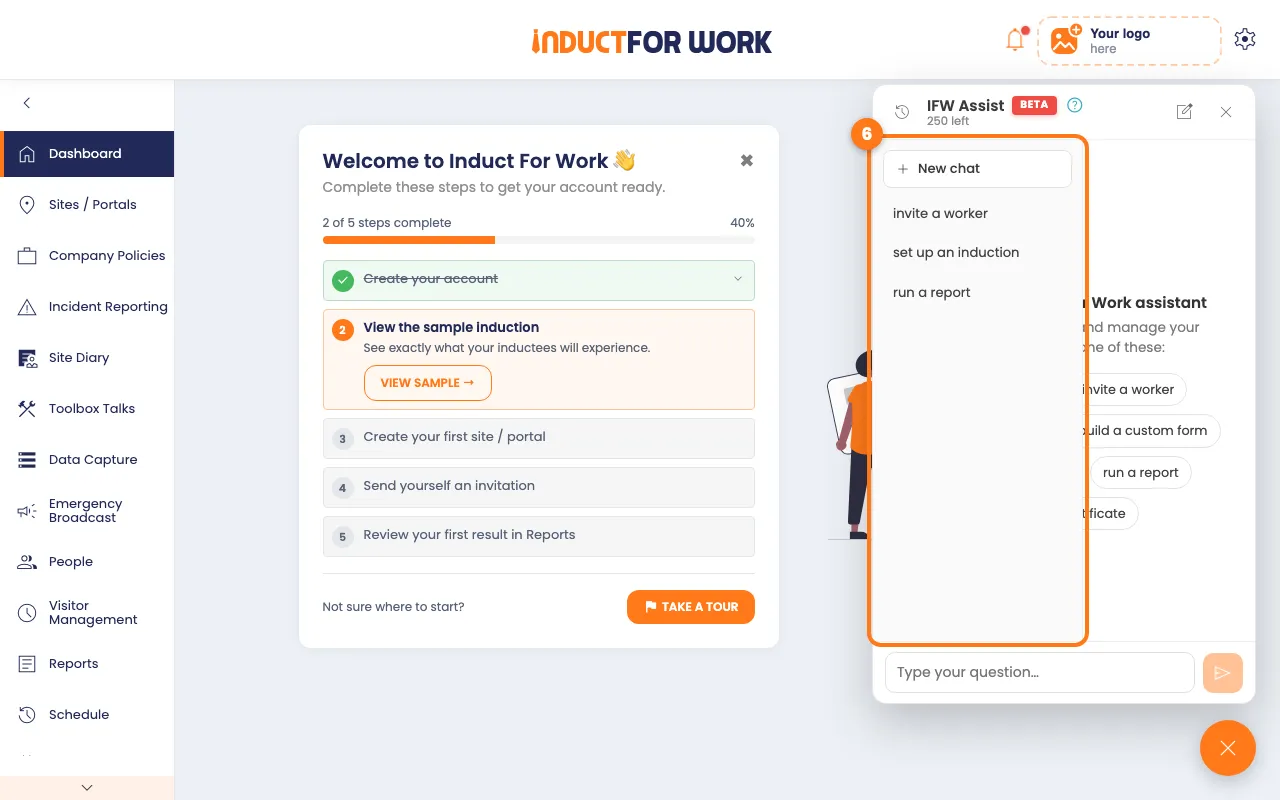
- Click the chat you want to open.
- To start a fresh chat, click the pencil icon, top right.
Check your messages left
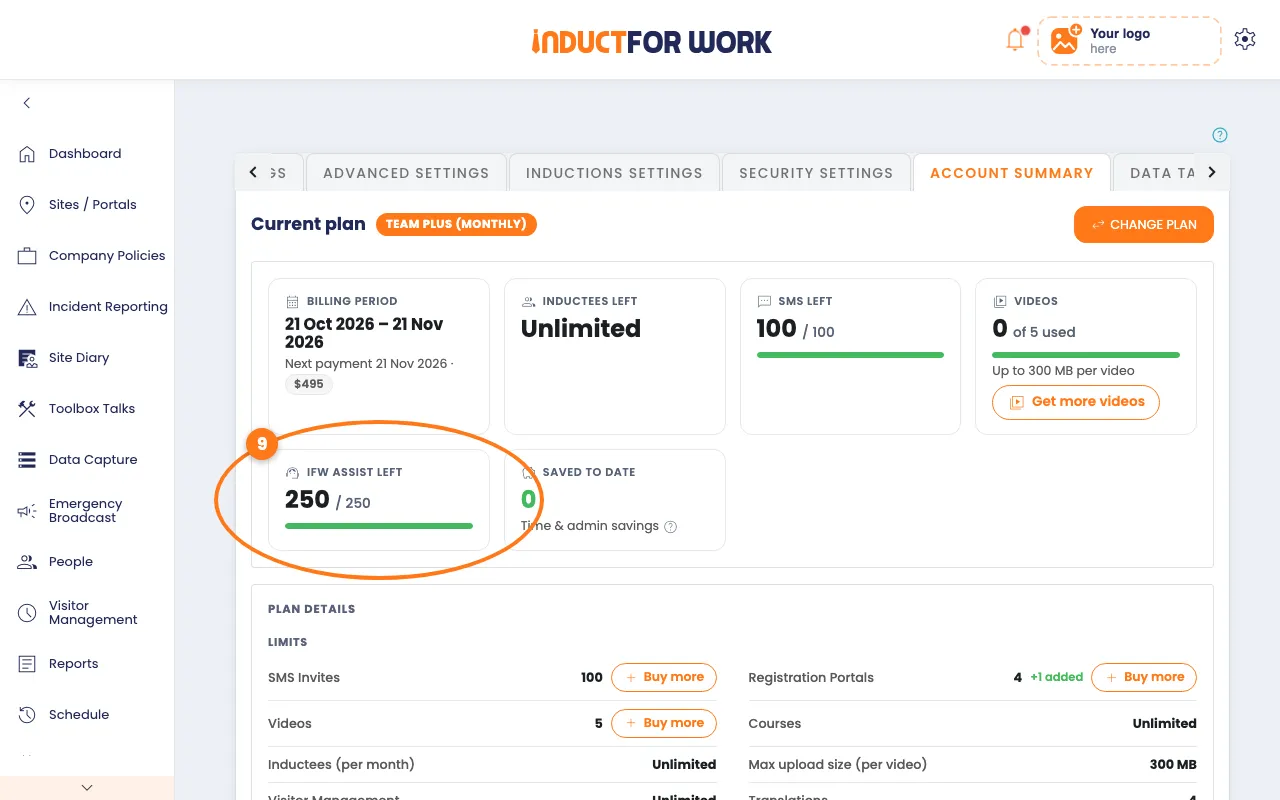
The number of messages left this month shows under IFW Assist, at the top of the chat box. The Account owner and Administration Users can also see it on Account Summary.
- Click the gear icon, top right, then Account Summary.
Turn a document into an induction
- In the left menu, click Sites / Portals, then click your site’s name.
- On the Inductions tab, click the orange Add Induction button.
- Click the Import tab.
- Under Choose file type, click Import Office Document (Enhance with AI).
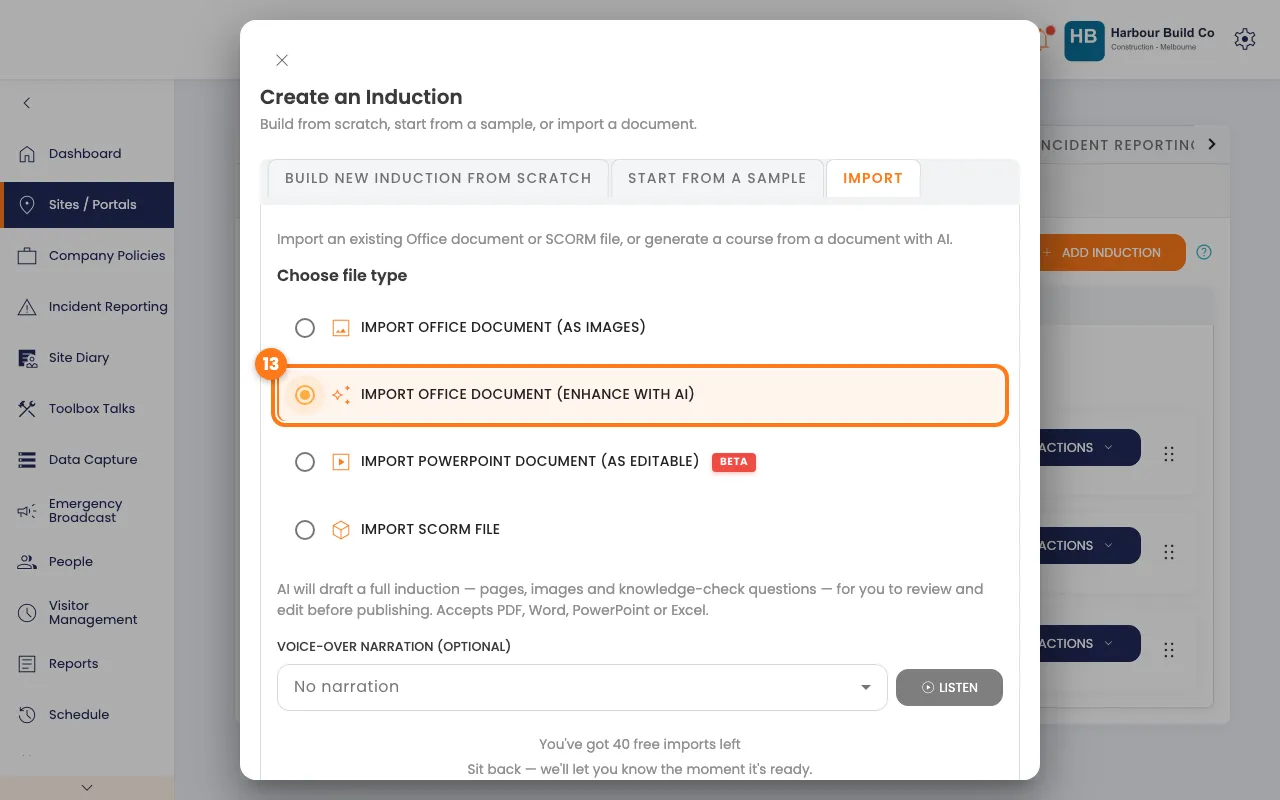
- Click the orange Upload file (up to 400 MB) button and pick your file.
We email you when your induction is ready. For other ways to import, see Creating and Importing Inductions.
Let AI write a quiz question
- On the site’s Inductions tab, click the induction’s name.
- Click a page on the left, then click the Question tab.
- Click the Use AI To Autogenerate button.
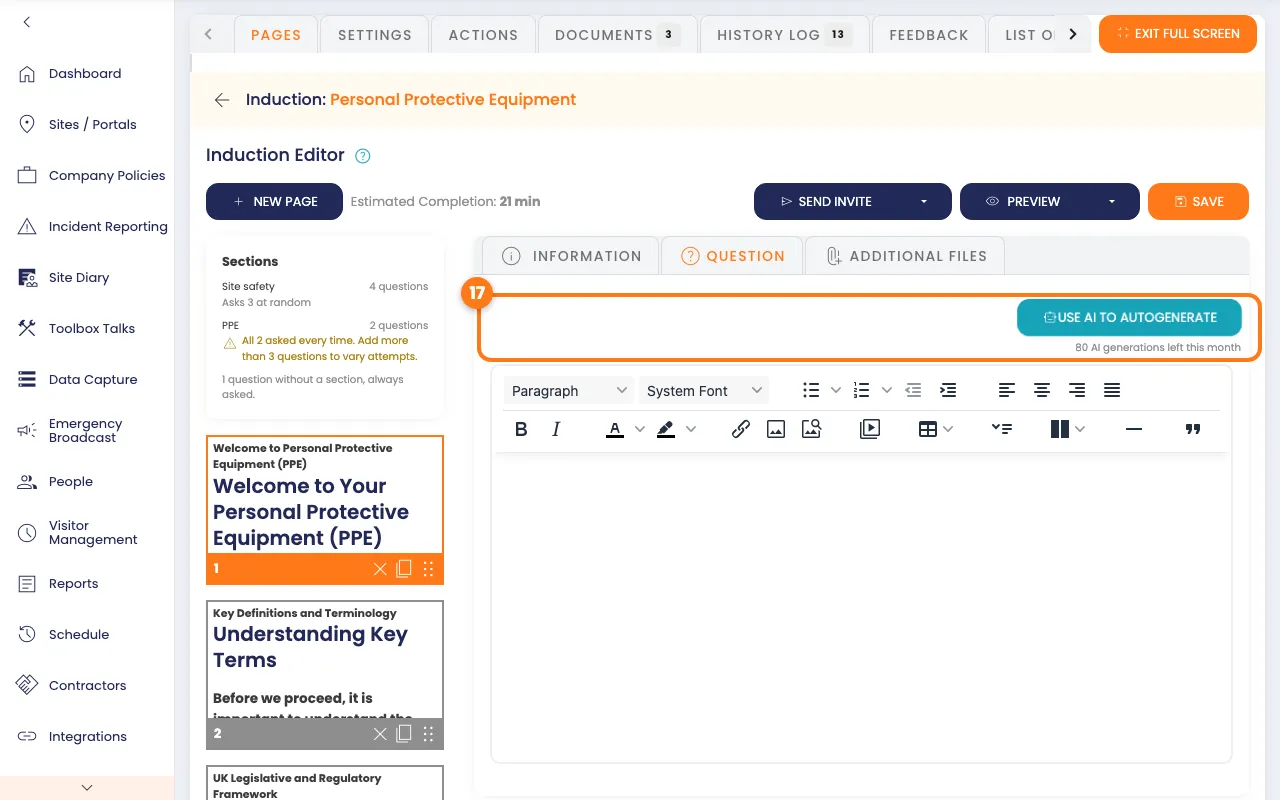
It writes one question with four answers from the page text. The number of AI questions left this month shows under the button. See Induction Editor to change it.
Done! What happens next
- Your chats stay under the clock icon for 12 months.
- AI imports arrive on the site’s Inductions tab. They don’t show on your portal until you switch them on.
- AI makes a first draft. Read every page, question and answer before people see them.