
40 Portal Hub
What is the Portal Hub?
The Portal Hub is one public web page that lists the site portals you choose. You share a single link, and workers tap their site to open its online induction portal. It helps when you run several sites: nobody has to find the right portal link for their site.
Rules to know
- Plan: needs more than one site, so Team Plus, Team Pro, Enterprise and the free trial. On Team, buy an extra site first.
- Who: only the Account owner and Administration Users can open the Portal Hub and switch it on or off.
- Which sites: only active sites with their own induction portal switched on can be listed. New sites are left off until you switch them on.
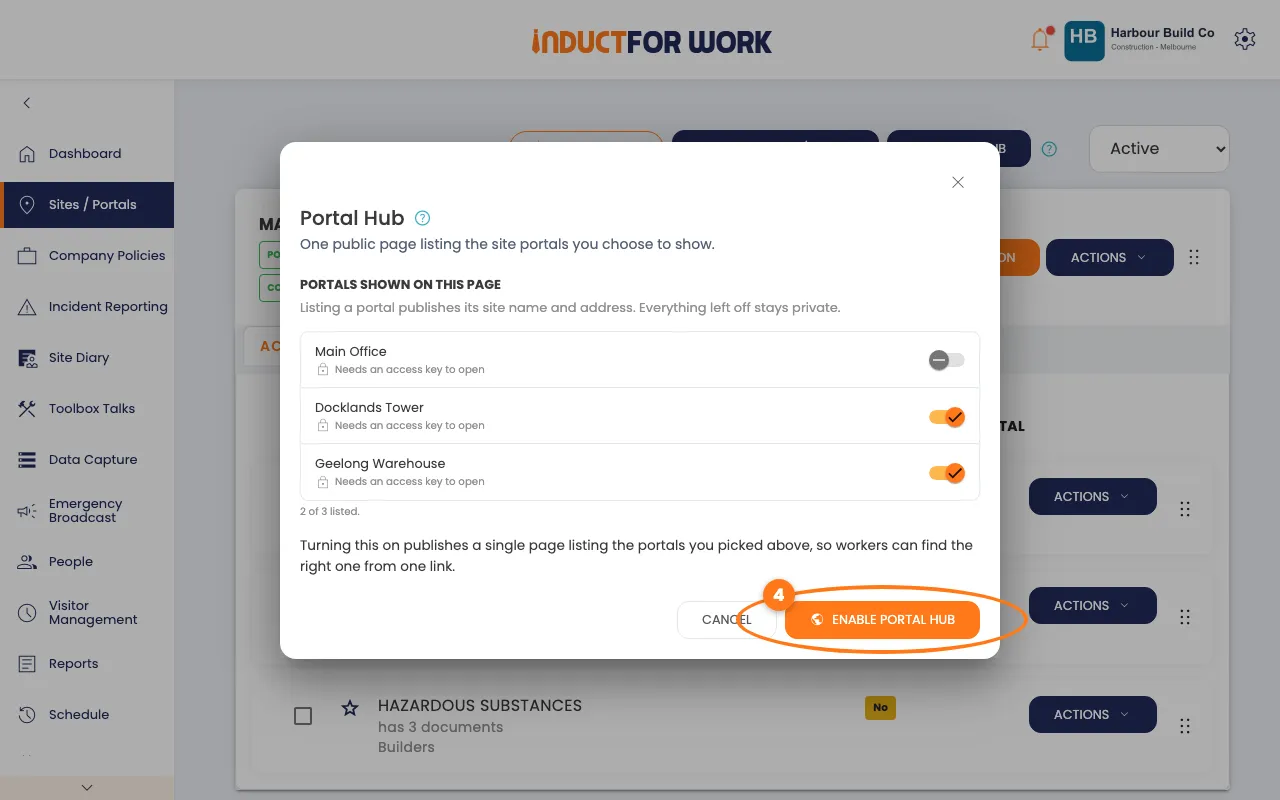
- At least one: switch on at least one portal before you enable the hub.
- Public: anyone with the link sees the name and address of each site you list. A portal with an access key still asks for it.
- Your address: made from your company name when you first enable the hub. Renaming your company doesn’t change it.
- Switching it off: the link stops working at once and shows Portal Not Found. The portals you picked are remembered for next time.
- Switching it back on: makes the address again from your company name at that time.
- Sites drop off by themselves when you archive them or switch their portal off.
What you’ll need
- An Account owner or Administration User login.
- A plan with more than one site, and at least one site with its portal switched on. See Multiple Portals.
- Your company logo, for the top of the hub. See Logo and Settings.
Switch on the Portal Hub
- In the left menu, click Sites / Portals.
- Click the navy Portal Hub button, top right.
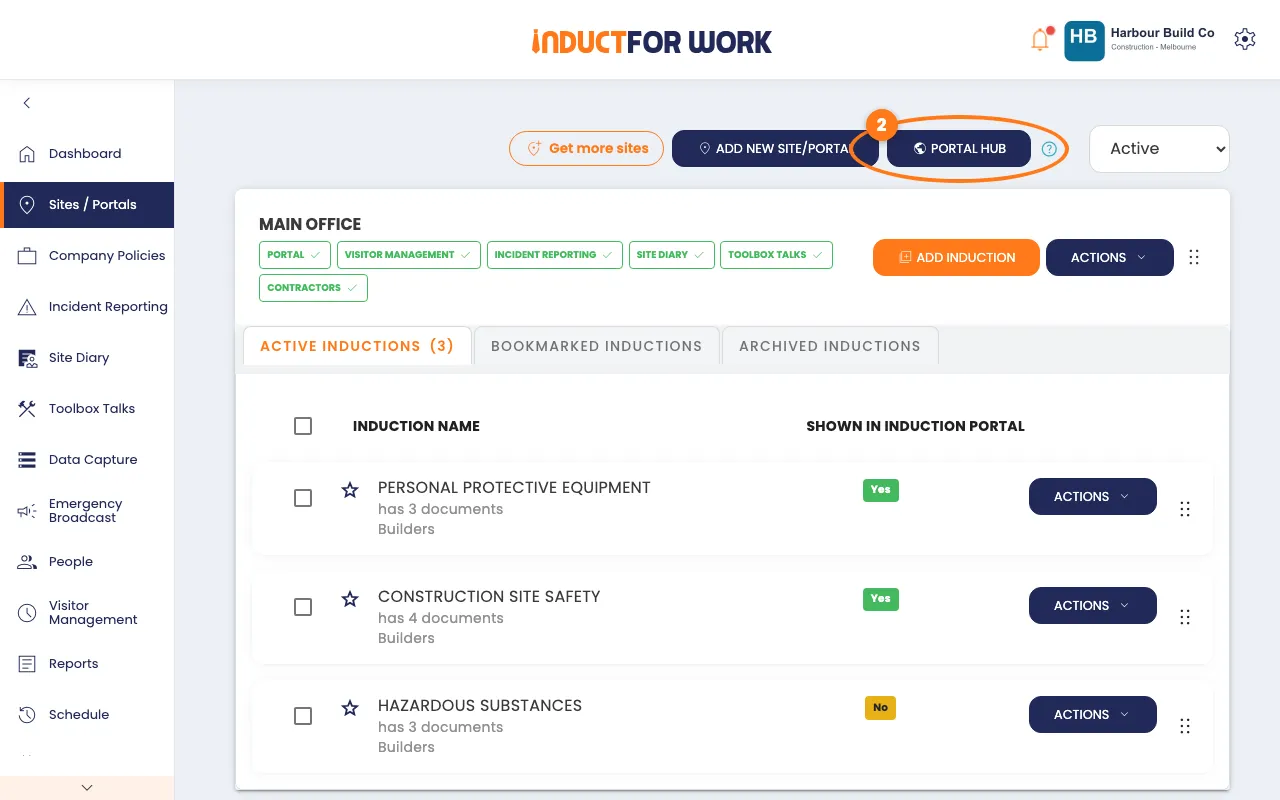
- Switch on each portal you want to list.
- Click the orange Enable Portal Hub button.
- Click Copy next to Your public address.
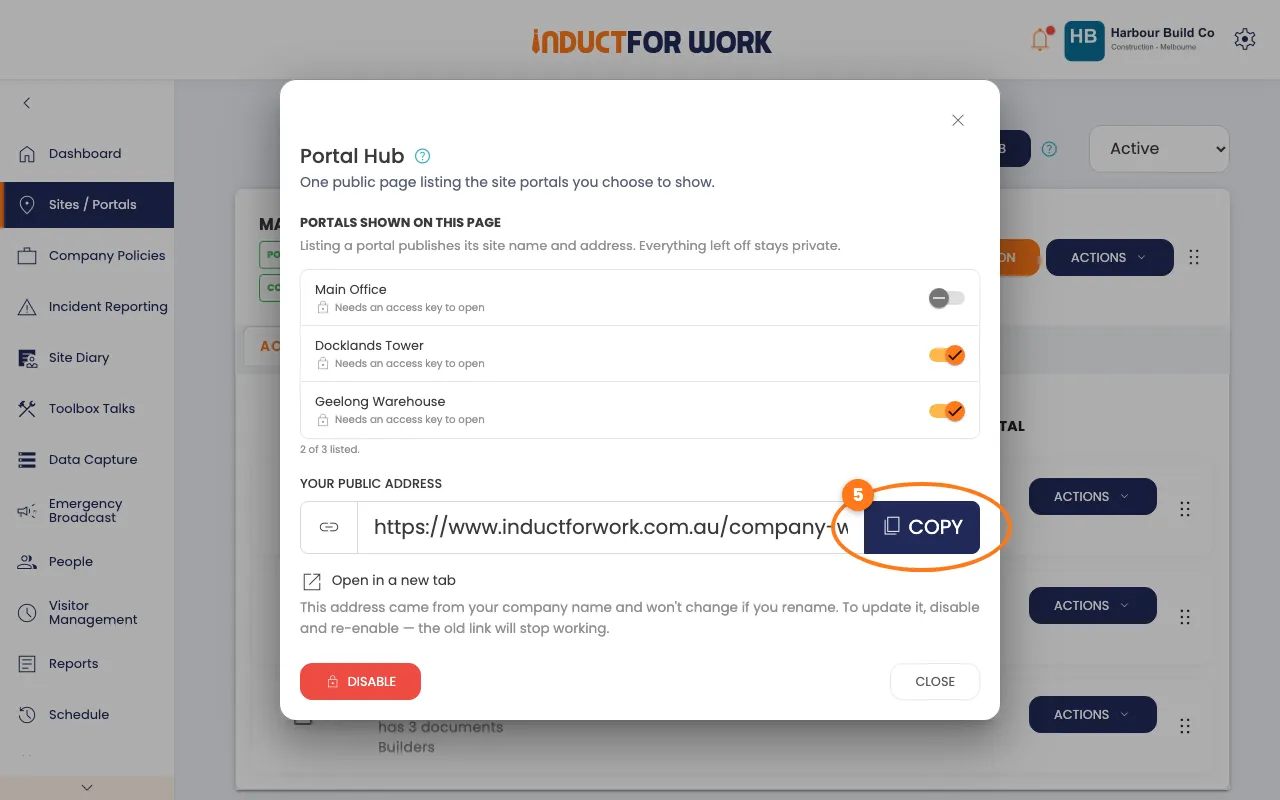
Paste the link into your emails, your website or a QR code poster at the site entrance. Click Open in a new tab to see the page yourself.
Add or remove a portal later
- On Sites / Portals, click Portal Hub, then switch a portal on or off. It saves straight away.
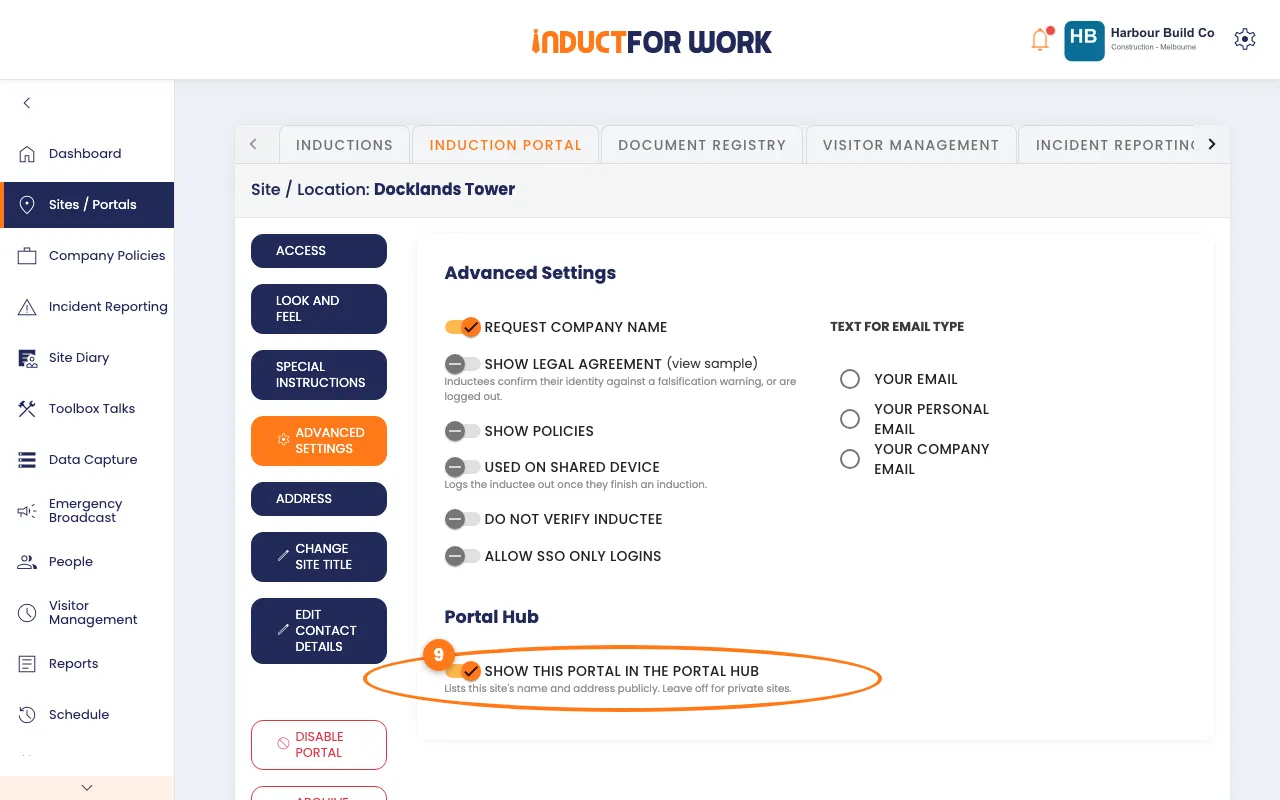
You can also do it from the site itself:
- Click the site’s name, then click the Induction Portal tab.
- Click the navy Advanced Settings button on the left.
- Switch Show this portal in the portal hub on or off.
What people see
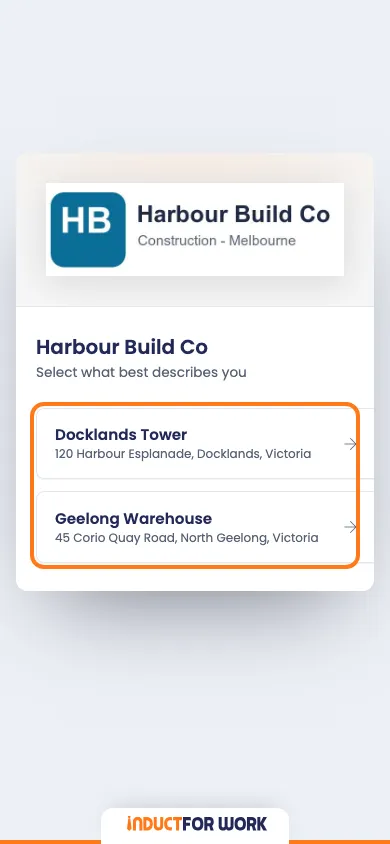
People open your link and see your logo, your company name and a tile for each site you listed, with its address. They tap their site, and its induction portal opens. If that portal has an access key, they type it there.
Turn the Portal Hub off
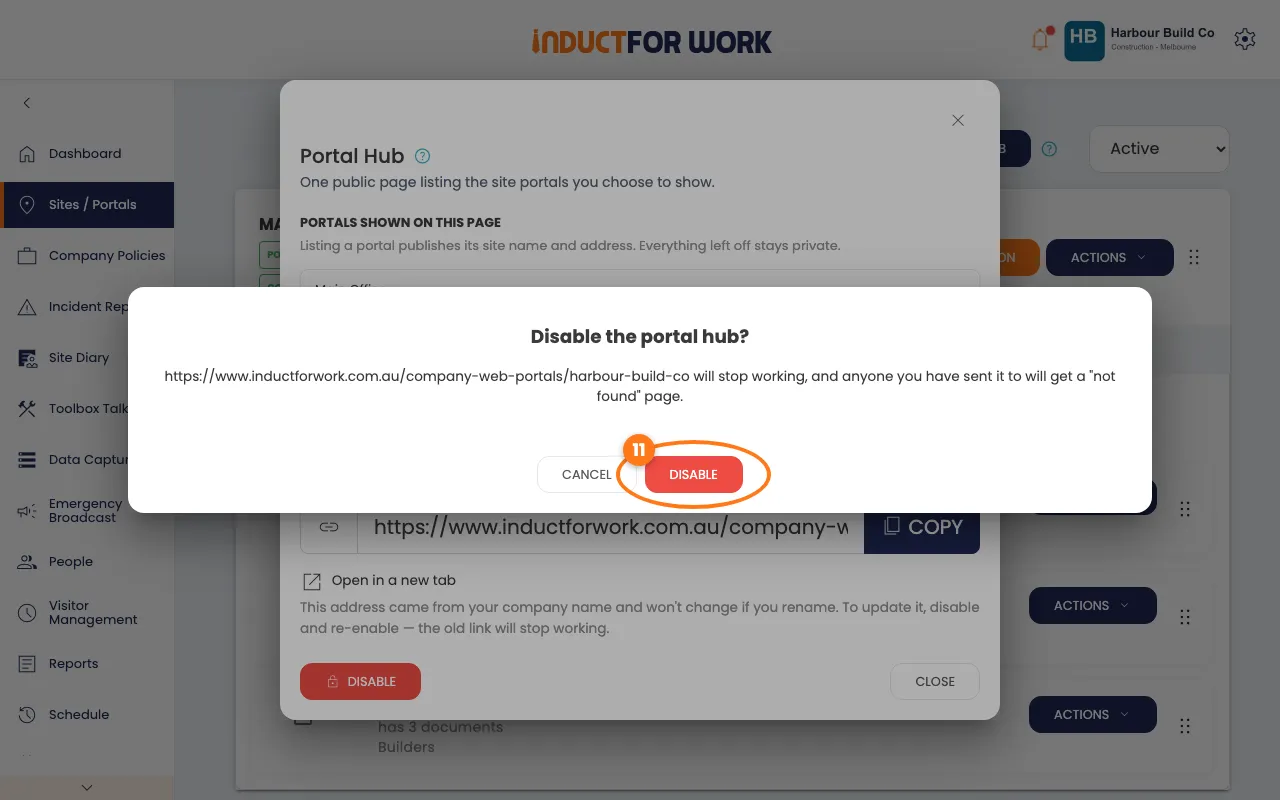
- Click Portal Hub, then click the red Disable button.
- Click Disable to confirm.
Done! What happens next
- Your hub address works straight away. Share it as often as you like.
- New sites stay off the hub until you switch them on.
- Changes you make show the next time someone opens the hub.