
41 Media and Video Packs
What are Media Management and video packs?
Media Management is your company’s video library. Upload your own training videos once, then add them to any page of your online inductions, policies and toolbox talks. It shows where each video is used and how many videos your plan has left. Video packs add 10 more videos whenever you need them.
Rules to know
- Videos per plan: Team 2, Team Plus 5, Team Pro 10, Enterprise 20. The free trial has 5. Lite can link YouTube and Vimeo videos only.
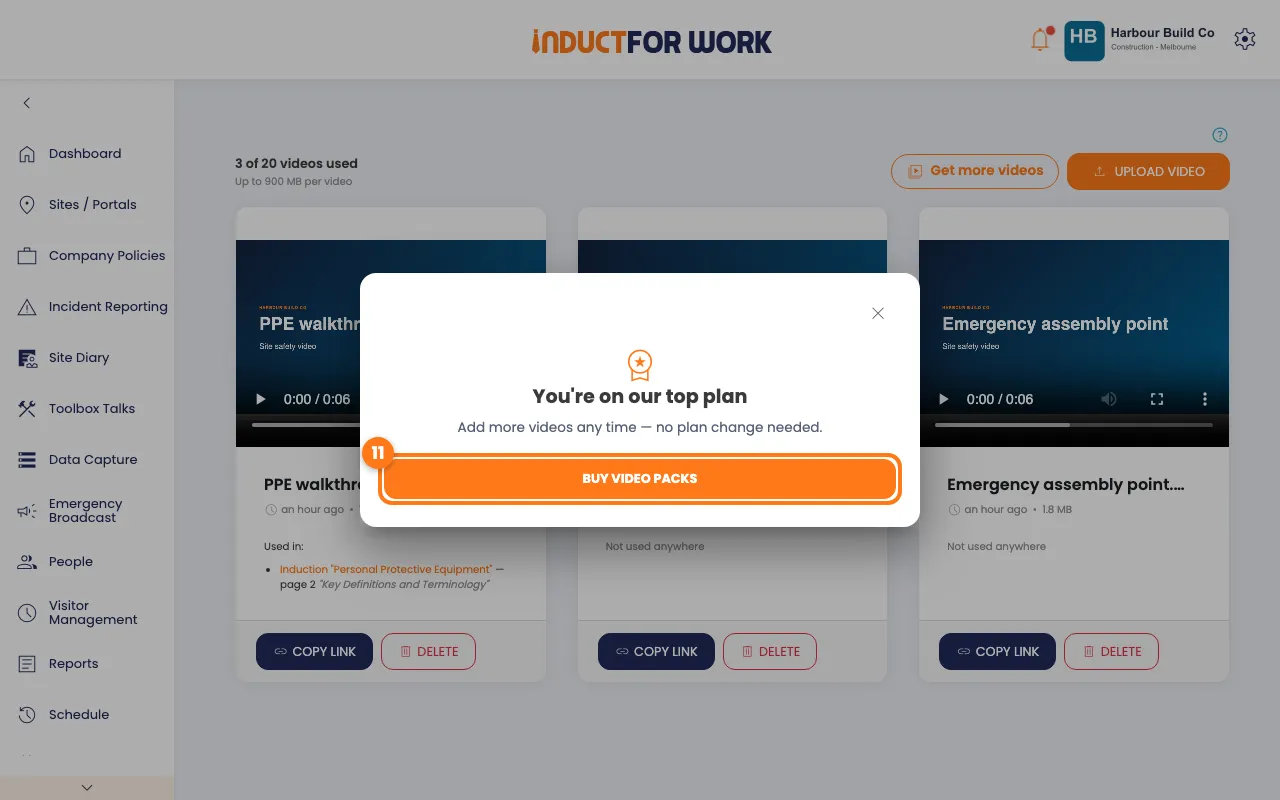
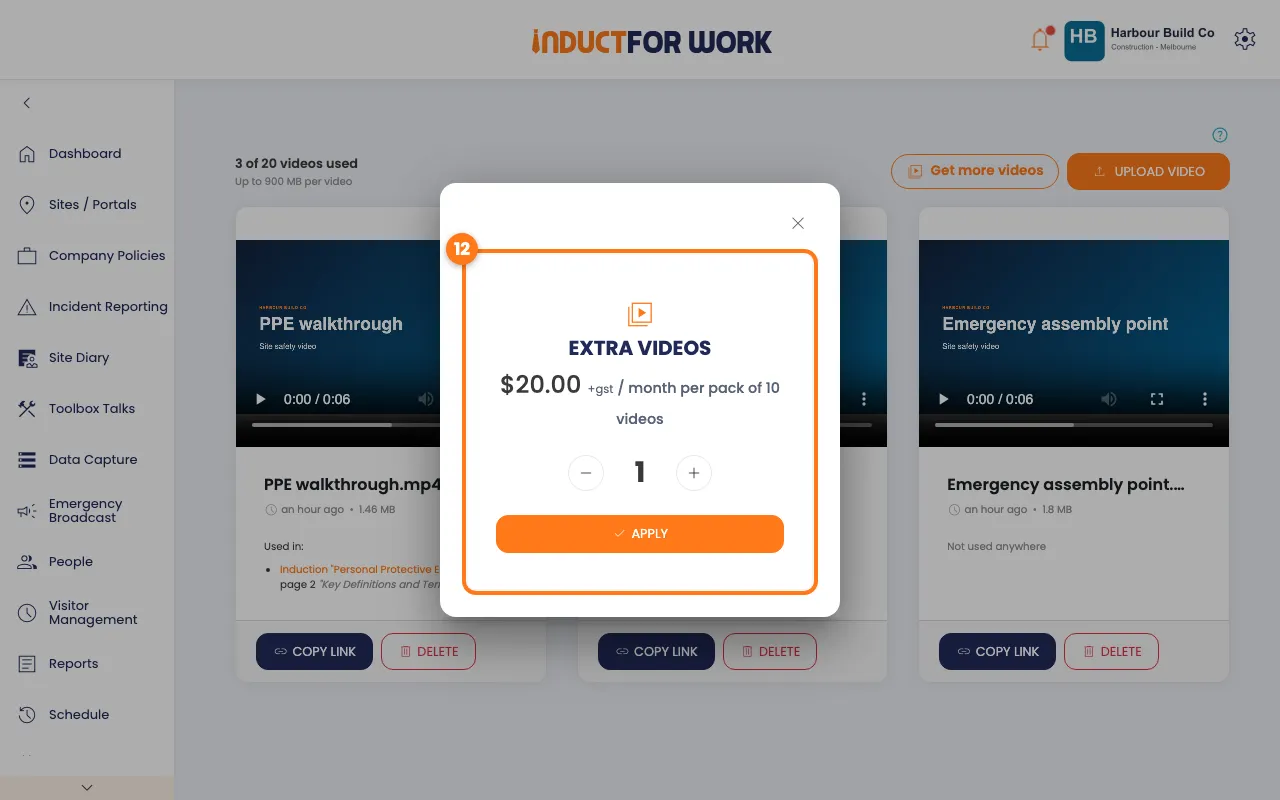
- Video packs: on Team and above. Each pack adds 10 videos for $20 a month, plus GST.
- Size per video: up to 200 MB on Team and the free trial, 300 MB on Team Plus, 600 MB on Team Pro and 900 MB on Enterprise.
- What counts: every video in your library, used or not, plus uploads that are still processing.
- Files: MP4, MOV, AVI, WebM, MKV and most other video files. We turn them into MP4 so they play everywhere.
- Who: the Account owner and Administration Users open Media Management, delete videos and buy packs. Site Administrators and Site Managers can upload from the page editor.
- Deleting is permanent. If the video is still on a page, you’re warned first, and people then see a broken video there.
- Over your limit: after a smaller plan or fewer packs, the extra videos are deleted. Unused videos go first, then ones only in archived content, newest first. We email you the list 3 days before.
- Fewer packs: adding packs works straight away. Removing them takes effect at the end of the billing month.
- Text to speech is counted separately: Lite 5, Team 20, Team Plus 40, Team Pro 70 and Enterprise 100 pages a month. The free trial has 5.
What you’ll need
- An Account owner or Administration User login.
- A plan with video upload: Team or above, or the free trial.
- Your video file, within your plan’s size limit.
Open Media Management
- In the left menu, click Sites / Portals, then click your site’s name.
- On the Inductions tab, click the induction’s name.
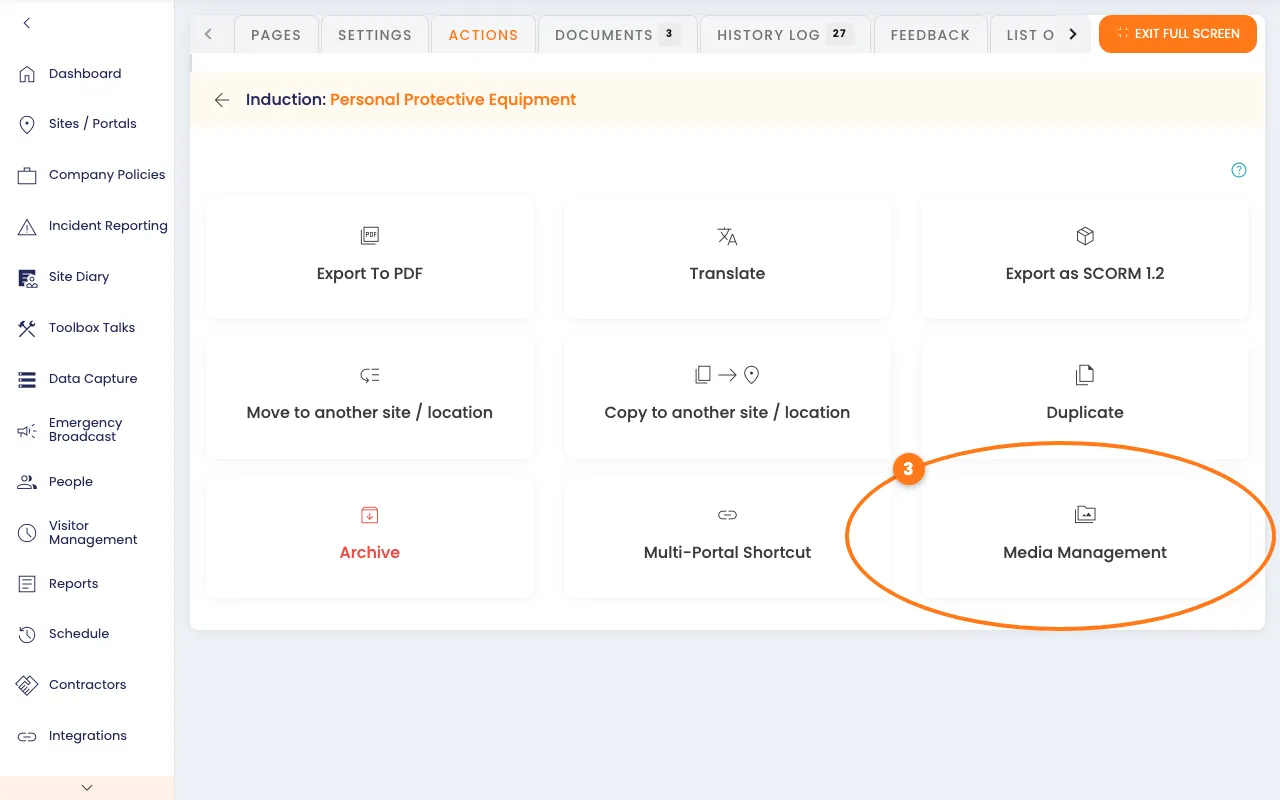
- Click the Actions tab, then click Media Management.
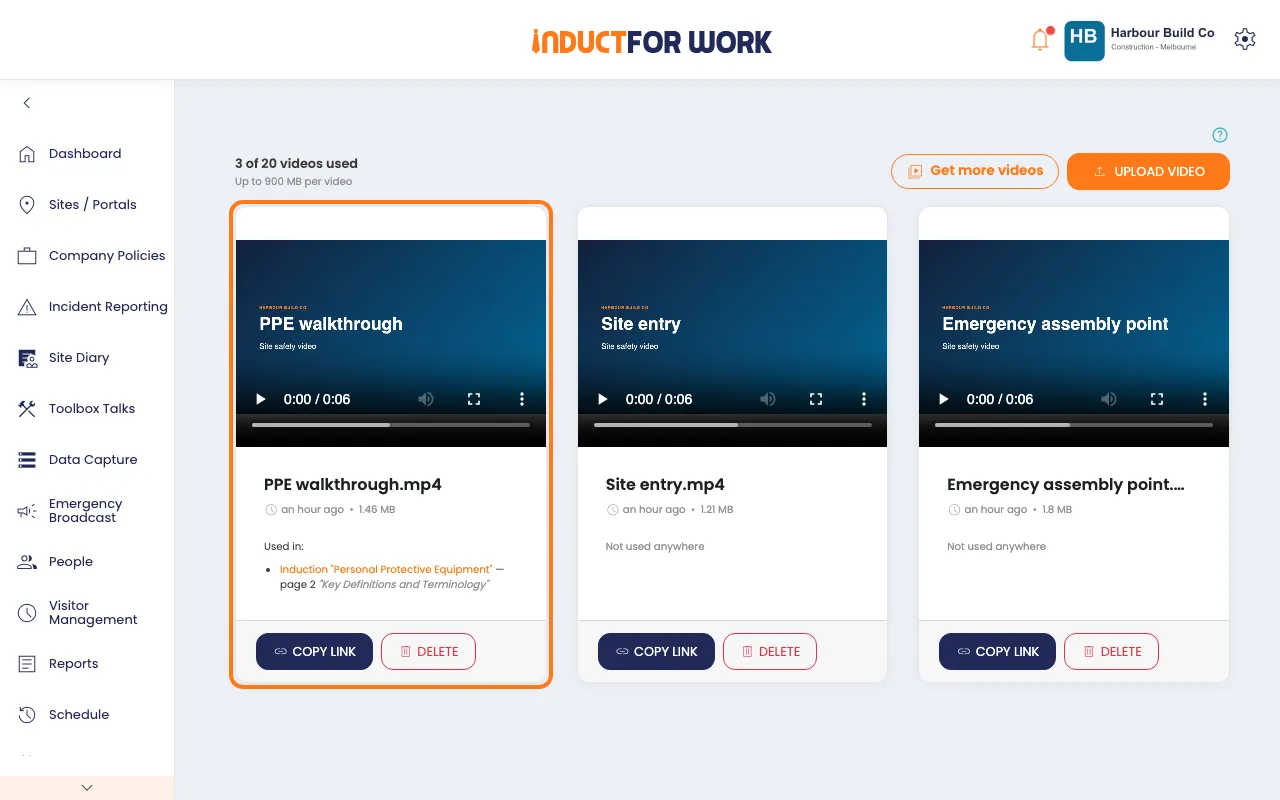
Each video shows as a card. The top left says how many videos you’ve used and the largest size you can upload. Used in lists each induction, policy or toolbox talk page the video is on. Click one to open that page.
Upload a video
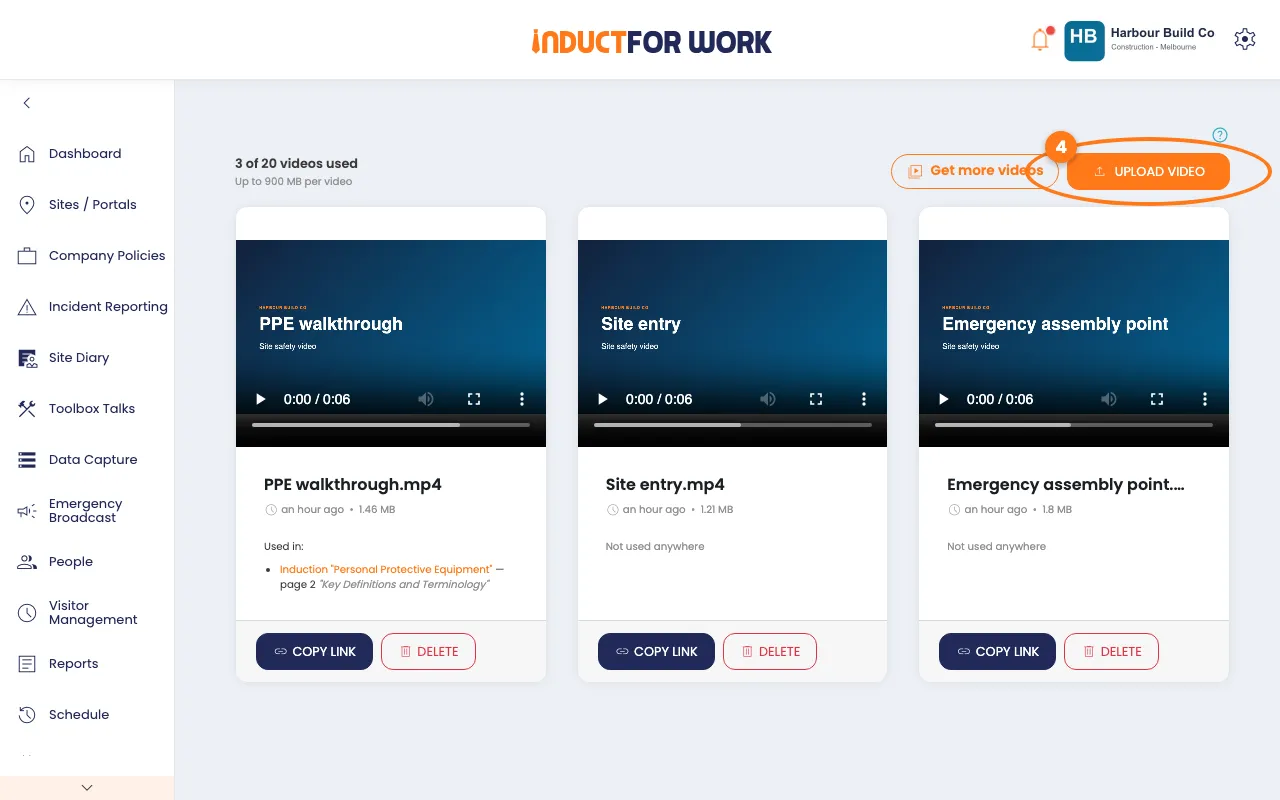
- Click the orange Upload video button, top right.
- Pick the video file on your computer.
The button shows Uploading…. Your video then appears in the list. Long videos can take a few minutes: you’ll see Your video is still processing, and it appears when it’s ready.
Add a video to a page
- In the Induction Editor, click the Video button in the toolbar above the text.
- On the Library tab, click Insert under the video you want.
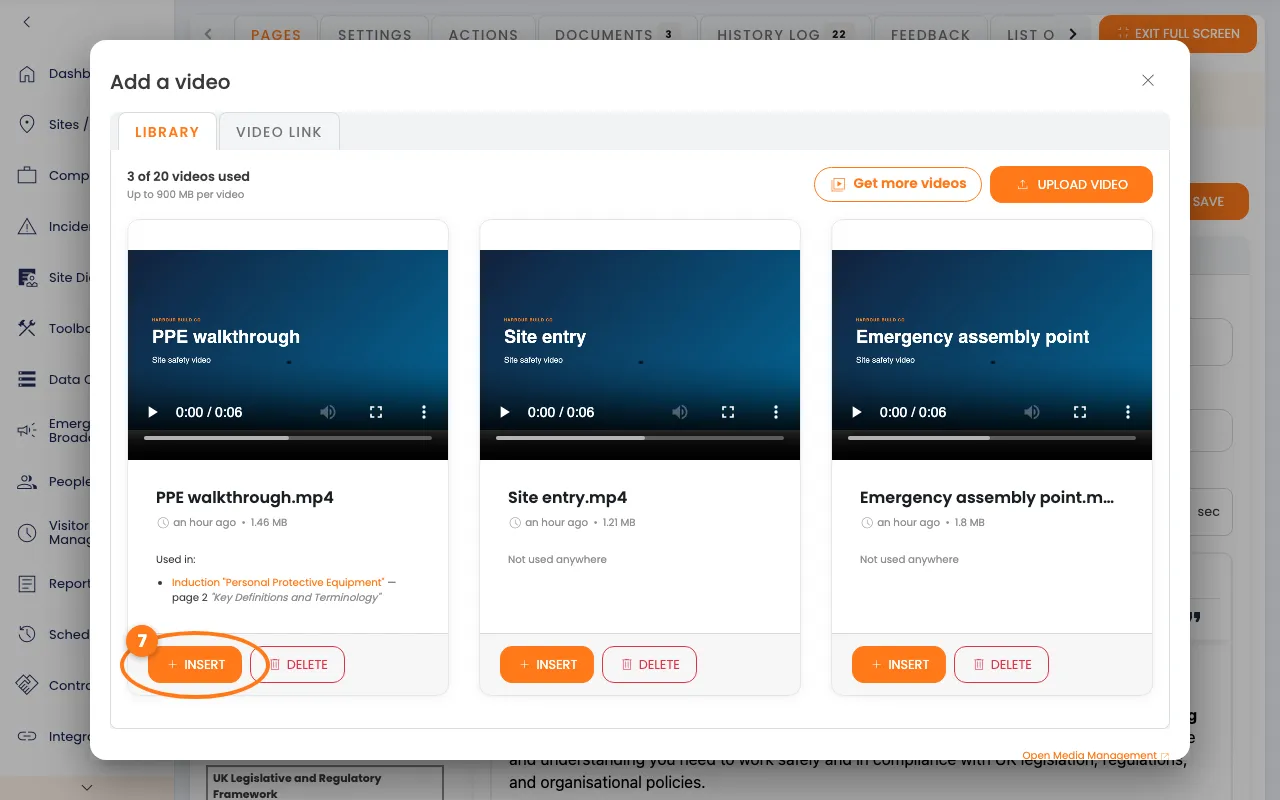
You can also click Upload video here, and the new video goes straight onto the page. To use YouTube or Vimeo instead, see Induction Editor.
Delete a video
- On Media Management, click the red Delete button under the video.
- Read the pop-up box, then click Delete to confirm.
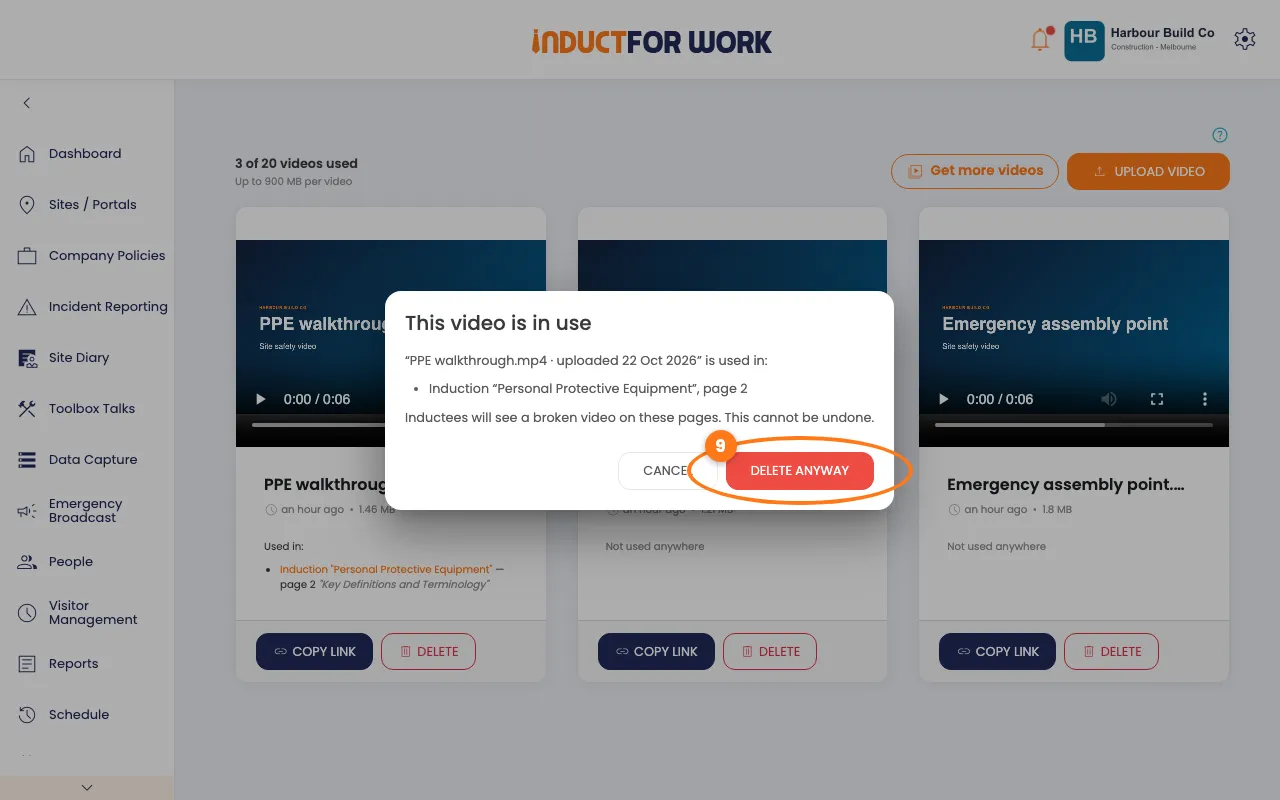
If the video is still on a page, the box lists those pages and the button says Delete anyway. Remove the video from those pages first if you can.
Tip
A yellow box at the top of Media Management lists any pages that still link to a deleted video. Click a page to open it, then remove or replace the video.
Get more videos
- On Media Management, click Get more videos, next to Upload video.
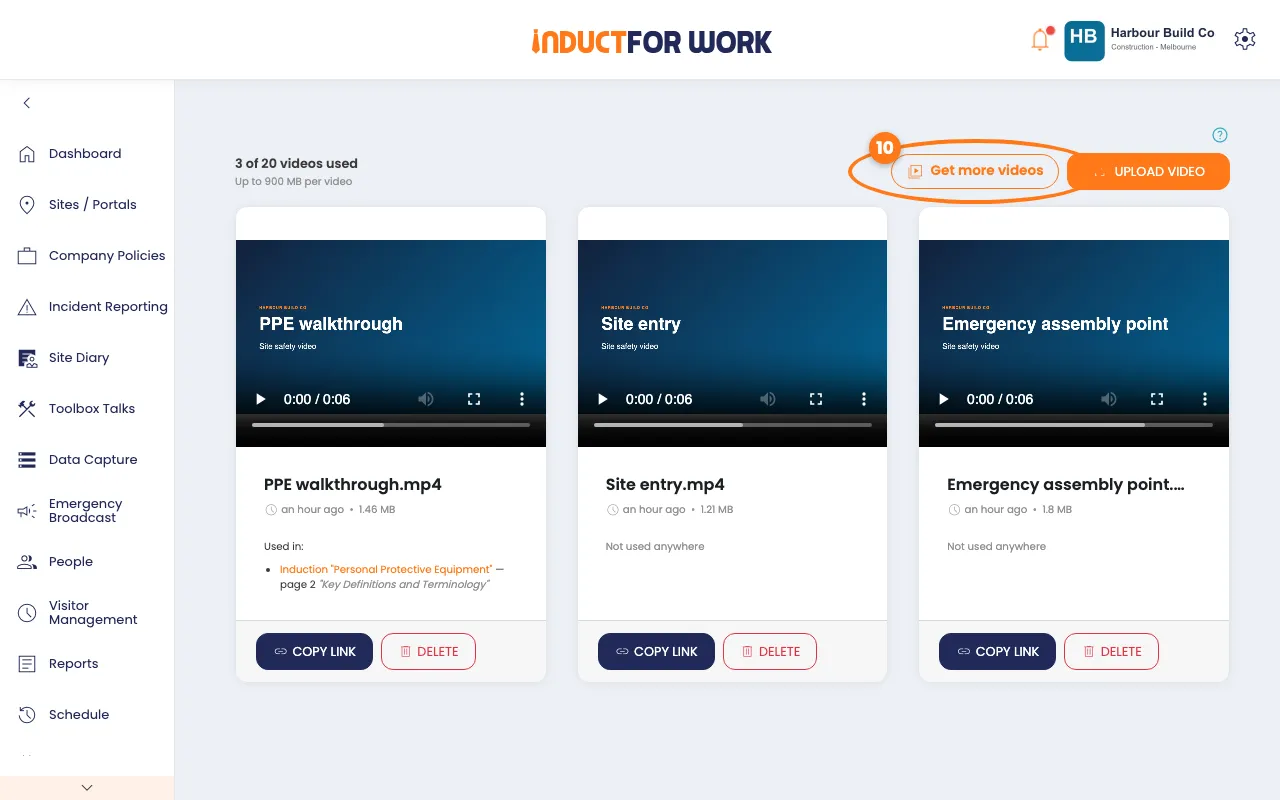
- Click Buy Video Packs. Or click Upgrade to the plan shown, for more videos and more features.
- Click the plus button to pick how many packs, then click the orange Apply button.
You can also click the gear icon, then Account Summary, and click Buy more next to Videos. See Changing Plans.
What people see
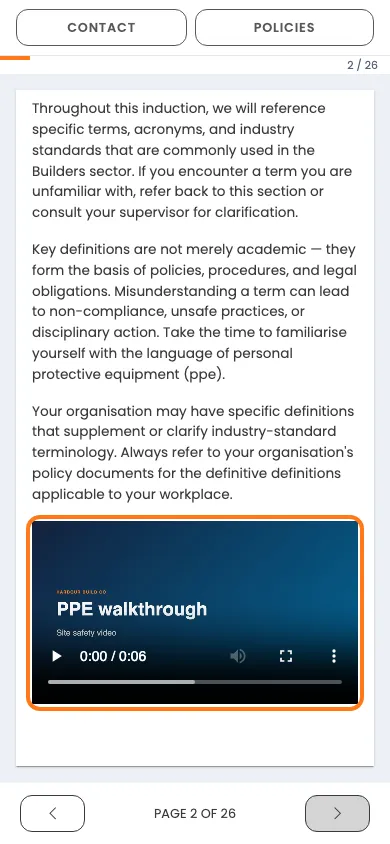
People watch your video on the induction page, on a computer or a phone. If you delete a video that is still on a page, they see a broken video there instead.
Done! What happens next
- Your new video is ready to insert on any induction, policy or toolbox talk page.
- Extra packs count straight away. Account Summary shows how many videos you’ve used.
- Removing packs, or moving to a smaller plan, can delete videos. Check the email we send 3 days before.